
Overview
The Create Organization or Associated Family action lets you automatically create new Organization records or add associated families to an existing Organization directly within your automation.
This keeps your enrollment data organized by ensuring that when information comes in through forms, integrations, or webhooks, the right Organization and Family records are created and linked—no manual data entry required.
What This Action Does
Use this action to:
- Automatically create new Organization records in your automations
- Add associated families to existing Organizations
- Map incoming data dynamically from automation triggers like webhooks or form submissions
- Keep your organization-family relationships clean and accurate
This helps you avoid duplicate entries and maintain an organized structure when managing corporate or multi-family enrollments.
How to Set It Up
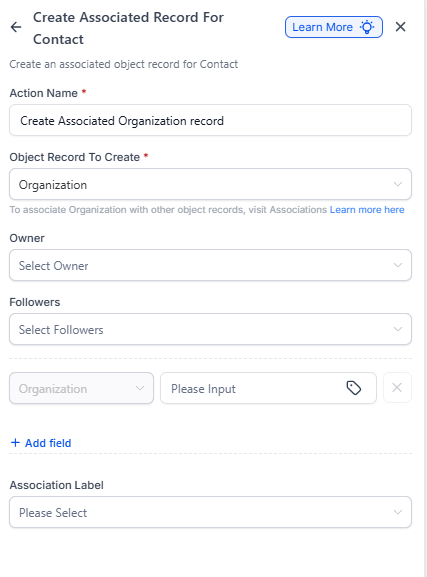
1. Choose What to Create
Select the record type you want to create:
- Organization – creates a new Organization record
- Associated Family – creates a new family record linked to the current Organization in the automation
2. Map Your Fields
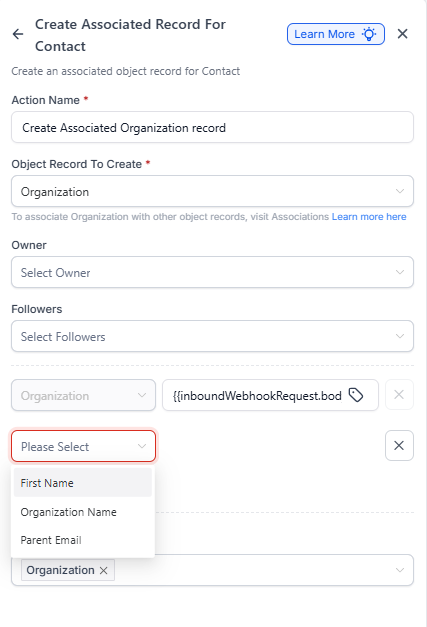
Connect automation data or fixed values to the Organization or Family fields you want to fill in.
Example mappings:
- Organization Name → {{inboundWebhookRequest.body.company}}
- Parent Email → {{inboundWebhookRequest.body.email}}
- First Name → {{inboundWebhookRequest.body.first_name}}
3. Choose Your Data Sources
You can pull values from:
- Inbound webhook data (e.g., {{inboundWebhookRequest.body.organizationName}})
- Organization fields (when the automation trigger is organization-based)
- Fixed text you enter manually
- Custom values from other automation steps
4. Understand How Associations Work
When you select Associated Family, the new family record automatically links to the Organization that triggered the automation. You'll see this relationship under the Organization's "Associated Families" section in your CRM.
5. Add More Fields
Click + Add Field to include additional field mappings. Each row represents one field-value pairing.
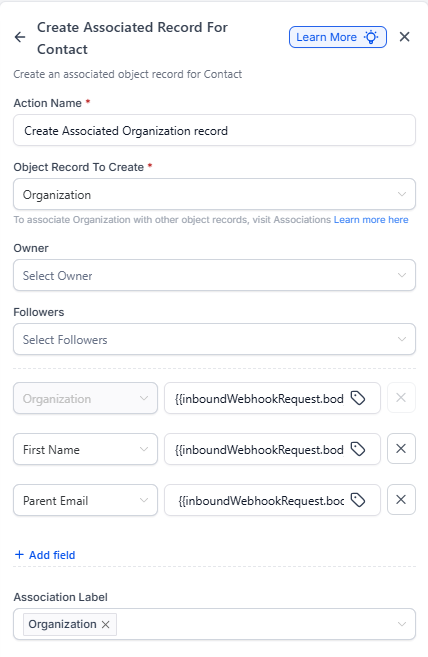
6. Save Your Action
Once your mappings are configured, click Save Action. When the automation runs, it will create the record type you specified and fill in all the fields you mapped.
Real-World Examples
Example 1: Create an Organization from a Corporate Inquiry
Goal: Automatically create an Organization record when a company contacts you about enrolling multiple families.
Setup:
- Automation Type: Organization-based
- Trigger: Inbound Webhook or Form Submission
- Object to Create: Organization
- Field Mappings:
- Organization Name → {{inboundWebhookRequest.body.companyName}}
- Website → {{inboundWebhookRequest.body.domain}}
- Industry → {{inboundWebhookRequest.body.industry}}
What happens: A corporate inquiry comes in through your webhook. The automation triggers and creates a new Organization record in Enrollio with all the details populated automatically.
Example 2: Add a Family to an Existing Organization
Goal: Automatically add a new family to an existing Organization when an employee signs up for enrollment.
Setup:
- Automation Type: Organization-based
- Trigger: Organization Updated or Webhook → Employee enrollment event
- Object to Create: Associated Family
- Field Mappings:
- First Name → {{inboundWebhookRequest.body.firstName}}
- Last Name → {{inboundWebhookRequest.body.lastName}}
- Email → {{inboundWebhookRequest.body.email}}
What happens: Employee enrollment data comes in through a webhook or integration. The automation triggers under the relevant Organization and creates a new family record that's automatically linked to that Organization.
Example 3: Create Organization and Add First Family Together
Goal: For every new Organization created, automatically add their first family contact.
Setup:
Step 1:
- Object to Create: Organization
- Organization Name → {{inboundWebhookRequest.body.company}}
- Website → {{inboundWebhookRequest.body.domain}}
Step 2 (immediately after):
- Object to Create: Associated Family
- Parent Name → {{inboundWebhookRequest.body.contactName}}
- Email → {{inboundWebhookRequest.body.email}}
What happens: The automation creates the Organization record first, then immediately adds the associated family. The family appears under the new Organization's associated families list automatically.