
Overview
The Remove Follower(s) From Enrollment Opportunity action lets you remove specific staff members from an enrollment opportunity's follower list — or clear all followers at once. This keeps your team organized by ensuring only relevant staff stay connected to active enrollments.
This action works best after a Find Enrollment Opportunity step (or in an opportunity-triggered automation), so there's a specific enrollment in context. If no enrollment opportunity exists in the automation, this step is skipped.
When to Use This
Use this action when you need to:
- Remove staff from completed or closed enrollment opportunities
- Clean up follower lists when families move through your enrollment pipeline
- Ensure only the enrollment owner remains as a follower after key milestones
- Automatically unassign team members when an enrollment changes status
How to Set It Up
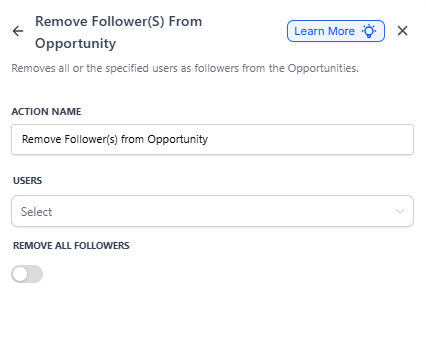
Action Name: Remove Follower(s) From Enrollment Opportunity
Settings You'll Configure
| Field | What It Does | Required? |
|---|---|---|
| Action Name | Give this step a clear label so you can identify it in your automation (e.g., "Remove Team from Closed Enrollment") | Yes |
| Users | Select one or more staff members to remove from the follower list. If someone isn't currently a follower, they're simply skipped. | No (unless Remove All Followers is off) |
| Remove All Followers | Turn this on to remove everyone from the follower list, regardless of who you selected in the Users field. | No |
Important Things to Know
No Enrollment in Context
If your automation hasn't triggered from an enrollment opportunity or hasn't found one via a Find Enrollment Opportunity step, this action will be skipped automatically.
Multiple Opportunities
Even if a Find Enrollment Opportunity step could match several records, only one enrollment (earliest or latest, depending on your settings) will be affected.
Non-Followers
If you specify a staff member who isn't currently following the enrollment opportunity, nothing happens for that person — no error, just skipped.
Remove All vs. Specific Users
When you enable Remove All Followers, Enrollio ignores your specific user selections and removes everyone from the follower list.
Example: Clear Team Followers from Enrolled Families
Let's say you want to clean up follower lists once a family completes enrollment, leaving only the enrollment owner attached to the record.
How the automation works:
- Trigger: An enrollment opportunity moves to the "Enrolled" stage
-
Action: Find Enrollment Opportunity
- Filter: Status is "Enrolled"
-
Action: Remove Follower(s) From Enrollment Opportunity
- Action Name: "Clear Team from Enrolled Families"
- Users: "Admissions Team," "Tour Coordinator"
- Remove All Followers: Disabled (removes only the specified users)
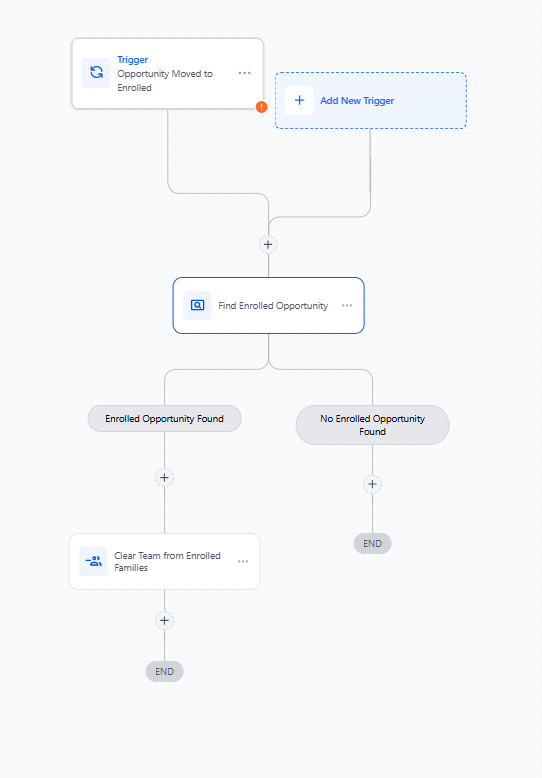
Result: When a family moves to "Enrolled," your admissions team and tour coordinator are automatically removed as followers, leaving just the enrollment owner to manage post-enrollment tasks.
Pro Tip: If you need to remove everyone from the follower list (including the owner), enable the Remove All Followers toggle. This is helpful when archiving old enrollment records or preparing opportunities for transfer to another team.