
Overview
The Remove Owner from Enrollment Opportunity action clears the assigned owner from an enrollment opportunity, leaving it unassigned. This is helpful when you need to redistribute leads, reset ownership after an enrollment is completed, or prepare opportunities for reassignment.
When to Use This Action
Use this action in your automations when you need to:
- Clear ownership when an enrollment is finalized
- Redistribute prospective families among your team
- Reset opportunities for administrative review
- Prepare enrollment opportunities for bulk reassignment
How It Works
When triggered, this action removes the current owner from the enrollment opportunity. The opportunity becomes unassigned until someone manually assigns it or another automation step reassigns ownership.
If your Enrollio settings sync parent/family owners with enrollment opportunity owners, removing the opportunity owner may also remove the parent/family owner—depending on your sync configuration.
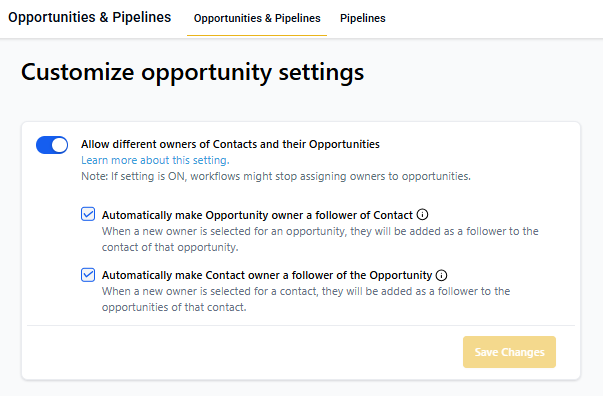
Setting Up the Action
Here's what you'll configure:
Action Name
Give this step a clear name so you can identify it in your automation. Example: "Unassign Completed Enrollment" or "Clear Owner for Redistribution."
Enrollment Opportunity to Unassign
The action automatically works with:
- The enrollment opportunity that triggered the automation, OR
- The opportunity found by a preceding Find Enrollment Opportunity step
If both exist, the Find Enrollment Opportunity result takes priority.
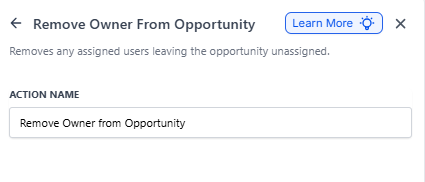
Owner Sync Settings
How this action affects ownership depends on your Enrollio settings:
If Sync is Enabled
When you remove the enrollment opportunity owner, the parent/family owner may also be removed automatically. This keeps your records in sync but means both records become unassigned.
If Sync is Disabled
Only the enrollment opportunity owner is removed. The parent/family record keeps its assigned owner.
Edge Cases to Know
No Opportunity in Context
If your automation wasn't triggered by an enrollment opportunity and there's no Find Enrollment Opportunity step before this action, nothing happens. The action is skipped.
Multiple Opportunities
Even if your Find Enrollment Opportunity step could match several records, only one opportunity is updated (based on your Find settings). The rest remain unchanged.
Already Unassigned
If the enrollment opportunity already has no owner, this action completes successfully but makes no actual changes.
Example Automation
Here's a common scenario for childcare centers:
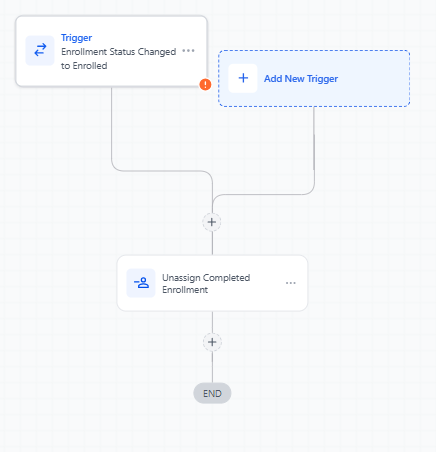
Scenario: Clear Ownership After Enrollment
You want to unassign enrollment opportunities once a family completes enrollment, so your admin team can review and archive them.
Setup:
- Trigger: Enrollment opportunity status changes to "Enrolled"
-
Action: Remove Owner from Enrollment Opportunity
- Action Name: "Unassign Completed Enrollment"
- Result: The opportunity becomes unassigned and ready for administrative processing
If you have owner sync enabled, the parent/family record may also become unassigned, depending on your configuration.
Common Questions
Will this affect the parent/family owner?
It depends on your sync settings. If parent/family and enrollment opportunity owners are synced, both may be cleared. If they're not synced, only the opportunity owner is removed.
Can I use this with waitlisted families?
Yes! This action works with any enrollment opportunity, regardless of status—active, waitlisted, enrolled, or archived.
What happens if I remove an owner by mistake?
You can manually reassign the opportunity from the Enrollment Opportunities page, or create another automation to reassign ownership based on your criteria.