
As families move through your enrollment process, you'll need to update their information, add notes, and adjust their status. This guide shows you how to edit enrollment opportunities in Enrollio so you can keep your pipeline current and organized.
Step 1: Access Your Enrollment Opportunities
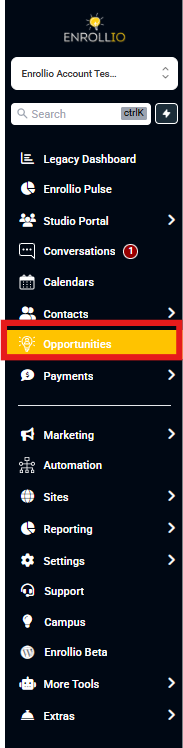
Log in to your Enrollio account and click Opportunities in the sidebar menu.
Step 2: Find the Opportunity You Want to Edit
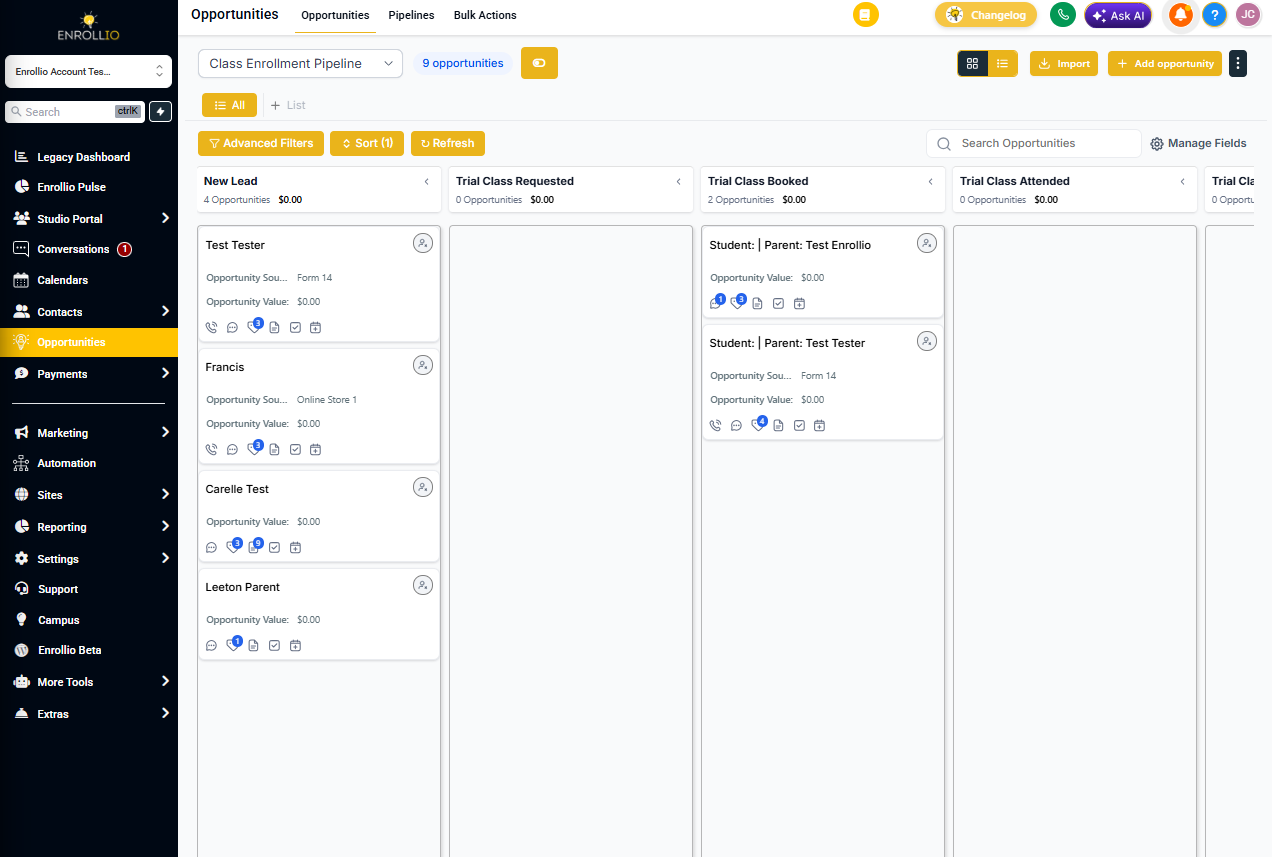
Browse your list of enrollment opportunities or use the search filters to find a specific family. Click on the family name or opportunity title to open the details page.
Step 3: Update Opportunity Details
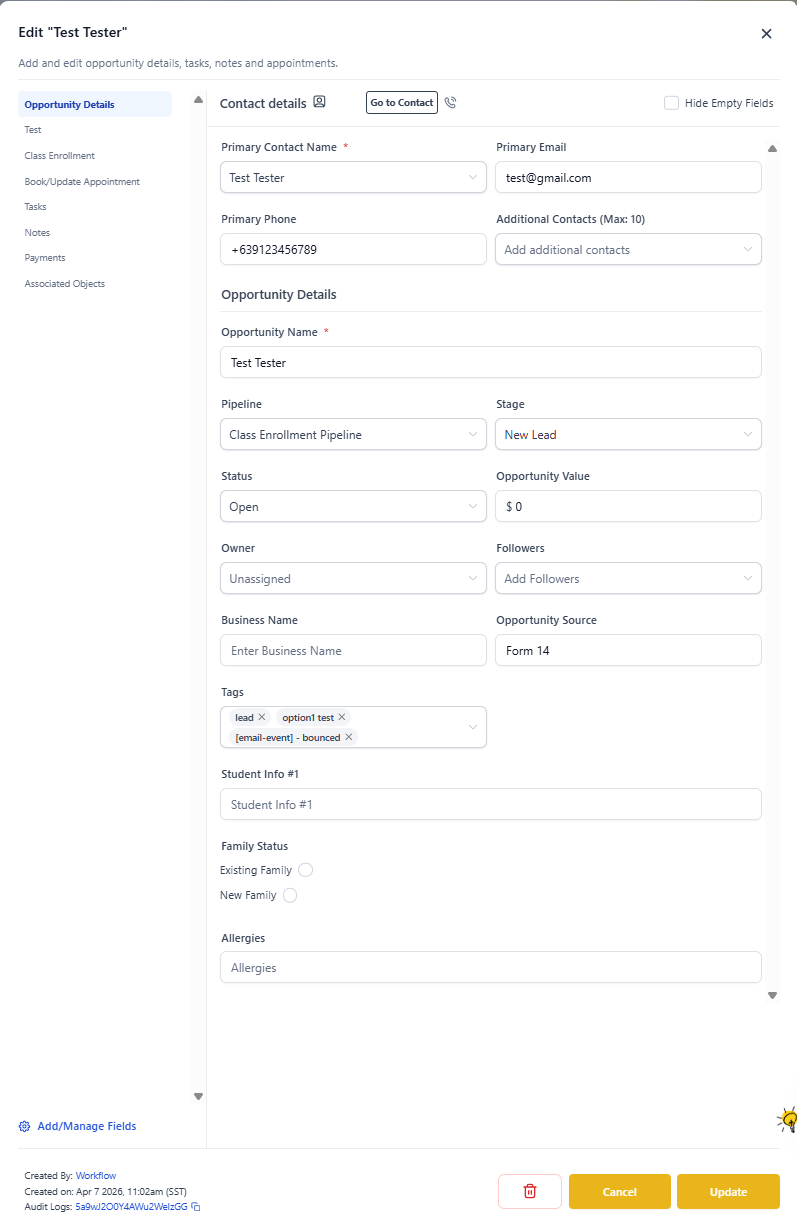
On the opportunity details page, you'll see fields for all the key information about this enrollment.
You can update:
- Parent/family contact information
- Enrollment value (tuition amount)
- Enrollment source (how they found you)
- Pipeline stage (inquiry, tour scheduled, enrolled, etc.)
- Opportunity owner (which staff member is managing this enrollment)
- Tags and custom fields
Step 4: Add Notes and Attachments
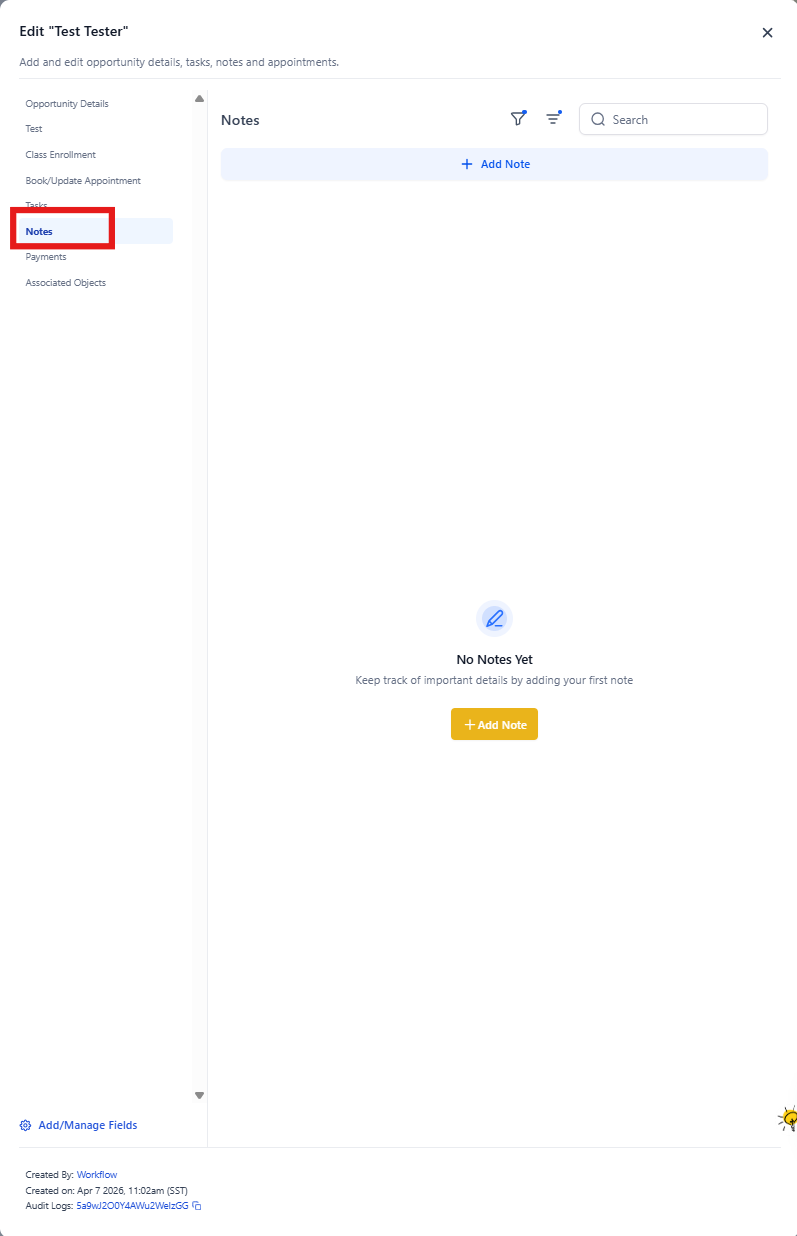
Click Notes in the left sidebar to add information about conversations, tour visits, or special requests from the family.
Pro tip: Notes you add here automatically appear on the family's contact record too, so your whole team stays informed.
Step 5: Set Tasks and Reminders
Keep your enrollment process moving by adding tasks and reminders directly from the opportunity.
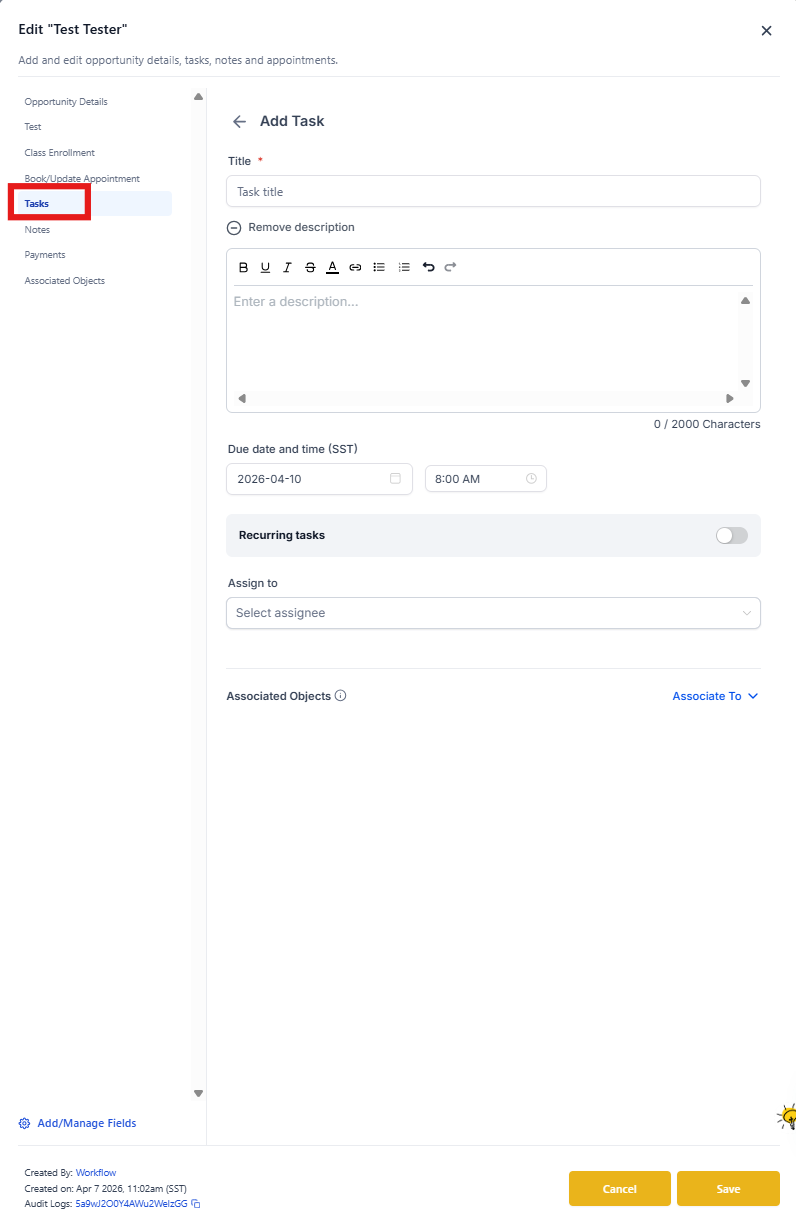
Click Tasks in the sidebar to:
- Assign follow-up tasks to yourself or team members
- Set due dates and priority levels
- Schedule appointments (like tours or orientation meetings)
Tasks and appointments added here will also show up on the family's contact record.
Step 6: Move Through Pipeline Stages
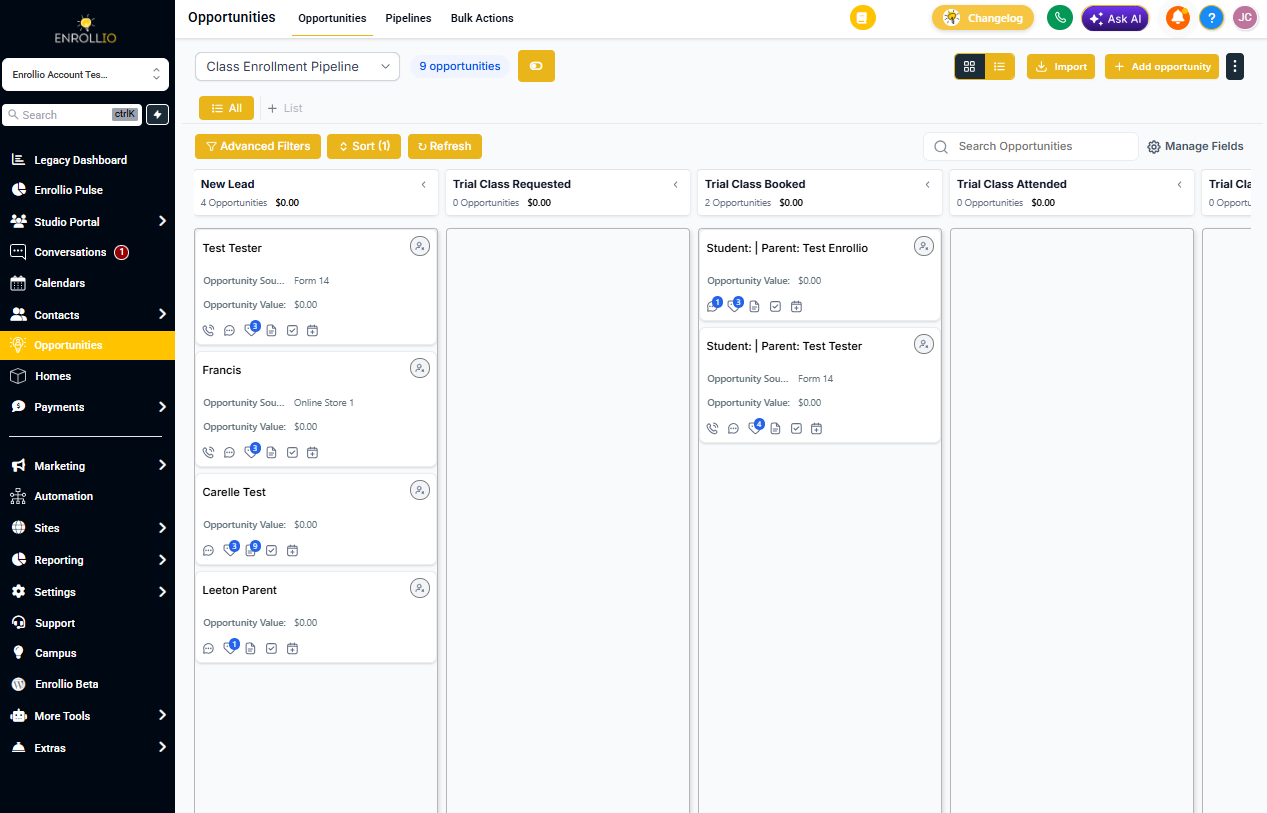
Update the pipeline stage to reflect where this family is in your enrollment process. As they progress from initial inquiry to enrolled, move the opportunity through your pipeline stages.
Step 7: Update Opportunity Status
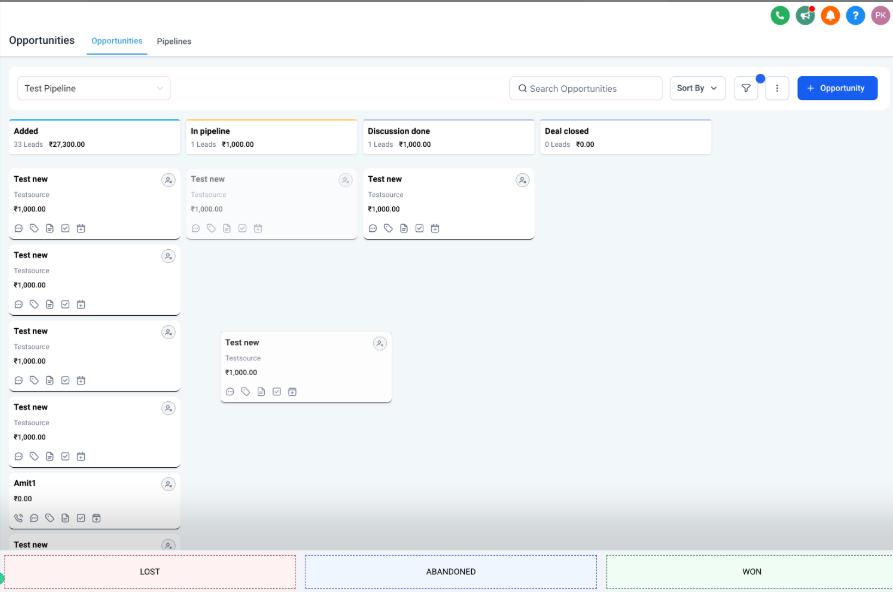
At the bottom of the opportunity, drag and drop to change the status:
- Open — Active enrollment in progress (this is the default)
- Won — Family enrolled
- Lost — Family chose another childcare provider
- Abandoned — Family stopped responding
When you mark an opportunity as Lost, Enrollio prompts you to add a reason. This helps you track why families choose other options and improve your enrollment process.
Related Articles:
- Creating an Enrollment Opportunity
- Custom Fields for Opportunities
- Tracking Changes in Opportunities