
Overview
The Assign Owner to Enrollment Opportunity action lets you automatically assign ownership of an enrollment opportunity in your pipeline. This keeps opportunity ownership aligned with parent contact ownership as families move through your enrollment process.
This action ensures each enrollment opportunity has a designated staff member managing the family's progress through your pipeline.
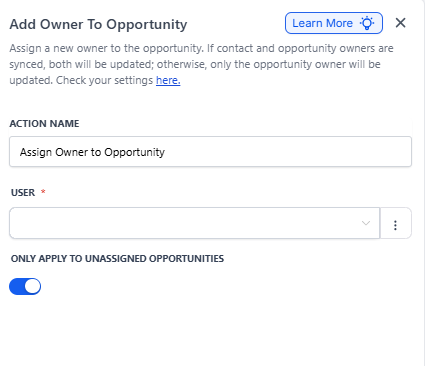
Action Name
"Assign Owner to Enrollment Opportunity"
This is the label you'll see in the automation builder when you add this action.
How It Works
When triggered, this action assigns the staff member you select as the new owner of the enrollment opportunity. If your platform settings sync parent contact owners with opportunity owners, the parent contact's ownership updates automatically as well.
You can optionally apply this assignment only to opportunities that currently have no owner. Otherwise, any existing owner will be replaced.
Important: This action requires an enrollment opportunity in context—either because the automation was triggered by an opportunity event or because a prior Find Opportunity step located one. If no opportunity exists in context, this action does nothing.
Action Settings
| Setting | Description | Required |
|---|---|---|
| Action Name | A unique label for identifying this step in your automation | Yes |
| Staff Member | The staff member to assign as the opportunity's owner (select from your account's staff list) | Yes |
| Only Apply to Unassigned Opportunities | When enabled, only assigns ownership to opportunities that currently have no owner. When disabled, replaces any existing owner. | No |
Sync Settings
If parent and opportunity owners are synced (configured in your Enrollment Opportunity Settings), changing the opportunity owner here also changes the parent contact's owner.
If parent and opportunity owners are not synced, only the opportunity owner changes.
Edge Cases to Know
- Multiple Opportunities: Even if a Find Opportunity step finds multiple matches, only one (earliest or latest as selected in Find Opportunity) is updated.
- No Opportunity in Context: If no opportunity is found or triggered, the action is skipped.
Example: Assigning High-Value Enrollments
You want to automatically assign high-value enrollment opportunities (families interested in full-time care or multiple children) to your enrollment director for priority follow-up.
Trigger: A prospective family submits an enrollment inquiry form indicating full-time care
Step 1: Find Opportunity
Filters: Opportunity Value is greater than $1,500/month
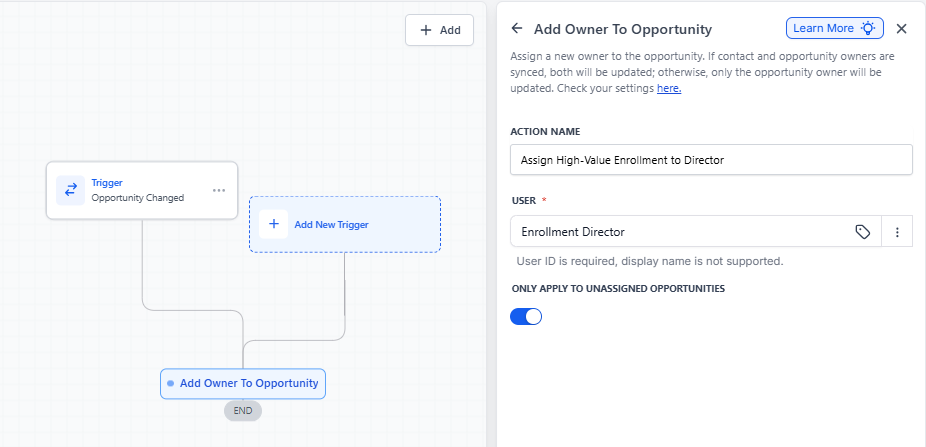
Step 2: Assign Owner to Enrollment Opportunity
Action Name: "Assign High-Value Enrollment to Director"
Staff Member: "Enrollment Director"
Only Apply to Unassigned Opportunities: Disabled (to override any existing owner)
With this setup, all enrollment opportunities matching your high-value criteria are automatically assigned to your Enrollment Director, ensuring immediate attention. If your system syncs parent and opportunity owners, the parent contact owner updates accordingly.
Frequently Asked Questions
Does this action replace the current opportunity owner?
Yes, unless you enable "Only Apply to Unassigned Opportunities." When that toggle is off, this action replaces the current owner with your selected staff member—even if someone else is already assigned.
What if I want to assign a different staff member manually?
Use the Update Enrollment Opportunity action instead. That action lets you manually select a specific staff member to assign to the opportunity.
Will staff members see the opportunity after being assigned?
Only if their permissions allow it. If your account enforces "Only Assigned Data" rules, staff members need permission to access the enrollment pipeline to view or manage the record.
Pro Tip: Combine this action with parent tags to create assignment rules based on enrollment type, location, or program interest. For example, automatically assign infant enrollments to your infant room director.
Related Articles
- Automation Action - Update Enrollment Opportunity
- Automation Action - Find Enrollment Opportunity
- How to Decouple Owners for Parents and Enrollment Opportunities
- Staff Permissions and Assigned Data