
Overview
Use the "Remove Parent Follower" automation action to automatically remove followers from a parent or family profile. This keeps your team assignments clean and ensures the right staff members stay connected to each family.
What This Action Does
The Remove Parent Follower action lets you remove one or more followers from a parent's profile. You can remove specific team members or clear all followers at once.
How to Set It Up
Step 1: Add the Action
In your automation builder, click the plus icon to add an action. Select "Remove Parent Follower" from the Parent/Family category.
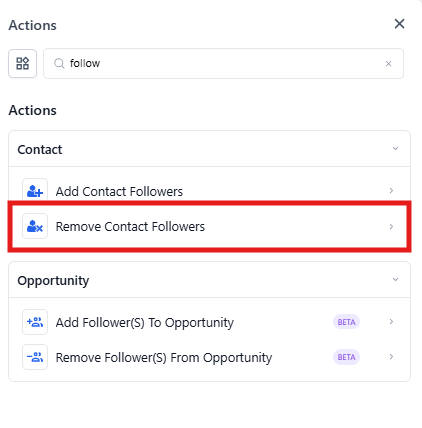
Step 2: Choose Which Followers to Remove
You have two options:
- Remove all followers: Toggle this option on to clear all followers from the parent profile
- Remove specific followers: Leave the toggle off and select individual team members from the dropdown list
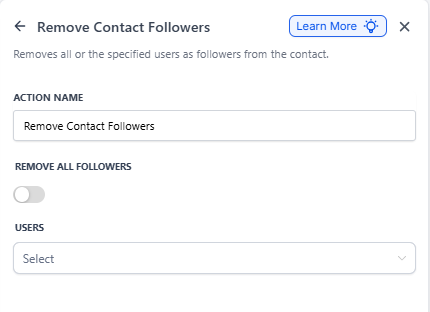
Example: Removing Followers After Enrollment Closes
Here's how a childcare center might use this action when an enrollment opportunity is marked as won or lost:
Automation Name: Clean Up Followers After Enrollment Decision
Trigger: Enrollment Opportunity Status Changed to "Closed"
Action: Remove Parent Follower — removes the assigned enrollment coordinator who was following the family during the enrollment process
This keeps your team's follower lists focused on active enrollments and tours.