
Overview
The GPT History feature lets your automations remember past conversations with families. This means follow-up messages can reference earlier interactions, making your communication feel more personal and relevant.
For example, if a parent asked about toddler programs last week, your next automated message can pick up where you left off — without making them repeat themselves.
Action Name
GPT Powered by OpenAI
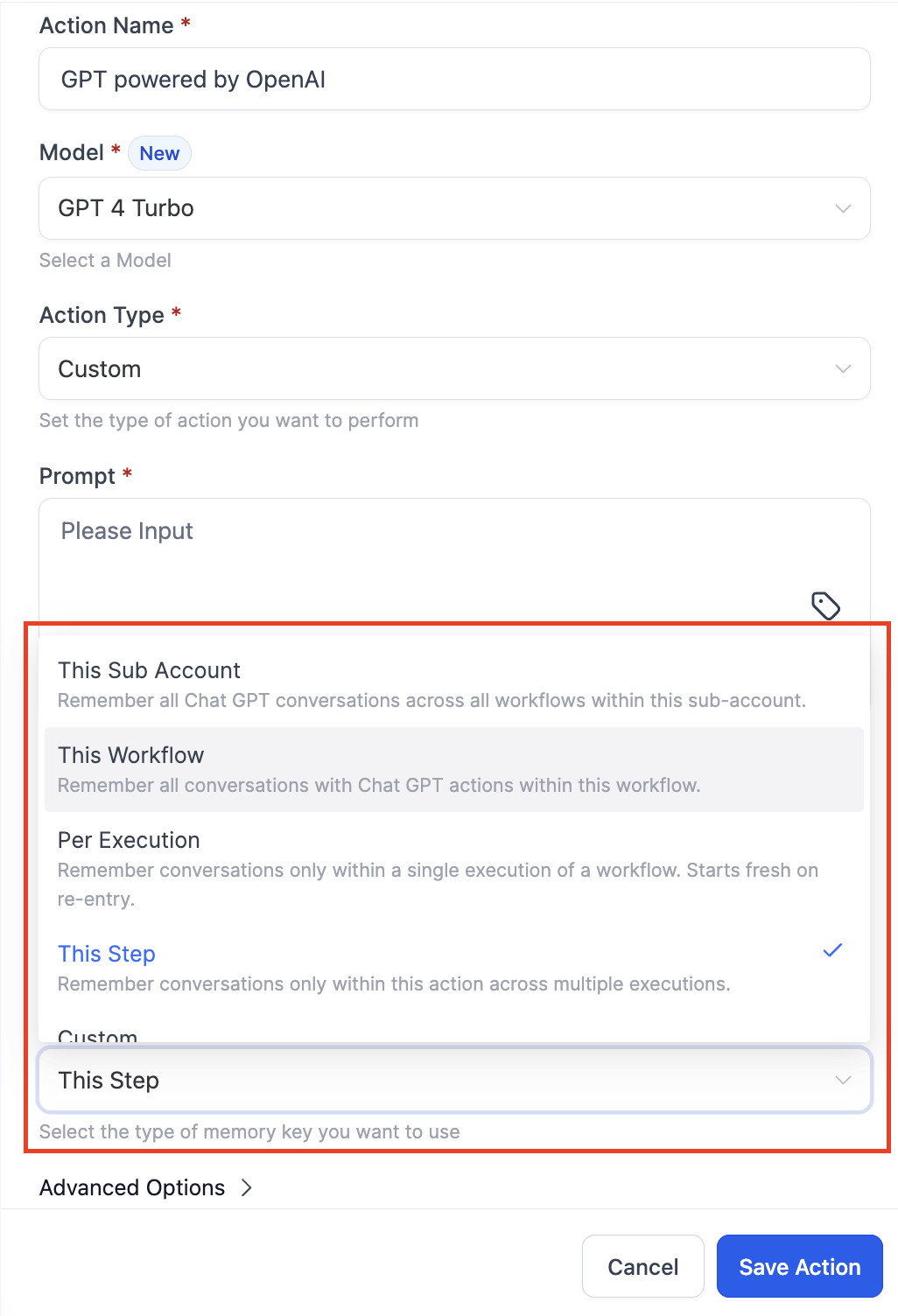
Types of History
You can choose how your automations remember conversations. Here are your five options:
Client Account
Remembers all GPT conversations across all automations in your account where History type is set to "Client Account".
This Automation
Remembers all GPT conversations only within this specific automation where History type is set to "This Automation".
Per Execution
Remembers conversations only for a single run of the automation. Once that run completes, the history is cleared.
This Step
Remembers conversations only for this specific action, even across multiple automation runs.
Custom
Create your own history type that you can reuse across different automations. This gives you full control over what gets remembered and where.
How to Set It Up
- Enable the GPT History option in Labs
- Add a "GPT Powered By OpenAI" action to your automation
- Turn on "Enable history"
- Select your preferred "History for" type from the dropdown
- Add system instructions if needed
Advanced Options
System Instructions
Add specific rules or context to help the AI understand your childcare center better. For example, you might include your enrollment process steps, age ranges you serve, or your center's unique programs.
Exclude Instructions from History
Turn this on if you don't want your system instructions saved as part of the conversation history.
Exclude Responses from History
Use this when the AI output is analytical (like sentiment scores or yes/no flags) rather than conversational. You don't want "positive" or "negative" cluttering up the conversation memory.
Important Notes
- When you enable History, Enrollio automatically selects GPT-4 models for better accuracy
- History only works with the "Custom" action type
- Each family has their own separate conversation history — no cross-contamination
Real-World Example: Following Up After Tours
Scenario
Stay in touch with families after their tour, answer follow-up questions, and guide them toward enrollment — all while remembering what you've already discussed.
Trigger
Tour Completed — Starts when a family finishes their center tour
Automation Steps
1. GPT Action: Initial Follow-Up
Generate a personalized thank-you email that references specific details from the tour notes. Enable History so future messages remember this conversation.
2. Email Action
Send the AI-generated follow-up to the family.
3. Wait
Wait 2 days to see if the family replies.
4. If/Else Branch
Check if they responded:
- Yes: Use another GPT action (with History enabled) to craft a response that acknowledges their questions and moves them closer to enrollment
- No: Send a gentle reminder about open spots or upcoming enrollment deadlines
Outcome
Families feel heard and understood because your follow-ups reference earlier conversations. This personal touch increases enrollment rates and reduces back-and-forth.