
What is the DND Parent/Family Action?
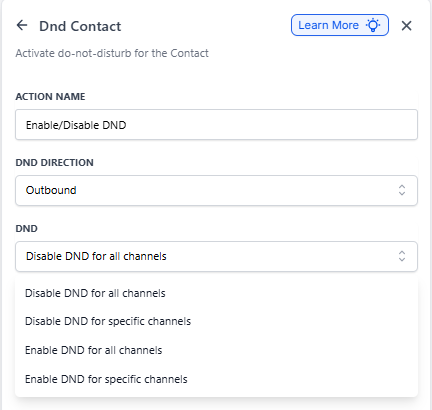
The "DND Parent/Family" action lets you control Do-Not-Disturb settings for individual families in your center. You can enable or disable DND across all communication channels or specific ones, for either incoming or outgoing messages.
Use this action when families request not to be contacted, when you need to pause automated messages temporarily, or to block unwanted incoming calls and texts from specific numbers.
How the Action Works
The DND action gives you several options:
- Set DND direction to Inbound (messages coming to you) or Outbound (messages going to families)
- Enable DND for all communication channels at once
- Enable DND for specific channels only (SMS, phone, email)
- Disable DND for all channels
- Disable DND for specific channels
This flexibility helps you respect family communication preferences while maintaining appropriate boundaries.
Setting Up the DND Action
Follow these steps to add DND control to your automation:
- Navigate to Automations from your main menu
- Create a new automation or open an existing one
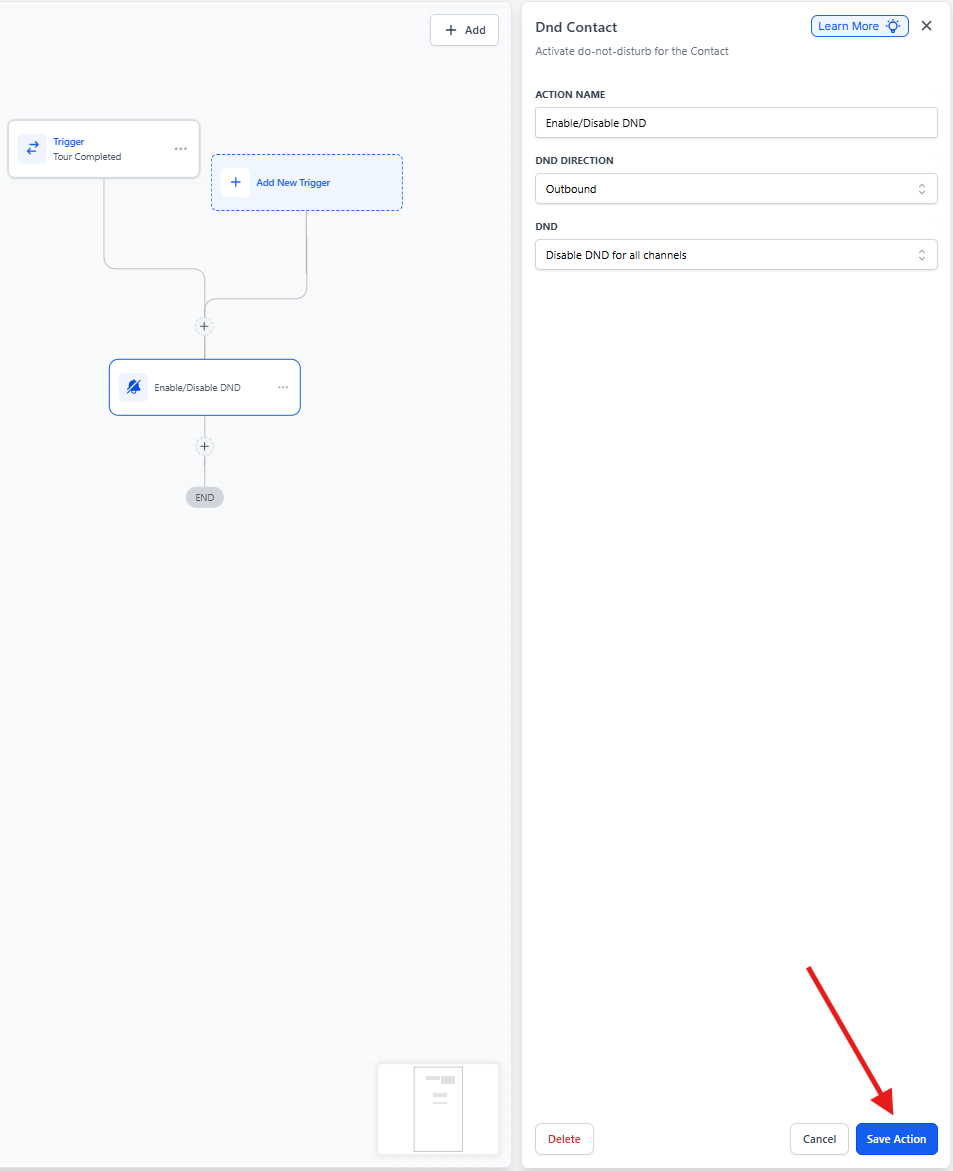
- Click + Add New Trigger to add your starting trigger (like "Tour Completed" or "Parent Opted Out")
- Click the + button to add an action
- Search for "Enable/Disable DND" and select it
- Give your action a descriptive name
- Choose DND Direction: Inbound or Outbound
- Select whether to Enable or Disable DND
- Choose Selected Channels or All Channels
- Click Save and Publish your automation
Common Use Cases
Respecting Parent Opt-Out Preferences
Scenario: A parent opts out of promotional texts but still wants tour reminders and enrollment updates via email.
Setup:
- Trigger: Parent opts out of SMS
- Action: Enable DND for SMS only
- Result: The family stops receiving marketing texts but continues getting important emails
This approach honors parent preferences and maintains your relationship by avoiding unwanted messages.
Blocking Spam Contacts
Scenario: You're receiving spam calls or texts that create junk contacts in your system.
Setup:
- Trigger: Parent/Family is tagged as "Spam" (manually or via another automation)
- Action: Enable DND for all channels with Direction set to Inbound
- Result: Future incoming calls and texts from this number are blocked
This keeps your enrollment pipeline clean and prevents spam from cluttering your parent list.
Re-enabling Communication After Tours
Scenario: You want to automatically resume communication after a family completes their tour.
Setup:
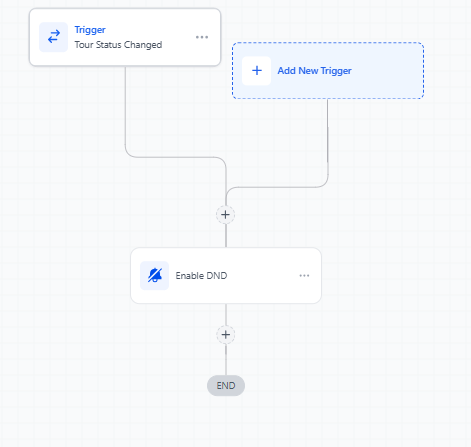
- Trigger: Tour status changes to "Completed"
- Action: Disable DND for all channels
- Result: The family can now receive follow-up messages and enrollment information
Useful Trigger Combinations
Here are some triggers that work well with the DND action:
Tour Status Changed
Use the "Tour Status Changed" trigger and filter for "Completed" or "Showed". Add the DND action to disable DND, indicating the family is ready for follow-up communication.
Tour Scheduled
Add a wait step for a specific period after the tour time (like 1 hour after scheduled end). Then add the DND action to disable DND, resuming normal communication.
Task Completed
Link tasks to tour follow-ups (like sending thank you emails or surveys). When the task is marked complete, use the DND action to resume communication.
Custom Field Update
Create a custom field that tracks tour completion or parent communication preferences. When this field is updated, use the DND action to adjust settings accordingly.
Parent/Family Created (Spam Prevention)
When a new contact is created via incoming call or text, add conditions to identify spam patterns (suspicious phone formats, known spam numbers). Use the DND action with Inbound direction to block future messages from these numbers.
Activity Logging
When this automation action enables or disables DND, Enrollio records it in your conversation history and activity logs as:
- DND Enabled by Automations
- DND Disabled by Automations
If a team member changes DND manually, logs show "DND Enabled/Disabled by User." If the parent changes their own settings, logs show "DND Enabled/Disabled by Parent/Family."
This logging applies across all communication channels, giving you a complete audit trail of DND changes.