
What is the Find Parent/Family Action?
The Find Parent/Family action lets you locate a parent or family in your database using information like email address, phone number, or custom fields. This is perfect when an automation is triggered without a specific parent attached — like when a form submission or webhook comes in with contact details but no parent ID.
Once you find (or don't find) the parent, your automation can branch in different directions — updating existing records, creating new ones, or sending targeted messages.
Why Use Find Parent/Family?
- Saves time: Automatically matches incoming data to the right family instead of manual searches
- Works with any trigger: Perfect for webhooks, form submissions, and integrations that send parent info without an ID
- Flexible matching: Search by email, phone, custom fields like "External Parent ID", or multiple criteria at once
- Smart branching: Your automation splits into two paths — one if the parent is found, another if they're not — so you can handle both scenarios
- Better engagement: Ensure messages and updates reach the right family every time
How Matching Works
Understanding how Enrollio matches parents helps you design reliable automations.
Multiple fields = AND logic: If you search by email AND phone AND a custom field, all three must match. The more fields you add, the more specific your match becomes.
Two paths automatically created: Every Find Parent/Family action creates a "Parent Found" branch and a "Parent Not Found" branch. Build different actions under each path.
If multiple parents could match: Add more specific fields (like email plus a custom ID). If you're getting duplicates, use the parent merge tools to clean up your database first.
What You Can Match On
Choose fields that are reliably filled out and unique when possible:
- Standard fields: Email, Phone, First Name, Last Name, and other built-in fields
- Custom fields: Any custom field you've created — like "External Parent ID", "Stripe Customer ID", or "Partner Referral Code"
- Additional emails/phones: Enable the checkbox to search secondary email addresses and phone numbers stored on the parent record
Setting Up Find Parent/Family
Step 1: Open Your Automation
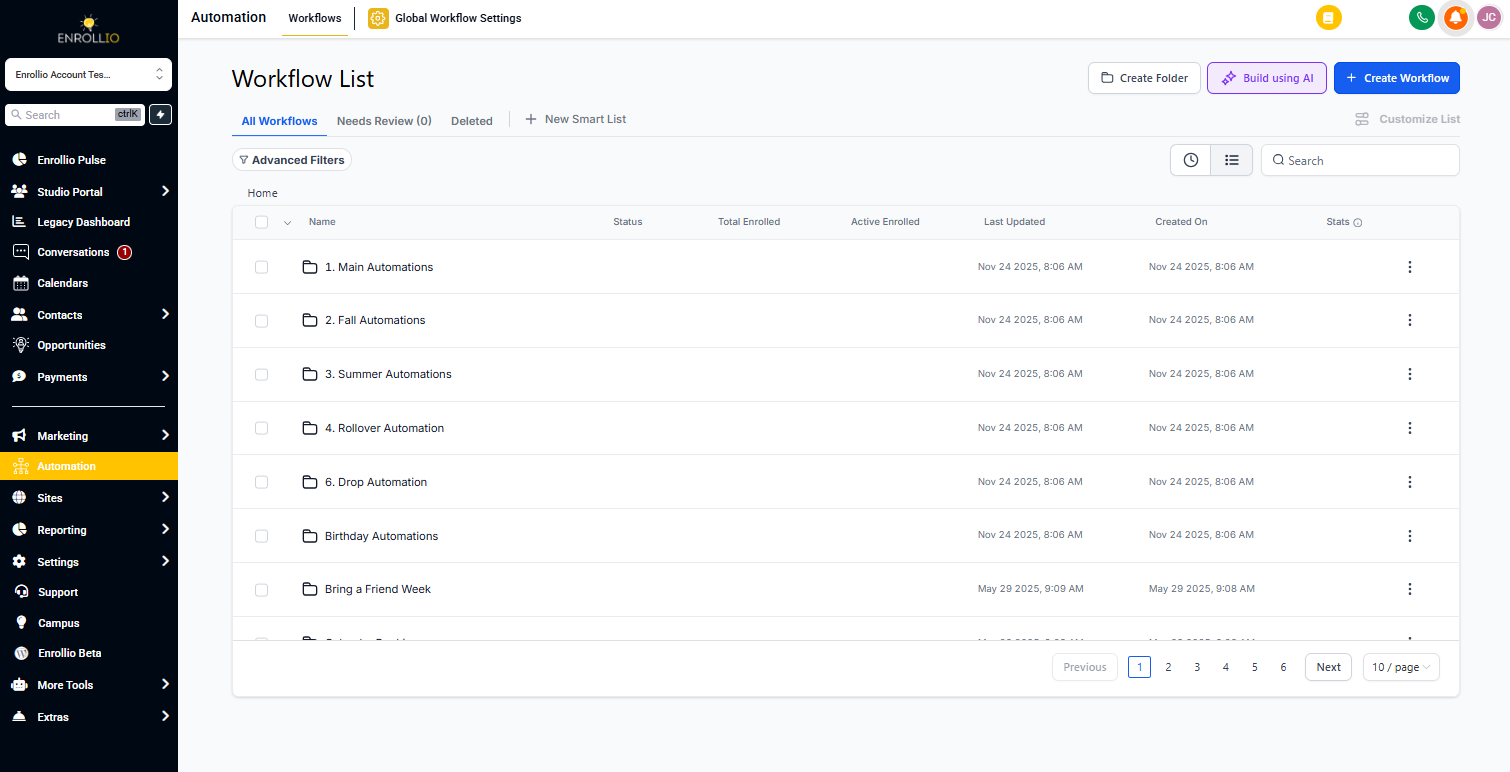
Go to Automations in your Enrollio dashboard. Create a new automation or open an existing one where you need to find a parent.
Step 2: Add the Action
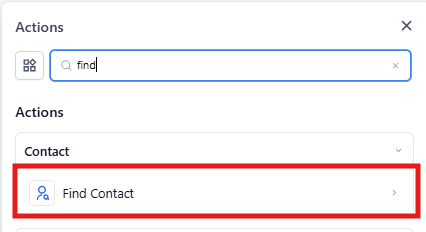
Click the + icon where you want to add the action. Select Find Parent/Family from the action list.
Step 3: Name Your Action
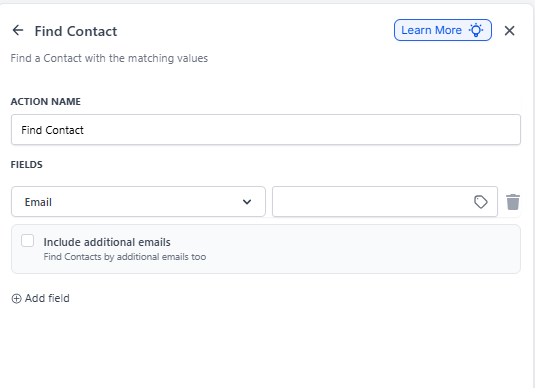
Give it a clear name like "Find Parent by Email" or "Match Family by Customer ID" so you can easily identify it later.
Step 4: Choose Your Match Fields
Select which fields to search on:
- Standard fields: Pick from the dropdown (Email, Phone, First Name, Last Name, etc.)
- Custom fields: Scroll down to find custom fields you've created in your parent records
- Include additional contacts: If searching by Email or Phone, check the box to include secondary email addresses or phone numbers
Step 5: Map Your Data
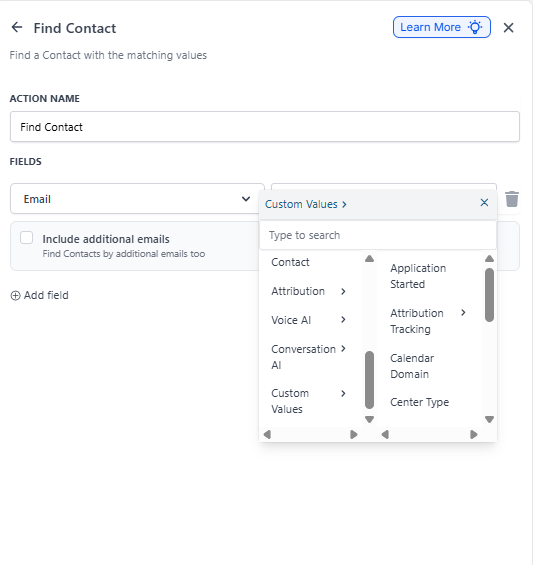
For each field you selected, map it to the data coming into your automation. This might be from a webhook payload, form submission, or previous action. Use the custom value picker to select the right variable.
Step 6: Build Your Branches
Your automation now has two paths:
- Parent Found: Add actions like Update Parent Field, Send Text Message, or Assign to Enrollment Pipeline
- Parent Not Found: Add actions like Create Parent/Family, Send Internal Notification, or Add to Waitlist
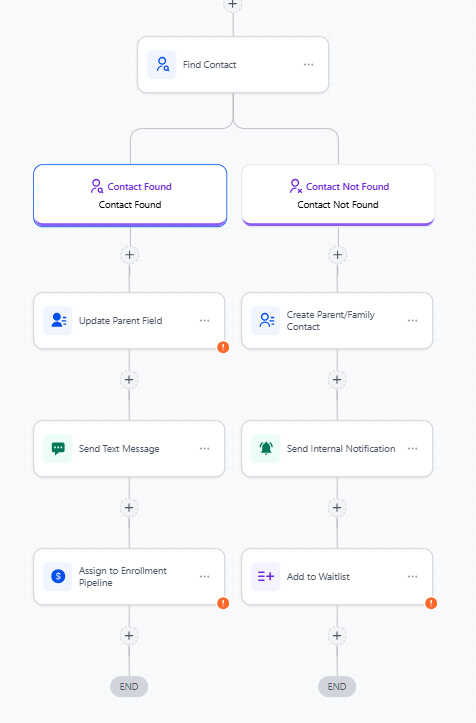
Step 7: Test and Publish
Use test data to validate your automation. Check that parents are matched correctly and that both branches work as expected. When you're confident, publish your automation to activate it.
Real-World Examples
Tour Request from Your Website
Match by: Email
When a parent fills out a tour request form, use their email to find them in your database.
- If parent found: Update their status to "Tour Scheduled", send confirmation text, add to your enrollment pipeline
- If parent not found: Create new parent record, tag as "Tour Request", send welcome email
Payment Processing Update
Match by: Custom field (e.g., "Stripe Customer ID")
Your payment processor sends a customer ID when a payment succeeds. Store this ID in a custom field and match on it.
- If parent found: Update payment status, adjust balance, send receipt
- If parent not found: Create parent record with customer ID, notify your team to review
Referral from Another Center
Match by: Custom field ("Referral Code")
A partner center sends families with a unique referral code. Store the code in a custom field.
- If parent found: Add referral tag, update source field, trigger referral bonus automation
- If parent not found: Create parent with referral code, tag as "Referral", assign to tour coordinator
Waitlist Notification
Match by: Email + Last Name
When a spot opens, your system sends parent details. Use email as primary match, add last name if you have common email domains.
- If parent found: Send waitlist notification, move to enrollment pipeline, schedule follow-up
- If parent not found: Log error, notify staff for manual review
Form Submission Without Parent ID
Match by: Email
A third-party form collects parent information but doesn't include your internal parent ID.
- If parent found: Append form data to existing record, trigger follow-up sequence
- If parent not found: Create new parent record, start welcome series, assign to enrollment team
Frequently Asked Questions
What happens if no parent is found?
The automation follows the "Parent Not Found" branch. You can build actions there to create a new parent record, send a notification to staff, or take any other action you need.
Can I search by multiple fields at once?
Yes. When you add multiple fields, ALL of them must match for the parent to be found. This is useful for more precise matching but means stricter requirements — if even one field doesn't match, the automation takes the "Parent Not Found" path.
How do I match on external IDs from other systems?
Create a custom field in your parent records (like "External ID" or "Stripe Customer ID"). When data comes in from the external system, map that ID to your custom field in the Find Parent/Family action.
Can I use this with other automation actions?
Absolutely. Find Parent/Family works with any other action — send messages, update fields, create enrollment opportunities, assign tasks, and more. It's designed to fit into larger automations.
What if multiple parents match my criteria?
Enrollio will return the first match it finds. To avoid this, use more specific fields (like email plus a custom ID) or clean up duplicate records using the parent merge tool before building your automation.
Should I include additional emails and phone numbers?
If parents in your database have secondary contact information stored, enabling this option makes your matching more flexible. It's especially helpful for families who use different email addresses or phone numbers across different interactions.