
Automation Action - Math Operation
This article explains how to use the Math Operation action in automations to perform simple calculations like addition, subtraction, multiplication, and division between numbers or custom fields. It also covers how to handle more complex calculations by breaking them into multiple steps.
What is the Math Operation Action?
The Math Operation action lets you perform calculations directly within your automations. You can add, subtract, multiply, or divide numeric fields and update them automatically based on specific actions or triggers.
For date fields, you can add or subtract days, months, or years—perfect for automating time-sensitive processes like tour reminders or enrollment deadlines.
Example: Automatically calculate when a family's enrollment contract expires by adding 12 months to their start date, then trigger a renewal reminder 30 days before that date.
Key Benefits of Math Operation
Here's how this action helps you automate calculations, improve accuracy, and streamline your childcare operations:
- Save Time: Eliminate manual calculations for things like prorated tuition, sibling discounts, or staff commission tracking.
- Stay Accurate: Reduce errors by automating calculations for enrollment fees, capacity tracking, and payment due dates.
- Customize Everything: Use custom fields and dynamic values to create flexible automations that work with your unique enrollment process.
- Scale Easily: Handle calculations for hundreds of families without additional manual work.
Setting Up Math Operation
Let's walk through how to add and configure the Math Operation action in your automation.
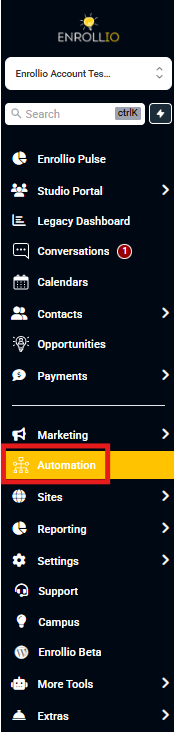
Step 1: Navigate to Automations
Go to the Automations section in your Enrollio dashboard. Create a new automation or open an existing one where you want to add the Math Operation action.
Step 2: Add the Math Operation Action
Before adding the Math Operation action, make sure you've set up a trigger—this determines when your automation will run.
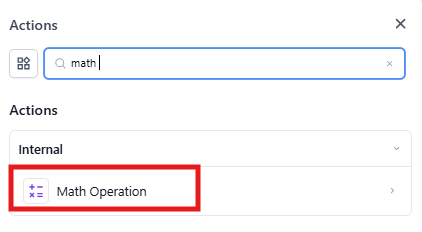
- Click Add Action in your automation builder
- Select Math Operation from the list
Step 3: Name Your Action
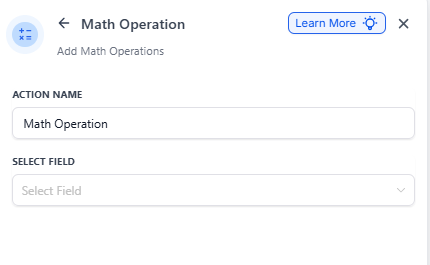
Give your action a descriptive name instead of keeping the default "Math Operation." Use names like "Calculate Enrollment End Date" or "Apply Sibling Discount" to make your automations easier to follow.
Clear naming becomes especially helpful when you're managing multiple automations.
Step 4: Select a Field
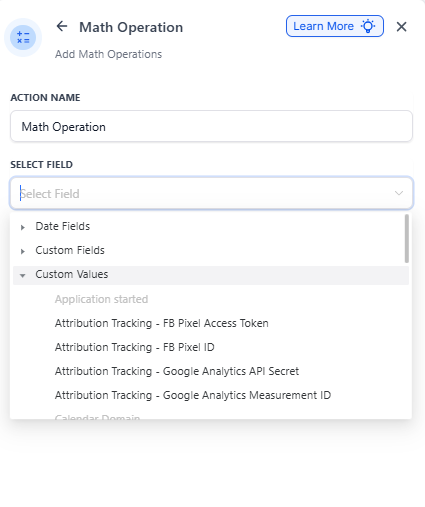
Click the Select Field dropdown to choose where your calculation will be applied. You have three options:
Date Fields
Use date-based calculations for scheduling tours, setting enrollment deadlines, or tracking important dates. You can choose from:
- Current Date: Today's date when the automation runs—useful for calculating follow-up reminders or scheduling future tours
- Date of Birth: A child's recorded birth date—perfect for age verification, birthday reminders, or calculating when they're eligible for different programs
Custom Fields
These are fields you've created in your Enrollio account, such as Enrollment Start Date, Contract Expiry Date, or Tuition Amount. Selecting a custom field lets you perform calculations based on data already in your system.
Example: Calculate a contract renewal date by adding 12 months to the Enrollment Start Date custom field.
Custom Values
Enter a static number manually instead of selecting a stored field. This is useful for applying fixed calculations like adding 30 days to a date or calculating a 10% sibling discount.
Step 5: Choose Your Operation Type
The operation type determines what kind of calculation you want to perform:
For Date Fields
You can add or subtract days, months, or years. Perfect for:
- Setting tour follow-up dates (add 2 days to current date)
- Calculating enrollment deadlines (add 30 days to tour date)
- Tracking contract renewals (add 1 year to start date)
For Numeric and Monetary Fields
You can perform:
- Addition: Add values together (calculate total tuition with fees)
- Subtraction: Deduct amounts (apply discounts)
- Multiplication: Multiply values (calculate weekly tuition × 4 for monthly amount)
- Division: Divide amounts (split costs between multiple children)
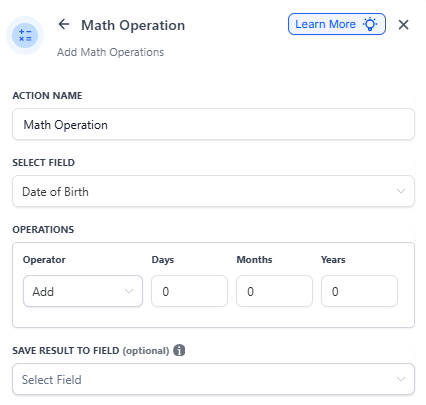
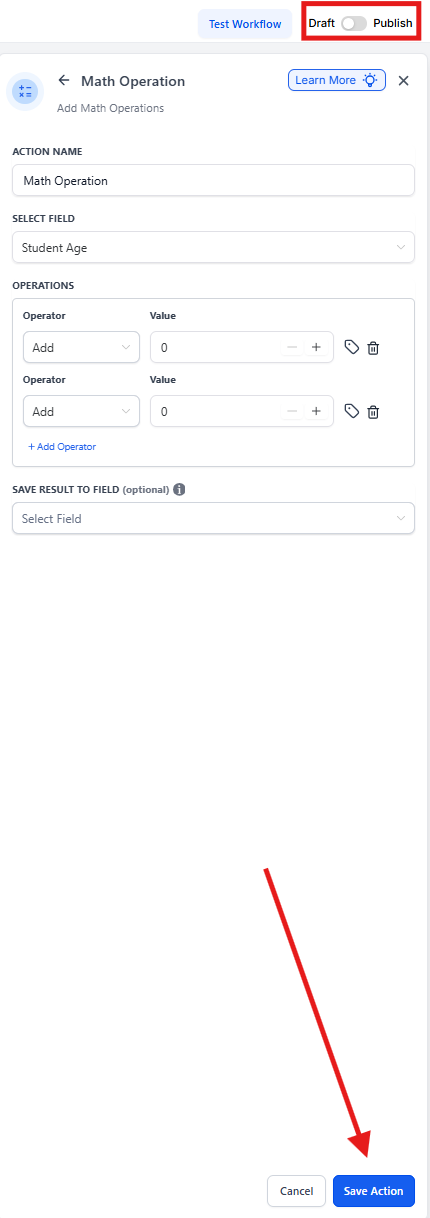
Step 6: Set the Operation Value
Enter the number you want to use in your calculation. You can either type it manually or use the "+" and "-" icons to adjust the value quickly.
Tag Icon: Click the tag icon to select dynamic values from custom fields instead of entering static numbers. This makes your calculations adapt automatically to real-time data changes.
Example: Instead of manually entering "10%" for a sibling discount, you could reference a Discount Percentage custom field that adjusts based on the number of enrolled siblings.
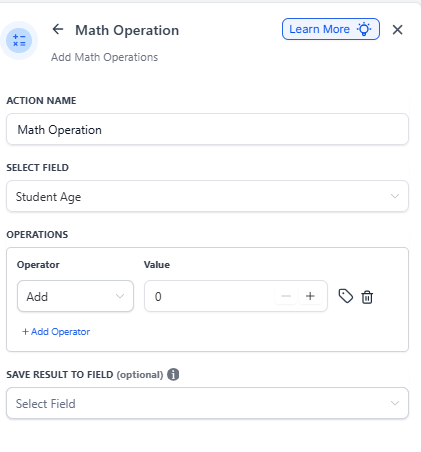
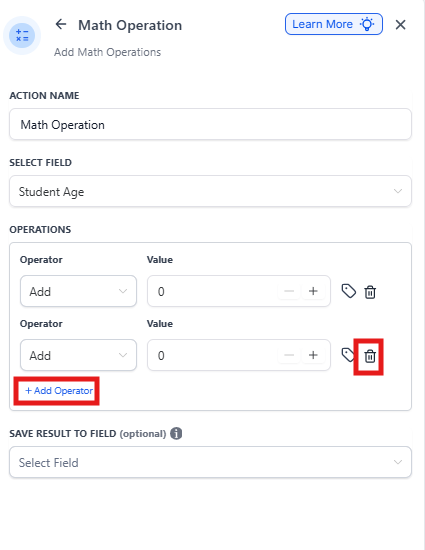
Step 7: Add Multiple Operations (Optional)
Need to perform several calculations in sequence? Click Add Operator to chain multiple operations together.
Example: Calculate prorated tuition by first multiplying the daily rate by the number of days, then subtracting a registration discount.
This keeps your automations clean without needing separate Math Operation actions for each step.
Delete Icon: Made a mistake? Click the trash bin icon next to any operation to remove it without rebuilding the entire action.
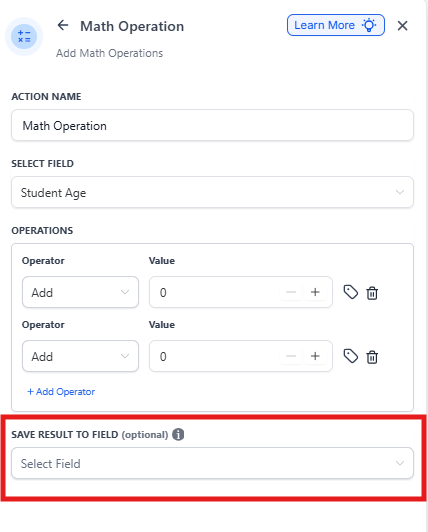
Step 8: Update Field
Choose where you want to store your calculation result. Make sure the field type matches your data:
- Numeric calculations should update numeric fields
- Date calculations should update date fields
- Monetary calculations should update currency fields
Mismatched field types can cause errors in your automation.
Step 9: Save and Publish
- Click Save to apply your Math Operation action
- Click Publish to activate your automation
Your automation will now perform the calculation automatically whenever the trigger conditions are met.
Common Use Cases for Childcare Centers
- Calculate enrollment deadlines: Add 7 days to tour date to set a decision deadline
- Track waitlist priority: Add months to Current Date to calculate how long a family has been waiting
- Apply sibling discounts: Multiply tuition by 0.9 for second child, 0.85 for third child
- Prorate tuition: Divide monthly tuition by 30, then multiply by remaining days in month
- Schedule contract renewals: Add 12 months to enrollment start date
- Calculate age eligibility: Subtract Date of Birth from Current Date to verify age requirements
Frequently Asked Questions
Can I perform math operations on custom date fields?
Yes. You can add or subtract days, months, or years from any custom date field to automate time-sensitive tasks like tour reminders or enrollment deadlines.
Are there any limitations on value ranges?
Numeric fields accept both positive and negative values. Monetary fields only accept values greater than or equal to zero—negative amounts aren't supported. Date fields also don't support negative values.
Can I use Math Operation actions with If/Else conditions?
Yes. You can combine Math Operation actions with If/Else conditions to create sophisticated automations. For example, calculate a discount percentage based on the number of enrolled siblings, then use an If/Else to apply different rates for 2 vs. 3+ children.
What happens if I try to divide by zero?
Division by zero will cause the automation to fail at that step. Make sure your divisor fields or values will never be zero, or add an If/Else condition to check before performing the division.
Can I perform calculations across different field types?
No. The field you're updating must match the calculation type. You can't store a date calculation in a numeric field or vice versa.