
Overview
The Google Sheets action lets you send data from your automations directly into a Google Sheets spreadsheet. This is a premium action, which means each execution incurs additional charges.
Use this action to keep records, track enrollment data, and organize information about families, tours, and enrollments in a structured format within Google Sheets.
Action Name
Google Sheets
Action Description
The Create Spreadsheet Row action adds a new row of data into a specified Google Sheets spreadsheet. This action can automatically log information such as tour details, family information, enrollment inquiries, or any other relevant data you need to track.
Action Details
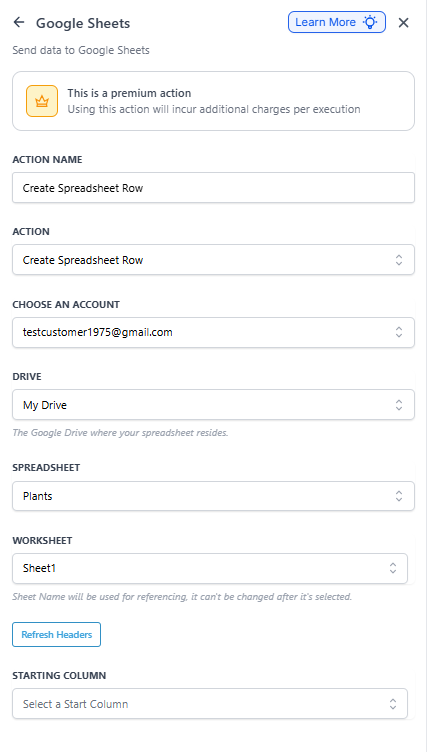
| Field | Description | Required |
|---|---|---|
| Action Name | The name of the action, identifying what it will do. For this action, it's set to "Create Spreadsheet Row". | Yes |
| Action | Defines the specific operation to be performed on Google Sheets. Options include creating a row, updating a cell, etc. For this action, it's "Create Spreadsheet Row". | Yes |
| Choose an Account | The Google account linked to your Enrollio platform that has access to the desired Google Sheet. | Yes |
| Drive | Specifies the Google Drive where the spreadsheet is located. Typically set to "My Drive" for personal documents. | Yes |
| Spreadsheet | Select the specific Google Sheets document where the data will be sent. This field lists all accessible spreadsheets in the chosen account. | Yes |
| Worksheet | The specific worksheet within the selected spreadsheet where the new row will be added. Worksheets are individual tabs within a Google Sheets document. | Yes |
| Refresh Headers | A button that updates the available columns based on the current headers in the selected worksheet. This ensures data is mapped correctly to the columns. | No |
| Starting Column | Specifies the starting column for where the data will be inserted. Maps data to the correct column based on the Google Sheet's headers. | Yes |
| Ending Column | Specifies the ending column for where the data will be inserted. Allows you to define a range of columns to populate with data. | Yes |
| Dynamic Fields | These fields appear based on the columns in your spreadsheet. Each column is represented here, and you can specify what data should be inserted into each one. Example fields include Parent Name (A) and Tour Date (B). | Yes |
How to Configure the Action
- Add the Action to Your Automation: Drag and drop the Google Sheets action into your desired automation.
- Select Action Type: Choose "Create Spreadsheet Row" from the Action dropdown.
- Choose Google Account: Select the linked Google account that has access to your Google Sheets.
- Select Drive: Typically, select "My Drive" unless you are using a shared drive.
- Select Spreadsheet and Worksheet: Choose the specific Google Sheets document and the corresponding worksheet tab where you want to add the data.
- Map Data Fields: Use the Starting Column and Ending Column to define the range. Map the automation data to the corresponding columns in the Google Sheet by entering values or using custom values.
- Refresh Headers: Click this if you've made recent changes to the Google Sheet's headers to ensure the data aligns correctly.
Example Use Case
Trigger: New Tour Request Submitted
Condition: A prospective family requests a tour through your enrollment site.
Action: Google Sheets - Create Spreadsheet Row
- Drive: My Drive
- Spreadsheet: "Tour_Tracking_2024"
- Worksheet: "January"
- Starting Column: Parent Name (A)
- Ending Column: Tour Date (B)
- Parent Name: Insert the parent's name using custom values.
- Tour Date: Insert the requested tour date using custom values.
By integrating the Google Sheets action within your automations, you can eliminate manual data entry tasks, ensuring critical information about families and enrollments is logged accurately and consistently. This saves time and reduces errors in your childcare operations.