
Overview
The Record Voicemail action lets parents and prospective families leave voice messages when they call your center. This is perfect for after-hours inquiries, tour requests, or general questions when your staff can't answer immediately.
You can configure the recording to stop automatically after silence, when the caller presses a key, or after a set time limit. All voicemail recordings appear in your Conversations inbox where you can listen and respond.
How to Set Up Voicemail Recording
When building a phone automation, add the Record Voicemail action and configure these settings:
Basic Settings
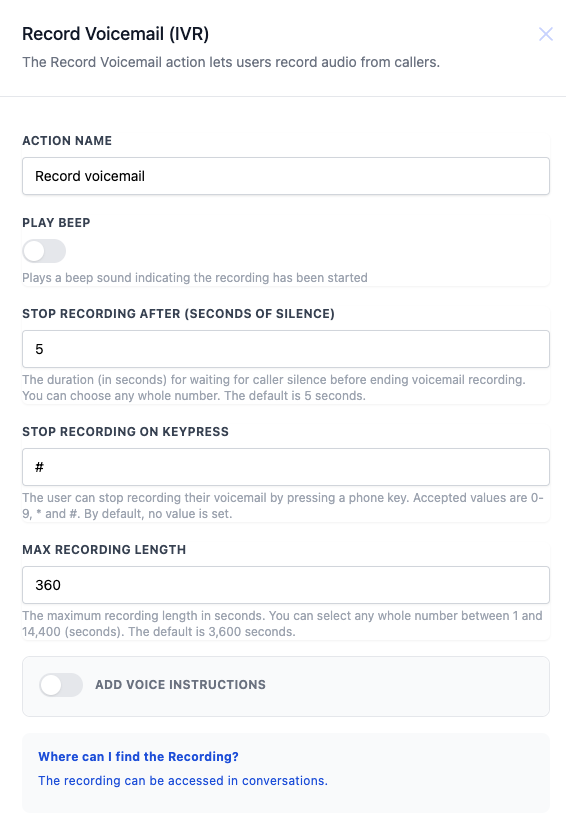
- Action Name: Give this action a clear name like "Record Parent Voicemail" or "After Hours Message"
- Play Beep: Turn this on to play a tone when recording starts (recommended — lets callers know they can start speaking)
- Max Recording Length: Set how long the voicemail can be, in seconds (360 seconds = 6 minutes)
Stop Recording Options
Choose when the recording should automatically end:
- After Silence: Number of seconds of silence before stopping (e.g., 5 seconds). Great for when a parent finishes speaking and doesn't hang up immediately.
- On Keypress: Let callers press a key to end recording (like # or *). This gives parents control to finish when they're done speaking.
Voice Instructions (Optional)
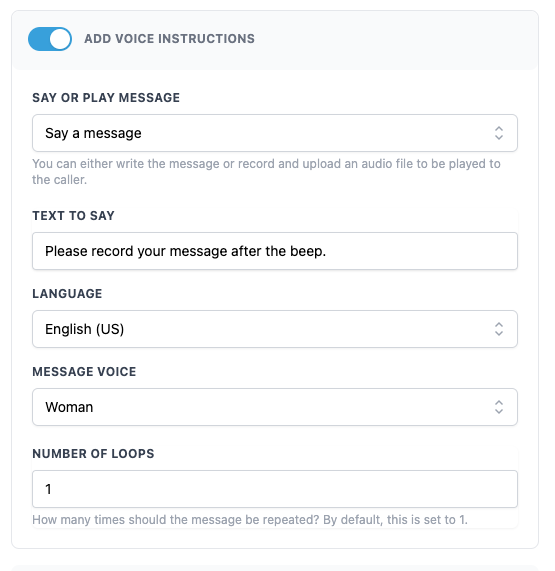
Add a message that plays before recording starts, like: "Please leave your name, phone number, and reason for calling after the beep."
You can either record this instruction yourself or type it out and use text-to-speech.
Example: After-Hours Enrollment Inquiry
Here's how you might set this up for parents calling outside business hours:
- Action Name: "After Hours Enrollment Message"
- Play Beep: Yes
- Stop Recording After: 5 seconds of silence
- Stop Recording on Keypress: # key
- Max Recording Length: 360 seconds (6 minutes)
- Voice Instructions: "Thank you for calling [Your Center Name]. We're currently closed, but your call is important to us. Please leave your name, phone number, and the age of your child, and we'll call you back during business hours. Press pound when you're finished."
Where to Find Recorded Voicemails
All voicemail recordings appear in your Conversations inbox, attached to the parent or family's conversation thread. You can listen directly from there and respond via text, call, or email.
💡 Pro Tips
- Keep max recording length between 3-6 minutes — most parents won't need longer
- Always use the "Stop Recording After Silence" setting to avoid capturing dead air
- Include clear instructions so parents know what information to leave (name, phone, child's age, reason for call)
- Set up a notification so your front desk or director gets alerted when new voicemails arrive
Configuration Reference
| Setting | Description | Required |
|---|---|---|
| Action Name | Unique name for this voicemail action | Yes |
| Play Beep | Plays a beep tone when recording starts | No |
| Stop Recording After | Seconds of silence before recording stops automatically | Yes |
| Stop Recording on Keypress | Key the caller can press to end recording (0-9, #, or *) | No |
| Max Recording Length | Maximum voicemail duration in seconds | Yes |
| Add Voice Instructions | Pre-recorded or text-to-speech message played before recording starts | No |