
Overview
The Transfer Call action lets you route an active phone call to another staff member, department, or external phone number during an automation. This is perfect for directing parent inquiries to the right person — like routing tour requests to your admissions coordinator or billing questions to your office manager.
You can also enable call recording, set timeouts, and detect voicemail to ensure calls are handled smoothly.
When to Use This Action
Use Transfer Call in your phone automations when you need to:
- Route prospective family calls to your enrollment team
- Transfer billing questions to your office staff
- Connect urgent calls to your director or owner
- Send after-hours calls to an on-call staff member
How to Set Up the Transfer Call Action
Step 1: Add the Action to Your Automation
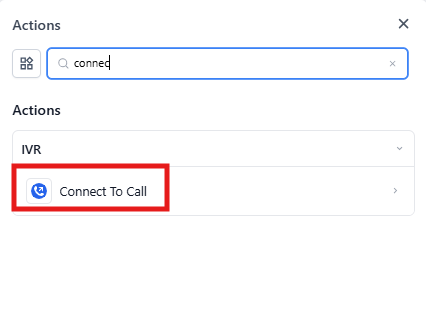
In your phone automation builder, add the Transfer Call action where you want the call to be transferred.
Step 2: Configure Basic Settings
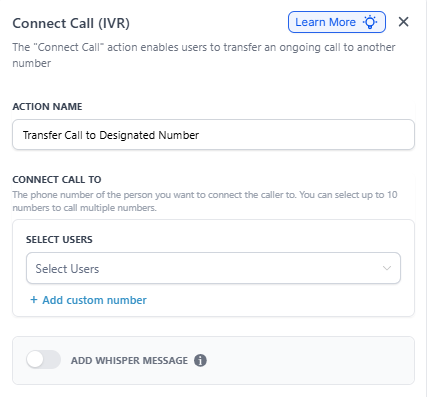
Action Name: Give this action a clear name like "Transfer to Enrollment Coordinator" or "Route to Office Manager." This helps you identify it in your automation.
Transfer Call To: Choose who should receive the transferred call. You can select up to 10 staff members to ring simultaneously, or add custom phone numbers.
Step 3: Configure Advanced Settings (Optional)
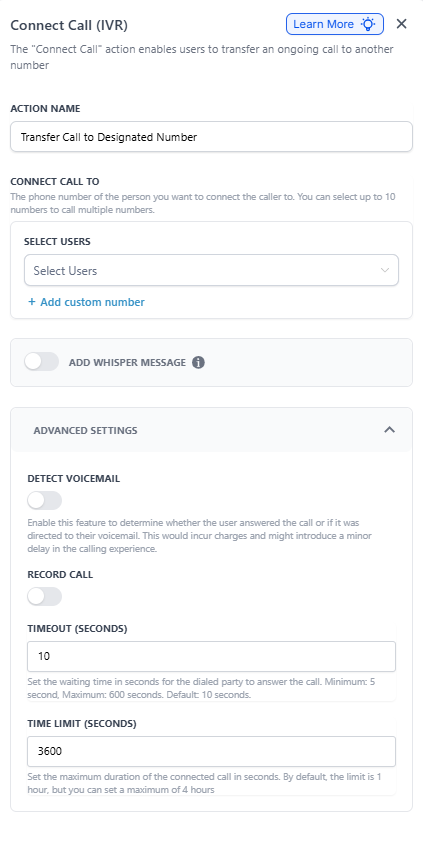
Click Advanced Settings to access additional options:
Detect Voicemail: Turn this on if you want the system to detect when a call goes to voicemail. Note that enabling this may add a small delay to the transfer.
Record Call: Enable this to record the transferred call. This is useful for quality assurance, training new staff, or keeping records of enrollment conversations.
Timeout (Seconds): Set how long the system should wait for someone to answer before moving to the next step in your automation. For example, set this to 30 seconds if you want to try another staff member if no one answers.
Time Limit (Seconds): Set the maximum length for the connected call. If you want calls to automatically end after 1 hour, enter 3600 seconds. This prevents calls from running indefinitely.
Field Reference
| Field | Description | Required |
|---|---|---|
| Action Name | Internal name for this transfer action | Yes |
| Transfer Call To | Staff members or phone numbers to receive the call | Yes |
| Detect Voicemail | Detect if the call reaches voicemail | No |
| Record Call | Record the transferred call for later review | No |
| Timeout (Seconds) | How long to wait for someone to answer | Yes |
| Time Limit (Seconds) | Maximum duration for the connected call (up to 24 hours) | No |
Example: Transfer Tour Inquiries to Enrollment Team
When a prospective family calls your main number and presses 1 for tour information, you want to route them to your enrollment coordinator.
Action Name: "Transfer to Enrollment Coordinator"
Transfer Call To: Select your enrollment coordinator from your staff list
Advanced Settings:
- Enable Record Call to keep records of enrollment conversations
- Set Timeout to 30 seconds
- Set Time Limit to 1800 seconds (30 minutes) for enrollment calls