
Automation Trigger - Stale Enrollment Opportunities
The "Stale Enrollment Opportunities" automation trigger ensures no prospective family is left unattended by automatically identifying and taking action on enrollment opportunities that have been stagnant for a specified period. This article covers its definition, benefits, setup process, use cases, and answers to common questions.
Table of Contents
What is the Stale Enrollment Opportunities Trigger?
The "Stale Enrollment Opportunities" trigger activates when an enrollment opportunity has been in the same stage for a set period without any progress or updates. It enables you to take proactive measures to re-engage families who may have gone cold, ensuring no potential enrollment is overlooked.
For example, if a family's enrollment opportunity remains in the "Tour Scheduled" stage for 5 days without any updates, this trigger can automatically send a follow-up text message, notify your enrollment coordinator, or move the opportunity to a "Needs Attention" stage.
Key Benefits of Using the Stale Enrollment Opportunities Trigger
Proactive Enrollment Management: Automatically identify and address stalled opportunities, keeping your enrollment pipeline active and moving.
Increased Response Time: Send automated reminders to your team to re-engage with prospective families before they choose another center.
Enhanced Visibility: Notify directors or enrollment coordinators about neglected opportunities, giving them a chance to intervene.
Customization for Your Center: Tailor triggers and actions based on enrollment stage, inactivity period, and staff responsibilities, ensuring targeted follow-ups.
Reduced Manual Tracking: Eliminate manual tracking of stagnant opportunities and automate follow-ups, saving valuable time for your team.
Step-by-Step Setup
1. Create Your Automation
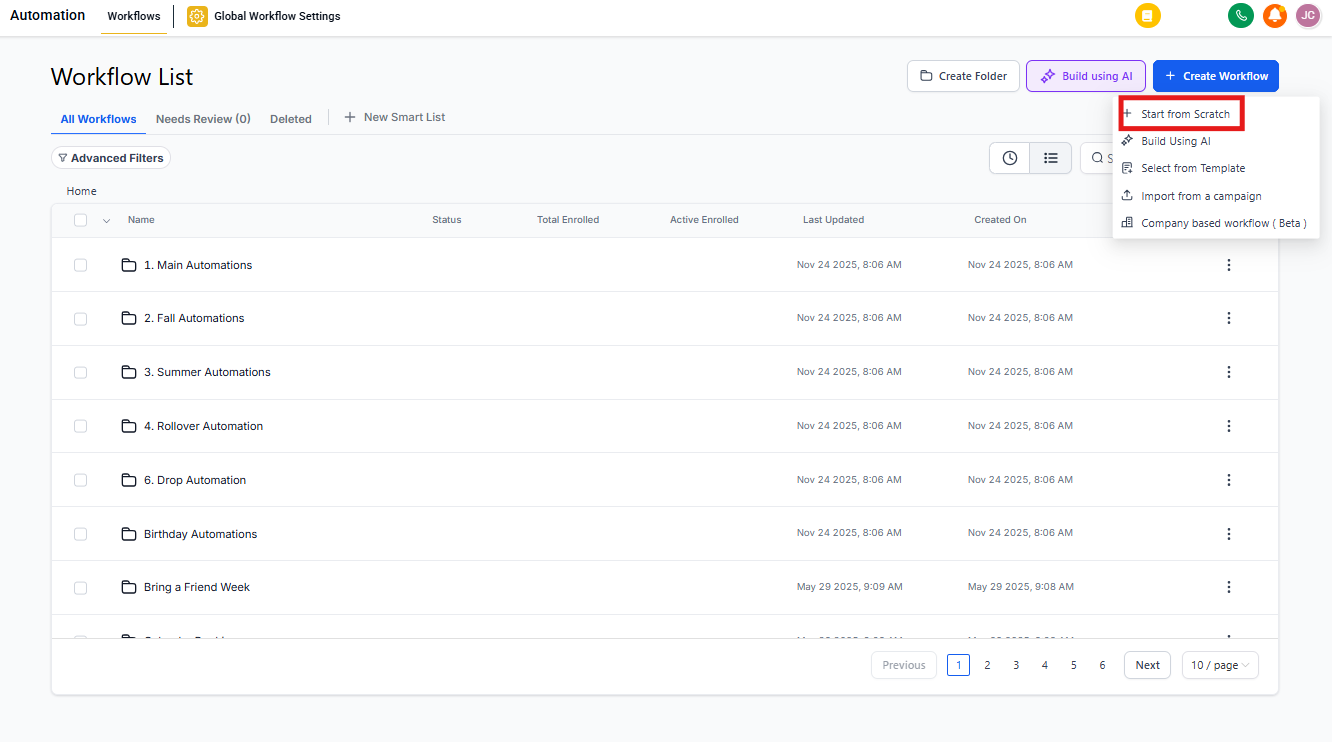
Head to the "Automations" section in Enrollio, then click "+ Create Automation."
Click "Start from scratch," then click "+ Add new Trigger" to choose your automation trigger.
2. Select the Stale Enrollment Opportunities Trigger
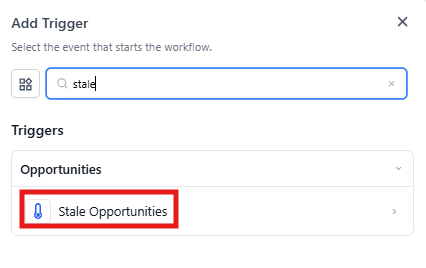
Select "Stale Enrollment Opportunities" from the list of available triggers.
Name your trigger for easy identification (e.g., "Stale Tour Follow-Up" or "Inactive Enrollment Alert").
3. Configure Trigger Filters
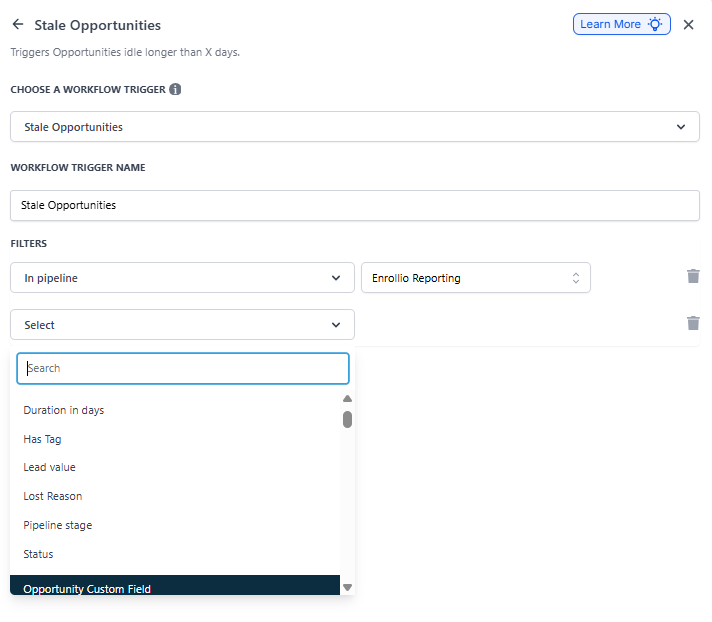
Click "Add Filters" to set your criteria:
Duration in Days: Set how many days an opportunity can remain stagnant before it's marked as "stale" (e.g., 2 days for hot leads, 5-7 days for tours).
In Pipeline: Select which enrollment pipeline to monitor (e.g., "Enrollment Pipeline" or "Waitlist Pipeline").
Pipeline Stage: Choose which stage to watch (e.g., "Tour Scheduled," "Application Started," or "Pending Decision").
Click "Save Trigger" to lock in your settings.
4. Set Up Follow-Up Actions
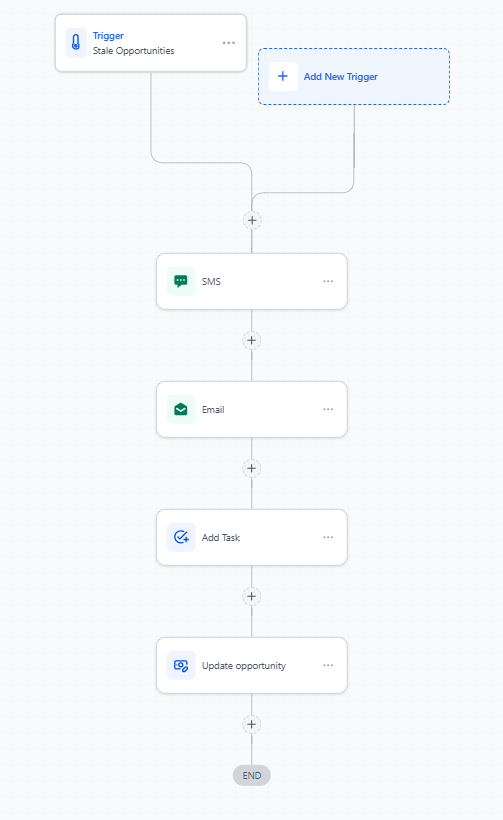
Once your trigger is configured, add the actions that should happen automatically. Common actions include:
- Send a follow-up text message to the family
- Send an internal notification to your enrollment coordinator
- Move the opportunity to a "Needs Attention" stage
- Add a task for staff to call the family
5. Save and Test
Click "Save" after each step to preserve your settings. An automation is just an unsaved draft until you hit that Save button.
Once everything is configured, click "Test Automation" to ensure it works as intended.
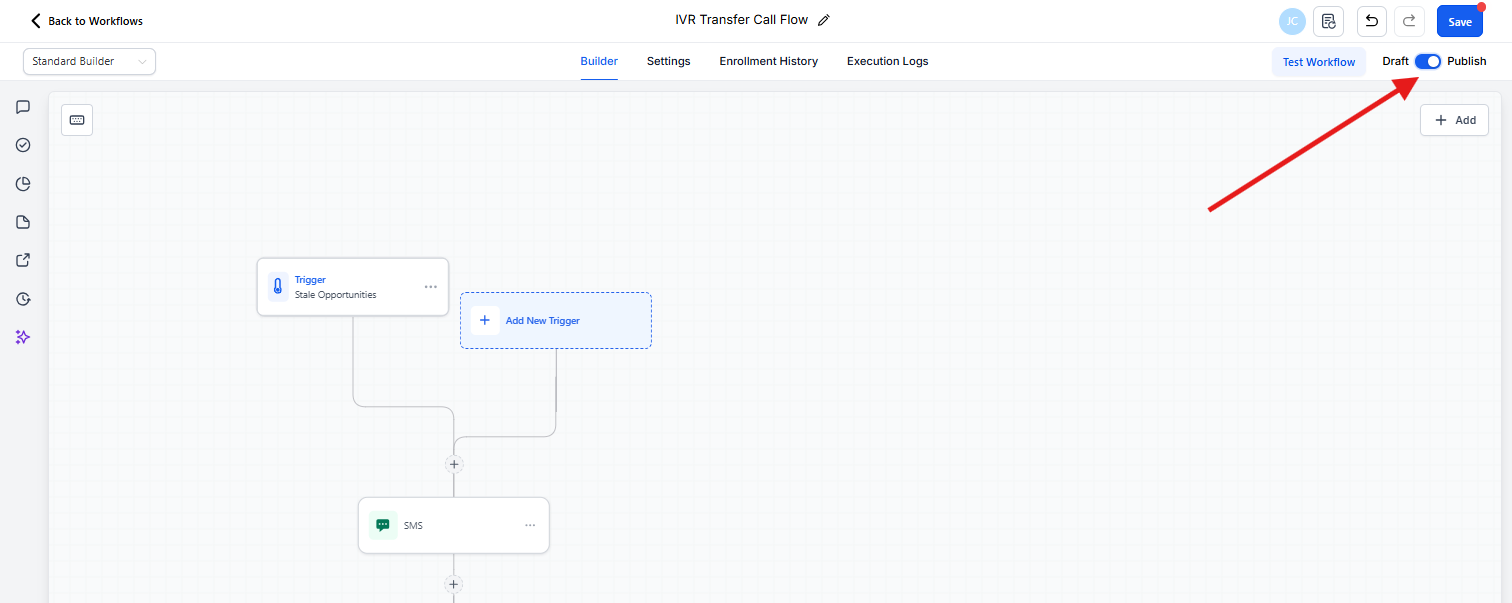
6. Activate Your Automation
When you're confident everything is set up correctly, use the toggle switch to "Publish" your automation and make it live.
Example Configuration
Here's a real-world example for a childcare center following up on stale tour opportunities:
Trigger Setup
- Automation Trigger: Stale Enrollment Opportunities
- Trigger Name: Stale Tour Follow-Up
Filters
- Duration in days: 3
- In pipeline: Enrollment Pipeline
- Pipeline stage: Tour Completed
Action 1: Text Message to Family
- Action Name: Tour Follow-Up Text
- From Name: Your Center Name
- Message:
Hi {{parent.first_name}}! It was wonderful having you tour our center. We'd love to answer any questions and discuss next steps for {{child.first_name}}'s enrollment. When's a good time to chat? - [Director Name]
Action 2: Internal Notification
- Notification Name: Alert Enrollment Coordinator
- Message:
The family "{{opportunity.name}}" toured 3 days ago but hasn't moved forward. Please follow up today to answer questions and move toward enrollment.
Action 3: Move Opportunity
- Action: Move to "Needs Follow-Up" stage for team visibility
Outcome
This automation ensures families who toured your center receive timely follow-up, increasing your enrollment conversion rate and preventing prospects from slipping through the cracks.
Use Cases for Childcare Centers
Re-engage Families After Tours: When families complete a tour but don't start an application within 3 days, automatically send a friendly text checking in and offering to answer questions.
Staff Accountability: Notify your enrollment coordinator when one of their assigned families has gone cold, prompting them to reach out personally.
Director Alerts: Alert your director when high-priority enrollment opportunities (multiple children, specific age groups you need to fill) have been stagnant, so they can step in with a personal call.
Pipeline Hygiene: Automatically move stale opportunities to a "Review Required" stage, prompting your team to assess whether the family is still interested or should be archived.
Waitlist Management: Follow up with waitlisted families every 30 days to keep them engaged and remind them of your center, even if you don't have immediate availability.
FAQs
How do I determine the right "Duration in Days" for my center?
It depends on your enrollment cycle and family behavior. For hot leads who've just toured, 2-3 days keeps momentum going. For families in early research stages or on your waitlist, 7-10 days is more appropriate. Monitor your data and adjust based on when families typically go cold.
Can I apply this trigger to specific stages only?
Yes! You can specify particular pipeline stages in the filter criteria. For example, you might want it active for "Tour Scheduled" and "Tour Completed" stages, but not for "Application Submitted" where families need time to gather documents.
How can I avoid following up with families who are still actively engaged?
Use your filters thoughtfully. For example, if your team logs notes or activities when they speak with families, those updates will reset the "stale" timer. You can also exclude opportunities that have recent email replies or scheduled future tours.
Will the automation trigger again if the same opportunity becomes stale a second time?
Yes. As long as the opportunity moves to a new stage or receives an update, the trigger resets. If it becomes stagnant again based on your criteria, the automation will run as expected.
What if I don't want to send automated messages to every family?
Instead of sending direct messages to families, set up your automation to notify your staff and create tasks. This gives your team visibility into stale opportunities while maintaining personal control over family communication.