
What is the Note Added Automation Trigger
The Note Added trigger activates whenever you or your staff add a new note to a parent or family's record. This lets you automate actions like notifying team members, updating enrollment statuses, or applying tags based on what's in the note.
It's especially helpful for staying on top of important updates and making sure your whole team is in the loop without manual follow-ups.
Key Benefits of Using This Trigger
- Automated Notifications: Your team gets notified in real time when notes are added to important family records — no more checking in manually.
- Improved Collaboration: Share relevant updates instantly with enrollment coordinators, directors, or classroom staff.
- Streamlined Follow-Ups: Automatically create tasks or reminders based on what's written in the note.
- Data Organization: Add tags to families automatically based on note content, keeping your records organized.
- Precision with Filters: Use "Has Tag" or "Doesn't Have Tag" filters to target specific families and make sure actions only happen when they should.
How to Set Up the Note Added Trigger
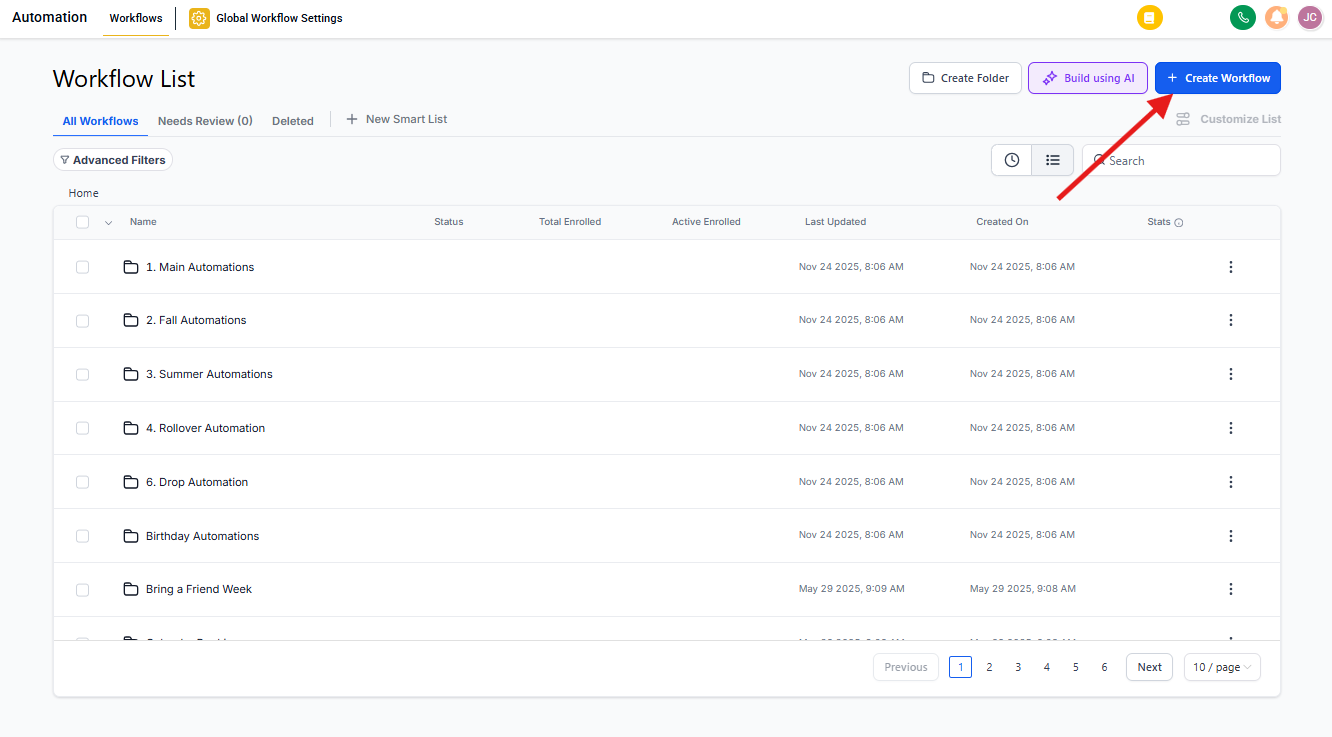
Step 1: Access Your Automations
Navigate to the automations section in Enrollio. Create a new automation from scratch or select an existing one where you want to add this trigger.
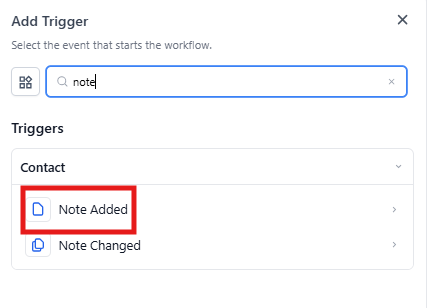
Step 2: Add the Trigger
Click "+ Add New Trigger" and select "Note Added" from the dropdown menu.
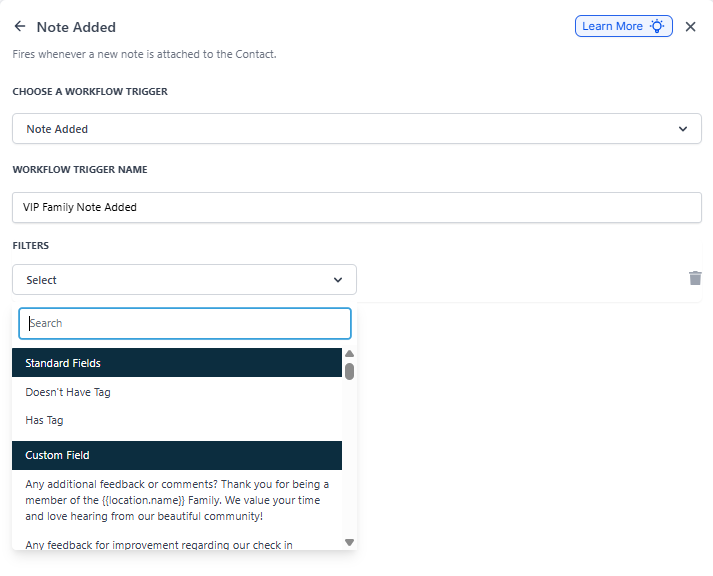
Step 3: Name Your Trigger
Give it a descriptive name that makes sense for your team, like "VIP Family Note Added" or "Tour Follow-Up Note Trigger."
Step 4: Set Your Filters
Filters help you target specific families:
- Has Tag: The automation only runs if the family has a specific tag (like "High Priority" or "Waitlist").
- Doesn't Have Tag: The automation only runs if the family doesn't have a specific tag.
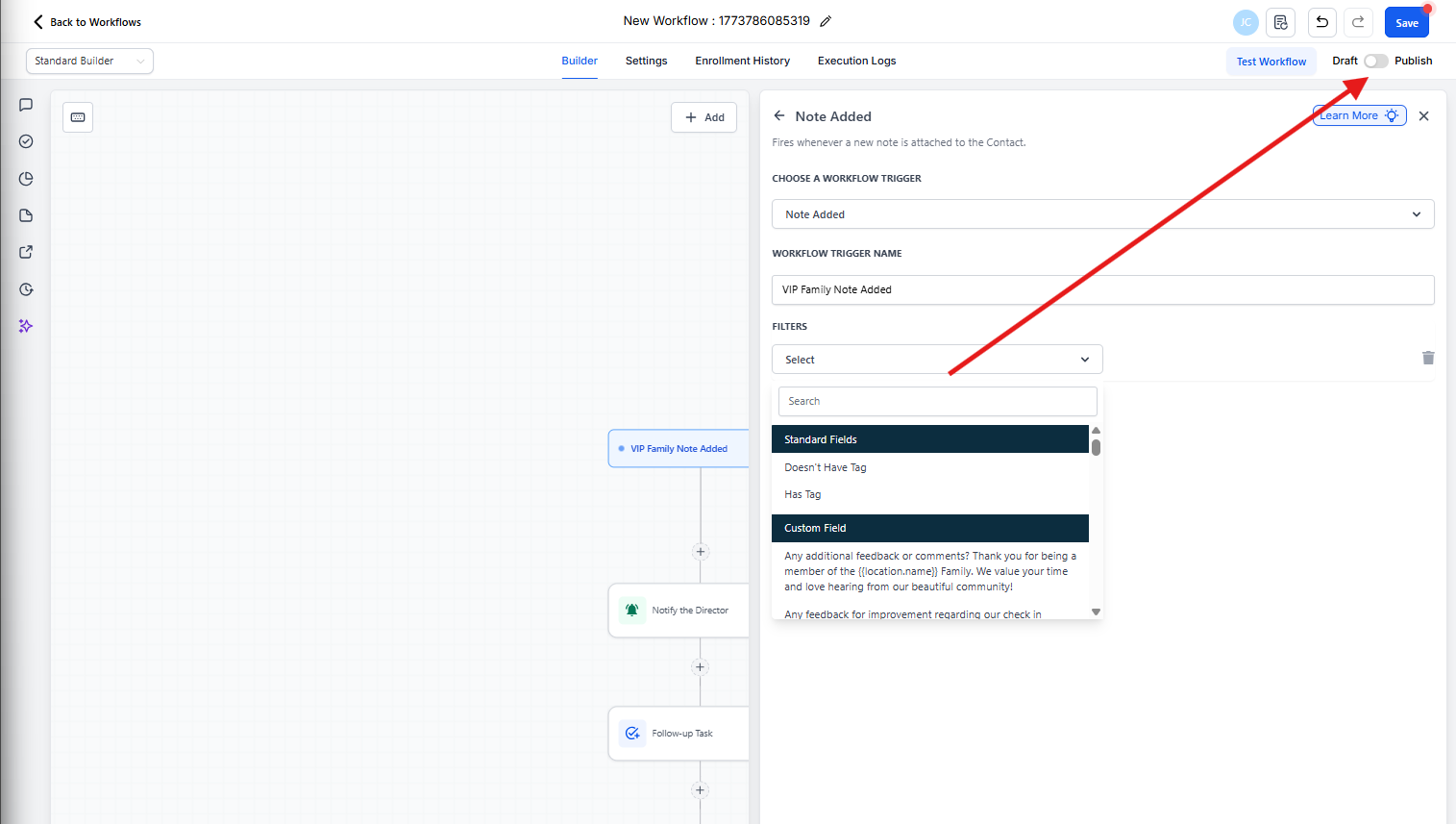
Step 5: Save and Test
Save your configuration, then test the automation to make sure it works as expected. Once you're satisfied, toggle it to "Published" to activate it.
Real-World Use Cases
Tour Follow-Up Escalation
Scenario: Your enrollment coordinator adds a note about a family who toured but had specific concerns about your curriculum.
Trigger Setup:
- Trigger: Note Added
- Filter: Has Tag: "Tour Completed"
Outcome: The automation assigns a follow-up task to your director and sends them a notification to personally reach out.
Waitlist Status Updates
Scenario: When staff add notes to waitlisted families about availability changes, parents should be notified automatically.
Trigger Setup:
- Trigger: Note Added
- Filter: Has Tag: "Waitlist"
Outcome: The automation sends a text message to the family letting them know a spot might be opening up, and creates a task for your enrollment team to call them.
VIP Family Communication
Scenario: Notes added to VIP family profiles should alert your center director immediately.
Trigger Setup:
- Trigger: Note Added
- Filter: Has Tag: "VIP Family"
Outcome: Your director gets an instant email notification with the note content so they can respond personally if needed.
Frequently Asked Questions
Can the trigger handle multiple notes added quickly?
Yes, the trigger activates each time a note is added. If you're concerned about duplicate actions, you can add conditions or cooldown periods to your automation to prevent redundant emails or tasks.
How do the "Has Tag" and "Doesn't Have Tag" filters work?
These filters let you target specific families. "Has Tag" only activates for families with the tag you specify (like "Active Enrollment"). "Doesn't Have Tag" only activates for families without that tag.
Can I combine this trigger with other triggers?
Yes! You can combine the Note Added trigger with other triggers like "Task Completed" or "Enrollment Opportunity Stage Changed" for more advanced automations.
What if someone deletes a note instead of adding one?
This trigger only activates when a note is added. Deleting a note won't start the automation.
Can I customize actions based on what's written in the note?
Yes! You can set up your automation to look for specific keywords in the note and take different actions based on what it finds — like applying certain tags or assigning tasks to specific team members.