
What is the Parent Tag Automation Trigger?
The Parent Tag automation trigger lets you automatically start actions whenever a tag is added to or removed from a parent contact in Enrollio. Tags are labels you use to organize families — like "Tour Scheduled," "Active Parent," or "Waitlist."
For example, when you add a "New Enrollment" tag, you can automatically send a welcome email and assign onboarding tasks to your staff. When you remove a "Prospective Family" tag, you can trigger a follow-up sequence or notify your team.
Why Use Parent Tag Triggers?
Save time: Automate repetitive tasks like sending emails or updating your enrollment pipeline.
Stay organized: Keep your parent database clean and actionable with consistent tagging.
Personalize communication: Segment families and send the right message at the right time.
Scale easily: Works across all your automations and enrollment pipelines without extra effort.
How to Set Up a Parent Tag Trigger
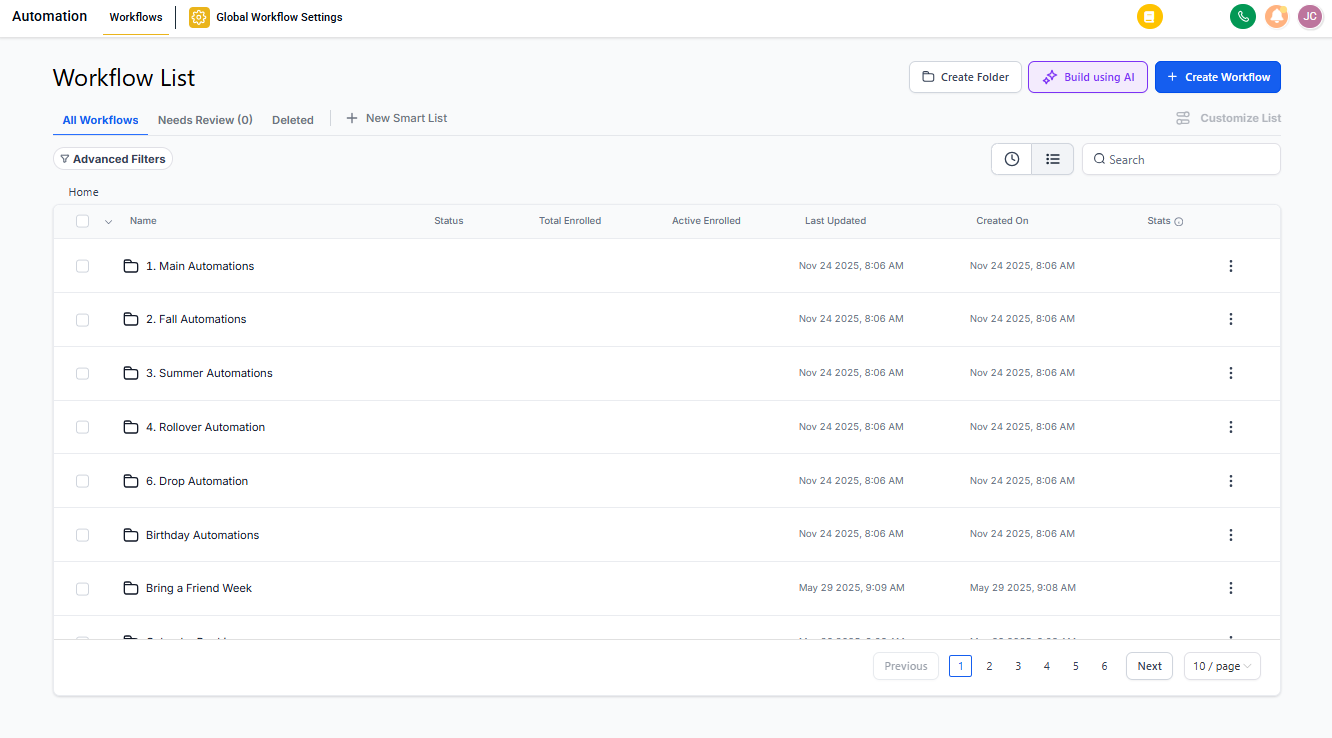
1. Open the Automation Builder
Go to Automations in Enrollio and click Create Automation. You can start from scratch or use a template.
2. Add Your Trigger
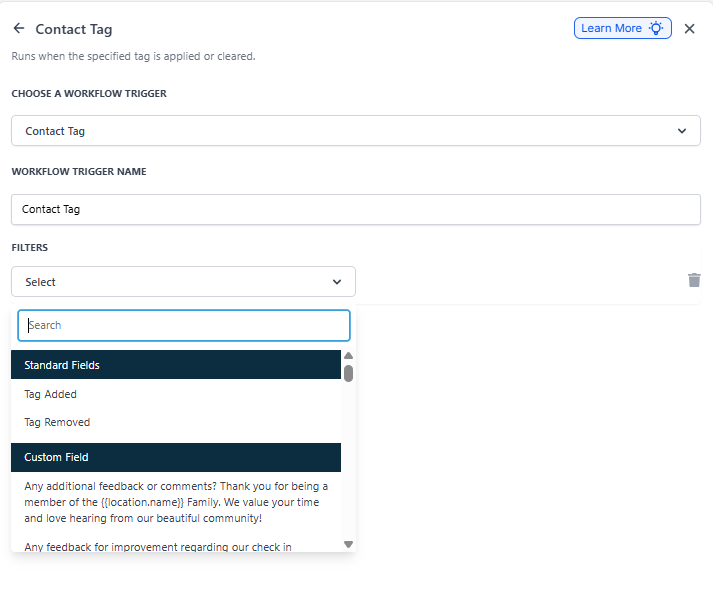
Click Add Trigger and search for "Parent Tag."
Trigger Name: Give it a clear name like "Tag Added - Tour Scheduled."
Tag Action: Choose whether the automation should start when a tag is Added or Removed.
Specify the Tag: Select the tag that will activate this automation (like "Tour Scheduled" or "Active Parent").
3. Define Your Tags Clearly
Use consistent naming that makes sense for your team. Good examples: "VIP Parent," "Needs Follow-Up," "Waitlist - Infant Room."
Avoid vague tags like "Important" or "Status 1."
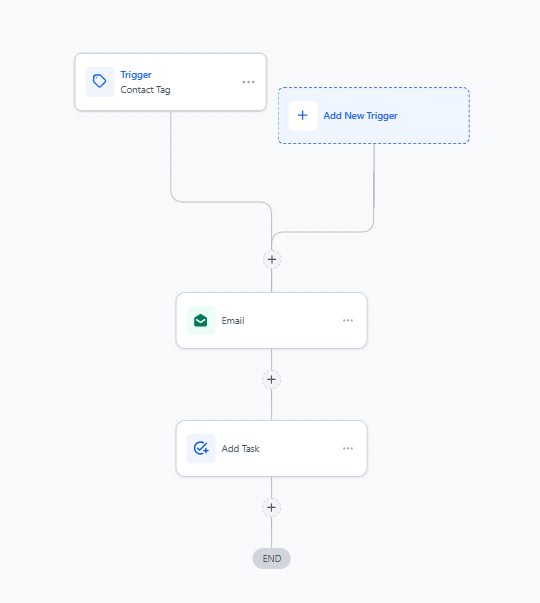
4. Add Your Actions
After setting the trigger, configure what happens next. Common actions include:
- Send an email or text message
- Assign a task to staff
- Update the family's enrollment pipeline stage
- Add another tag
- Send an internal notification
5. Save and Test
Save your automation and make sure it's published. Test it by manually adding or removing the tag from a parent contact to confirm everything works.
Example: Tag Added Automations
Send a Welcome Email After Enrollment
When you add the "New Enrollment" tag, send:
Subject: Welcome to [Your Center Name]!
Body:
Hi {{parent.first_name}},
Welcome to our childcare family! We're so excited to have {{child.first_name}} join us. You'll receive your first-week checklist and handbook in a separate email.
If you have any questions, just reply to this message.
Warm regards,
[Your Center Name]
Notify Your Team About Tour Requests
When a family is tagged "Tour Requested," send your staff:
"New tour request from {{parent.full_name}}. Preferred date: {{custom_field.tour_date}}. View contact details and confirm the tour."
Example: Tag Removed Automations
Re-Engage Families Who Leave Your Waitlist
When you remove the "Waitlist" tag, send:
Hi {{parent.first_name}},
We noticed you're no longer on our waitlist. If you found a spot elsewhere, we're happy for you! If this was a mistake or you'd like to rejoin, just let us know.
Ask for Feedback
When a family is untagged from "Active Parent," send a short survey to understand why they left and how you can improve.
Advanced Tips
Combine Multiple Triggers
Use "Parent Created" and "Parent Tag" triggers together to welcome new inquiries and route them to the right staff member.
Example flow: Parent Created → "Prospective Family" tag added → Automation sends introduction email and assigns follow-up task.
Dynamic Family Segmentation
Automatically update tags based on parent actions — like completing a tour, submitting paperwork, or reaching a waitlist milestone — to keep your messaging relevant.
Common Issues and How to Fix Them
Automation Isn't Running
Check that your automation is published and active. Draft automations won't trigger.
Duplicate Tags
Make sure each tag has a unique, clear name. "Tour" and "Tour Scheduled" might confuse your system.
Missing Actions
Verify that all actions are properly configured. An empty action step will break the automation.
Multiple Automations Triggering at Once
If you have several automations using the same tag trigger, they'll all run simultaneously. Plan carefully to avoid sending duplicate messages or tasks.
Frequently Asked Questions
Can I apply tags retroactively to trigger automations?
No. Automations only trigger when tags are added or removed after the automation is published and active.
How do I manage a large number of tags?
Use clear naming conventions ("Status - " or "Stage - ") and review your tag list regularly to remove duplicates or outdated tags.
What happens if multiple automations use the same tag?
All automations with that trigger will activate at the same time. Make sure this is intentional — otherwise, families might receive multiple emails or your team might get duplicate notifications.
Can I use the same tag in multiple automations and pipelines?
Yes. Tags work across all your automations, enrollment pipelines, and campaigns in Enrollio.