
Imagine having a helper that automatically handles important tasks whenever a parent or family's information changes. That's exactly what the "Parent/Family Record Changed" automation trigger does in Enrollio. It tracks changes like new tags being added, updates to custom fields, or when a family is assigned to a staff member, and then performs actions based on those changes.
What Is the "Parent/Family Record Changed" Trigger?
This automation trigger activates whenever a parent or family's details are updated in your Enrollio platform. For example:
- Tags Changed: If a tag like "Enrollment Complete" is added, the automation can send a welcome email to the family.
- DND Status Changed: If a family turns on "Do Not Disturb," the automation can stop sending text messages.
- Assigned Staff Changed: If a family is assigned to a new enrollment coordinator, the automation can notify them immediately.
- Custom Fields Updated: If a field like "Child's Start Date" is updated, the automation can trigger enrollment preparation tasks.
This trigger helps your childcare center respond quickly and keeps everything organized by handling repetitive tasks automatically.
Why Use This Trigger?
The "Parent/Family Record Changed" trigger is like having a smart assistant that keeps you on top of changes. Here's how it helps:
- Saves Time: Tasks like sending emails or creating follow-up reminders happen automatically when family information changes.
- Improves Family Experience: Families get faster, more relevant responses when their information is updated.
- Captures Opportunities: Act immediately on important changes, like following up when a prospective family updates their tour preferences.
How to Set Up the "Parent/Family Record Changed" Trigger
Follow these steps to create your automation:
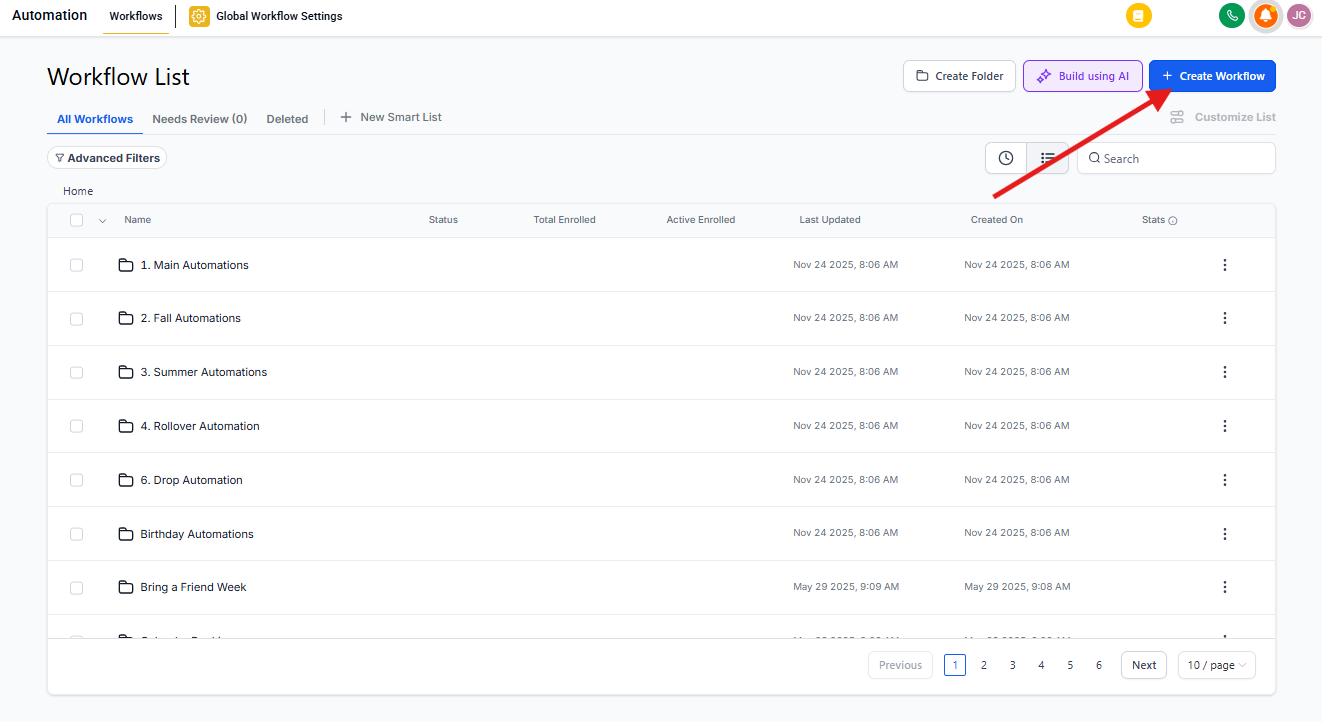
Step 1: Start a New Automation
Go to the Automations section in your Enrollio dashboard. Click Automations in the left menu, then click the "+ Create Automation" button and select "Start from scratch."
Step 2: Add the Trigger
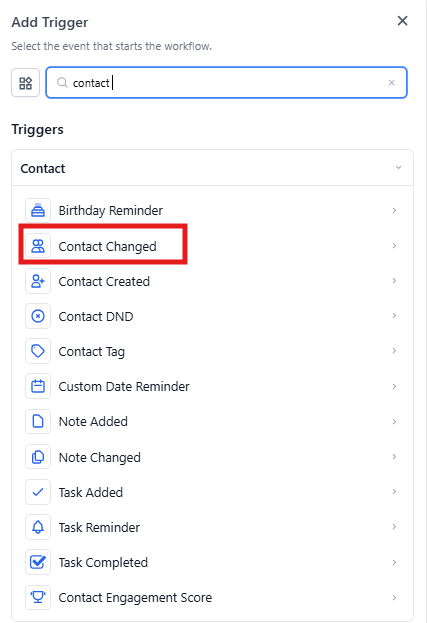
Click Add New Trigger and search for "Parent/Family Record Changed" (or "Contact Changed"). Select it from the list.
Step 3: Name Your Trigger
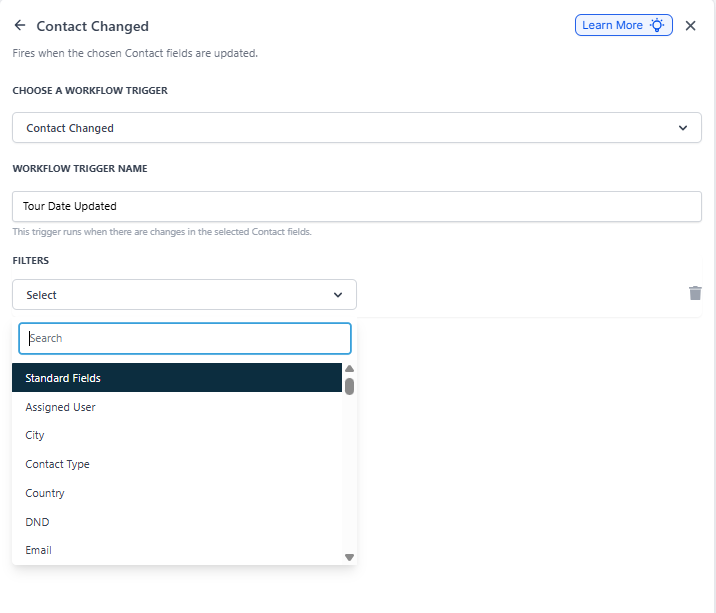
Give your trigger a descriptive name that explains what change you're tracking. For example: "Tour Date Updated" or "Enrollment Status Changed."
Step 4: Set Your Filters
Decide what kind of changes will activate this automation:
- Custom Field: Track changes to specific fields like "Child's Age," "Tour Date," or "Enrollment Status."
- Tags: React when tags are added or removed, such as "Waitlist," "Enrolled," or "Payment Plan."
- DND Status: Respond when a family enables or disables "Do Not Disturb."
- Assigned Staff: Trigger actions when a family is reassigned to a different team member.
Step 5: Add Your Actions
After setting your filters, add the actions you want to happen when the trigger fires. Common actions include sending a text message, creating a task for staff, or updating the family's record.
Frequently Asked Questions
What types of changes can trigger this automation?
The "Parent/Family Record Changed" trigger can activate based on various updates, including:
- Tags Added or Removed: Example: If a family is tagged as "Scholarship Applicant," trigger a follow-up email with application details.
- Custom Field Updates: Example: If a family's "Preferred Start Date" is updated, send them preparation materials.
- Assigned Staff Change: Example: If a family is reassigned to a new enrollment coordinator, notify that staff member immediately.
- DND Status Change: Example: If a family enables "Do Not Disturb," stop all automated text messages.
Can I track multiple changes within a single automation?
Yes! You can add multiple filters under the "Parent/Family Record Changed" trigger to track different types of changes at once. For example, you can configure the automation to trigger when either a tag is added OR a custom field is updated.
What happens if a family's information changes multiple times? Will the automation trigger each time?
Yes, the automation will trigger each time a tracked change occurs. To prevent unnecessary actions (like multiple emails being sent), you can:
- Use conditions to check whether an action has already been performed.
- Apply specific filters to trigger only on certain changes.
- Add time delays to avoid excessive automation runs.
Can I trigger actions when a tag is removed or an old value is deleted?
No, this trigger detects new updates but doesn't track removed values. If you need to automate actions based on a tag being removed, consider using a condition within your automation to check whether a family still has a specific tag.