
Automation Triggers - Note Changed
This article explains the Note Changed automation trigger, which activates whenever a note in a parent or family record is modified. You'll learn what this trigger is, how it benefits your childcare center, how to configure it step by step, and real-world examples of how to use it.
What is the Note Changed Automation Trigger
The Note Changed trigger activates when a note in a parent or family record is updated or modified. This helps you keep contact information synchronized and automate follow-ups based on changes to notes—invaluable for maintaining accurate records and staying responsive to families.
You can use filters like "Has Tag" or "Doesn't Have Tag" to target specific types of families for greater precision in your automations.
Key Benefits of Using This Trigger
- Real-Time Updates: Automatically tracks changes in family notes, ensuring your records are always current.
- Automated Follow-Ups: Triggers automations to respond to note changes, such as updating enrollment statuses or assigning tasks to staff.
- Better Record Management: Helps organize and manage family records by automating responses to note updates.
- Precise Targeting: Allows automations to target specific families based on tags, ensuring the right action happens for the right family.
- Time Savings: Reduces manual work by automating routine actions triggered by note modifications.
How to Configure the Note Changed Trigger
Step 1: Navigate to Automation Triggers
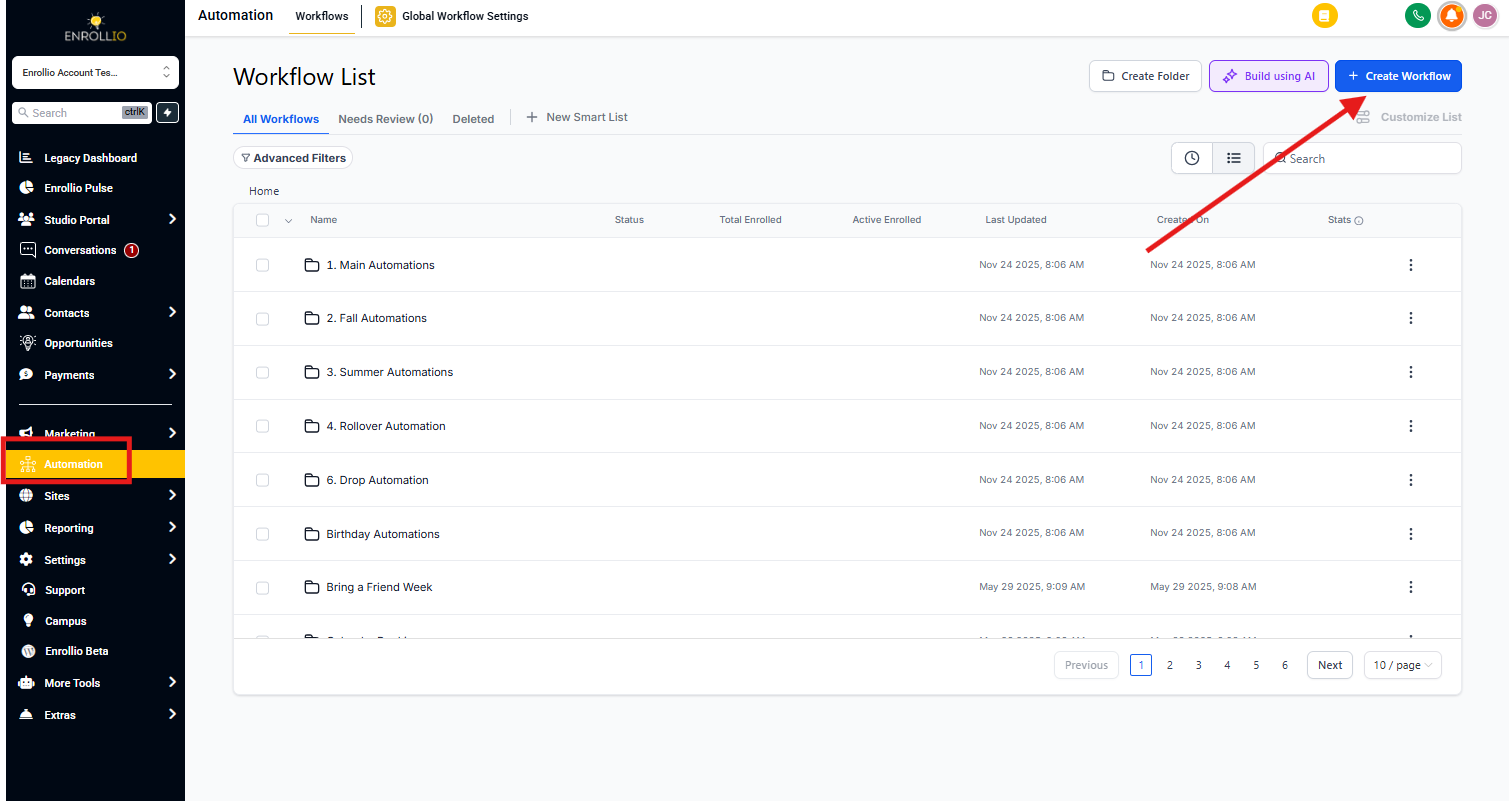
Go to the automation settings in your Enrollio platform.
Step 2: Select the Trigger
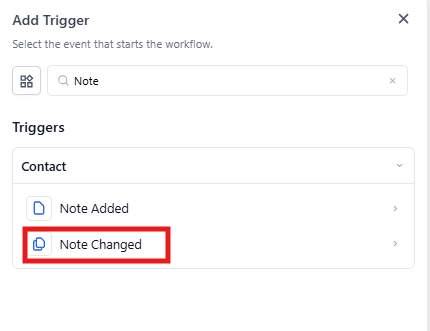
From the available options, choose the Note Changed trigger under the Parent/Family section.
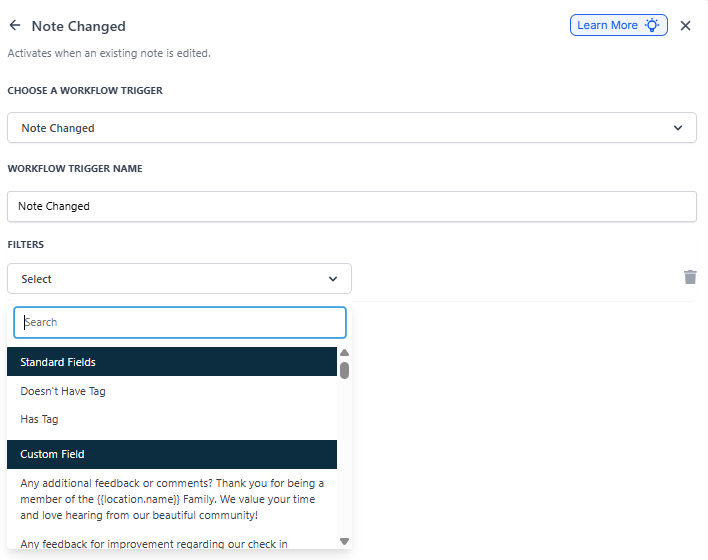
Step 3: Name Your Trigger
Give the trigger a descriptive name that makes it easy to identify later, like "Note Updated - Tour Follow-up" or "Parent Note Changed - Priority Alert."
Step 4: Set Filters
Configure filters to specify when the automation should activate:
- Has Tag: The automation triggers only when the parent/family has the specified tag.
- Doesn't Have Tag: The automation triggers only when the parent/family lacks the specified tag.
Step 5: Save the Trigger
Ensure your configuration is saved and linked to the appropriate automation actions.
Step 6: Test and Publish
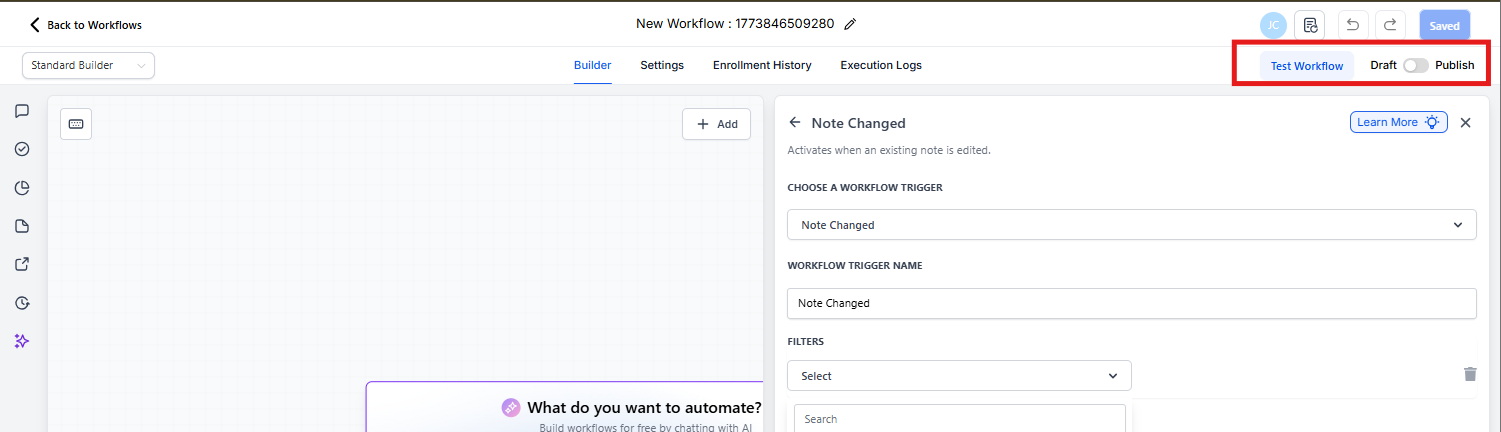
Test the trigger using sample data to make sure it works as expected. Then enable the Publish toggle to activate the automation.
Real-World Use Cases
Priority Parent Alert
Scenario: A staff member updates a note with details about a parent concern or urgent request. You need to assign a task to your director immediately.
Trigger Setup:
- Trigger: Note Changed
- Filter: Has Tag: "Priority Parent"
- Outcome: The automation assigns a task to your center director and sends them a text message alert.
Tour Follow-Up Reminders
Scenario: A note is updated after a family tour to include the parent's feedback. This should trigger a follow-up email.
Trigger Setup:
- Trigger: Note Changed
- Filter: Has Tag: "Tour Scheduled"
- Outcome: The automation sends a personalized follow-up email thanking the family for visiting and offering to answer questions.
Frequently Asked Questions
Can the trigger handle multiple note changes in quick succession?
Yes, the trigger activates each time a note is updated. To prevent overlapping automations, you can add conditions or cooldown periods in your automation actions.
How does the filter "Has Tag" affect the automation?
The "Has Tag" filter ensures the automation only activates for families with a specified tag. This enables precise targeting and reduces unnecessary automation executions.
Can I combine this trigger with other triggers in the same automation?
Yes, the Note Changed trigger can be combined with others, such as "Tag Added" or "Task Completed," to create more sophisticated automations.
What happens if a note is deleted instead of updated?
This trigger activates only when a note is changed or updated. Deleting a note will not trigger the automation.
Can I track changes to specific types of notes?
Currently, the trigger applies to all note changes in a family record. You can use filters like "Has Tag" or "Doesn't Have Tag" to refine which families the automation applies to based on their tags.