
Trigger Statistics for Automations
Trigger Stats gives you real-time visibility into how each automation trigger is performing in Enrollio. See Attempted, Matched, and Unmatched counts at a glance, drill into family-level reasons for mismatches, and filter results to validate your logic quickly.
What are Trigger Statistics?
Trigger Stats is a diagnostic view inside the Automation Builder that measures whether families qualified for each trigger. It surfaces totals (Attempted, Matched, Unmatched) and lets you click into a detailed panel to see the exact reason a family did or did not match.
This means you can fix filters, update data, and confirm changes without leaving the builder.
Key Benefits of Trigger Stats
- Faster Debugging: Real-time counts reveal which triggers aren't matching as expected.
- Family-Level Clarity: Open a panel with the family name, timestamp, match status, and the reason for unmatch.
- Actionable Reasons: Review the Top Reasons for Unmatch (e.g., filter mismatch, missing values) to prioritize fixes.
- Immediate Validation: Adjust trigger filters and watch the stats update live as new events occur.
- Targeted Analysis: Filter by date range or search a specific family to isolate anomalies.
- Confidence in Logic: Reduce guesswork and ensure the right families enter the right automations.
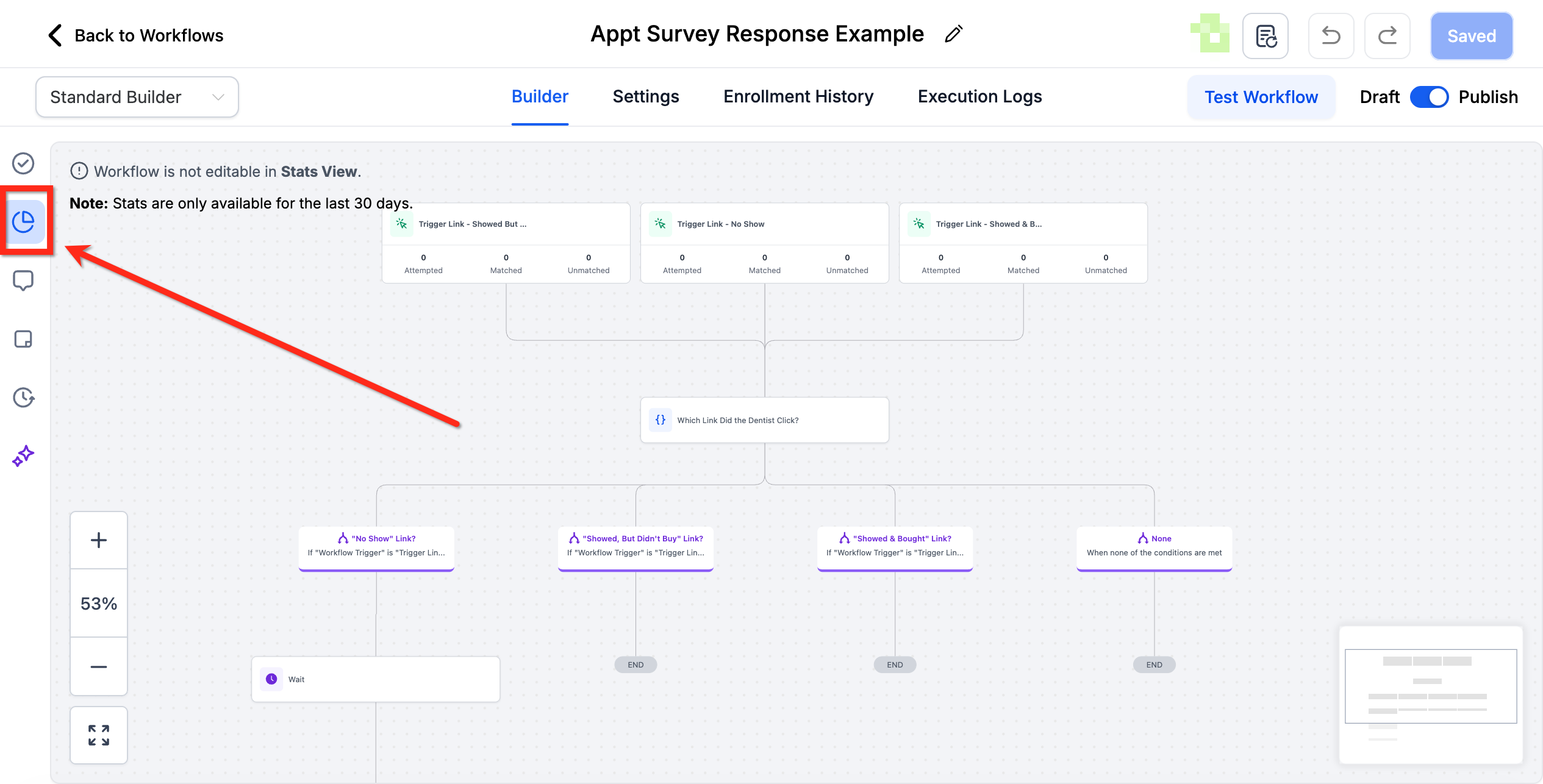
Trigger-Level Performance Metrics
Instantly understand trigger effectiveness. Each trigger card in Stats View displays:
- Attempted – total families evaluated
- Matched – families that met all conditions
- Unmatched – families that did not qualify
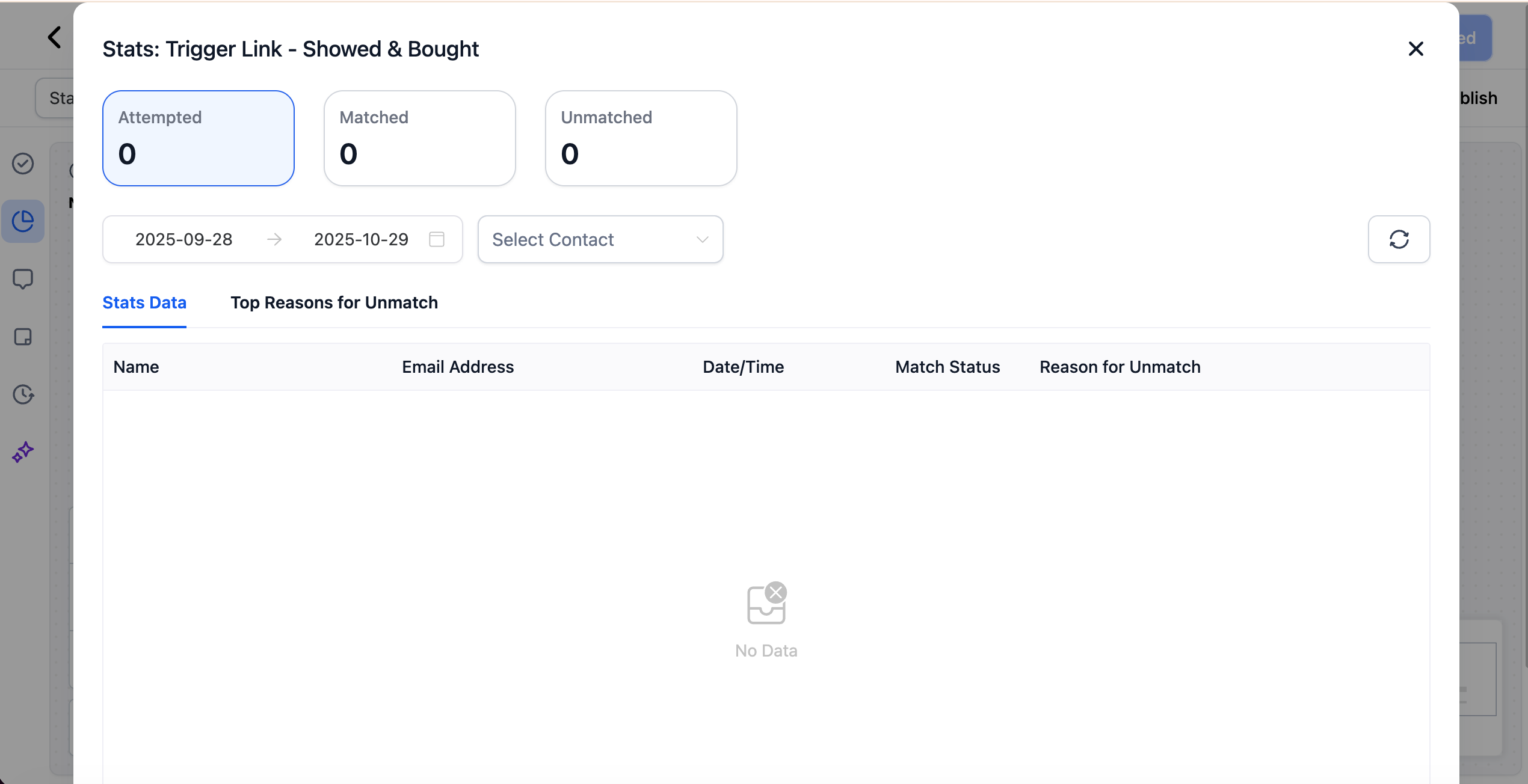
Trigger Stats Panel
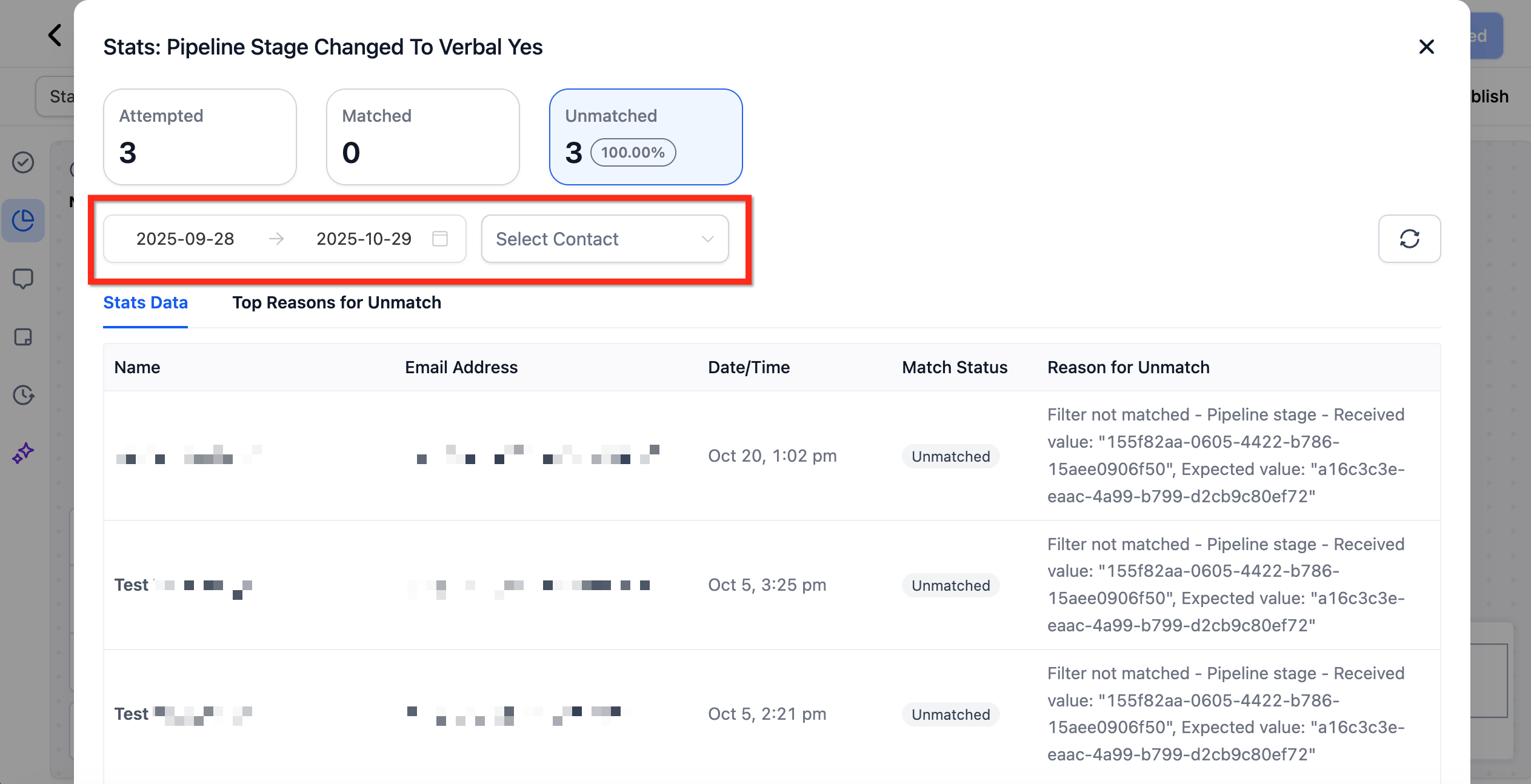
Click any metric to open a side panel packed with diagnostic details so you can fix issues without leaving the builder.
What you'll find:
- Family name, email, and evaluation timestamp
- Match status for each family
- Top 10 reasons a family didn't match (e.g., value mismatch, missing field)
- Search bar and date-range filter for laser-focused analysis
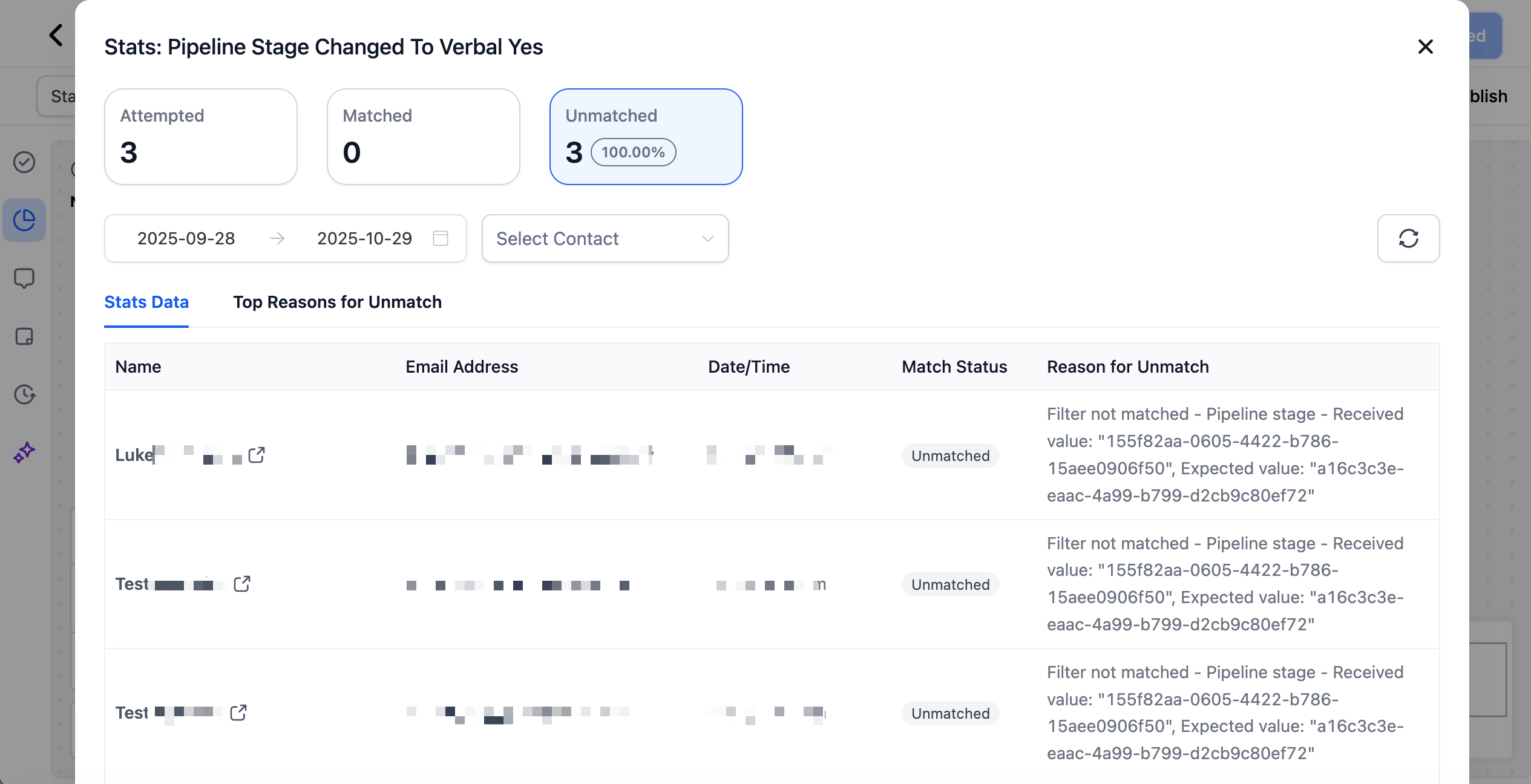
Real-Time Analysis & Smart Filters
Trigger Stats updates live as events occur, so you can test a change, watch the numbers move, and confirm your fix immediately.
Use built-in date and family filters to isolate specific timeframes or individuals. This is ideal for studying spikes or validating test records.
How To Use Trigger Stats
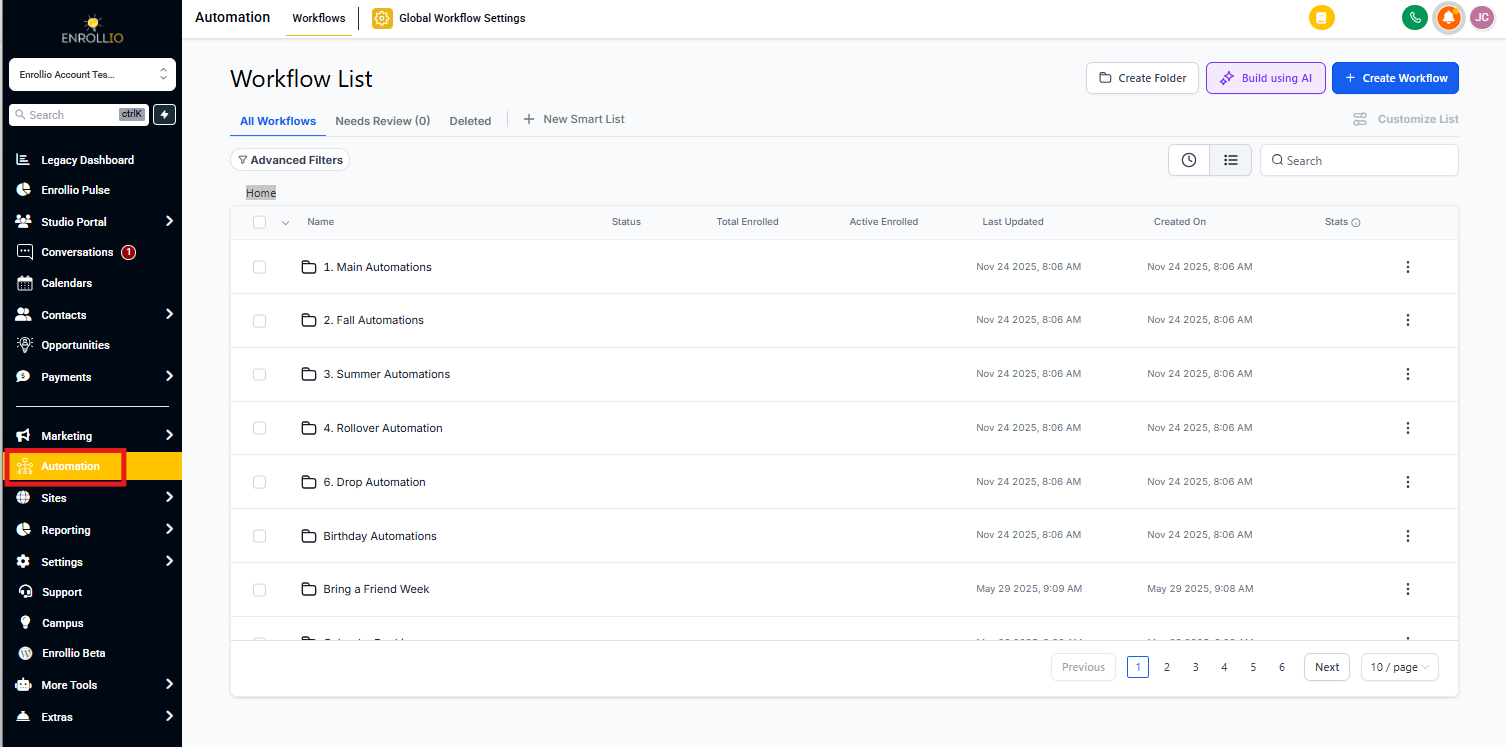
Step 1: Open the Automation
Navigate to Automations → Automations, then open any automation you want to analyze.
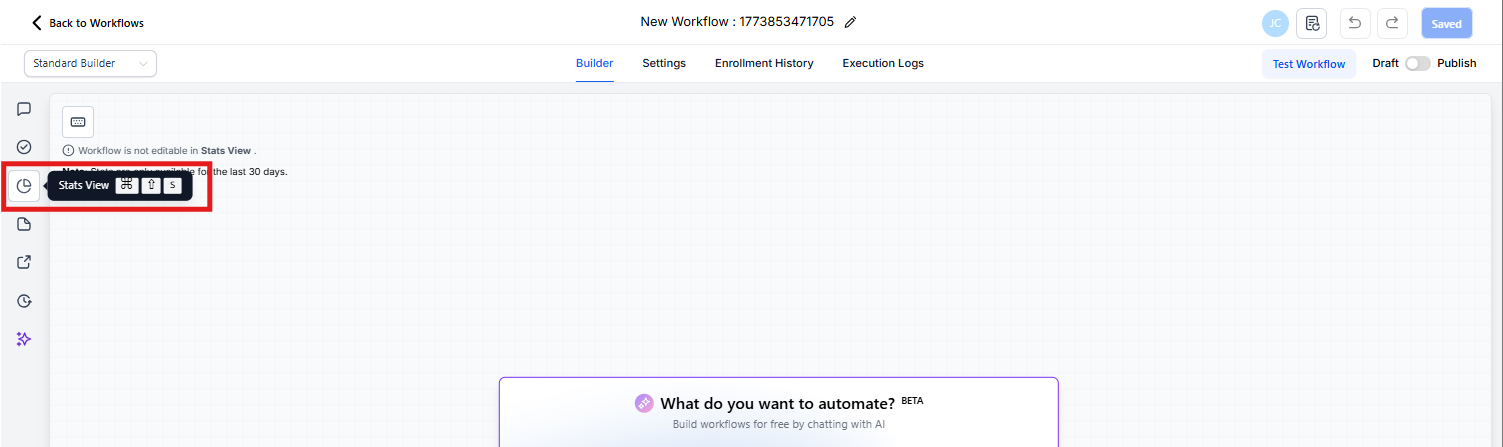
Step 2: Switch to Stats View
Click the Stats tab at the top of the builder to load trigger-level metrics.
Note: A banner indicates the automation is not editable in Stats View.
Step 3: Drill into a Trigger
Click the Attempted, Matched, or Unmatched number on a trigger card to open the Trigger Stats panel.
Step 4: Filter and Validate
- Apply a date range or Select Family to focus your analysis
- Compare Received value vs Expected value in the Reason for Unmatch to identify mismatches
Step 5: Adjust Logic and Re-Check
Return to Builder (edit mode), update trigger filters or data standards, then switch back to Stats to confirm improvement.
Frequently Asked Questions
Q: How often do the numbers refresh?
Stats update in real time. You'll typically see new attempts within seconds of the triggering event.
Q: Does Trigger Stats change how triggers fire?
No. It only adds visibility. Your trigger logic and execution remain unchanged.
Q: What counts as "Attempted"?
Any family evaluated by the trigger, whether it matched the filters or not, adds one to the Attempted tally.
Q: How long is data retained?
The Trigger Stats panel stores data for the last 30 days.
Q: Can I export this data?
Not directly from the Stats panel, but you can use the comprehensive automation reports in the Dashboard to export historical performance data.