
Automation Trigger Insights and Performance Stats
The Trigger Statistics & Narration view helps you understand how your automation triggers perform, so you can monitor activity and spot opportunities to improve your enrollment processes.
This guide covers two visibility features for triggers in automations:
- Trigger Narration — human-readable filter summaries displayed right on the trigger card
- Trigger Stats — Attempted / Matched / Unmatched counts, plus family-level reasons for why triggers did or didn't fire
Key Benefits
Visibility: See exactly which triggers are driving the most activity in your enrollment automations.
Performance Analysis: Quickly identify top-performing or underutilized triggers across your waitlist, tour, and enrollment flows.
Error Detection: Find and fix triggers that fail to execute as expected, so no family falls through the cracks.
Optimization: Improve automation efficiency using real data instead of guesswork.
Trigger Narration
See the "why" at a glance. Every trigger shows a human-readable summary of its filters and conditions right on the trigger card.
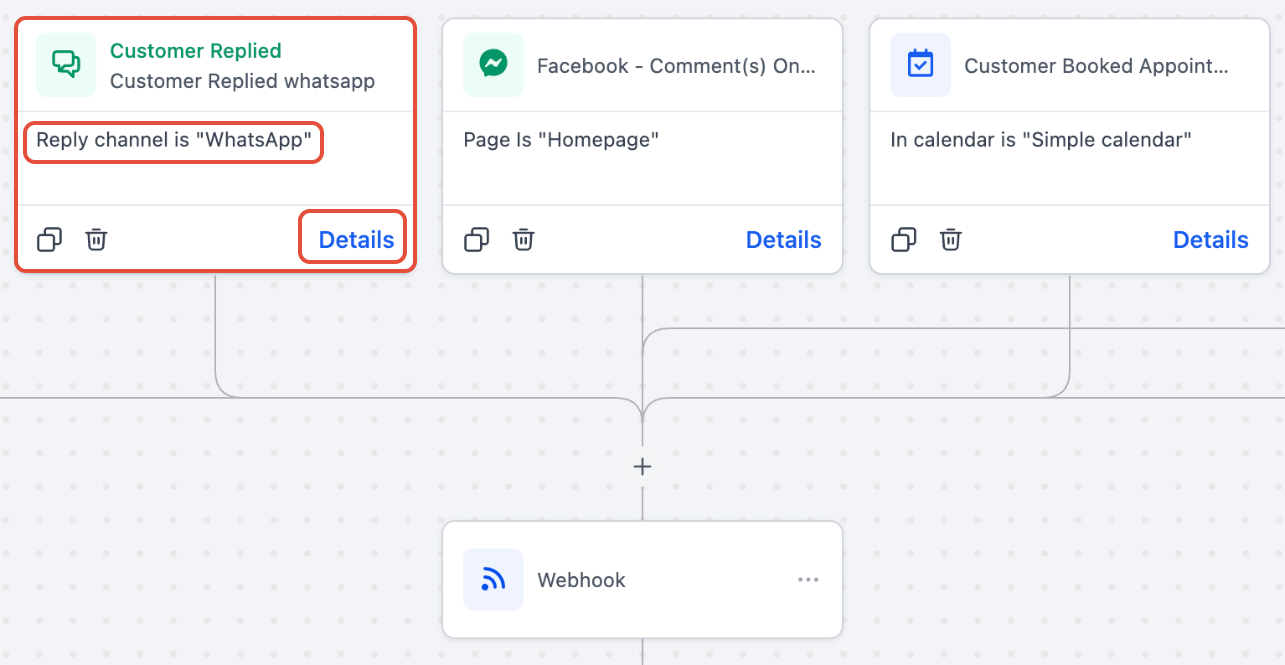
This makes it easy to scan logic without opening each trigger — especially helpful when you're reviewing a large automation with multiple branches for tours, enrollments, and waitlist movements.
How It Works
The narration appears below the trigger name on the canvas. For complex triggers with many conditions, you'll see a compact summary with a "+X more" link.
Click Details to open a panel with the full filter list.
Narration helps during audits, handoffs, and reviews — you no longer need to open every trigger just to recall its purpose.
Trigger Stats (Attempted / Matched / Unmatched)
Measure what's working. In Stats View, each trigger displays performance metrics and lets you drill into family-level reasons (e.g., filter mismatch, missing data).
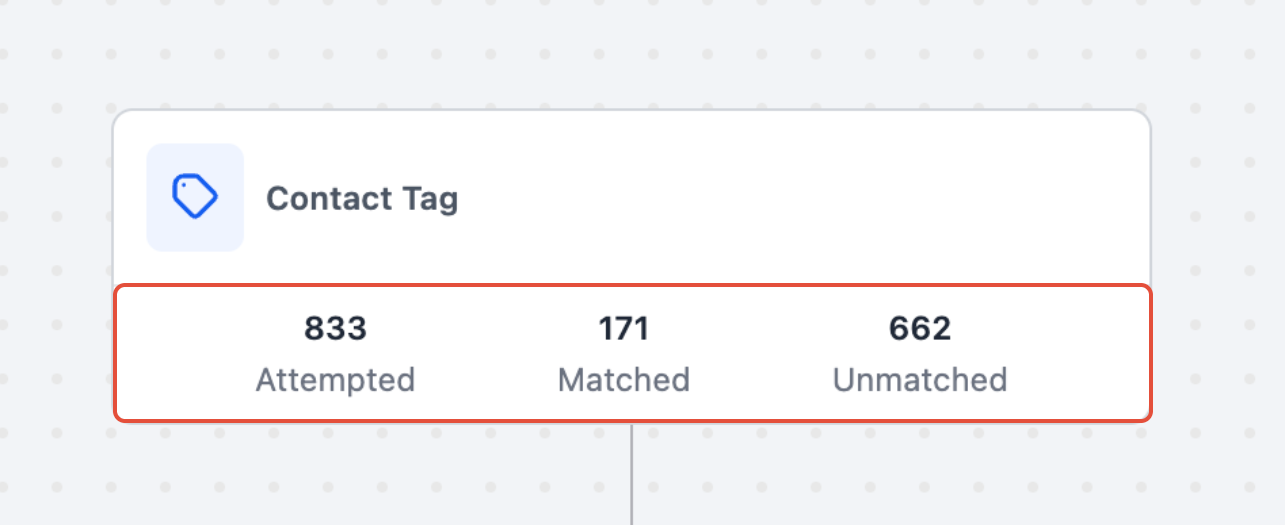
Important: Automations are not editable in Stats view. Stats are available for the last 30 days only.
What the Numbers Mean
Attempted — total families evaluated by this trigger
Matched — families that met all conditions and entered the automation
Unmatched — families that didn't qualify
Drilling Into Details
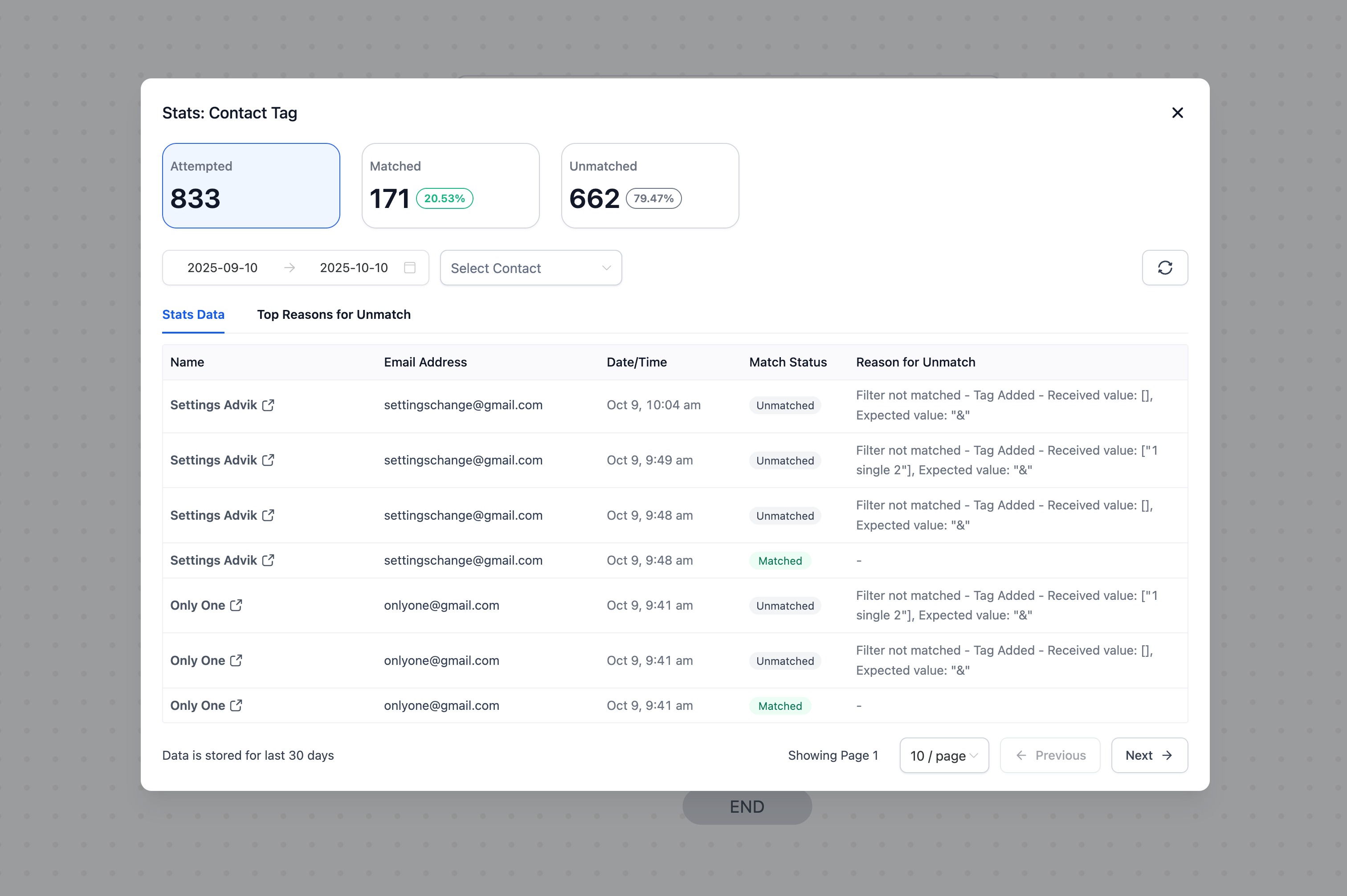
Click any stat to open the Trigger Stats Panel and see:
- Parent/family names, emails, and timestamps
- Match status for each family
- Reason for Unmatch (e.g., value mismatch, missing field)
- Filters: date range, search by family
Best Practices
Review trigger stats weekly to catch performance issues early — especially for high-touch sequences like tour reminders or enrollment deadlines.
Use success rate metrics to monitor automation health. If a trigger's match rate drops suddenly, investigate filters or data quality.
Compare triggers across similar automations to find optimization opportunities. If one waitlist trigger performs better than another, apply those learnings.
Frequently Asked Questions
I don't see narration on my trigger card
Make sure the feature is enabled in Settings → Labs. If the trigger has many filters, look for the "+X more" link and click Details.
My "Unmatched" count is high—what should I check first?
Open the Trigger Stats Panel and review Reason for Unmatch. Common causes: wrong value, missing field, or the wrong trigger type selected.
Review your trigger type and filters (compare against the trigger's reference in the triggers catalog).
Can I filter or search inside Trigger Stats?
Yes, use the date range and search (by family) within the stats panel.
Does this change how triggers start automations?
No. Triggers and actions still follow the standard automation model: an event (trigger) starts the flow, then actions run in sequence. Narration and Stats only add visibility; they don't change execution.