
What Is the Call Transcript Generated Trigger?
The Call Transcript Generated trigger automatically starts an automation as soon as Enrollio finishes transcribing a recorded phone call. This lets you launch follow-up actions immediately after a call ends — whether it's a parent inquiry, tour request, or enrollment conversation.
Once triggered, the automation receives detailed call information including the full transcript, call duration, direction (inbound/outbound), caller location, timestamps, and more. You can use this data to personalize your follow-up, update family records, or create tasks for your team.
This trigger works with:
- Voice AI Calls – Transcription enabled by default
- Enrollio Phone Calls – Requires transcription enabled in Phone Settings
- IVR Calls – Requires transcription enabled in IVR Settings
Why Use This Trigger?
Instant Follow-Up: Start your next action seconds after a call ends — no manual delays or forgotten tasks.
Smarter Personalization: Use AI to analyze the transcript and tailor your response based on what the parent actually said during the call.
Capture Important Details: Automatically save key information like program interests, tour preferences, or specific questions directly to the family's record.
Rich Call Data: Access call duration, direction, location, timestamps, and staff information to build more precise automations.
Save Time: Eliminate repetitive post-call admin work so your team can focus on building relationships with families.
How to Set Up the Call Transcript Generated Trigger
Step 1: Create or Edit an Automation
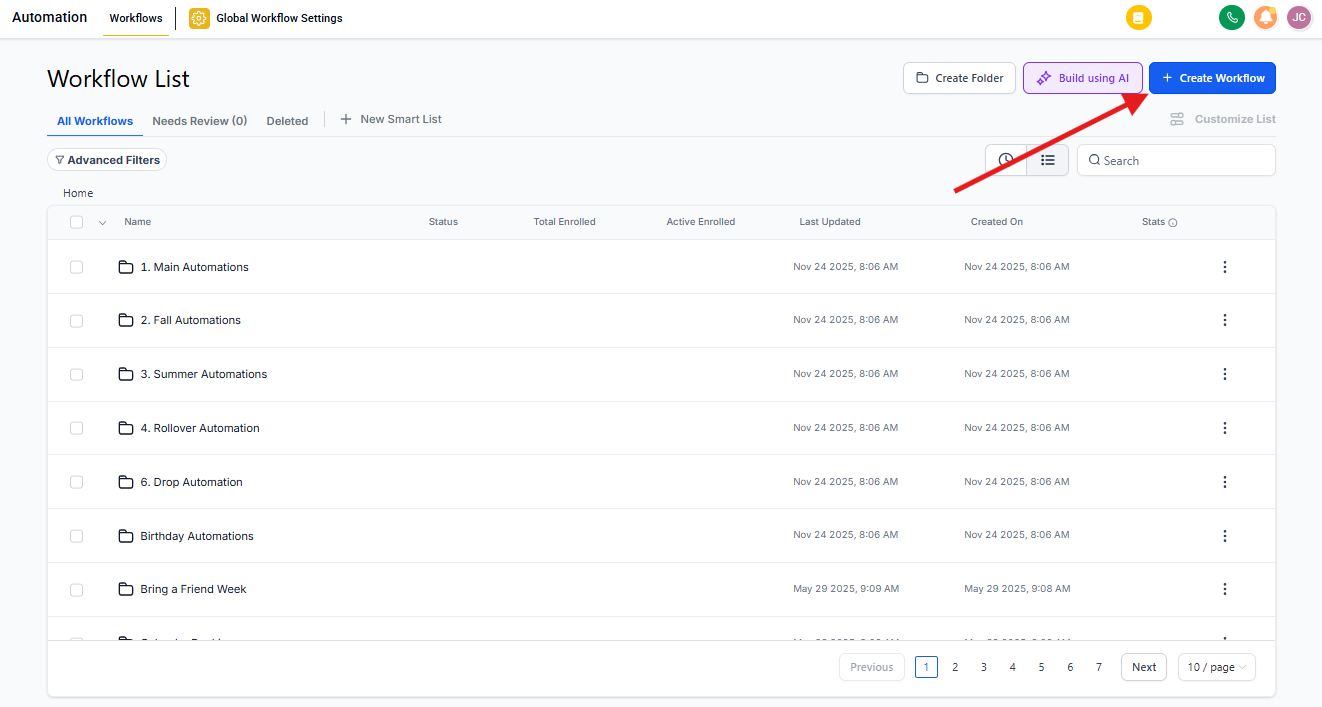
Go to Automations and click + Create Automation. Choose to start from scratch or open an existing automation.
Step 2: Add the Trigger
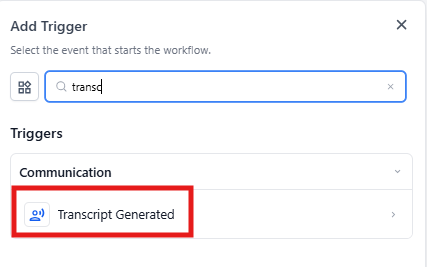
Click Add New Trigger and select Call Transcript Generated from the trigger list.
Step 3: Enable Transcription (If Needed)
Transcription must be turned on for this trigger to work:
- Voice AI: Already enabled by default
- Enrollio Phone: Click the link in the trigger setup to enable transcription in Phone Settings
- IVR: Click the link in the trigger setup to enable transcription in IVR Settings
If transcription isn't enabled, you'll see a prompt with a direct link to the right settings page.
Step 4: Apply Filters (Optional)
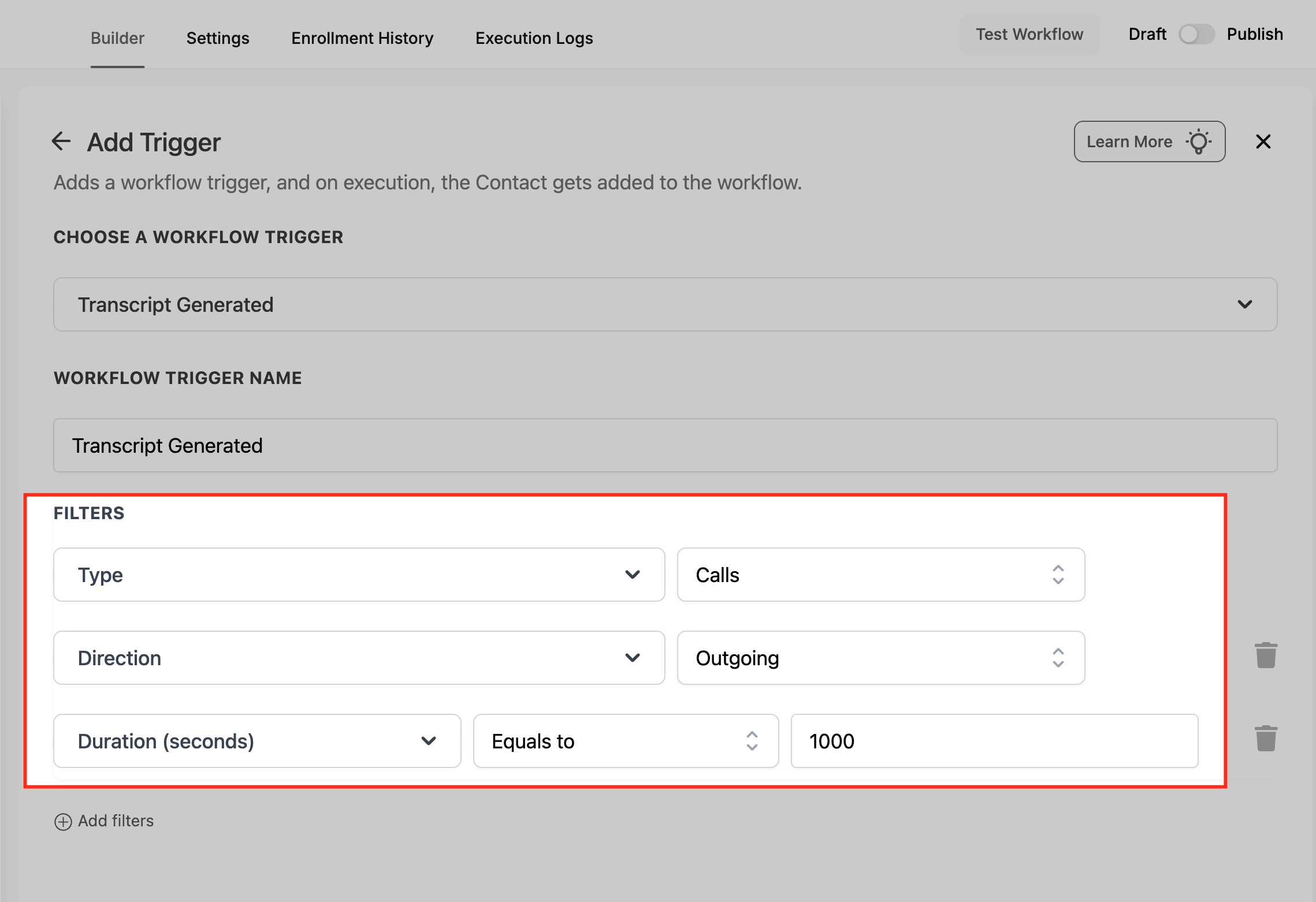
Fine-tune when your automation runs by adding filters:
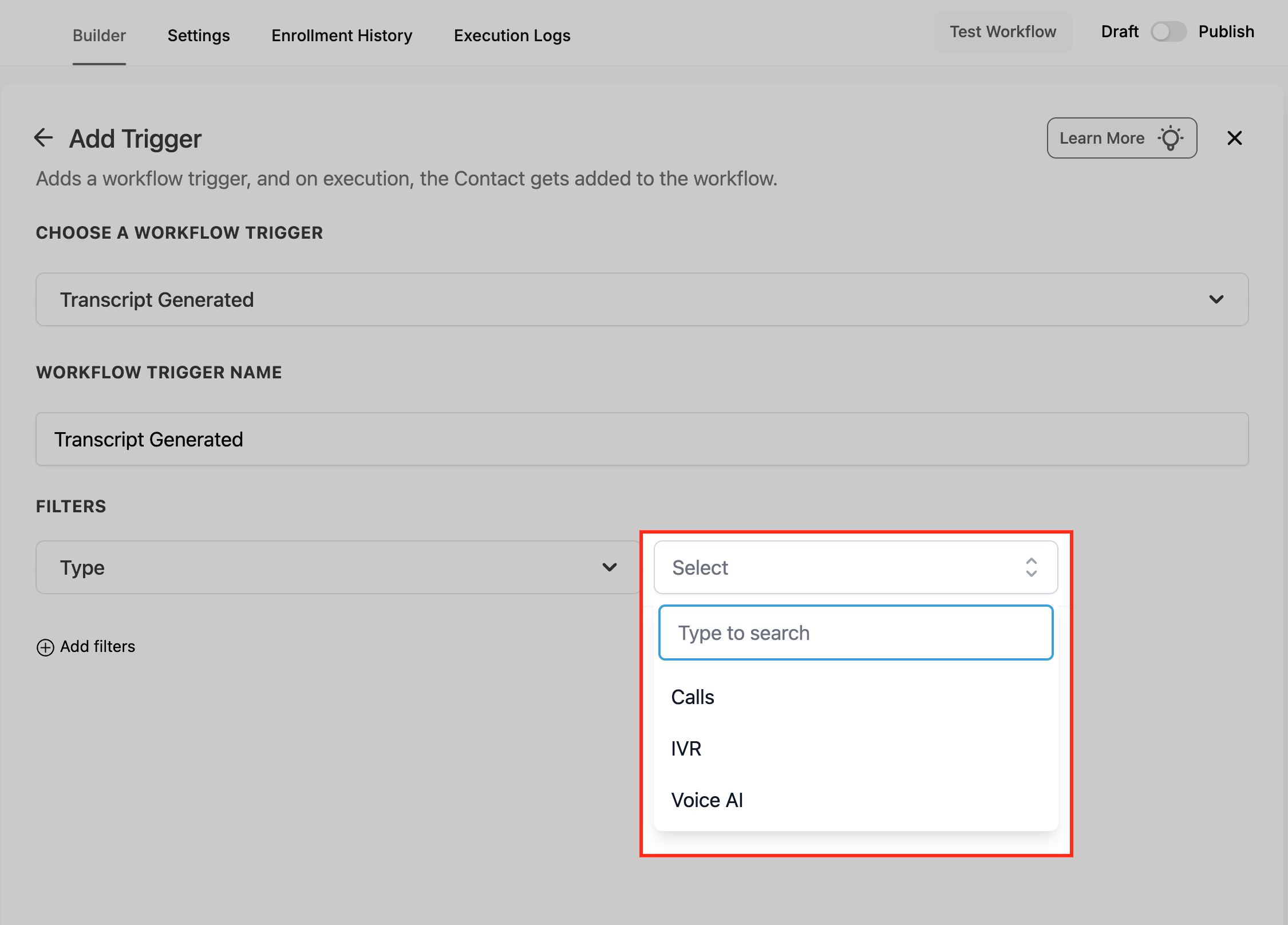
- Call Type: Choose Voice AI, IVR, or Normal Calls
- Call Direction: Filter by inbound or outbound calls
- Call Duration: Set a minimum duration to exclude very short calls (e.g., longer than 30 seconds)
Step 5: Save and Publish
Click Save Trigger, add the actions you want (like sending a text, creating a task, or updating the family record), and switch your automation from Draft to Published.
Translation Support
If Voice AI Translation is enabled for your agent, automations receive both the translated transcript and translated summary. You can use these to:
- Send follow-ups in the parent's preferred language
- Route internal notifications with translated notes
- Write standardized outcomes to family records regardless of original language
If translation isn't enabled, automations use the default transcript generated for the call.
Frequently Asked Questions
What happens if the transcription fails or only partial audio is captured?
If a call fails to transcribe completely (due to poor audio quality or missing recording segments), the trigger won't fire. Enrollio only activates this trigger when a complete transcript is successfully generated.
For partial transcripts, the automation runs normally, but missing segments appear as blank spaces in the transcript data.
Can multiple automations use the same transcript event?
Yes. The same call transcript can trigger multiple automations if each has different conditions (like different filters or call directions). Just make sure your filters don't overlap unnecessarily to avoid duplicate actions — like sending the same follow-up text twice.
How is transcript data stored and secured?
Transcripts are securely stored within Enrollio and linked only to the corresponding family record. Access follows your user permissions settings. Admins can view, delete, or export transcripts as needed.
Transcript text isn't shared externally unless you explicitly send it through an automation action (like including it in an email or webhook).
Can this trigger work with calls from outside systems?
No. This trigger only works for calls recorded and transcribed within Enrollio. Imported call logs or transcripts from external systems won't activate this automation because they bypass Enrollio's internal transcription process.
What happens if the same parent has multiple transcripts generated quickly?
Each transcript event fires independently. Enrollio processes them in chronological order, so if multiple calls happen close together, they're queued and processed sequentially. This prevents data conflicts and ensures your automation actions execute correctly.
Is there a limit to transcript size in automations?
Yes. When storing transcripts in custom fields, you're limited to 16 KB. For longer conversations, consider using a note field or storing the transcript via a webhook action to avoid truncation.
The automation itself can still process the full transcript even if it can't be stored in a single field.