
Overview
The Task Completed trigger lets you automate follow-up actions when someone on your team marks a task as done. Use it to keep your enrollment process moving — whether that means notifying your team, following up with a family, or updating a status in your system.
How It Works
This trigger fires the moment a task is marked complete. You can set it to respond to any completed task, or filter it to only fire when specific team members complete tasks, or when tasks meet certain criteria you define.
Common uses in childcare centers:
- Send a follow-up email after a tour confirmation call is completed
- Notify your director when enrollment paperwork tasks are done
- Update a family's status in your enrollment pipeline after an intake task is finished
- Trigger the next step in your onboarding sequence
Configuration Options
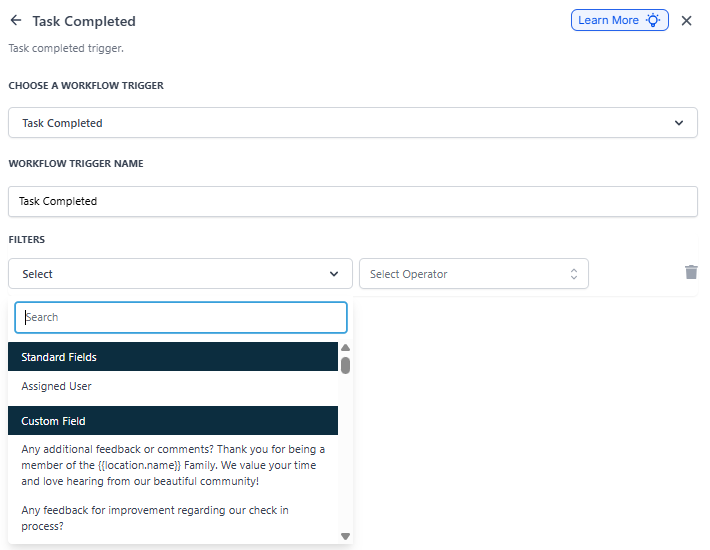
Assigned User
Choose which team member's completed tasks should trigger the automation. Leave this blank if you want the automation to fire when anyone completes a task, or select a specific person to make it more targeted.
Custom Field Filters
You can add filters based on custom fields you've set up in Enrollio. For example, you might filter by program type, age group, or enrollment status to make sure the automation only runs for the right families.
How to Set It Up
- In your automation builder, click Add Trigger
- Select Task Completed from the list
- Give your trigger a clear name like "Tour Call Completed Follow-up"
- Choose whether to filter by assigned user (optional)
- Add any custom field filters you need (optional)
- Click Save
Example: Post-Tour Follow-Up
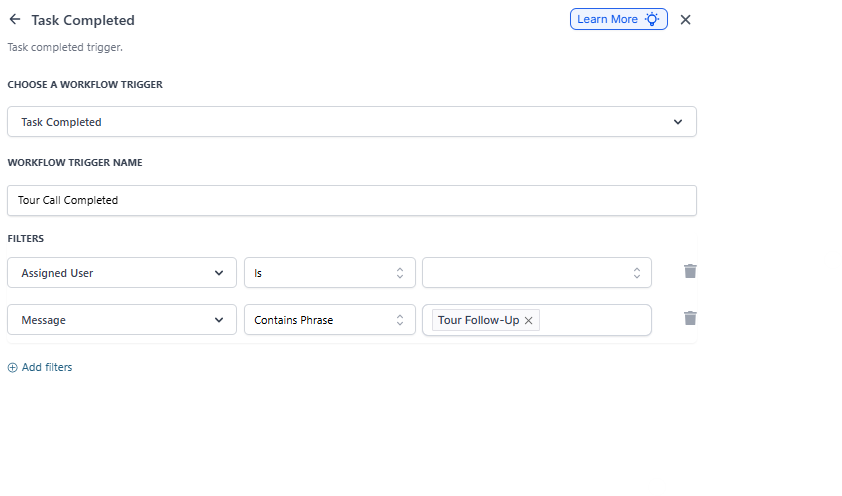
Let's say you want to automatically send a thank-you email after your enrollment coordinator completes a "Tour Follow-Up Call" task.
Setup:
- Trigger Name: Tour Call Completed
- Assigned User: Sarah Johnson (your enrollment coordinator)
- Filter: Task title contains "Tour Follow-Up"
When Sarah marks a tour follow-up task as complete, this trigger fires. Your automation then sends a personalized email to the family, thanks them for their interest, and includes next steps for enrollment.
Related Articles
- Automation Trigger: Task Reminder
- How to Create Tasks in Automations
- Managing Your Enrollment Pipeline