
Capture prospective families from LinkedIn Lead Gen forms the moment they submit and route them into Enrollio automations. This guide explains what the LinkedIn Lead Form Submitted trigger does, when it fires, and how to configure filters like Page or custom fields for precise routing.
You'll also find setup steps, testing tips, and troubleshooting so your team responds to every LinkedIn inquiry fast.
What is the LinkedIn Lead Form Submitted trigger?
The LinkedIn Lead Form Submitted trigger enrolls a prospective family into an automation immediately after they submit a LinkedIn Lead Gen form connected to your Enrollio account.
Use it to launch instant follow-ups, assign inquiries to enrollment coordinators, create enrollment opportunities, and kick off nurture automations based on where the family came from and the data they provided.
Trigger Details
| Field Name | Description | Mandatory |
|---|---|---|
| Page | The LinkedIn Page that owns the Lead Gen form. Select a specific Page to scope which submissions enter the automation. | No |
Operators available in filters
| Operator | Description |
|---|---|
| Is (Exact Match) | Triggers when the field exactly matches the selected value. |
| Contains Phrase | Triggers when the field contains the phrase you enter. |
| Does Not Contain Phrase | Triggers when the field does not contain the phrase you enter. |
| Is Empty | Triggers when the field has no value. |
| Is Not Empty | Triggers when the field has any value. |
Key Benefits of LinkedIn Lead Form Submitted
Understanding the benefits helps you design faster, cleaner automations and improve conversion. Use these advantages to guide how you filter, route, and follow up with LinkedIn inquiries.
- Speed-to-lead: triggers instantly on submission so you can text, email, or call right away.
- Precise routing: filter by Page or mapped custom fields to assign the right enrollment coordinator or pipeline.
- Cleaner data: pair with field mapping and deduplication to keep a single, accurate family record.
- Automated follow-up: start nurture sequences, tasks, and enrollment opportunity creation without manual work.
- Reporting clarity: consistent source tracking helps you measure campaign performance.
Prerequisites
Completing these prerequisites prevents "no leads entering" issues and makes testing straightforward.
- LinkedIn Lead Ads integration connected in Settings → Integrations with access to the correct LinkedIn Page and Ad Account.
- At least one LinkedIn Lead Gen Form published for the Page.
- Field mapping planned (e.g., map Email, Phone, Company, Job Title; map qualifiers like childcare needs or age of child to matching custom fields in Enrollio).
Filter Logic & Best Practices
Combining filters correctly ensures only qualified submissions enter your automation and prevents accidental enrollments.
- Multiple filters in the trigger are evaluated together (AND logic).
- Start broad (e.g., Page → Is → Your Page) and then add qualifiers.
- Avoid over-filtering during initial launch; add qualifiers after confirming families are flowing.
- Keep Page-specific automations simple—one automation per Page is easier to maintain than many complex conditions.
Recommended Automation Settings
A few automation settings make testing easier and prevent duplicate outreach.
- Allow Re-entry: enable during testing or when a family might submit more than once; disable if only the first submission should trigger.
- Stop on Response (optional): use to pause nurture when a family replies.
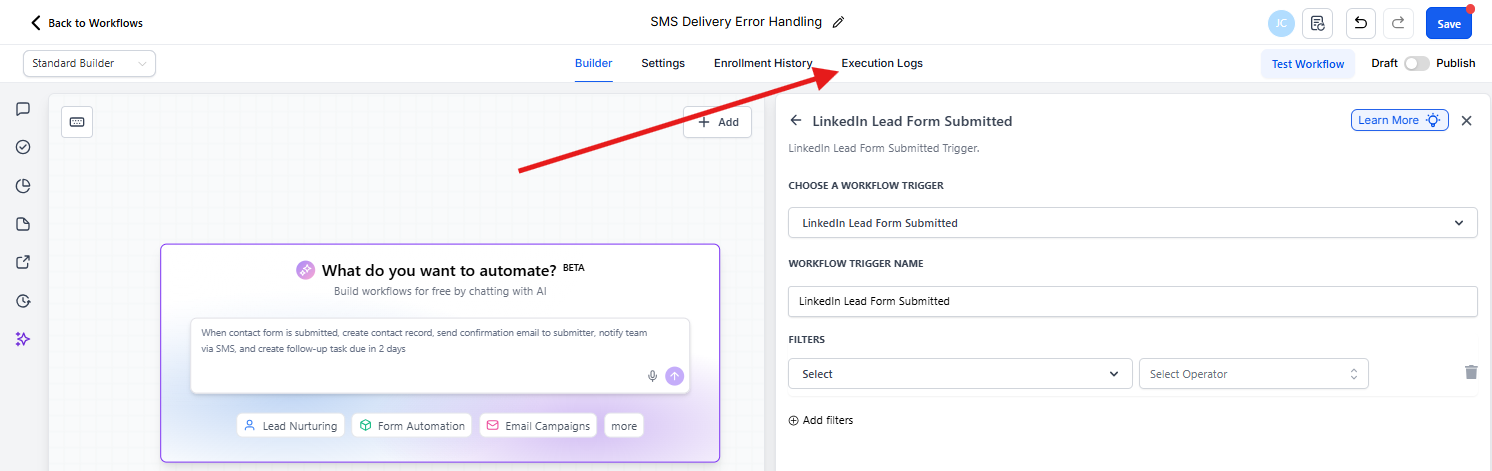
- Enrollment Logs: use Execution Logs to verify each family's path after submission.
How To Setup LinkedIn Lead Form Submitted
Follow these steps to configure the trigger, add filters, and save. Accurate setup ensures only the families you want enter the automation and receive the right actions.
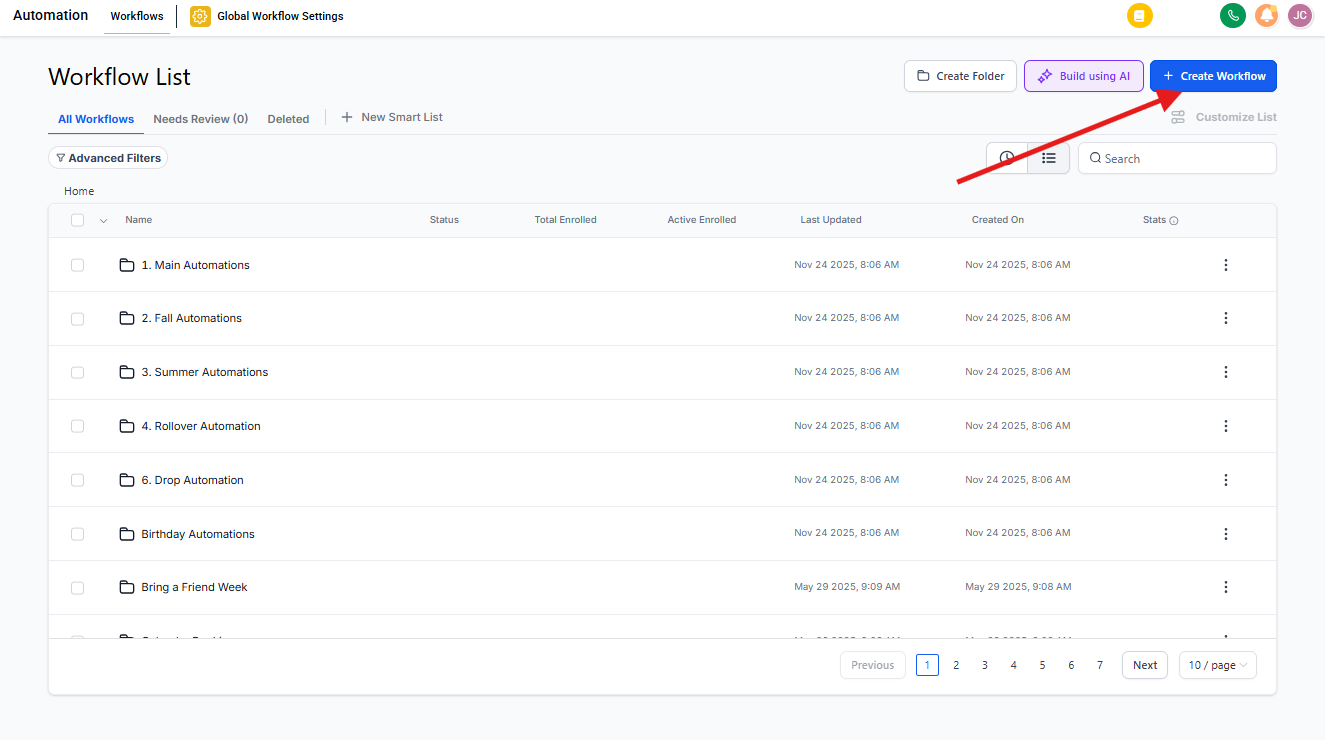
1. Open Automations
From the left navigation, go to Automation → Automations and click Create Automation in the top-right.
Choose Start from Scratch (or Select a Recipe) to open a new builder canvas.
2. Add Trigger
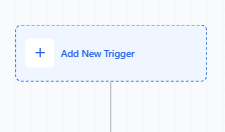
In the automation builder, hover over + and select Add Trigger.
This opens the trigger configuration panel on the right side of the screen.
3. Select Trigger
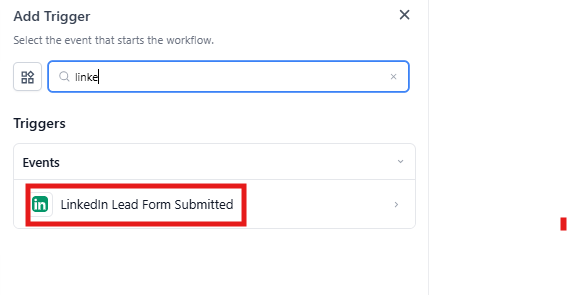
Use the search bar or scroll to find LinkedIn Lead Form Submitted and select it.
This chooses the LinkedIn lead-gen event as the enrollment source for the automation.
4. Name Trigger
Enter a clear Automation Trigger Name so teammates can recognize the source at a glance.
Names like "LinkedIn Lead Form Submitted" or "LinkedIn Inquiries — Page Scoped" work well.
5. Add Filters
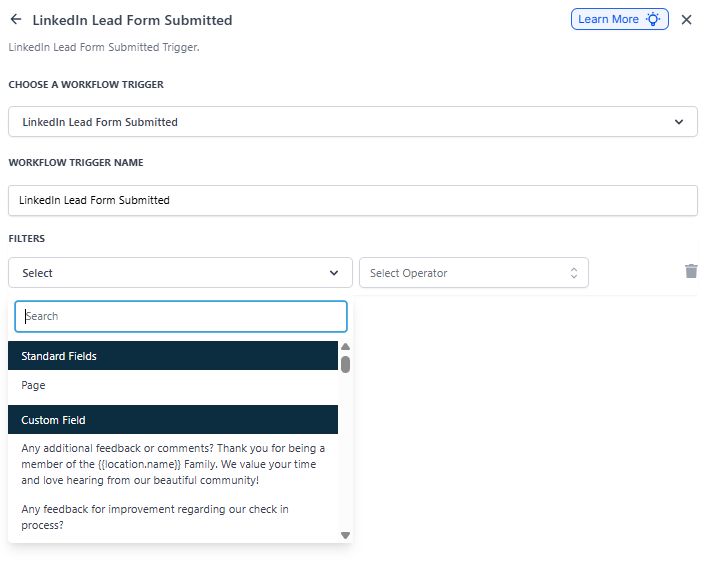
Click Add filters to open the field picker, which lists Standard Fields (e.g., Page) and your Custom Fields.
Use the search box to quickly locate mapped fields such as Child Age or Program Interest.
6. Page Filter
Set Page → Is, then pick the specific LinkedIn Page from the dropdown.
This limits automation enrollments to submissions coming from that Page only.
Testing the Trigger
Testing confirms the integration, mapping, and filters are working before you go live.
- In LinkedIn Campaign Manager, submit a test lead for the connected Page and form.
- In Enrollio, open Families and confirm the family record was created/updated with mapped fields.
- Open the automation's Enrollment History / Execution Logs to verify the trigger fired and actions ran.
- Review any filters that prevented enrollment; adjust as needed.
Frequently Asked Questions
Do I have to set the Page filter?
No. Filters are optional, but using Page keeps enrollments scoped to a specific LinkedIn Page.
Can I filter by the exact LinkedIn Lead Gen form?
If your mapping exposes a form identifier or you use a custom field indicating form name, you can filter on that value. Otherwise, use Page scoping and post-trigger conditions.
How are duplicates handled?
Enrollio attempts to match on identifiers like email or phone. If a match exists, the family record updates; otherwise, a new record is created. Keep dedup preferences tuned and merge when necessary.
Will resubmissions trigger the automation again?
That depends on Allow Re-entry. Enable it for testing or campaigns where a family might submit multiple times.
What if mapped fields are empty?
Use Is Empty / Is Not Empty operators to include or exclude those families, or adjust the LinkedIn form to require those answers.
How fast will families appear in Enrollio?
Families typically sync shortly after submission. Allow a brief delay during testing and check Execution Logs.
Can I run separate automations for different Pages?
Yes. Create one automation per Page or use the Page → Is filter with branching actions.
Where can I verify that the trigger fired?
Open the automation's Enrollment History and Execution Logs to see entries and action paths.