
What is the Product Completed Automation Trigger
The Product Completed automation trigger activates when a parent or family successfully completes a product you offer, such as an enrollment package, orientation program, or registration fee. By automating actions like sending follow-up communications, gathering feedback, and offering next steps, this trigger keeps families engaged throughout their enrollment journey.
Key Benefits of Product Completed Automation Trigger
- Improved Family Engagement: Automatically send congratulatory messages, feedback surveys, or next-step instructions to keep families informed and connected.
- Streamlined Follow-Up: Automates repetitive tasks like updating parent records or triggering targeted communications, saving your staff valuable time.
- Enhanced Family Satisfaction: Ensures timely communication and acknowledges family milestones, fostering trust and loyalty.
- Data-Driven Insights: Leverages family feedback and completion data to improve your enrollment process and services.
- Upsell Opportunities: Provides personalized offers like after-school programs or summer camp options to families who've completed initial enrollment.
Configuring the Product Completed Automation Trigger
Follow these steps to set up the trigger:
Access Automation Settings
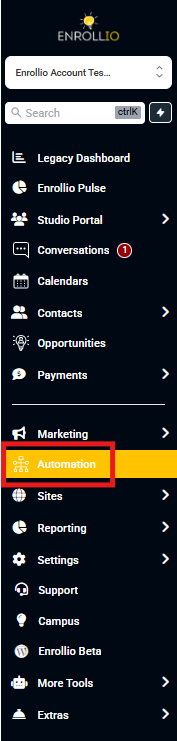
Navigate to the "Automation" section in your Enrollio dashboard. Create a new automation from scratch or select an existing automation where you want to implement the "Product Completed" trigger.
Add a New Trigger
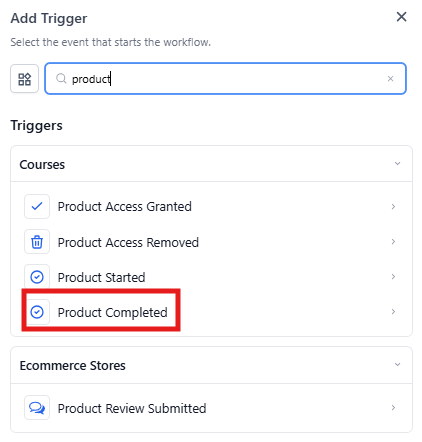
Click "Add New Trigger" and select "Product Completed" from the dropdown menu.
Name Your Trigger
Provide a descriptive name that clearly identifies what this automation does, such as "Enrollment Package Completion Follow-Up" or "Orientation Program Thank You."
Set Filters
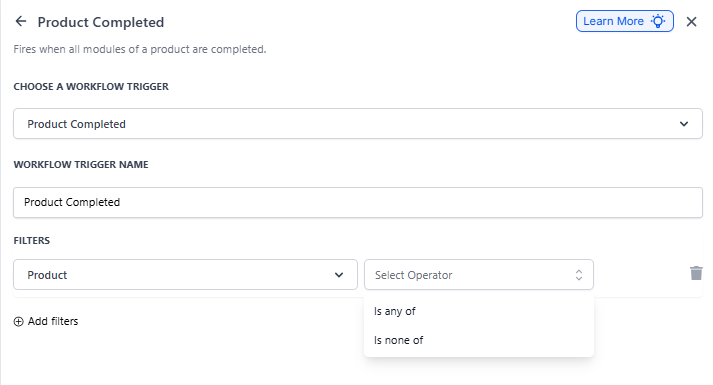
Customize your trigger by configuring filters to control when the automation runs:
- Product: Specify which product(s) will activate the automation upon completion.
- Operator: Use operators like "Is any of" to include specific products or "Is none of" to exclude certain products.
Save the Trigger
Click the save button to confirm your setup.
Test and Publish
Validate the automation using sample data to ensure it works correctly. Once verified, enable the Publish toggle to activate the automation.
Use Cases
Here are practical examples of how childcare centers use this trigger:
Post-Enrollment Survey and Program Recommendations
Scenario: Your center wants to gather feedback from families who complete enrollment and encourage them to explore additional programs.
Trigger Setup:
- Trigger: Product Completed
- Filter: Product is "Full-Time Enrollment Package"
Outcome: The automation sends a welcome email with a brief feedback survey and information about after-school programs, summer camp, or sibling enrollment discounts.
Orientation Program Follow-Up
Scenario: Your center offers a paid orientation program and wants to guide families through their next steps after completion.
Trigger Setup:
- Trigger: Product Completed
- Filter: Product is "New Family Orientation"
Outcome: The automation sends a message with the family's start date, required forms, supply list, and contact information for their child's classroom teacher.
Staff Notifications for High-Value Completions
Scenario: Your enrollment team needs to be notified when a family completes a premium enrollment package to schedule a personal welcome call.
Trigger Setup:
- Trigger: Product Completed
- Filter: Product is "Premium Enrollment with Extended Care"
Outcome: The automation updates the family's record to reflect completion and sends a text notification to the enrollment coordinator with the family's contact information.
Registration Fee Receipt and Next Steps
Scenario: Your center wants to acknowledge registration fee payment and guide families through completing their enrollment paperwork.
Trigger Setup:
- Trigger: Product Completed
- Filter: Product is "Registration Fee"
Outcome: The automation sends a thank-you email with a receipt and a link to complete additional enrollment forms in your parent portal.
Program Completion and Re-Enrollment
Scenario: Your summer program is ending, and you want to encourage families to re-enroll for the fall semester.
Trigger Setup:
- Trigger: Product Completed
- Filter: Product is "Summer Camp Session"
Outcome: The automation sends a message thanking families for a great summer and offers early-bird pricing for fall enrollment with a direct link to register.
Frequently Asked Questions
Can this trigger handle multiple products in one automation?
Yes, you can configure the automation to activate for multiple products by adding more filters or using broader criteria like "Is any of" to include several products at once.
What happens if the same family completes multiple products?
The trigger will activate each time a product is completed. If you want to avoid sending duplicate messages, use conditions or add wait steps to space out communications.
How can I personalize follow-ups for different products?
You can set up separate automations for each product or use filters and conditions within a single automation to tailor actions based on which product was completed.
Can this trigger work with other automation actions?
Absolutely. The Product Completed trigger works seamlessly with actions like "Send Email," "Send Text Message," "Add Tag," or "Update Parent Record" to create comprehensive automations.
How do I handle incomplete family information in automations?
Add validation conditions within your automation to check for missing data (like email address or phone number) and trigger alerts for your staff to follow up manually if necessary.
Will this trigger work for partial payments?
This trigger activates only when a product is marked as completed in Enrollio. For partial payment scenarios, consider using payment-related triggers instead to track the payment process separately.