
Automation Trigger - Instagram Comment(s) On A Post
This trigger fires when someone comments on your Instagram posts, letting you automatically respond to parent inquiries, answer enrollment questions, or start conversations with prospective families.
What Is The Instagram Comment(s) On A Post Trigger?
This trigger activates when a comment on your Instagram post matches the filters you set. You can use it to catch specific questions like "how do I enroll?" or "do you have openings?" and automatically start a conversation with that parent.
Where To Find This Trigger
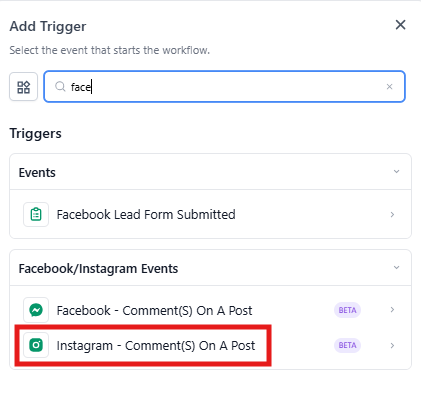
Navigate to Automations > Automation Builder > Triggers > Facebook/Instagram Events.
Components
The Instagram Comment(s) On A Post trigger has four main components:
1. Choose An Automation Trigger
By default this is set to Instagram Comment(s) On A Post. You can change it to a different trigger if needed.
2. Automation Trigger Name
Give your trigger a clear, descriptive name like "Instagram Enrollment Inquiry" or "Instagram Tour Request." This name appears in your automation, making it easy to identify later.
3. Filters
Set criteria to fire the trigger only in the right situations. You can target specific posts, pages, and comment phrases.
4. Track First Level Comments Only
Toggle this setting to control which comments trigger the automation:
- On: Only top-level comments fire the trigger (not replies to comments)
- Off: All comments fire the trigger, including nested replies
Setting Up Filters
Filters let you target exactly which comments should trigger your automation. Here's how each filter works:
Page Is
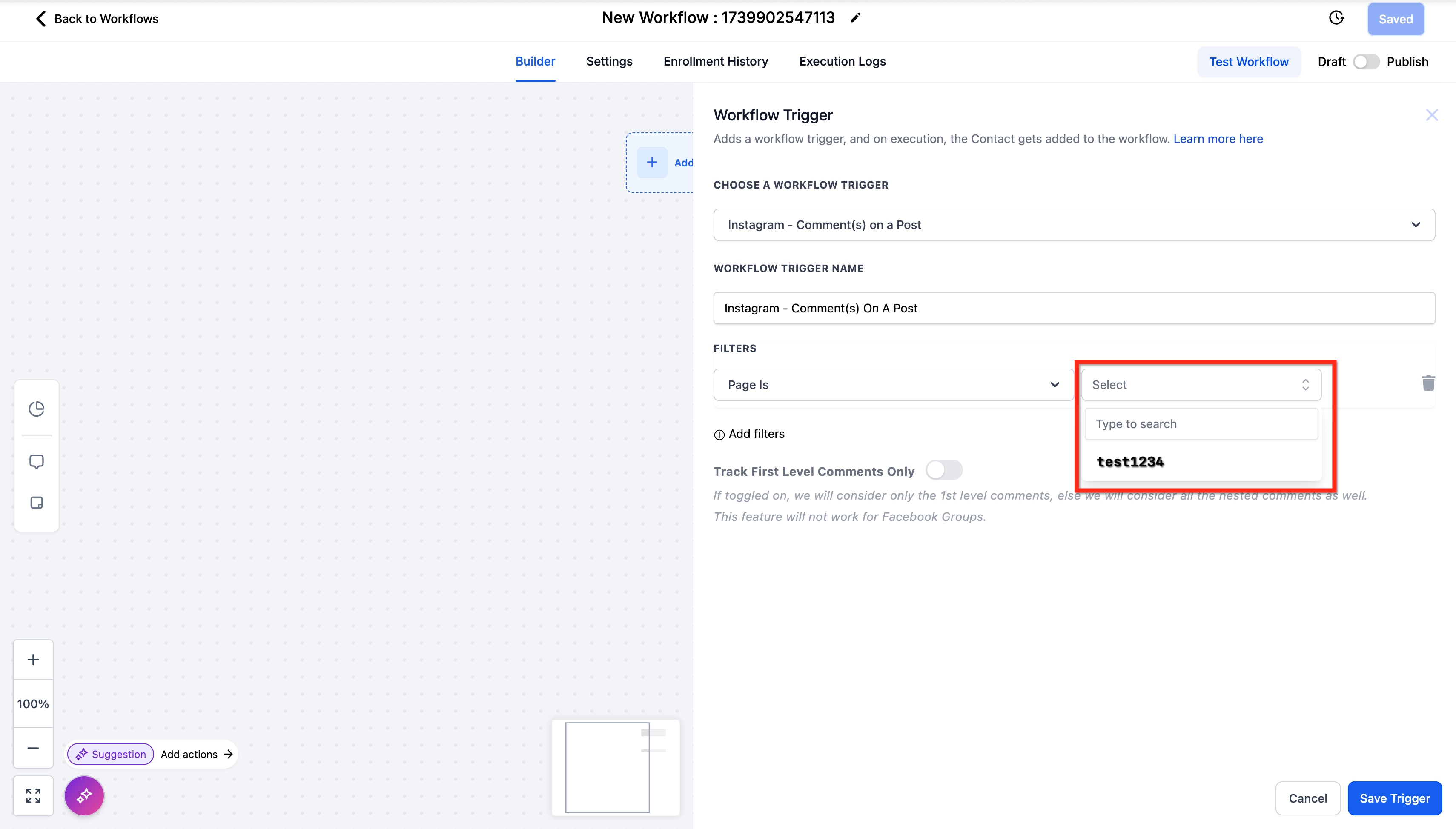
Select which Instagram business page to monitor. Choose from your connected Instagram accounts.
Post Type
Choose how to identify the post:
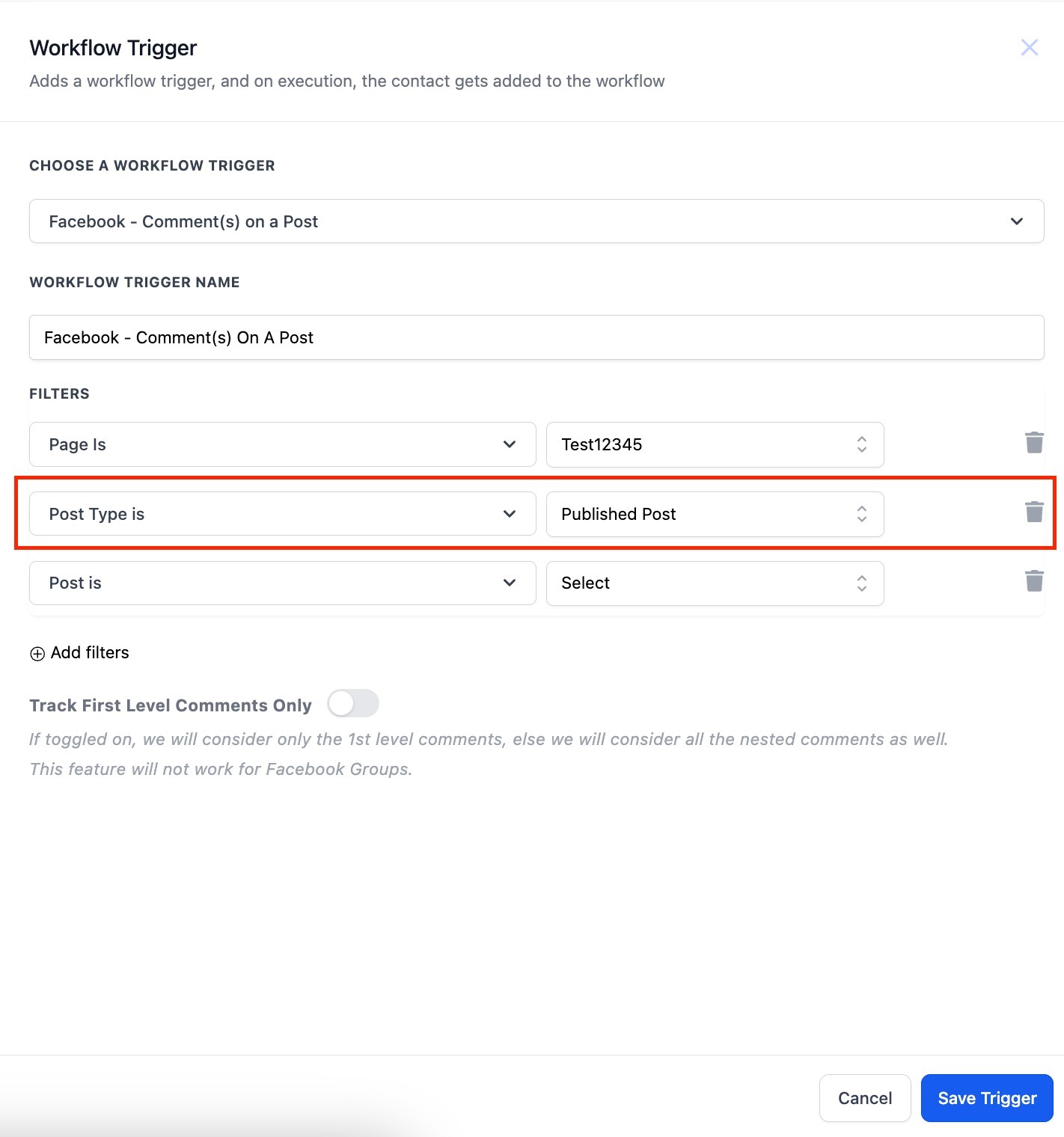
- Published Post: Pick from a list of your recent posts
- Custom Post: Enter a direct URL to any specific post
Post Is
After selecting your page and post type, choose the specific post to monitor from the dropdown list (or paste the URL if you selected Custom Post).
Contains Phrase
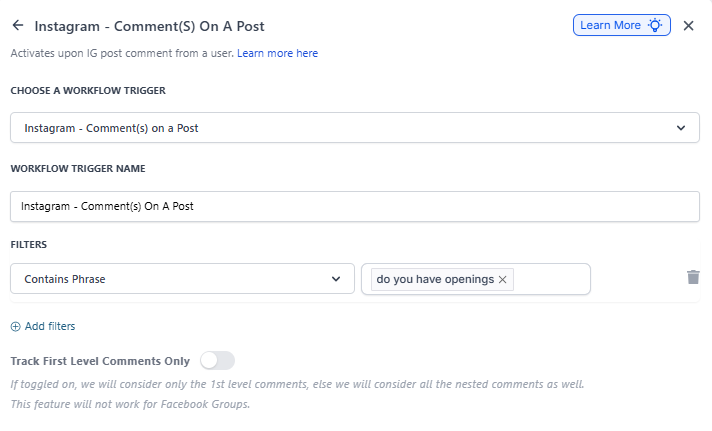
The trigger fires if the comment includes one of your specified phrases. The phrase must appear exactly as written, but can be part of a longer comment.
Example: If your phrase is "I bought from you"
- "I bought from you yesterday" ✓ Pass
- "I bought one from you" ✗ Fail
- "how much" ✗ Fail
Exact Match
The trigger fires only if the entire comment exactly matches one of your text strings.
Example: If your phrase is "I bought from you"
- "I bought from you" ✓ Pass
- "I bought from you yesterday" ✗ Fail
- "I bought one from you" ✗ Fail
Step-by-Step Setup
Step 1: Select Your Page
Click Standard Fields > Page Is and choose your Instagram business page from the list.
Step 2: Choose Post Type
Select Published Post to pick from recent posts, or Custom Post to enter a specific URL.
Step 3: Identify The Post
If you selected Published Post, choose from the dropdown. If you selected Custom Post, paste the direct Instagram post URL.
Step 4: Add Comment Filters (Optional)
Use either Contains Phrase or Exact Match to target specific comments:
- Contains Phrase: Great for catching variations like "do you have spots" or "do you have openings"
- Exact Match: Best for single-word triggers like "interested" or "enroll"
Step 5: Set Comment Level Tracking
Toggle Track First Level Comments Only based on your needs:
- On: Only respond to initial comments (recommended for enrollment inquiries)
- Off: Respond to all comments including replies (useful for ongoing conversations)
Frequently Asked Questions
Can this trigger work for Facebook too?
No, this trigger only works for Instagram. Use the separate Facebook Comment(s) on post trigger for Facebook posts.
What actions should I use with this trigger?
Common actions for childcare centers include:
- Sending a direct message with enrollment information
- Replying to the comment with a friendly response
- Adding the parent to your prospective families list
- Notifying your enrollment coordinator
Will this create an infinite loop if my automation replies to comments?
No, automated replies won't trigger the automation again. Enrollio automatically ignores comments posted by automation actions to prevent infinite loops.
Can I monitor multiple posts at once?
Each trigger monitors one specific post. To monitor multiple posts, create separate automations for each post or use the Published Post option without specifying a particular post.
How quickly does the trigger fire after someone comments?
The trigger fires within seconds of the comment being posted, allowing you to respond to parent inquiries almost instantly.