
Automation Trigger: Facebook Lead Form Submitted
Automate your follow-ups when prospective families submit a Facebook Lead Form. This guide shows you how to connect your Facebook lead generation campaigns directly to Enrollio, so you can respond instantly and never miss an inquiry.
Whether you're running ads for summer enrollment or promoting tours, this automation ensures every Facebook lead flows seamlessly into your enrollment pipeline.
What is the Facebook Lead Form Submitted Trigger?
This trigger starts an automation whenever someone submits a lead form through your Facebook Page's Lead Ad. These forms (sometimes called "instant forms") appear directly in Facebook—no separate landing page needed.
When a parent fills out the form, their information automatically flows into Enrollio. From there, you can set up automated follow-ups, tour reminders, pipeline updates, and more.
It's especially useful for childcare centers running Facebook ads to attract new families. Instead of manually importing lead data, the trigger handles everything in real-time.
Why Use This Trigger?
Connect Facebook campaigns directly to your enrollment system: Prospective families flow into Enrollio automatically—no landing pages or manual exports required.
Save time with instant automation: As soon as someone submits the form, they're added to your system and your automation begins.
Target the right leads with filters: Only trigger actions for specific Facebook Pages and forms using built-in filters.
Boost your team's efficiency: Automatically assign families to staff members, organize them into pipelines, and send notifications.
Create personalized experiences: Follow up with tailored emails, tags, or pipeline stages based on which ad campaign the family came from.
Setting Up the Facebook Lead Form Trigger
Before you begin, make sure your Facebook account and Lead Forms are connected to Enrollio under Settings → Integrations → Facebook.
Step 1: Add the Trigger
Go to Automation → Automations and either create a new automation or edit an existing one.
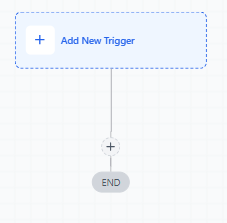
Click + Add New Trigger to get started.
Step 2: Choose Facebook Lead Form Submitted
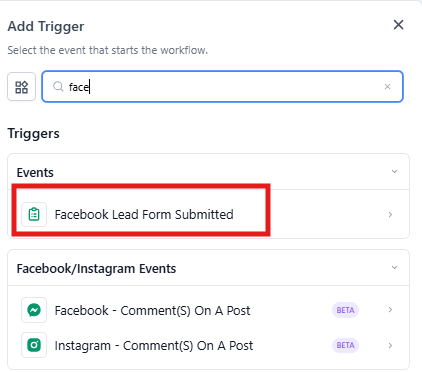
Scroll to the Events section and select Facebook Lead Form Submitted.
Step 3: Name Your Trigger
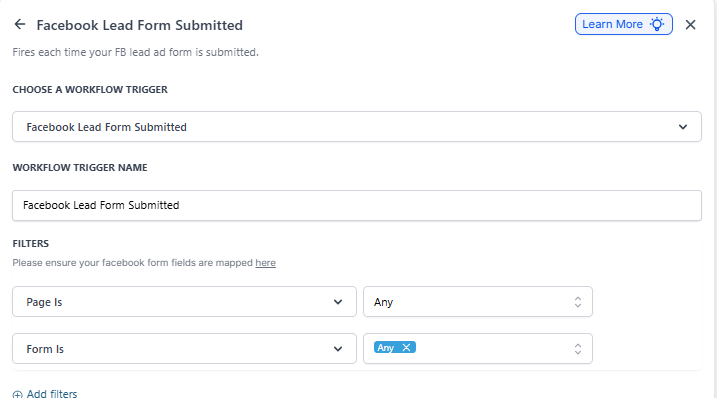
Give your trigger a clear, descriptive name in the Automation Trigger Name field. This helps you stay organized, especially when managing multiple lead sources.
Example: Facebook Lead - Fall Enrollment Campaign
Step 4: Apply Filters
Add filters to ensure only the right leads trigger your automation:
Page Is: Select the Facebook Page running your campaign. You'll only see pages you've connected under Settings → Integrations → Facebook.
Form Is: After choosing a Page, select the specific Lead Form you want to track.
Step 5: Save and Build Your Automation
Click Save Trigger and start building the rest of your automation.
When you're done adding actions, click Test Automation to confirm everything works, then Publish to activate it.
Recommended Actions for Facebook Leads
Once your trigger is set up, here are some best practices to help you respond quickly and stay organized:
Create/Update Enrollment Opportunity: Automatically add new families to your enrollment pipeline so nothing falls through the cracks.
Assign to User: Make sure each lead is immediately assigned to a staff member for faster follow-up.
Send Email: Deliver a personalized thank-you or welcome email right away to keep families engaged.
Internal Notification: Alert your team in real-time whenever a new family submits a form, so you can respond immediately.
💡 Pro Tip: Set up separate automations for different campaigns (e.g., infant enrollment vs. preschool tours) so you can tailor your messaging to each family's needs.
Frequently Asked Questions
Q: What happens if I don't use any filters?
If you skip filters, the automation will trigger for every Lead Form submitted across all your connected Facebook Pages. This can cause unwanted automations to fire, so always use the "Page Is" and "Form Is" filters.
Q: Do I need to map Facebook Lead Form fields first?
Yes. Go to Settings → Integrations → Facebook Form Fields Mapping and map your form fields (name, email, phone, etc.) to Enrollio contact fields. Without proper mapping, lead data won't sync correctly.
Q: Why don't I see my Facebook Pages or Forms in the dropdown?
This usually means your Facebook integration isn't complete. Make sure your Facebook Page is connected under Settings → Integrations → Facebook with the correct permissions.
Q: Can I trigger an automation from multiple Facebook forms at once?
No, each trigger supports one form per filter setup. However, you can either duplicate the trigger within the same automation with different filters, or create separate automations for each form.
Q: What actions can I automate after a form is submitted?
Common actions include sending confirmation emails, assigning families to staff, adding tags, creating enrollment opportunities, and sending internal notifications. You can add as many steps as you need to support your enrollment process.
Q: How quickly do leads appear in Enrollio after submitting the form?
Leads typically sync within seconds. As soon as Facebook processes the submission, your automation begins running in real-time.