
Build automations at lightning speed with keyboard shortcuts in Enrollio's Advanced Automation Builder. Skip the mouse, duplicate entire branches in seconds, and navigate huge canvases with arrow-key precision—all from one handy overlay.
Note: On macOS use ⌘, on Windows/Linux use Ctrl.
What are Keyboard Shortcuts in Advanced Builder?
Keyboard shortcuts are built-in key combinations that trigger common builder commands—cut, copy, paste, zoom, save, and more—without ever touching your mouse.
When you press K (or click the keyboard-icon pill) the shortcuts overlay appears, grouped into easy-to-scan tabs so you can learn and reference commands in seconds.
⌘ represents the Command key on macOS, while Ctrl is used on Windows and Linux.
Why Use Keyboard Shortcuts?
When you're building automations for tour follow-ups, waitlist notifications, or enrollment sequences, shortcuts help you work faster:
- Finish complex builds up to 50% faster by eliminating repetitive clicks
- Copy or cut entire branches—including downstream actions—in one keystroke
- Navigate the canvas with arrow keys and instant zoom/focus controls
- Reduce strain and increase accessibility for power users who prefer the keyboard
- Learn faster with commands grouped into Essential, Edit, View, Navigation, and Tools tabs
Where to Find Keyboard Shortcuts
- Open any automation in Advanced Builder
- Click the Keyboard Shortcuts button in the upper-left corner (or press K)
- Browse the overlay tabs: Essential, Edit, View, Navigation, Tools
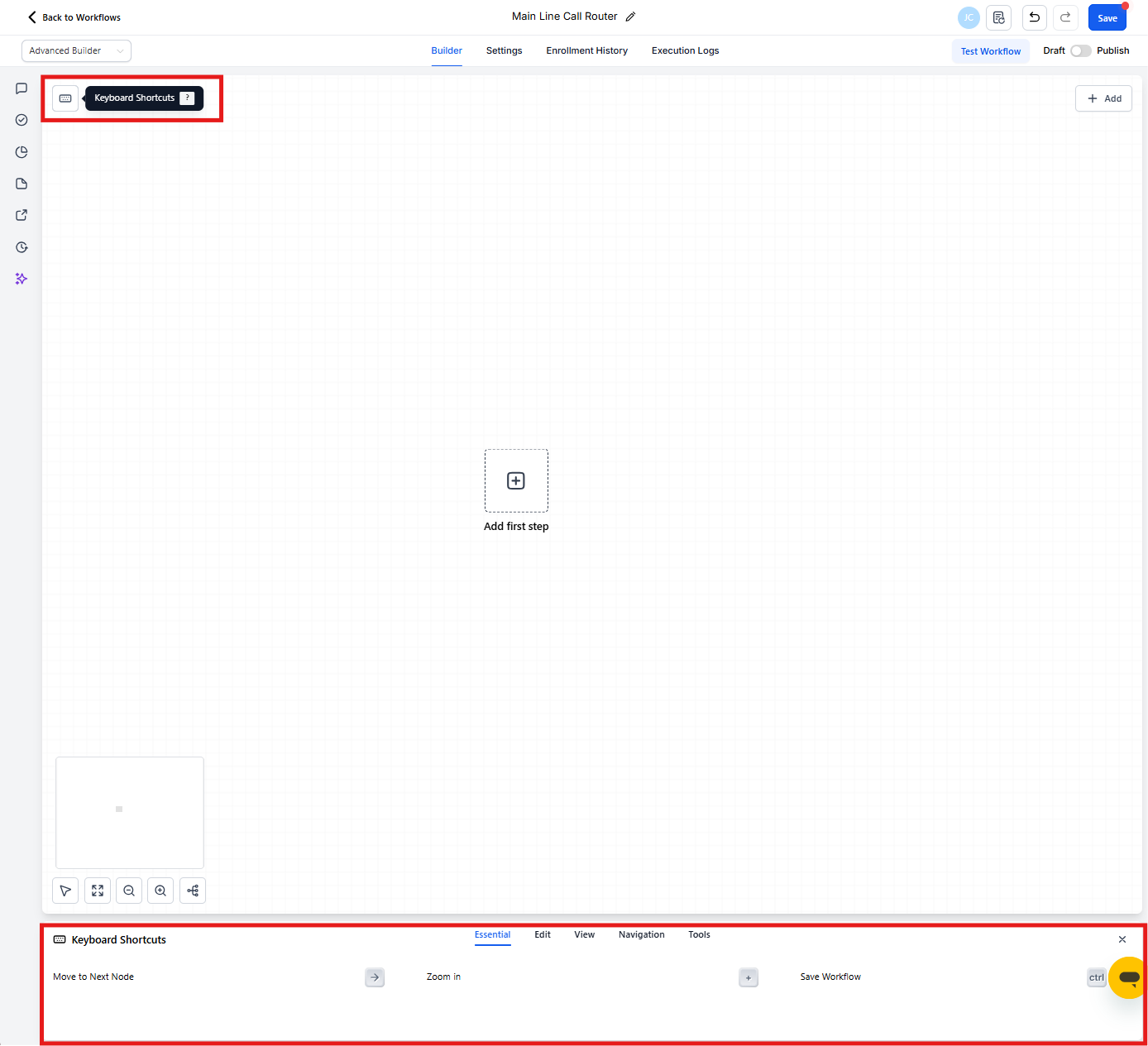
Shortcut Reference
1. Edit
Common actions for nodes and whole branches.
| Action | Shortcut |
|---|---|
| Cut selected node(s) | ⌘/Ctrl + X |
| Copy selected node(s) | ⌘/Ctrl + C |
| Paste node(s) | ⌘/Ctrl + V |
| Copy all actions from selected node onward | ⌘/Ctrl + Shift + C |
| Cut all actions from selected node onward | ⌘/Ctrl + Shift + X |
2. View
Zoom and framing controls.
| Action | Shortcut |
|---|---|
| Zoom in / Zoom out | + / − |
| Zoom to 100% | 0 |
| Fit view | 1 |
3. Navigation
Move the selection around the canvas without touching the mouse.
| Action | Shortcut |
|---|---|
| Move to next / previous node | → / ← |
| Move to upper / lower sibling | ↑ / ↓ |
| Select upstream / downstream nodes | Shift + ← / Shift + → |
4. Tools
Global and panel shortcuts.
| Action | Shortcut |
|---|---|
| Save automation | ⌘/Ctrl + S |
| Select all nodes | ⌘/Ctrl + A |
| Delete selected node(s) | Delete / Backspace |
| Delete all actions from selected node onward | ⌘/Ctrl + Delete |
| Open Action panel | Tab |
| Open Trigger panel | Shift + Tab |
How to Get Started with Shortcuts
Mastering shortcuts only takes a minute:
- Open any automation and switch to Advanced Builder
- Press K—or click the keyboard pill in the upper-left corner—to launch the overlay
- Browse the Essential tab for must-know commands
- Use Edit shortcuts to copy/cut/paste nodes or whole branches
- Use View shortcuts to zoom and fit until it feels natural
- Use Navigation to move between nodes without your mouse
- Use Tools to save and open panels—without leaving your keyboard
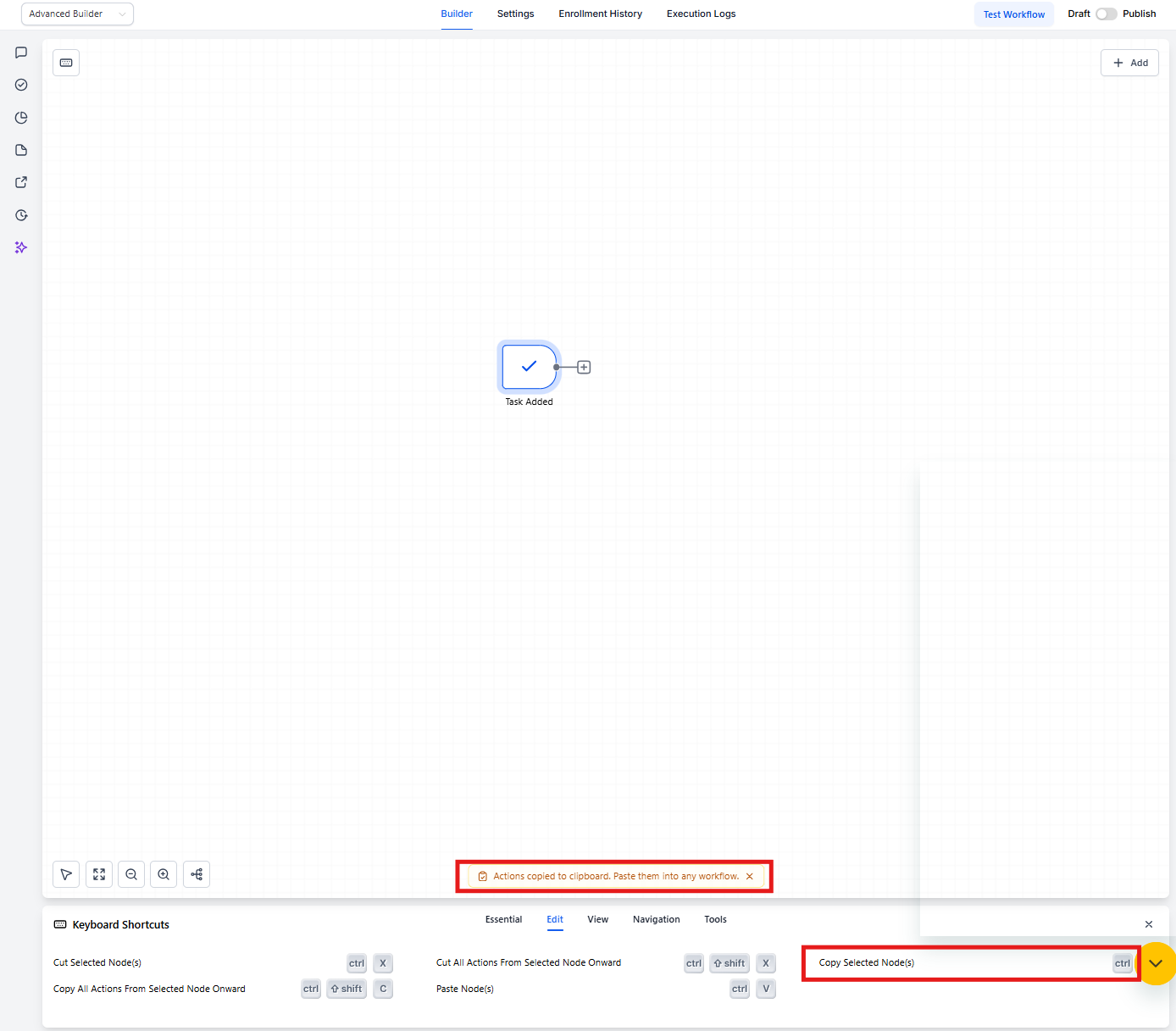
Important Notes
- Availability: Advanced Builder only at launch. Standard Builder support is coming soon.
- Selection matters: Some shortcuts act on the currently selected node(s)—select before using.
- OS & layout: Keys may vary slightly by operating system and keyboard layout.
Frequently Asked Questions
Do shortcuts work in the Standard Builder?
At launch they're exclusive to Advanced Builder, but Standard Builder support is on the roadmap.
Why do some keys feel different on my keyboard?
Physical layouts (e.g., AZERTY) or OS-level key mappings can shift symbol locations. Use the on-screen overlay to confirm the actual character your keyboard sends.
Will shortcuts overwrite browser defaults?
Only when the Builder canvas is focused. Global browser shortcuts like ⌘/Ctrl + T (new tab) continue to work.
Can I customize or disable shortcuts?
Not yet. Future updates may introduce a preferences panel for custom key-mapping.
How do I copy a branch into another automation?
Use ⌘/Ctrl + Shift + C to copy the branch, open the destination automation in a new tab, then ⌘/Ctrl + V to paste.
Does Delete All Actions downstream remove goals or waits?
Yes—everything visually connected after the selected node is removed. Double-check the highlight preview before confirming.