
Automations - Auto Save
Enrollio's Automation Builder continuously saves your canvas edits to draft, helping you move faster with less risk. Enable it once and keep iterating confidently—nothing goes live until you publish.
Table of Contents
- What is Auto Save in Automations?
- Key Benefits of Auto Save
- Draft vs. Publish Behavior
- What Auto Save Captures
- What Auto Save Doesn't Capture
- Version History & Checkpoints
- Multi-Editor & Multi-Tab Behavior
- How To Setup Auto Save
- Frequently Asked Questions
What is Auto Save in Automations?
Auto Save is a feature that continuously saves your automation canvas edits in the background while you build. Your changes are written to the current draft so you don't lose progress. You still control when updates go live by clicking Publish.
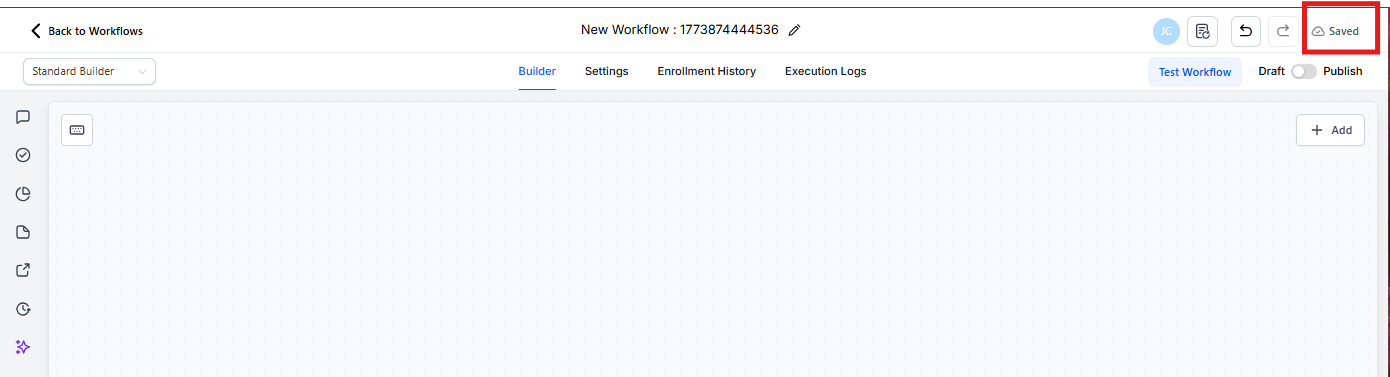
Key Benefits of Auto Save
Zero manual saves: Canvas edits are captured automatically as you build—no Save button required.
Draft safety: Changes save to draft only. Nothing affects live automations until you click Publish.
Fewer clicks: Toggle Auto Save once and move faster without pausing to save.
Reliable checkpoints: Create named milestones any time with Save Version so you can return to a known good state.
Collaboration awareness: When multiple people or tabs edit the same automation, the most recent auto-save becomes the current draft version.
Draft vs. Publish Behavior
Auto Save writes your ongoing edits to the draft state. Publishing is still a deliberate action you take to push changes live.
Understanding draft vs. published behavior prevents accidental changes from impacting active automations:
- Auto Save → Draft only: Edits are preserved in the draft as you work.
- Publish controls go-live: Click Publish when your draft is ready to run.
- Safe iteration: You can make and store many changes without affecting currently published behavior.
What Auto Save Captures
Auto Save will capture when you:
- Add any action or trigger to the canvas
- Delete any action or trigger from the canvas
- Make changes in the Settings tab of an automation
- Edit the automation name
- Change automation status (Draft or Publish)
What Auto Save Doesn't Capture (Configuration Modals)
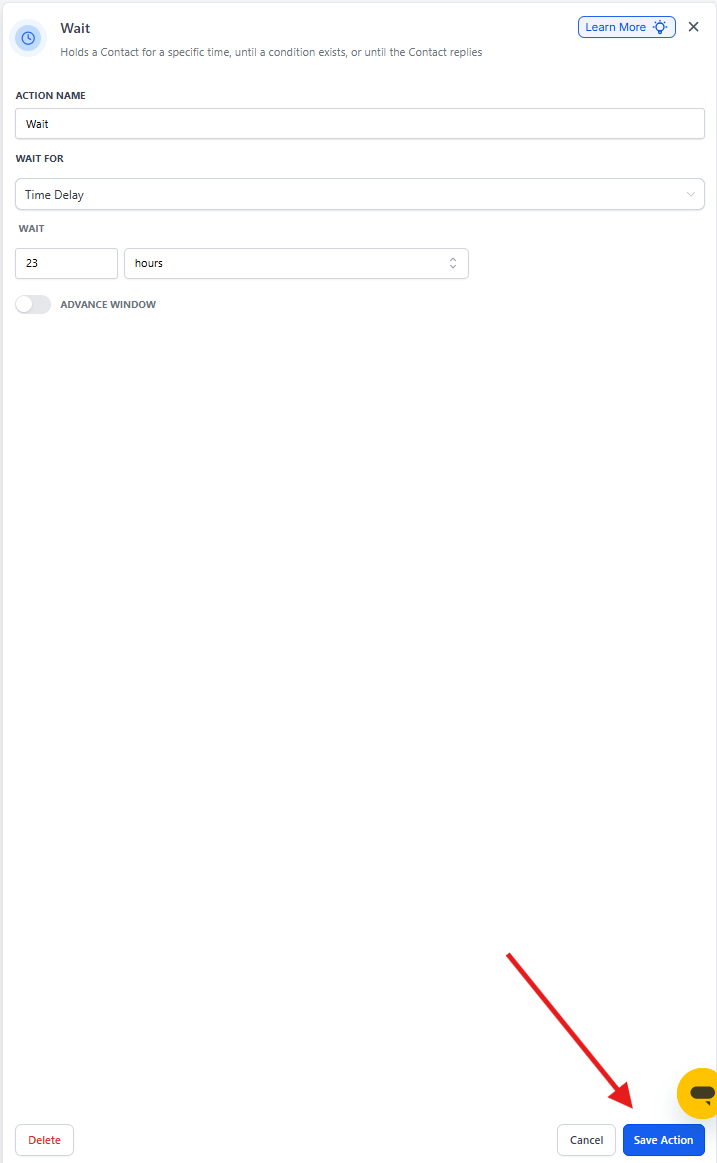
Auto Save does not apply inside individual action or trigger configuration modals. Changes inside a modal are not saved until you commit them back to the canvas.
While editing a step's settings in a modal, click Save or Apply to commit changes back to the canvas. Once committed to the canvas, Auto Save will capture the update in the draft.
Example: Changing the time in a Wait step inside its modal isn't auto-saved until you click Save in the modal to update the canvas.
Version History & Checkpoints
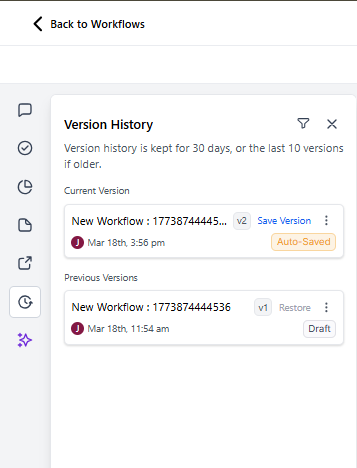
Each editing session automatically creates entries in Version History. You can also use Save Version any time to create a named checkpoint.
Version History gives you a recoverable record of progress:
- Session entries: Automatic, created as you edit with Auto Save enabled.
- Save Version: Manual, creates a named checkpoint you can easily identify later.
- Restore: Use Version History to review and restore an earlier state as needed.
Multi-Editor & Multi-Tab Behavior
If multiple users or browser tabs edit the same automation, the most recent auto-save becomes the current draft version.
Coordinating edits prevents overwriting each other's changes and ensures everyone works from the latest draft:
- Prefer a single editor at a time for critical updates
- If collaborating, communicate timing to avoid collisions
- If you return after being idle, refresh to make sure you're viewing the latest draft
How To Setup Auto Save
Proper setup ensures your edits are captured continuously while you work.
Method 1: Using Automation Builder
- Log in to your Enrollio account
- Go to Automations → Automations and open any automation
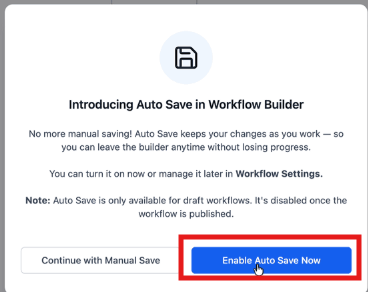
- On first open, an onboarding pop-up may appear
- Choose Enable Auto Save Now to turn it on immediately
Method 2: Through Global Automation Settings
- Log in to your Enrollio account
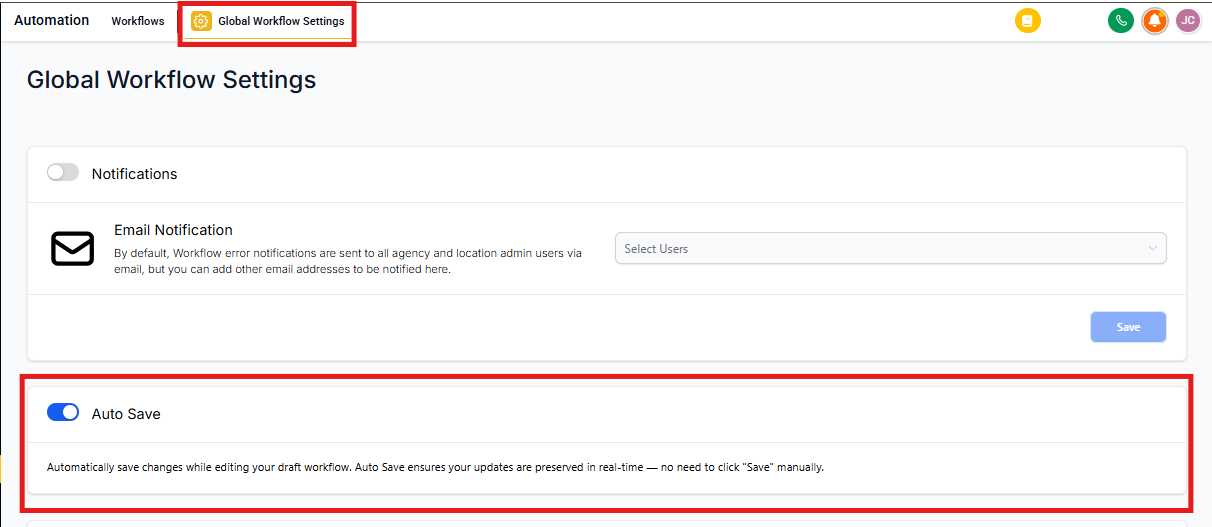
- Go to Automations → Global Automation Settings
- Turn the Auto Save toggle On
- Build as usual: Add, remove, and rearrange steps on the canvas. Your edits will auto-save to the draft
Frequently Asked Questions
Does Auto Save publish my changes automatically?
No. Auto Save updates the draft only. Click Publish to push changes live.
Do I still need to click Save inside step configuration modals?
Yes. Changes made inside a step's modal must be Saved or Applied to commit to the canvas. Then Auto Save captures them.
What happens if my internet drops while I'm editing?
When connectivity returns, your canvas can resume saving. If you're unsure which draft is current, refresh the automation and review Version History.
Does Auto Save work with the AI Automation Builder?
Yes! When you generate an automation using AI Builder, it saves automatically. Any further edits you make using AI Builder will also be saved automatically.
Related Articles
- Automation Builder Walkthrough
- Automation Version History & Restore
- Automations - Undo/Redo & Change History
- Advanced Builder for Automations: Visual Canvas for Building Automations
- Automation Settings - Overview