
Overview
When families purchase items through your enrollment forms or order forms, you can automatically capture and format the product details they bought. This is useful for logging orders in Google Sheets, sending confirmation emails with itemized lists, or syncing purchase data to other platforms.
The "Pluck and Join" feature lets you pull specific details from orders — like product names, prices, or quantities — and combine them into readable text that you can use anywhere in your automations.
What You Can Do
This feature allows you to extract information from order line items and format it however you need. For example:
- Create a comma-separated list of products purchased
- Pull product prices, quantities, or IDs
- Log detailed order information to Google Sheets automatically
- Include itemized purchase details in confirmation emails
How It Works
You'll use two helpers in your automations:
- Pluck: Extracts specific fields (like product titles) from a list of items
- Join: Combines those values into a single text string with your chosen separator (like commas or line breaks)
Step-by-Step Setup
1. Choose Your Trigger
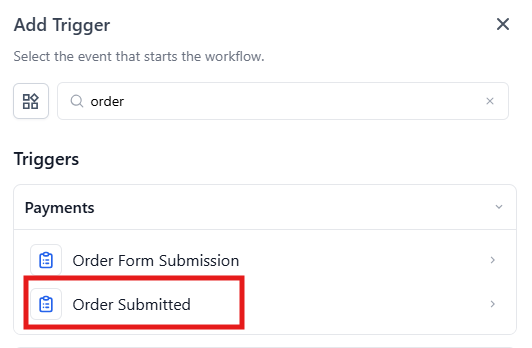
Start with a trigger that includes order data, such as:
- Order Submitted — when a family completes a purchase
- Order Form Submission — when any order form is submitted
- Inbound Webhook — if you're receiving order data from another system
2. Add Your Action
Choose what you want to do with the order details. Common examples:
- Create Row in Google Sheets — log the purchase
- Send Email — include product details in a confirmation
- Update Parent/Family Field — store purchase history
3. Extract Product Information
In any field where you want to show product details, use the pluck helper to pull the information:
To get product names:
{{ pluck order.line_items "title" }}To get product prices:
{{ pluck order.line_items "line_subtotal" }}To get product IDs:
{{ pluck order.line_items "meta.product_id" }}4. Format as Readable Text
Wrap your pluck helper in a join helper to create a formatted list:
Comma-separated list:
{{ join (pluck order.line_items "title") ", " }}Line-break separated list:
{{ join (pluck order.line_items "title") "\n" }}5. Test Your Automation
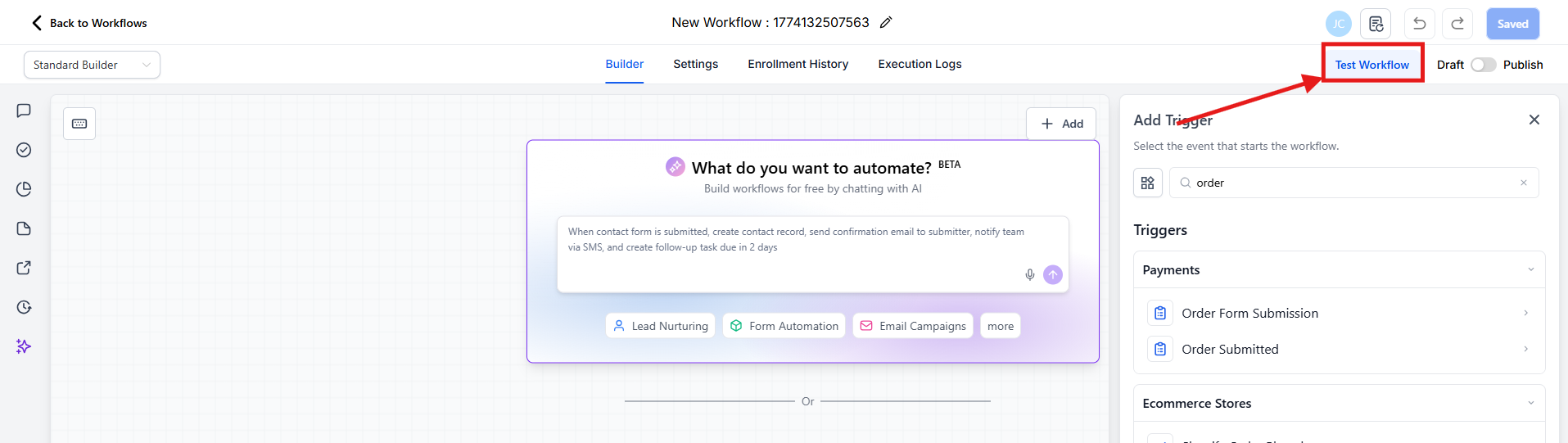
Before activating, submit a test order to make sure your data appears correctly formatted.
Available Fields
You can pluck any of these fields from order line items:
- title — Product name
- image — Product image URL
- price — Individual item price
- quantity — Number of items ordered
- line_subtotal — Subtotal before discounts
- line_discount — Discount amount applied
- line_price — Final line item price
- meta.product_id — Internal product ID
- meta.price_id — Price variant ID
Real-World Example: Order Log
Let's say you want to log every purchase to a Google Sheet with the family's name, email, and what they bought.
Setup Steps
- Trigger: Order Submitted
- Action: Create Row in Google Sheets
-
Field Mapping:
- Name:
{{ contact.first_name }} - Email:
{{ contact.email }} - Products:
{{ join (pluck order.line_items "title") ", " }}
- Name:
Google Sheet Example:
| Name | Products | |
|---|---|---|
| Alice | alice@test.com | TEST OFFER, ANOTHER PRODUCT |
| Bob | bob@test.com | SINGLE ITEM |
Result
Your Google Sheet will automatically update with entries like this:
able Name Email Products Sarah sarah@example.com Enrollment Fee, Registration Materials Michael michael@example.com After-School Program
Pro Tips
💡 Combine Multiple Fields
You can pluck and format multiple pieces of information. For example, to show both product name and price:
{{ join (pluck order.line_items "title") ", " }} — Total: ${{ pluck order.line_items "line_price" }}💡 Clean Formatting
For emails or text messages, use "\n" as your separator to put each product on its own line instead of comma-separated.
Common Use Cases
- Order confirmations: Send families a detailed receipt with everything they purchased
- Internal tracking: Log all purchases to a spreadsheet for accounting or reporting
- Staff notifications: Alert your team when specific products are ordered
- Parent profiles: Store purchase history directly on the family's record
This feature saves you from manually copying order details and ensures your automations always have accurate, formatted product information.