
Error Notifications in Automations
Stay on top of automation errors with automatic email notifications and a dedicated review dashboard. When something goes wrong in your automations, you'll know immediately and can fix it before it impacts your families.
What's New
Enrollio now sends email alerts when automations encounter errors, plus gives you a central place to track and resolve them.
- Automation Settings: Configure who receives error notifications and when
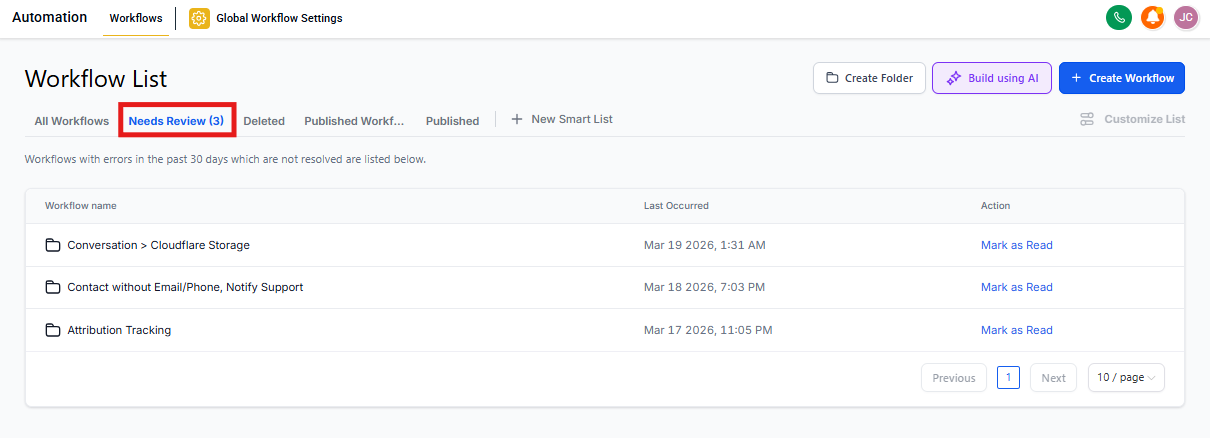
- Needs Review Tab: See all automations with errors in one place
- Automatic Alerts: Get emailed immediately when an automation fails
- Error Acknowledgment: Mark errors as reviewed so you know what's been handled
Which Actions Are Covered
Error notifications currently cover these automation actions:
- Webhook & Custom webhooks
- Premium actions: Slack, Array, Custom code, ChatGPT, Google Sheets
- Facebook: Add to custom audience, Remove from custom audience, Conversion API, Messenger, Interactive Messenger
- Instagram: Instagram DM, Interactive Messenger
How to Set Up Error Notifications
- Go to your Automations page
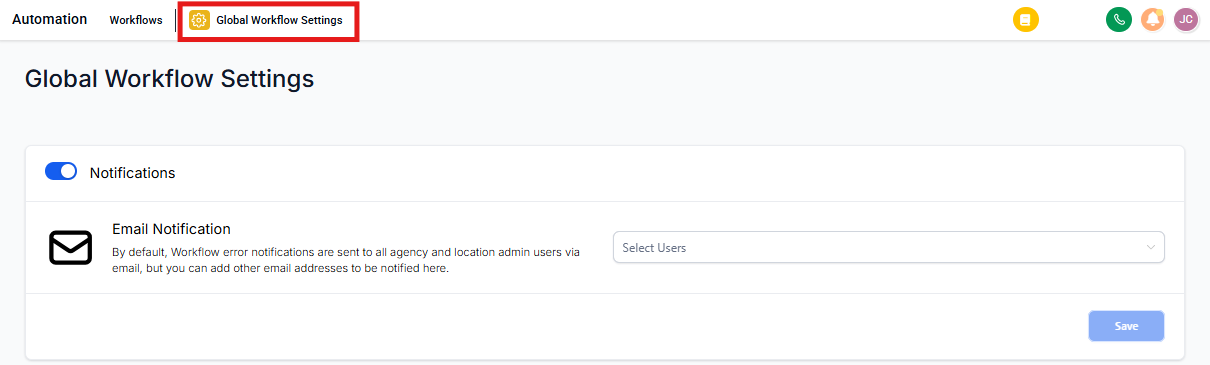
- Click Automation Settings
- Toggle on error notifications
- Add email addresses for team members who should receive alerts
- Click Save
How to Review and Fix Errors
- Click the Needs Review tab on your Automations page
- You'll see a list of all automations with errors
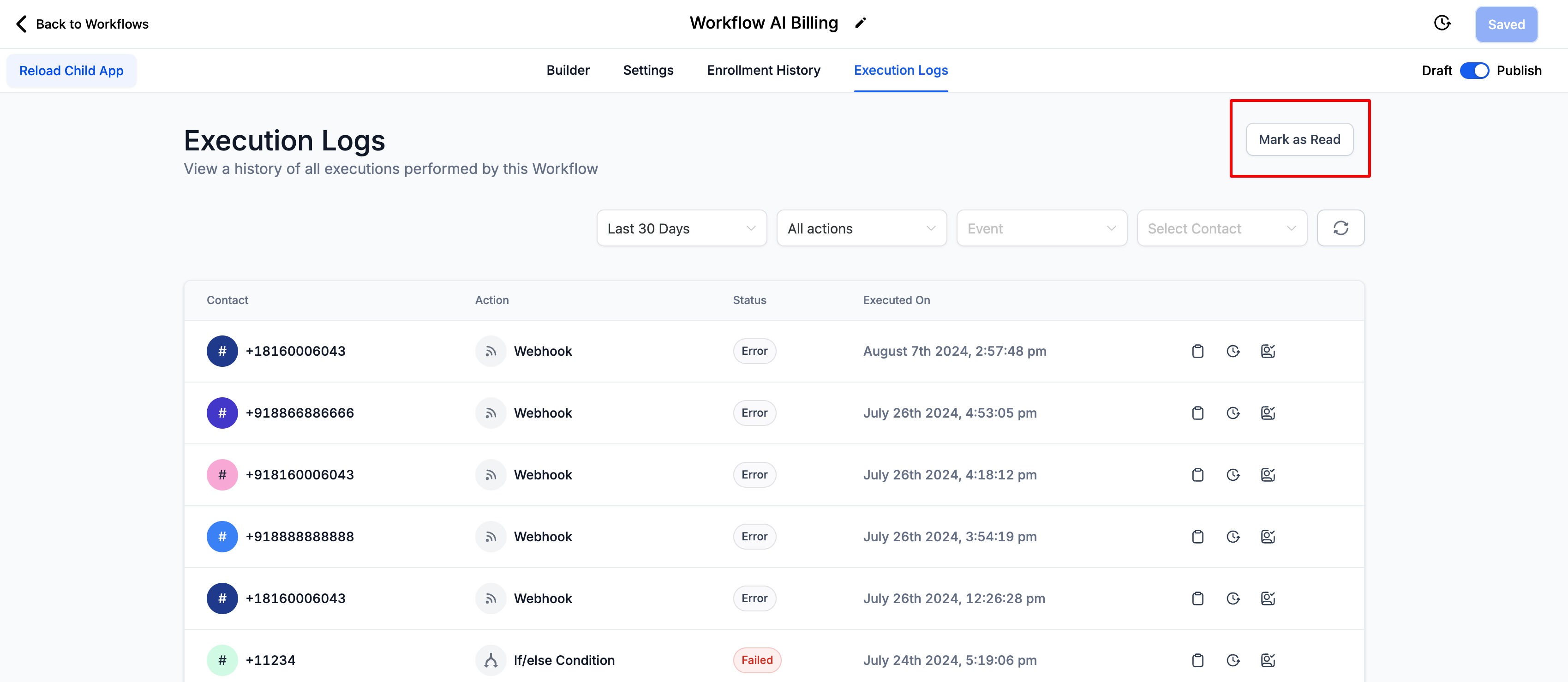
- Click any automation to view its execution logs and see what went wrong
- Fix the issue in your automation
- Mark the error as acknowledged to clear it from your review queue
Pro Tip: Check the Needs Review tab weekly, even if you haven't received error emails. Some errors may resolve themselves but it's good to stay aware of any patterns.
Important Details
- Notifications are off by default — you need to enable them in Automation Settings
- You'll get an email immediately when an error occurs
- After the first alert, you'll only receive one email per 24 hours even if more errors happen
- If new errors occur after that 24-hour window, you'll get another alert
- The "Review it" button in error emails takes you directly to the Needs Review tab
- You can add or remove email recipients anytime
How to Disable Notifications
If you no longer want to receive error alerts:
- Go to Automation Settings
- Toggle off error notifications
- Click Save
Your Needs Review tab will still show errors — you just won't get emails about them.