
Bulk Actions in Automations
Managing multiple automations and folders one by one can be tedious when you're running a busy childcare center. With Bulk Actions, you can select several items directly from the list page and perform common operations in a single step—saving you time and reducing repetitive work.
What Are Bulk Actions?
Bulk Actions in the Automations list view let you apply the same commands—like Move, Publish/Draft, Delete, or Manage Permissions—to many items at once. This keeps your automations organized, ensures consistency across your enrollment workflows, and speeds up day-to-day administration.
Why Use Bulk Actions?
Save time: Apply the same action to dozens of automations instead of updating them one by one.
Stay organized: Move automations and folders into the right place—including nested folders—in one go.
Maintain consistency: Keep statuses, locations, and permissions aligned across related automations for parent communications, tour follow-ups, and enrollment sequences.
Reduce errors: Fewer manual clicks means fewer mistakes when managing your childcare automations.
How to Use Bulk Actions
Follow these steps to perform bulk operations safely and efficiently. Always review the selected count and confirmation dialog before applying changes.
- Log in to your Enrollio account
- Go to Automations → Automations
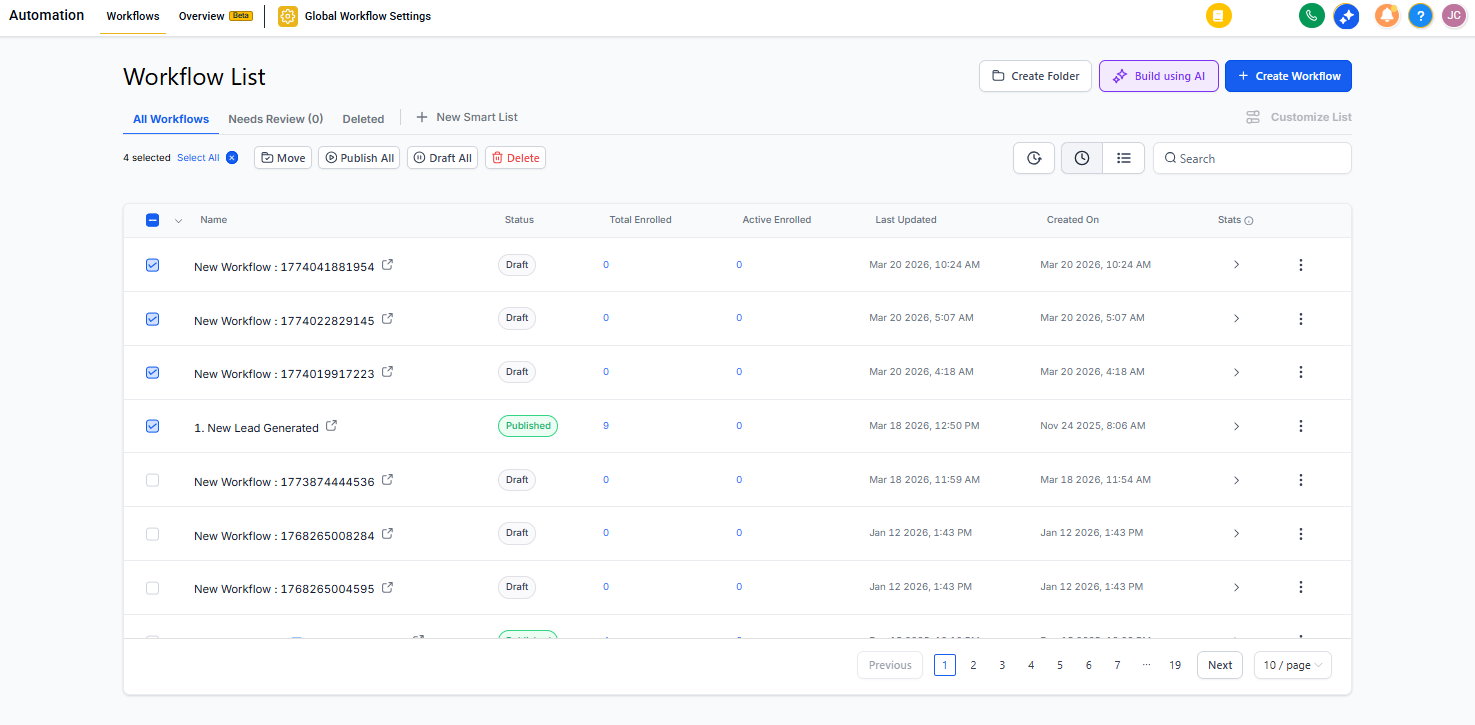
- Use the checkboxes to select either Folders or Automations (you can't mix both)
- Click Select All to choose all visible items on the current page
- Use the Select All dropdown to refine your selection:
- All Automations
- All Folders
- Published Automations
- Draft Automations
- From the bulk toolbar at the top, choose an action:
- Publish/Draft (automations only) — activate or deactivate multiple automations
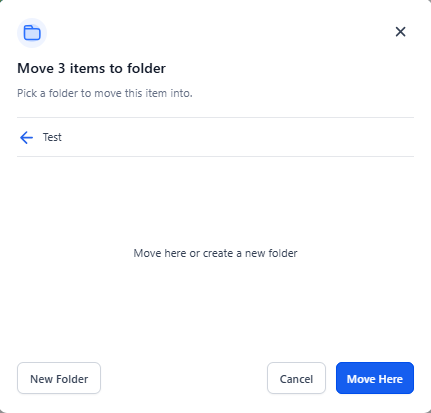
- Move (automations or folders) — relocate to a different folder
- Delete (automations or folders) — permanently remove items
- Manage Permissions (folders only) — control who can access specific folders
- Review the confirmation dialog carefully—it shows how many items will be affected and any warnings
- Click to confirm your action
Pro Tip: Use filters or smart lists before selecting items to narrow down exactly which automations you want to update. This is especially helpful when managing seasonal enrollment campaigns or tour reminder sequences.
Permissions and Availability
Bulk Actions respect your user role and existing folder permissions, ensuring only authorized changes are applied.
Where it works: Available on the main Automations page and any smart list you create.
Permissions: You can only perform bulk actions you're authorized for. Some actions may be hidden or disabled if you lack permission.
Scope: By default, Select All targets the visible items on the current page. When using filters or smart lists, selections reflect only the filtered results you can see.
Frequently Asked Questions
Can I select folders and automations together?
No, you can either select folders or automations—not both at the same time.
Why is Publish/Draft disabled?
Publish/Draft applies only to automations. If your selection includes folders or only folders, this option won't be available.
Can I update permissions for automations using Manage Permissions?
No. Manage Permissions is for folders only. Deselect any automations to enable this action.
Does Select All include items beyond the current page?
Select All targets only the visible items on your current page. Navigate to other pages or use filters to adjust your selection.
Can I move items into a folder I can't access?
No. You must have access to the destination folder to complete the move.
Will moving items change their permissions?
Yes. After moving, automations follow the structure and visibility rules of the destination folder.
Why don't I see the bulk toolbar?
The toolbar appears only after you select at least one item. If you still don't see it, you may not have permission for bulk operations.