
What are Independent Branches?
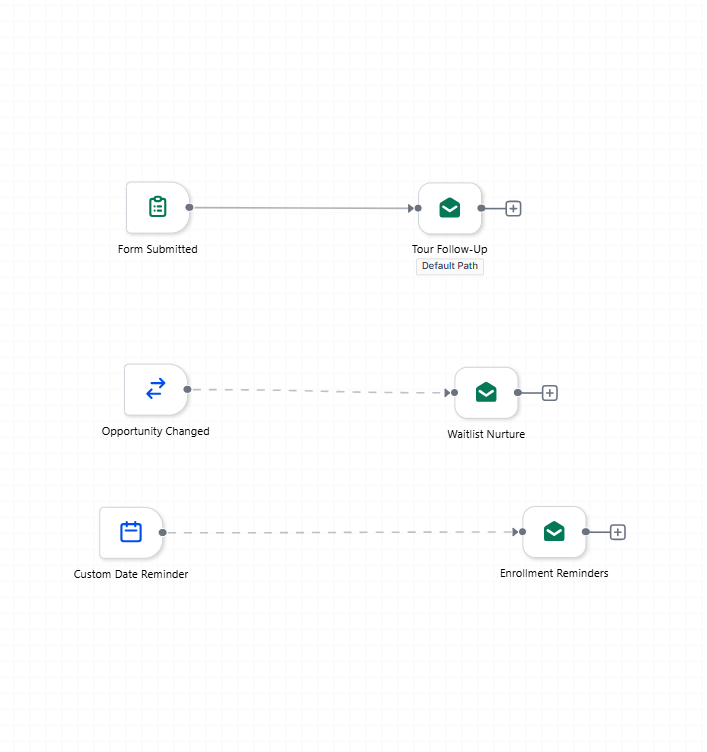
Independent branches (also called delinked nodes) let you build multiple mini-automations side-by-side on the same canvas. Instead of chaining everything into one long vertical flow, you can design separate branches that run independently when triggered.
Each branch sits as its own cluster of actions. They won't run automatically—you must connect a trigger to the first action in each cluster using a Go-To connection (the dashed line).
Why Use Independent Branches?
Visual clarity: Design side-by-side branches instead of scrolling through endless vertical chains. Perfect when you're managing different parent journeys—like tour follow-ups, waitlist nurture, and enrollment reminders—all in one automation.
Faster testing: Isolate and debug one branch (say, your waitlist messaging) without touching your enrollment sequence.
Single source of truth: Keep related automations together rather than creating five separate workflows for different enrollment scenarios.
Flexible scaling: Add a new branch for sibling enrollments or parent referrals without redrawing your main flow.
How Independent Branches Work
Position anywhere: Place action clusters wherever makes sense on your canvas—top, bottom, side-by-side.
Trigger with Go-To required: Use the dashed Go-To connector from a trigger to the first action in your branch. Without this connection, the branch won't execute.
Independent execution: Each branch runs on its own when triggered, but within the same automation context.
Set Up Independent Branches
- Open your automation in the Advanced Builder (this feature isn't available in Standard Builder).
- Build your action clusters on the canvas—these can be anywhere, they don't need to connect to your main chain.
- Click on a trigger, then drag the dashed Go-To connector to the first action of the branch you want to activate.
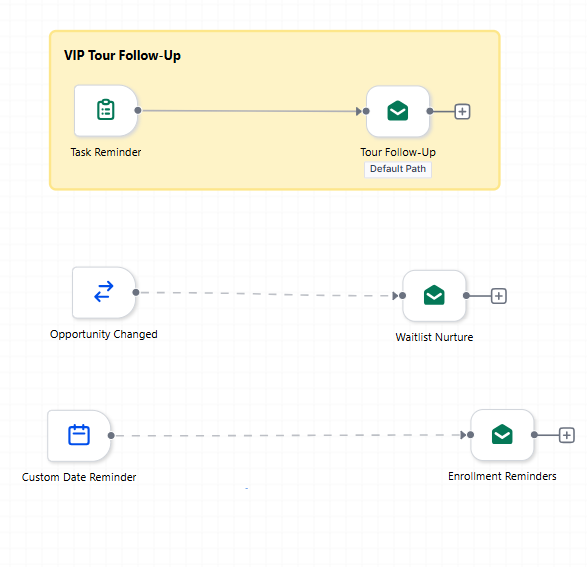
- (Optional) Add sticky notes and color-coding to label each branch—"VIP Tour Follow-Up," "Sibling Discount Flow," etc.
- Click Save and Publish to make your branches live.
Best Practices
Name your branches: Use sticky notes to label each cluster—"Parent Referral," "Waitlist Check-In," "Re-enrollment Reminder." Your team will thank you.
Keep entry points obvious: Position the first action of each branch at the top or left of the cluster so it's clear where the flow starts.
Minimize crossing lines: Use the Tidy/Format tool and spacing so your dashed Go-To lines stay readable.
Test each branch: Before publishing, walk through each branch to confirm parents receive the right messages at the right time.
Common Questions
Can a parent run through two independent branches at the same time?
No. Enrollio enforces single enrollment per parent/family in each automation, so they can only proceed down one branch at a time.
Will independent branches break if I clone the automation?
No. Cloning preserves all branches and Go-To connections exactly as designed. Just test your triggers in the cloned version to make sure everything fires correctly.
Can I connect one branch to another later in the flow?
Yes. Draw a standard connection from any action in one branch to the start of another branch. This lets you merge paths when needed—like moving a parent from waitlist nurture into enrollment reminders.
What happens if I remove a Go-To connection?
That branch becomes inactive until you reconnect it to a trigger. Parents won't run through that branch until you re-establish the connection and publish.
Is there a performance impact with many independent branches?
No noticeable impact for typical childcare automations. Very large automations (20+ branches) may load slightly slower in the editor, but execution stays fast and event-driven.
Key Takeaways
- Independent branches are Advanced Builder only—not available in Standard Builder.
- Each branch must have a trigger Go-To connection to run.
- Parents run through one branch at a time per automation.
- Use sticky notes and colors to keep your canvas organized as you add branches.
- Before switching to Standard Builder, remove all independent branches and Advanced-only features.