
Split Action in Automations
The Split Action helps you optimize your automations by dividing families into different paths. Use it to test different messages, distribute tours across your team, or experiment with enrollment strategies.
What is the Split Action?
The Split Action sends families down different pathways in your automation based on percentages you set. This is perfect for A/B testing enrollment emails or distributing tour requests evenly across your staff.
Important: The Split Action uses random distribution only. If you need to split families based on specific criteria (like tour date or program interest), use the If/Else Action instead.
How to Set Up the Split Action
Step 1: Add the Split Action
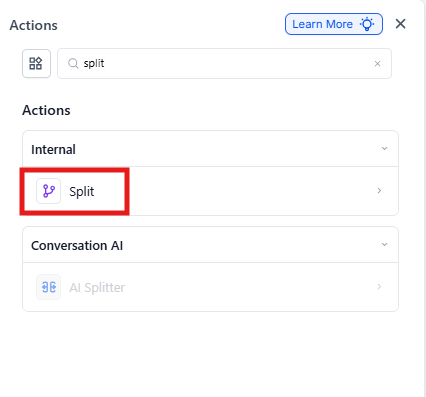
In the automation builder, click the "+" icon to add a new action. Browse or search for Internal Split.
Step 2: Choose Distribution Type
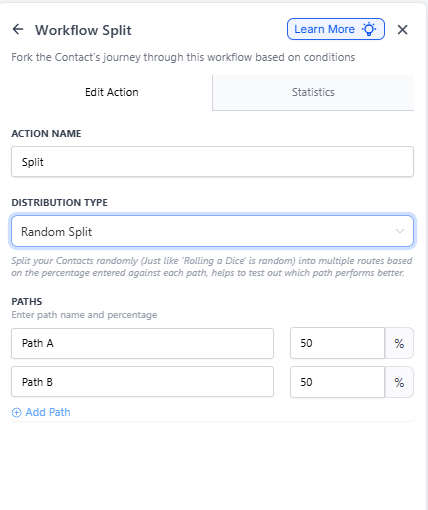
Select "Random Split" from the Distribution Type dropdown (this is the only option available).
Step 3: Configure Your Paths
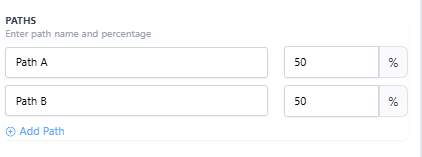
In the Paths section, you can:
- Add or remove paths (up to 5 total)
- Rename each path for clarity
- Set the percentage (%) split for each path
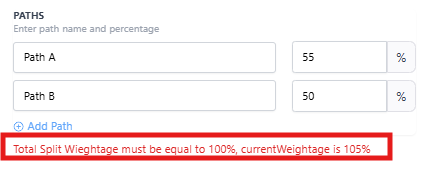
Your percentages must add up to exactly 100%. If they don't, you'll see an error and won't be able to save the action.
You can set one or more paths to 0% if you want to temporarily disable them, as long as the total still equals 100%.
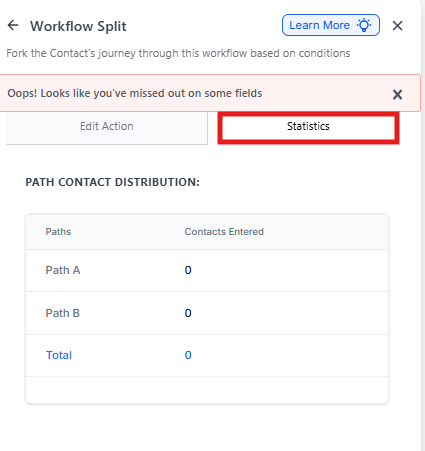
Step 4: Review Statistics
Click the Statistics tab to see how many families have entered each path and track performance in real-time.
Common Use Cases for Childcare Centers
A/B Testing Enrollment Messages
Send 50% of families an email with one subject line and 50% with another to see which performs better. Track tour bookings from each path to optimize your messaging.
Distributing Tour Requests
Balance tour requests across your team based on capacity. For example, send 60% to your experienced enrollment coordinator and 40% to your newer team member.
Testing Follow-Up Timing
Try different follow-up schedules to see what works best. Send half your families a text the same day and half a text the next morning.
Frequently Asked Questions
What if my percentages don't add up to 100%?
Enrollio will show an error and ask you to adjust the percentages before you can save the action.
Can I change the split after the automation is running?
Yes, but changes only apply to families who enter the automation after your update. Families already in the automation stay on their current path.
How many paths can I create?
You can create up to 5 separate paths in a single Split Action.
Are families locked into their assigned path?
Yes. Once a family is assigned to a path, they'll always follow that same path — even if they re-enter the automation later.
Can I see real-time metrics for each path?
Yes. Click the Statistics tab in the Split Action or enable Stats View in your automation to see live performance data.
Can I use Split Actions outside of marketing?
Absolutely! Use Split Actions for tour scheduling, distributing parent support tickets to different staff members, or balancing enrollment tasks across your team.