
Automation Action - If/Else Conditions
The If/Else action lets you create decision points in your automations based on specific conditions. Use it to send families down different paths based on tags, custom fields, dates, times, and more.
Understanding "Includes" and "Does Not Include" Conditions
When working with tags, checkboxes, or dropdown fields, you'll see "Includes" or "Does not include" options. These let you check whether a family has specific tags or values assigned.
Creating an AND Condition
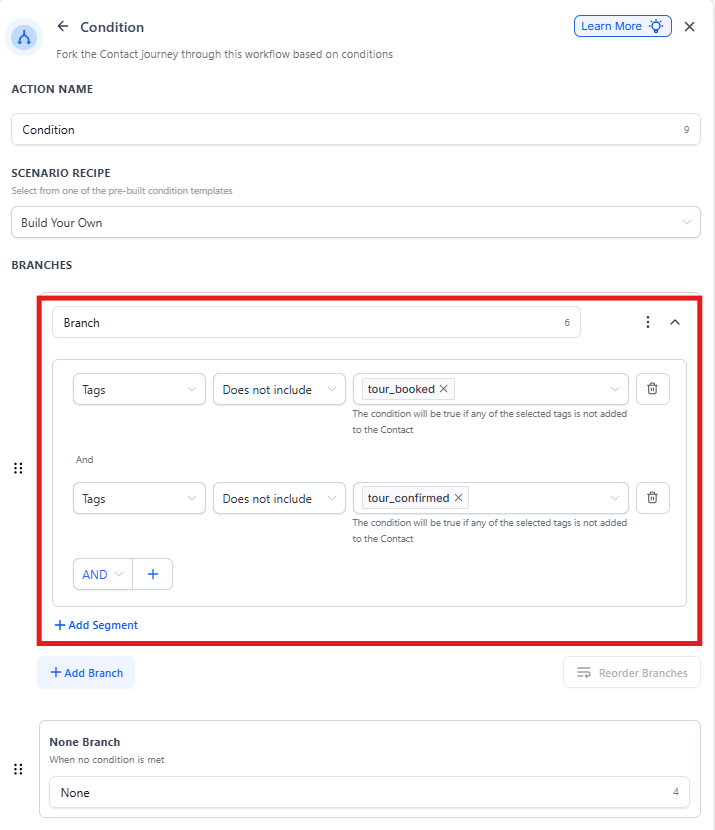
Use AND when all conditions must be true for the family to proceed down the "Yes" path.
Example: Check if a family does NOT have both the "tour_booked" AND "tour_confirmed" tags. If even one of these tags exists on the family's profile, the condition fails and they go down the "No" path.
To pass the "Yes" path, the family must be missing both tags.
Creating an OR Condition
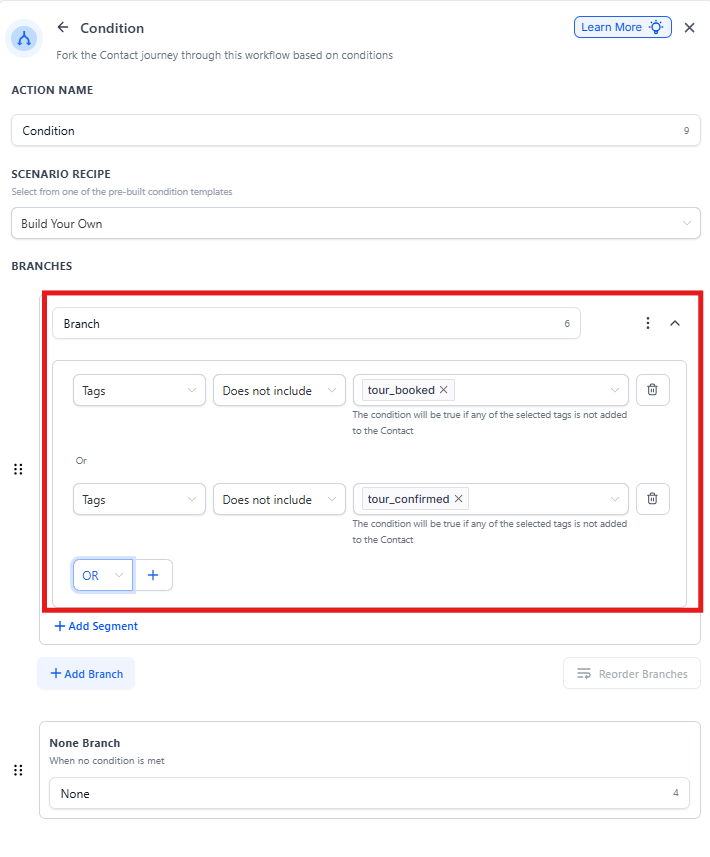
Use OR when any one of your conditions being true is enough to proceed down the "Yes" path.
Break your conditions into separate branches and select the OR option between them. If the family meets one or more of your OR conditions, they'll go down the "Yes" path.
Working with Multiple Branches
Each If/Else action supports up to 10 different outcome paths. This lets you create complex decision trees based on multiple criteria.
What Happens When Multiple Branches Are True?
The automation will send the family down the first branch that matches their criteria, working from top to bottom. They won't go down multiple paths — just the first one that's true.
This means order matters. Place your most specific conditions at the top, and broader conditions below.
Time Comparison Operators
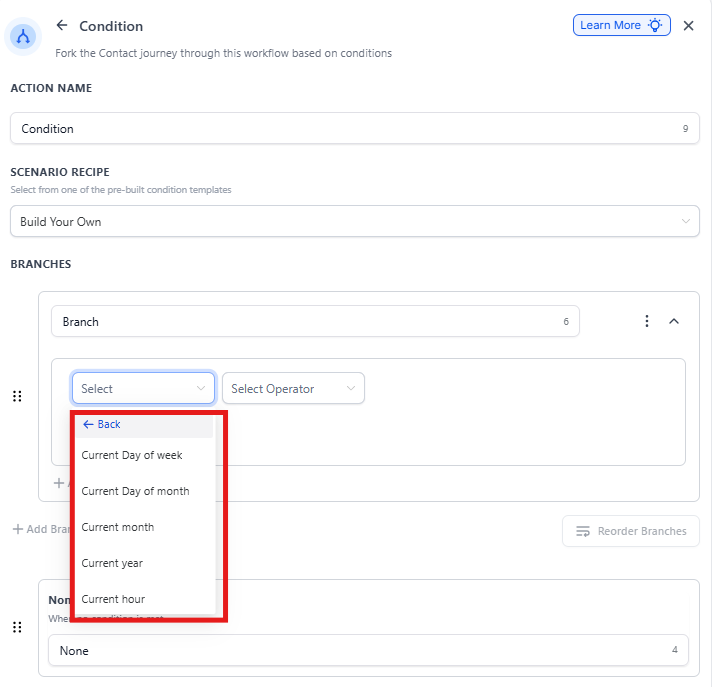
Time operators let you trigger actions based on the current date and time. You can compare against the day of the week, day of the month, month, year, or hour.
After selecting your time parameter, choose a comparison operator from the dropdown.
The "Is" Operator
Checks if the current time unit exactly matches your input.
- Example: "Current Day of the Week Is Monday" — only true on Mondays
- Example: "Current Month Is January" — only true in January
- Example: "Current Day of Month Is 15" — only true on the 15th of any month
The "Is Not" Operator
Checks if the current time unit is anything except your input.
- Example: "Current Day of the Week Is Not Saturday" — true every day except Saturday
The "Is After" Operator
Checks if the current time is after your input value. For hours, this only considers times that start on the next full hour.
- Example: "Current Hour Is After 6 PM" — only true at 7:00 PM and later (6:59 PM is still considered part of 6 PM)
The "Is On or After" Operator
Checks if the current time is on or after your input. For hours, this includes minutes within the same hour.
- Example: "Current Hour Is On or After 6 PM" — true at 6:00 PM, 6:30 PM, 6:59 PM, and any time after
The "Is Before" Operator
Checks if the current time is before your input value.
- Example: "Current Month Is Before June" — true for January through May
The "Is On or Before" Operator
Checks if the current time is on or before your input. For hours, this includes minutes within the same hour.
- Example: "Current Hour Is On or Before 6 PM" — true at 6:59 PM and earlier
The "Is Empty" and "Is Not Empty" Operators
Check whether a field has any value at all.
- "Is Not Empty" — true if the field has a value
- "Is Empty" — true if the field has no value
Use these to ensure families have provided required information before proceeding to the next automation step.
Troubleshooting If/Else Conditions
If your automation isn't working as expected, check these common issues:
- Wrong logic type: Make sure you're using AND vs. OR correctly based on your needs
- Branch order: Remember, families go down the first matching path — reorder your branches if needed
- Time boundaries: Double-check whether you need "After" vs. "On or After" for hour-based conditions
- Empty fields: If testing with sample data, make sure required fields aren't empty