
What Is the If/Else Automation Action?
The If/Else action lets you route families through different paths in your automation based on conditions you define. This makes your automations smarter — they adapt to each family's behavior, attributes, or enrollment stage automatically.
With the latest enhancement, you can now use Dynamic Custom Values in If/Else conditions. This means you can compare live values from earlier automation steps or stored fields — no need to hard-code numbers or retype the same logic across multiple automations.
Key Benefits
- Conditional Logic: Route families down different paths based on real-time data
- Automation Efficiency: Reduce manual sorting and duplicate steps
- Scalable Segmentation: Handle complex branching logic as your center grows
- Visual Clarity: See and manage decision points clearly in the automation builder
How to Use the If/Else Action
Step 1: Add the If/Else Action
- Open your automation
- Click the + icon to add a new action
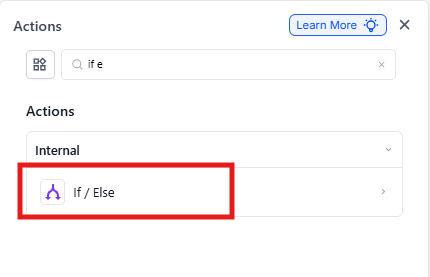
- Select If / Else from the action list
Step 2: Choose a Logic Setup Method
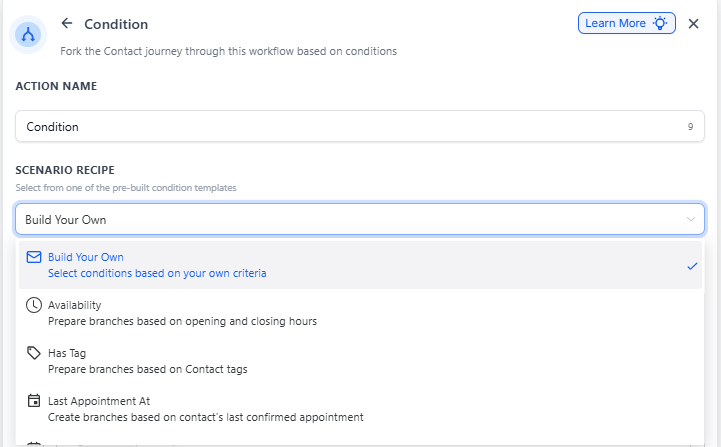
You can either:
- Build logic manually using Build My Own, or
- Start from a prebuilt recipe with common conditions
Step 3: Configure the First Branch
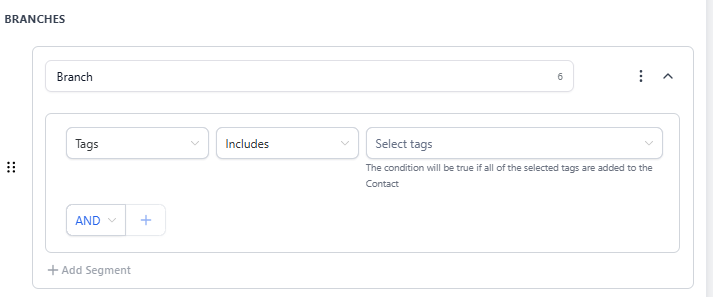
- Select the field you want to evaluate (enrollment status, tour date, form response, etc.)
- Choose the appropriate operator (equals, greater than, contains, etc.)
- Set the comparison value
- Click Add Segment to add additional conditions
- Use AND / OR to control how conditions are grouped
Step 4: Add Additional Branches (Optional)
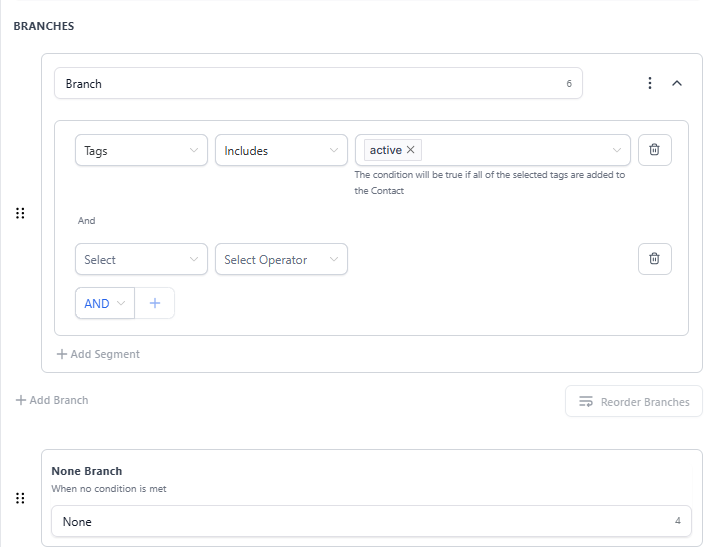
Click Add Branch to define more condition groups. Each branch represents a separate path in the automation.
For example, you might create branches for:
- Families who booked a tour
- Families who requested a callback
- Families who downloaded your info packet
Step 5: Configure the "None" (Else) Branch
The None branch is created automatically. It runs when no defined conditions are met.
This branch does not support conditions and cannot be removed. You can rename it and add fallback actions — for example, sending a general follow-up to families who didn't match any specific criteria.
Using Dynamic Values in If/Else Conditions
You can now use Dynamic Values on the right-hand side of If/Else conditions. This allows you to compare live values — such as outputs from earlier automation steps or stored fields — without hard-coding numbers or text.
This enhancement lets you branch directly on values that were calculated or captured earlier in the automation.
Supported Field Types
Dynamic Values are supported for the following condition types:
- Numeric – scores, counts, totals
- Date – tour dates, enrollment start dates, renewal dates
- Select / Dropdown (advanced – requires option IDs)
- Monetary – deposit amounts or tuition totals
How to Use Dynamic Values
- Add an If/Else action to your automation
- Configure the left-hand field as usual
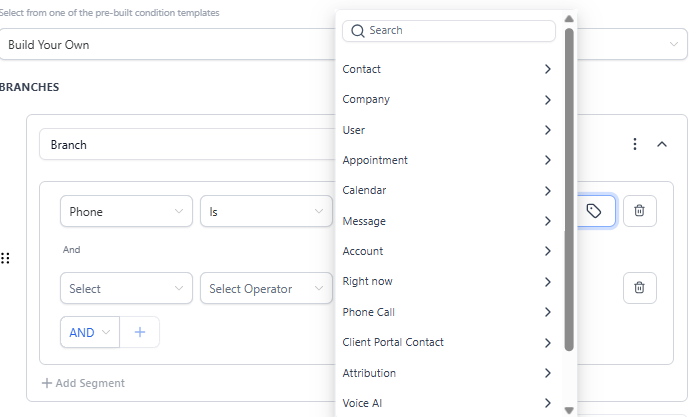
- In the right-hand input, switch the value type to Dynamic Value
- Select a value from:
- An earlier automation step output, or
- A stored field
- Choose the appropriate operator (number, date, or value)
- Save and publish the automation
Important Note for Select / Dropdown Fields:
Select / Dropdown fields require option IDs, not display names, when used with Dynamic Values in If/Else conditions. In many cases, these IDs can be found in settings (for example, Enrollment Pipeline IDs or Stage IDs).
Example Use Case
When a deposit amount is captured earlier in the automation, you can compare that value dynamically.
If the amount is $500 or more, route the family to a priority onboarding path with immediate staff notification. Otherwise, continue with the standard enrollment process.
Action Details
| Field | Description | Required |
|---|---|---|
| Action Name | Label used to identify the action in the automation | Yes |
| Condition | The rule evaluated to determine the branch | Yes |
| Branches | Automation paths created by the If/Else action | Yes |
| Segments | Groups of conditions combined using AND / OR logic | No |
Example: Follow-Up Based on Email Engagement
Scenario: You want to follow up differently based on whether a family opened your tour invitation email.
Automation Logic:
- Trigger: Tour invitation email sent
-
If/Else Condition: Email Event → Is Opened
- Yes Branch: Send a text message with tour preparation tips
- No Branch: Resend the email with a different subject line after 2 days
This ensures follow-ups are relevant to each family's engagement level.
Frequently Asked Questions
Q: How can I control when the If/Else condition is evaluated?
Insert a Wait action before the If/Else step. You can wait for an event or a timeout (for example, "Wait until email is opened OR 2 days pass") before evaluating the condition.
Q: Can I edit a branch after it's created?
Yes. You can update fields, operators, and values before or after publishing the automation.
Q: Is the None branch required?
Yes. It is created automatically and cannot be removed. Think of it as your safety net — families who don't match any specific condition will follow this path.
Pro Tip: Use descriptive names for your branches (like "Booked Tour" or "Requested Info") instead of generic labels. This makes it easier to understand your automation at a glance, especially when you revisit it later.