
Automatically trigger actions when a discount code is successfully redeemed in a completed transaction. This article shows you how to set up automations that respond when families use a discount code, perfect for follow-ups, loyalty rewards, and internal alerts.
What is the Discount Code Redeemed Automation Trigger
The Discount Code Redeemed trigger fires when a discount code is successfully redeemed in a completed transaction. Unlike the Discount Code Applied trigger, which fires anytime a discount is applied (whether or not the transaction completes), this trigger only activates when the order is finalized and payment is complete.
This is essential for tracking actual discount redemptions and taking immediate post-sale actions like sending thank-you messages, tagging high-value families, or rewarding loyalty.
Key Benefits of the Discount Code Redeemed Trigger
Using this trigger unlocks targeted post-purchase automations that boost family satisfaction and streamline your operations:
- Post-Purchase Engagement: Instantly send thank-you emails, onboarding resources, or special offers once a discount is used in a purchase
- VIP Segmentation: Tag families who redeem high-value or exclusive discount codes so you can nurture them with loyalty campaigns
- Team Coordination: Alert your enrollment or admin team in real time when key discount codes are redeemed
- Performance Monitoring: Track which discount codes convert best and use that insight to refine future promotions
- Operational Efficiency: Automatically monitor redemptions and trigger follow-ups without manual tracking
Setting Up the Discount Code Redeemed Trigger
To configure this trigger, open your automation builder and follow these steps:
Step 1: Add the Trigger to Your Automation
- Navigate to Automations in your Enrollio dashboard
- Either create a new automation or edit an existing one
- In the automation builder, click + Add New Trigger
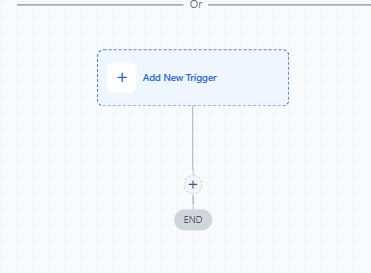
Step 2: Choose the Trigger Type
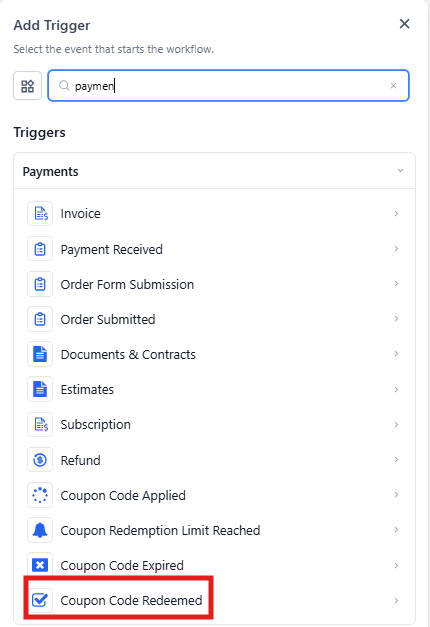
From the list of available triggers, scroll to the Payments section and select Discount Code Redeemed.
Step 3: Name Your Trigger
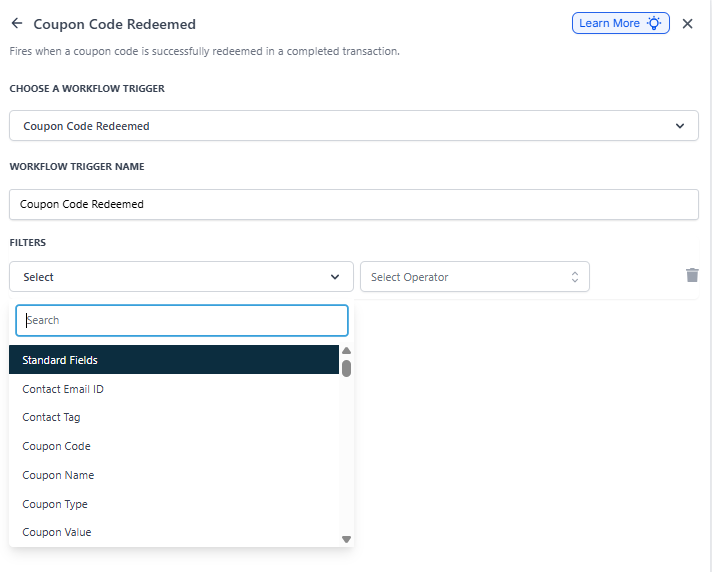
Provide a descriptive name in the Automation Trigger Name field to keep your automation organized.
Example: Discount Code Redeemed (Early Bird Special)
Step 4: Apply Filters to Target Specific Scenarios
After naming the trigger, you can apply filters to narrow down exactly when this automation should fire. Click + Add Filters to get started.
Each filter comes with specific operators (like Is, Contains, Greater Than, Before/After) to precisely target the conditions you care about.
Step 5: Save and Build the Automation
- Once your trigger and filters are configured, click Save Trigger
- Add your desired actions to the automation
- Use Test Automation to confirm everything works as expected
- Click Publish to activate your automation
Available Filters
Use these filters to control exactly when your automation fires:
| Filter | Operator(s) | Input Type |
|---|---|---|
| Parent Email | Contains Phrase / Is Not Empty | Text Input |
| Family Tag | Contains Phrase / Is Not Empty | Text Input |
| Discount Code | Is Any Of / Is Empty / Is None Of / Is Not Empty | Multi-Select Dropdown of Discount Codes |
| Discount Name | Is Any Of / Is Empty / Is Not / Is Not Empty | Multi-Select Dropdown of Discount Names |
| Discount Type | Is / Is Empty / Is Not / Is Not Empty | Amount / Percentage |
| Discount Value | Equals To / Greater Than / Greater Than or Equal To / Is Empty / Is Not Empty / Is Not Equal To / Less Than / Less Than or Equal To | Numeric Input |
| Order Value (Before Discount) | Equals To / Greater Than / Greater Than or Equal To / Is Empty / Is Not Empty / Is Not Equal To / Less Than / Less Than or Equal To | Numeric Input |
| Product Collection | Contains Any / Is Empty / Is None Of / Is Not Empty | Multi-Select Dropdown of Product Collections |
| Product Type | Contains Any / Is Empty / Is None Of / Is Not Empty | Multi-Select Dropdown of Product Types (One Time vs Recurring) |
| Product(s) in Order | Contains Any / Is Empty / Is None Of / Is Not Empty | Multi-Select Dropdown of Products |
| Redemption Count (per code) | Equals To / Greater Than / Greater Than or Equal To / Is Empty / Is Not Empty / Is Not Equal To / Less Than / Less Than or Equal To | Numeric Input |
| Source | Is / Is Empty / Is Not Empty / Is Not | Single-Select Dropdown |
Recommended Actions for Discount Redemptions
After setting up your Discount Code Redeemed trigger, consider adding these actions to optimize family retention and internal operations:
- Send Email: Thank the family for their enrollment and offer helpful onboarding resources
- Add Tag: Label families based on the discount they redeemed (e.g., EarlyBirdFamily)
- Internal Notification: Alert your enrollment or admin team when key discount codes are redeemed
- Send Text Message: Deliver a thank-you message or share important next steps
- Create/Update Enrollment Opportunity: Add high-value families to your enrollment pipeline for personalized follow-ups
Frequently Asked Questions
Will this trigger fire if a discount is applied but the order isn't completed?
No, this trigger only fires when a discount code is successfully redeemed in a completed transaction. Use the Discount Code Applied trigger to automate actions at the checkout stage.
Can I track which products the discount was redeemed against?
Yes, use the Product(s) in Order and Product Collection filters to narrow down based on product selections at the time of discount redemption.
What happens if I don't apply any filters?
The automation will trigger for every discount code redeemed in any completed transaction. It's good practice to use filters like Discount Code Is or Discount Type Is to target specific promotions.
Can I trigger actions based on the order value or discount value?
Yes, use the Order Value (Before Discount) and Discount Value filters with operators like Greater Than and Less Than to control when your automation fires.
Can I monitor redemption limits automatically with this trigger?
Yes, use the Redemption Count (per code) filter to trigger actions when a discount code's usage reaches a specific number.
What if multiple discount codes are used in a single purchase?
This trigger evaluates each discount code independently. Apply filters to target the specific code(s) you want the automation to respond to.