
Automatically take action the moment a family applies a coupon code during checkout. This guide shows you how to set up automations that trigger when discount codes are used—whether or not the enrollment is completed. Perfect for follow-ups, internal alerts, and enrollment optimization.
What is the Coupon Code Applied Trigger
The Coupon Code Applied trigger starts an automation the instant a coupon code is entered during checkout. The automation fires even if the family doesn't complete enrollment, letting you follow up, tag contacts, notify your team, or send targeted offers in real-time when discount codes are used.
This is essential for childcare directors who want to track promotion usage and respond immediately, without waiting for enrollment to finish.
Key Benefits
React Instantly to Coupon Usage
Trigger automations as soon as a family applies a discount code at checkout.
Recover Abandoned Enrollments
Remind families who applied a coupon but didn't finish enrolling. Send a gentle nudge to bring them back and complete their registration.
Personalized Follow-ups
Detect which coupon was used and send tailored messages or offers that feel relevant and helpful.
Accurate Targeting with Filters
Fire automations based on specific coupon codes, discount types, order values, programs, and more.
Keep Your Team in the Loop
Notify staff or tag families when specific promotional codes are applied to monitor campaign performance.
Setting Up the Trigger
Head to your automation builder and follow these steps:
Step 1: Add the Trigger
- Navigate to Automation → Automations
- Create a new automation or edit an existing one
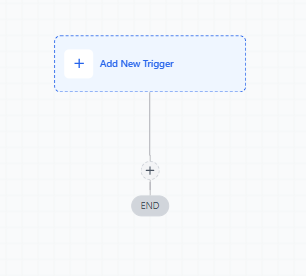
- Click + Add New Trigger
Step 2: Choose the Trigger Type
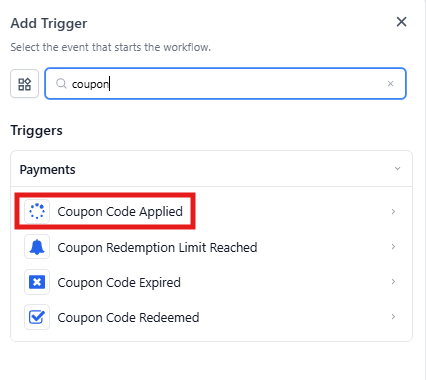
- Scroll to the Payments section
- Select Coupon Code Applied
Step 3: Name Your Trigger
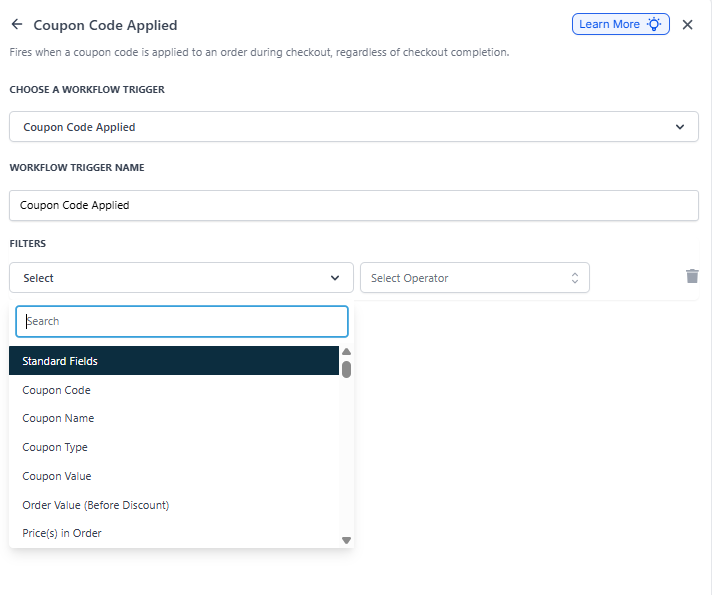
Enter a descriptive name in the Automation Trigger Name field to keep things organized.
Example: "15% Off Registration - Applied"
Step 4: Apply Filters (Optional)
Click + Add Filters to target specific scenarios. Each filter has operators like Is, Contains, Greater Than, or Before/After to precisely control when this automation runs.
Step 5: Save and Build Your Automation
- Click Save Trigger
- Add your desired actions to the automation
- Use Test Automation to confirm everything works
- Click Publish to activate
Available Filters
| Filter | Operators | Input Type |
|---|---|---|
| Coupon Code | Is Any Of / Is Empty / Is None Of / Is Not Empty | Multi-Select Dropdown |
| Coupon Name | Is Any Of / Is Empty / Is None Of / Is Not Empty | Multi-Select Dropdown |
| Coupon Type | Is / Is Empty / Is Not / Is Not Empty | Amount / Percentage |
| Coupon Value | Equals To / Greater Than / Greater Than or Equal To / Is Empty / Is Not Empty / Is Not Equal To / Less Than / Less Than or Equal To | Numerical Input |
| Order Value (Before Discount) | Equals To / Greater Than / Greater Than or Equal To / Is Empty / Is Not Empty / Is Not Equal To / Less Than / Less Than or Equal To | Numerical Input |
| Product Collection | Contain Any / Is Empty / Is None Of / Is Not Empty | Multi-Select Dropdown |
| Product Type | Contain Any / Is Empty / Is None Of / Is Not Empty | Multi-Select Dropdown (One Time vs Recurring) |
| Product(s) In Order | Contain Any / Is Empty / Is None Of / Is Not Empty | Multi-Select Dropdown |
| Source | Is / Is Empty / Is Not / Is Not Empty | Single-Select Dropdown |
Recommended Automation Actions
Once your trigger is configured, consider adding these actions to optimize enrollments and family experience:
- Send Email: Acknowledge the coupon use with a personalized message
- Assign to User: Automatically assign the family to a staff member for follow-up
- Add Tag: Tag families based on which promotion they used
- Internal Notification: Alert your team when high-value or special promotions are applied
- Create/Update Enrollment Opportunity: Move the family into your enrollment pipeline
Frequently Asked Questions
Will the trigger work if the family doesn't complete checkout?
Yes. This trigger fires the moment a coupon is applied, regardless of whether the family completes enrollment.
Can I track which programs the coupon was applied to?
Yes. Use the Product(s) in Order and Product Collection filters to target specific programs or tuition packages.
What happens if I don't add any filters?
The automation will trigger for any coupon code applied at checkout. We recommend using filters like Coupon Code Is or Coupon Type Is to target specific campaigns.
Can I trigger actions based on order value before and after discounts?
Yes. Use Order Value (Before Discount) and Order Value (After Discount) filters with operators like Greater Than and Less Than to control when the automation fires.
Are scheduled orders supported with this trigger?
No. This trigger only fires when a coupon is actively applied at checkout.
Related Articles
- Automation Trigger – Coupon Code Redeemed
- Automation Trigger – Coupon Redemption Limit Reached
- Automation Trigger – Coupon Code Expired
- How to Create Coupons for Programs
- Coupon Application on Recurring Tuition