
Overview
The Subscription trigger lets you automatically respond when a parent's payment subscription changes status. This is perfect for welcoming new families, following up on failed payments, or re-engaging families who cancel.
Set it up once, and Enrollio handles the rest — sending the right message at exactly the right time.
When This Trigger Fires
This automation starts when any of these subscription events occur:
- A new subscription is created for a family
- A trial subscription converts to active status
- A subscription is canceled by the family or your center
- Payment fails or becomes overdue
- Any other subscription status change
How to Set It Up
Step 1: Add the Trigger
- Go to Automations in your Enrollio dashboard
- Open an existing automation or create a new one
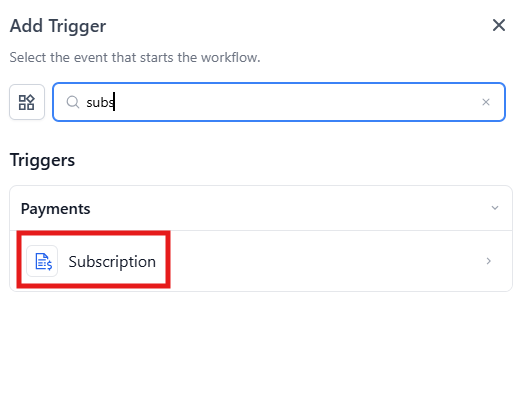
- Click Add Trigger
- Under the Payments section, select Subscription
Step 2: Add Filters (Optional but Recommended)
Filters let you control exactly which subscription changes should trigger your automation. Without filters, the automation runs for every subscription change — which might be too broad.
Click Add filters to set conditions based on:
- Standard Fields: Built-in options like the tuition product or subscription status
- Custom Fields: Any custom subscription data you've added (like program type or enrollment tier)
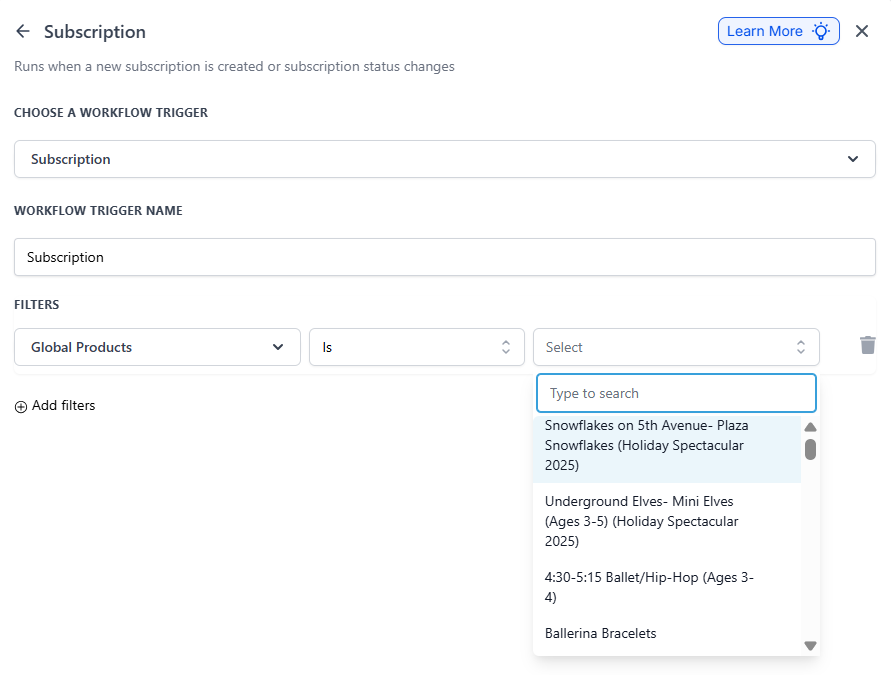
Filter by Product
Use the Global Products filter to target specific tuition plans or programs. For example, you might want different automations for infant care versus after-school programs.
Select Is, Is not, Is empty, or Is not empty, then choose which products should trigger the automation.
Filter by Subscription Status
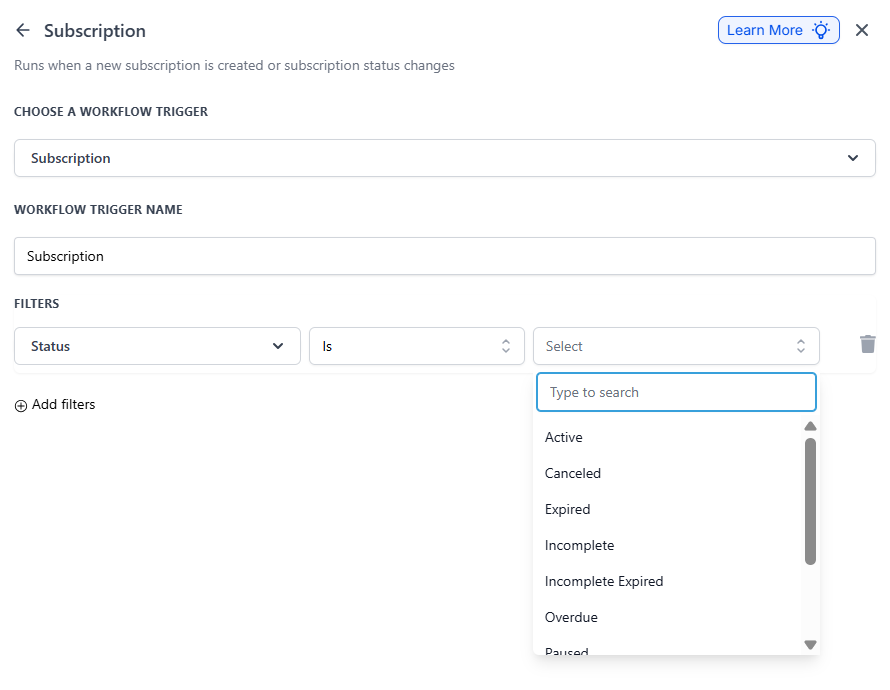
The Status filter is where the real power comes in. Choose exactly which subscription state should start your automation.
Here's what each status means:
- Active: Subscription is running and payments are processing successfully. Use this for onboarding new families or confirming enrollment.
- Trial: Family is in a trial period. Perfect for sending nurture messages or trial-ending reminders.
- Scheduled: Subscription starts in the future. Send welcome information before their start date.
- Incomplete: Parent started but didn't finish the signup process. Great for gentle follow-up nudges.
- Incomplete Expired: The very first payment attempt failed, so the subscription never became active. Different from ongoing payment issues.
- Overdue: A payment is late, but the subscription is still active. This is for families whose second or later payment failed — not the first one. Use this for friendly payment reminders during your grace period.
- Unpaid: Subscription is active but has missed payments. Time to prompt the family to update their payment method.
- Canceled: Subscription was ended by the parent or your center. Consider triggering exit surveys or re-engagement offers.
- Expired: Subscription reached its natural end date. Good for renewal reminders or feedback requests.
Step 3: Add Your Actions
Once you've defined when the trigger fires, add what should happen next:
- Send a text message or email
- Update the family's record
- Notify your enrollment team
- Add or remove tags
- Create a task for follow-up
Step 4: Save and Activate
Click Save, then make sure the automation is toggled to Active. Your automation won't run while it's in draft mode.
Real-World Examples
Welcome Active Families
When a family's subscription becomes Active, automatically send a welcome email with:
- Your center's address and hours
- First day checklist
- Staff introductions
- Parent handbook link
Recover Failed Payments
When a subscription becomes Overdue, send a friendly text message letting parents know their payment didn't go through and providing a link to update their payment method.
Trial Ending Soon
For families in Trial status, set up a sequence that sends reminders at 7 days, 3 days, and 1 day before the trial ends — encouraging them to continue enrollment.
Re-Engage Canceled Families
When a subscription is Canceled, wait 2 days, then send a survey asking for feedback and offering to discuss any concerns. This is your chance to win them back or learn for next time.
Common Questions
What's the difference between Overdue and Unpaid?
Overdue means a payment is late but the subscription was active at least once (the first payment succeeded). Unpaid is a broader term for any active subscription with missed payments. For most childcare centers, you'll want to focus on the Overdue status for payment recovery automations.
Should I use filters or let all subscriptions trigger?
Use filters. Running automations for every subscription change creates noise and can confuse families. Be specific about which products and statuses should trigger each automation.
Can I trigger based on custom subscription fields?
Yes! If you've added custom fields to track things like enrollment tier, sibling status, or program type, you can filter based on those fields to create highly targeted automations.