
Introduction
RSS campaigns let you automatically deliver newly published blog content to families via email. Instead of sending a separate email every time you publish a blog post—which can overwhelm busy parents—you can send periodic newsletters that summarize recent content they may have missed.
What is RSS?
RSS stands for "Really Simple Syndication." An RSS feed makes it easy for families to receive updates and view curated content in one place.
When you create an RSS email campaign in Enrollio, you'll select a template, design your content, and choose how often to send it—daily, weekly, or monthly.
Before you start:
- Create an email template for your campaign
- Verify your domain for email sending
- Set up RSS blocks in your email template (see our RSS blocks guide)
Creating an RSS Email Campaign
Step 1: Start Your Campaign
Navigate to Marketing Email and click Create Campaign.

Step 2: Select Your Template
Choose the email template you want to use for your RSS campaign. Use the preview option to see how it looks before selecting it.
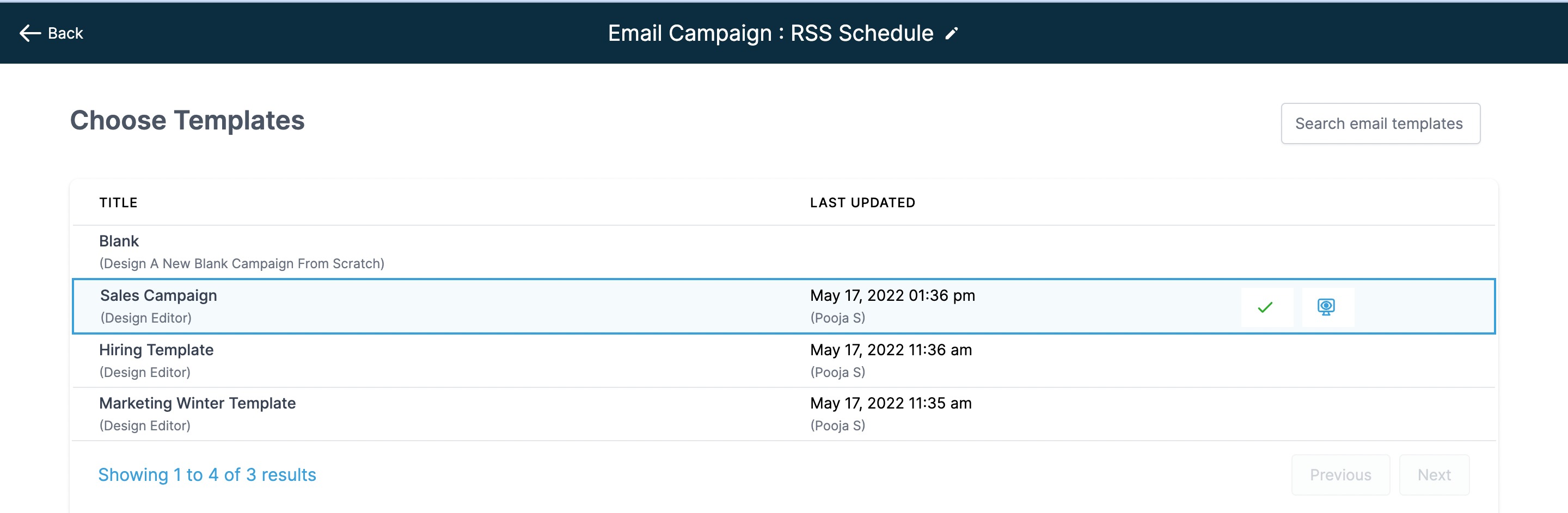
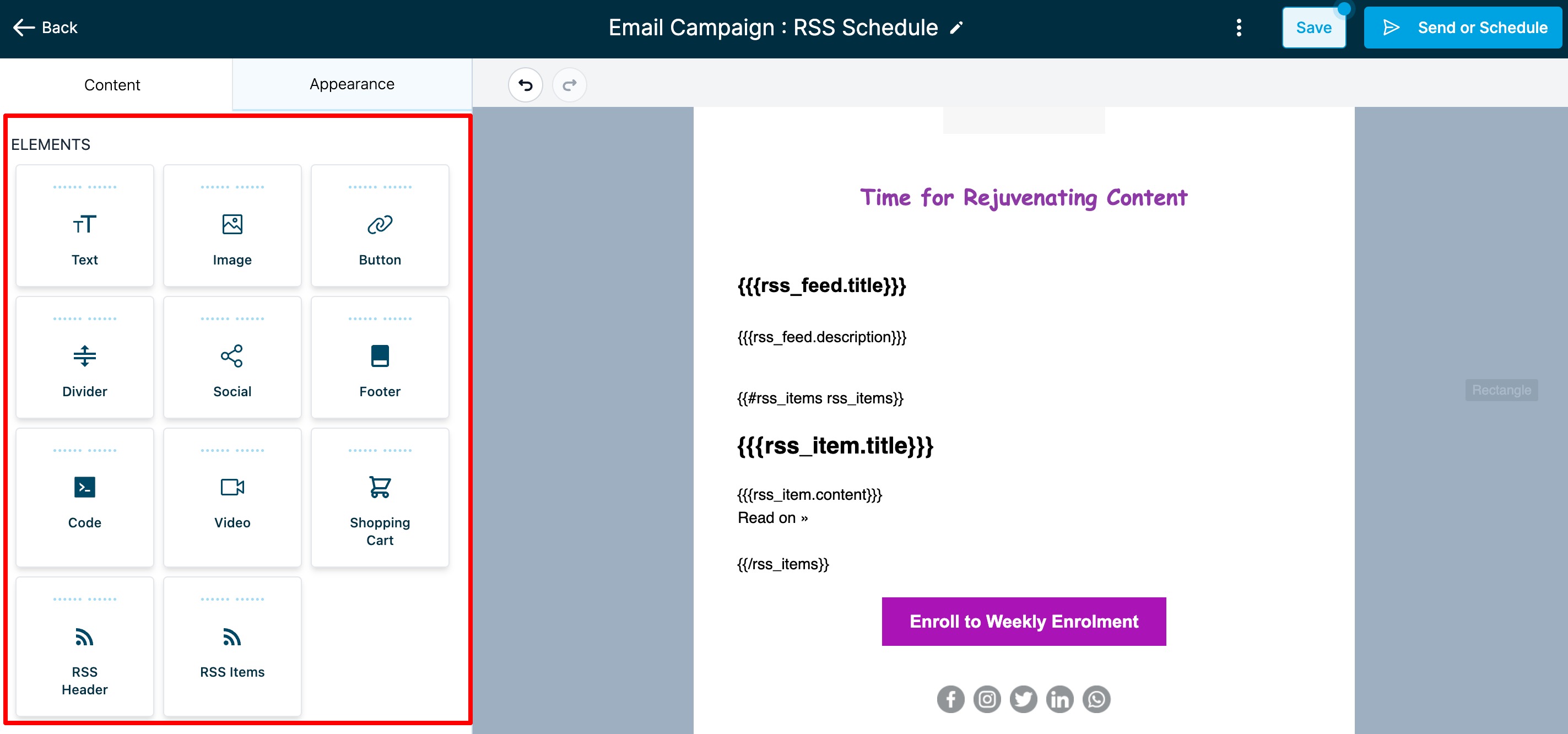
Step 3: Design Your Content
The Email Builder opens, where you'll design your content and add RSS elements. Work on different sections in any order you prefer. When you're ready, click Send or Schedule.
Step 4: Configure Campaign Settings
Before sending, complete these required fields:
- To: Add recipients by selecting individual emails or smart lists
- From: Enter your email address
- Name: Add your name (optional)
- Subject: Write your subject line
- Preview Text: Add preview text (optional)
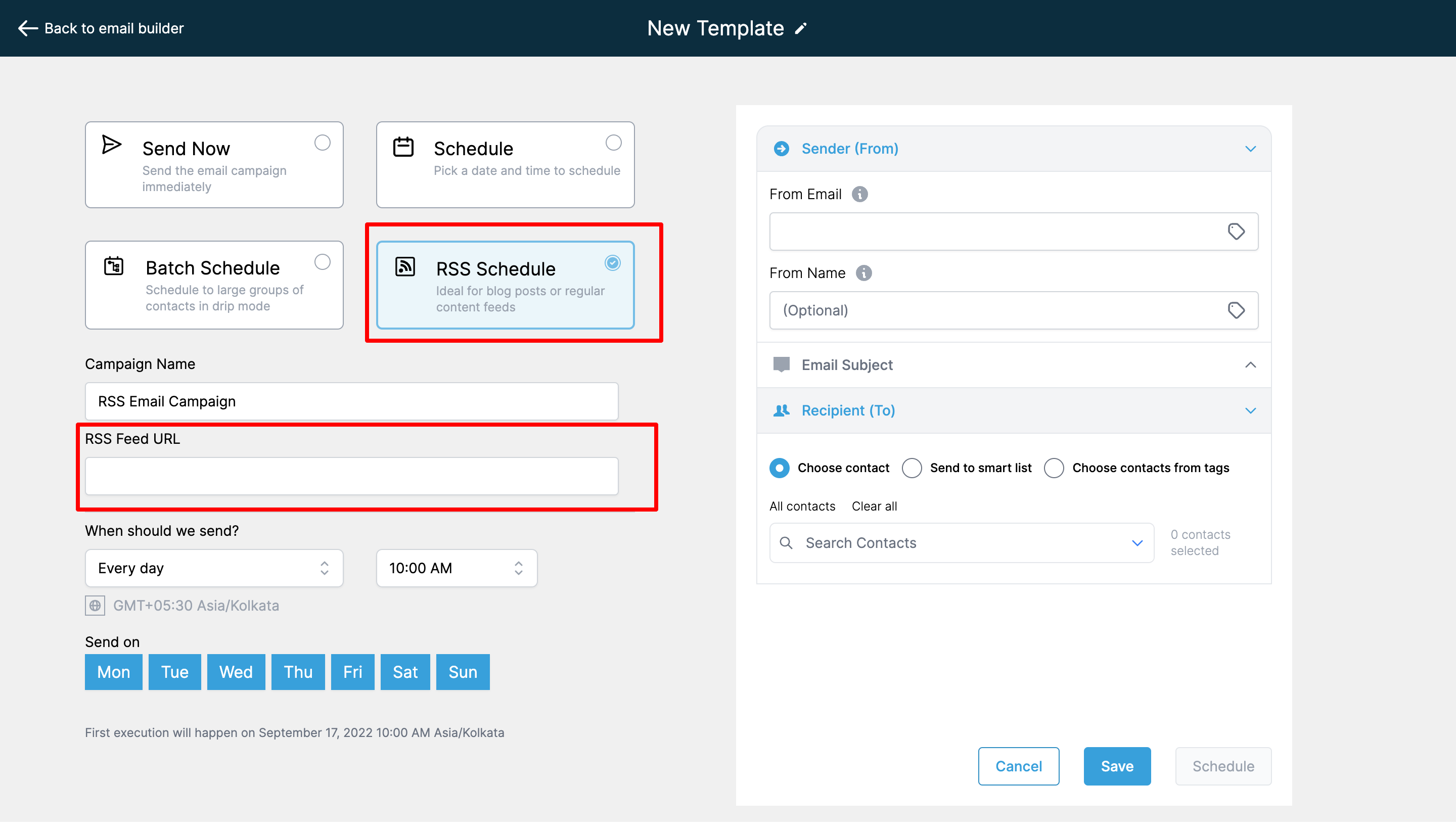
Step 5: Set Up RSS Delivery
In the Sending Options section, select RSS as your delivery method.
Then configure your RSS schedule:
- RSS Feed URL: Enter your blog's RSS feed URL
- Frequency: Choose Daily, Weekly, or Monthly
- Send Time: Select what time to send the campaign
- Active Days: Uncheck any days you don't want to send emails
Pro Tip: The system will display your next execution date, time, and timezone. Double-check these details before scheduling!
Managing Your RSS Campaign
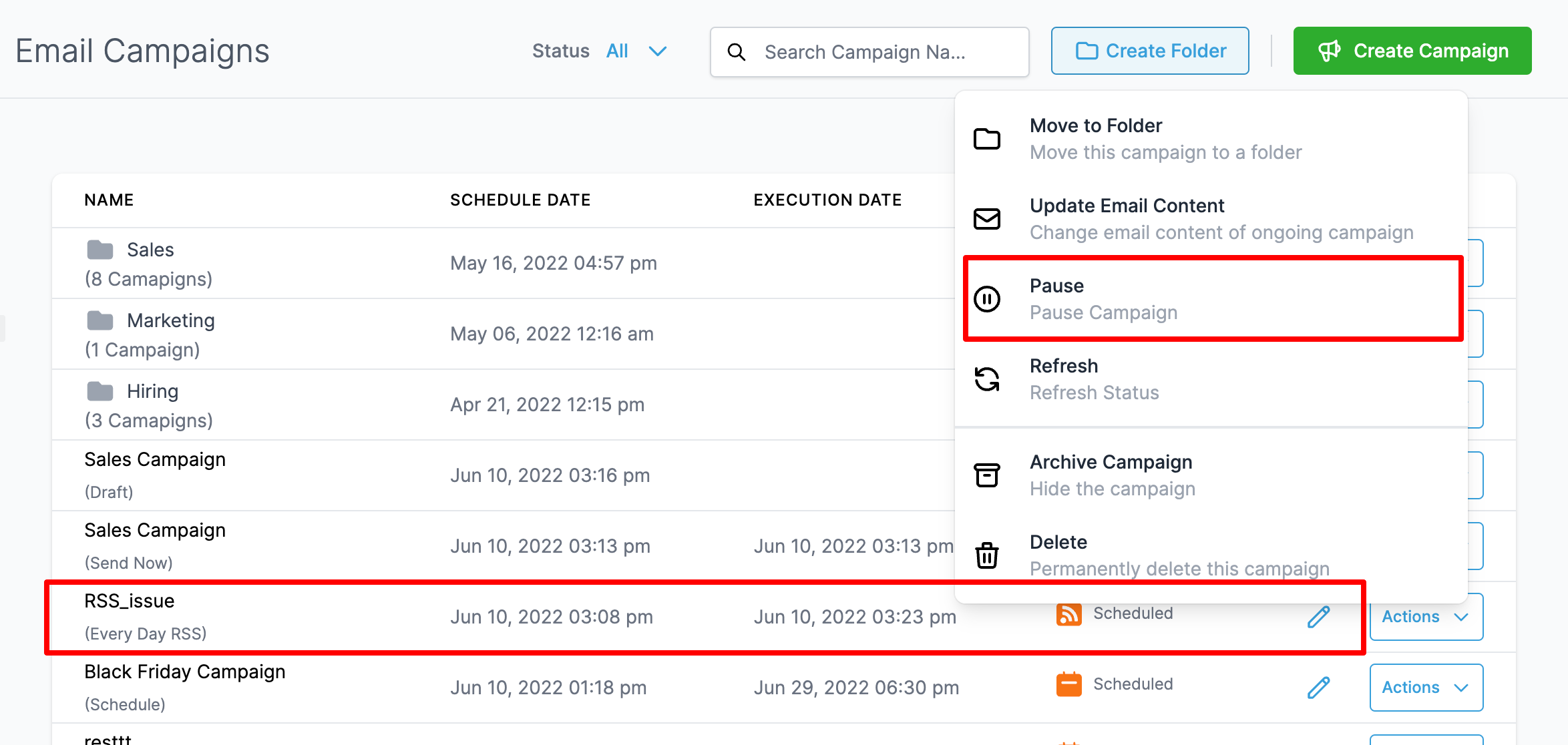
Pausing a Campaign
You can pause your RSS campaign at any time from the Email Campaigns list.
Editing Campaign Content
To update your RSS campaign content without affecting statistics:
- Go to Marketing Email
- Find your RSS campaign and click Update Email Content
- Make your changes and click Save Edits
Note: Save your edits before the execution date. We'll attempt to update the content before the next send, though timing depends on when the server processes the queue.
Rescheduling a Campaign
You can reschedule your RSS campaign up to one hour before it's set to send:
- Navigate to Marketing Email
- Click the Email Campaign tab
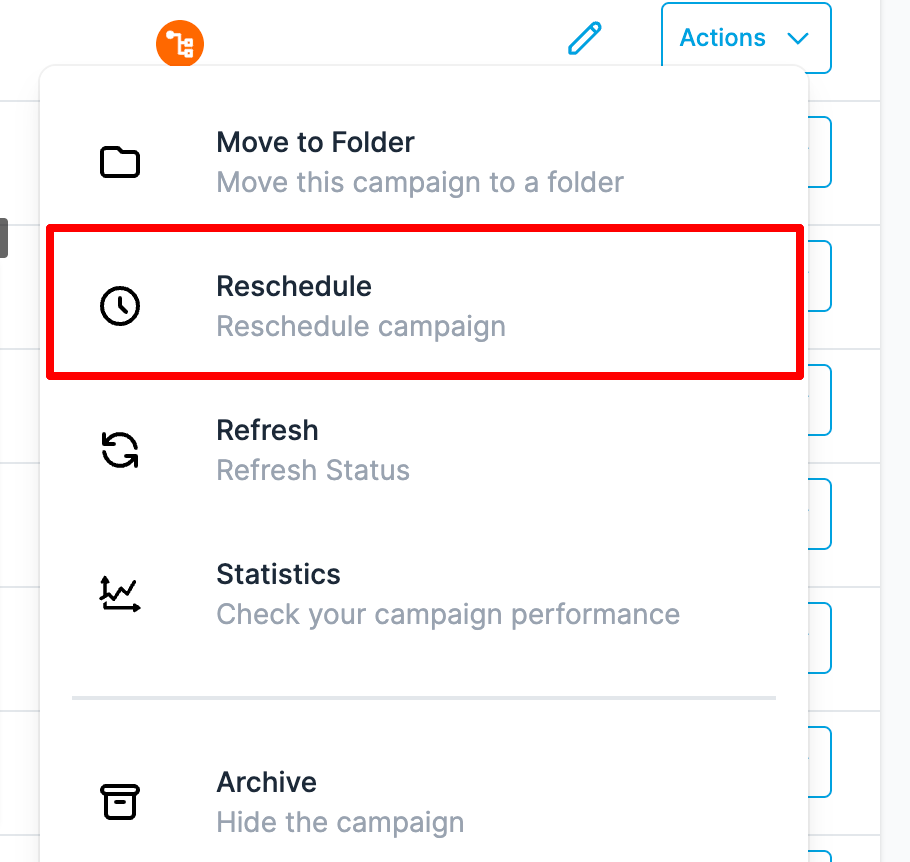
- Find your RSS campaign and click the action button
- Select Reschedule Campaign
- Update your schedule details and delivery settings
- Mark it as rescheduled to save your changes
For example, if your campaign is scheduled for 11:00 AM EST, you can reschedule it until 10:00 AM EST.
Frequently Asked Questions
Why do I see multiple entries for my RSS campaign?
Each entry represents a separate send with its own statistics. This helps you track performance over time for your recurring campaign.
Can I edit my RSS campaign without losing statistics?
Yes! Use the Update Email Content option to edit your campaign copy. Your existing statistics remain intact. Just make sure to save your changes before the next scheduled send.
What if I need to change the send schedule?
You can reschedule your RSS campaign anytime, as long as it's at least one hour before the next scheduled send. Use the Reschedule Campaign option in the action menu to adjust the timing.