
Sometimes you need to fix a typo, update a link, or tweak the wording in an email campaign that's already running. Whether it's a scheduled campaign, an RSS-based campaign, or a batch send, you can update the content without losing your campaign stats or starting over.
When to Use This Feature
Use this option when you need to make quick corrections to campaigns that are:
- Scheduled to send later
- Set up as recurring RSS campaigns
- Configured for batch delivery
This is especially helpful when deleting and recreating the campaign would mean losing valuable performance data.
How to Update Your Email Content
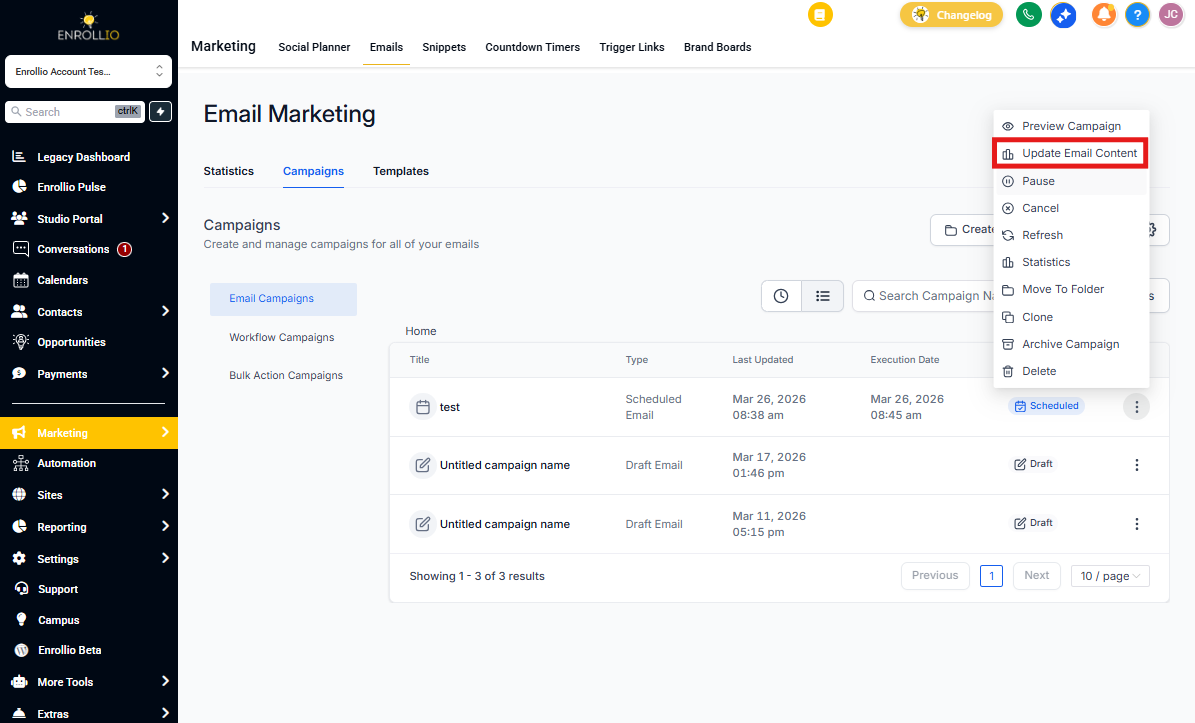
- Go to Marketing > Email
- Click the Email Campaign tab
- Find your active campaign in the list — you'll see the scheduled execution date next to it
- Click the Actions button for that campaign
- Select Update Email Content
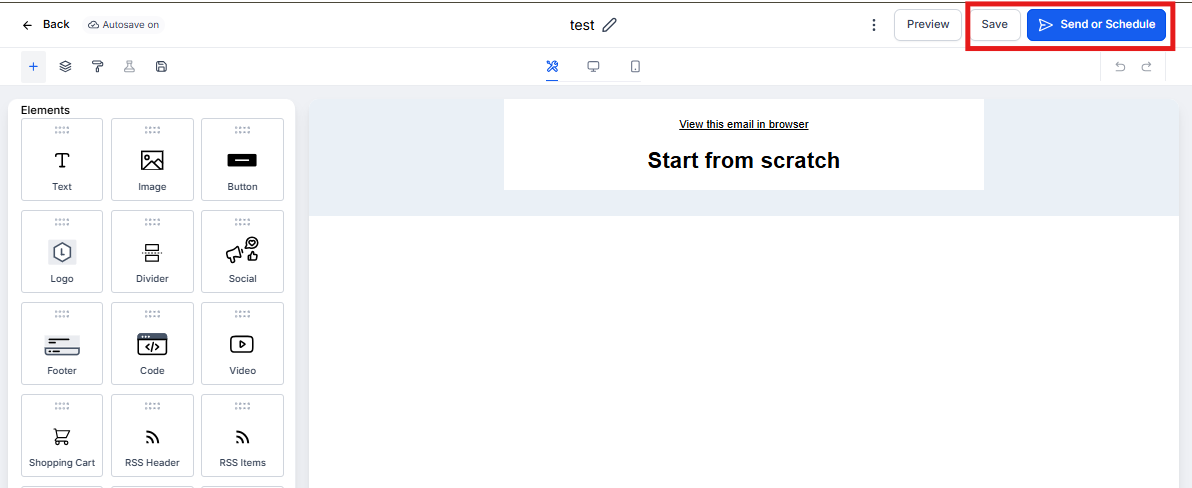
- Make your changes to the email — edit text, swap images, fix links, whatever you need
- Click Save Edits
⚠️ Important: While your changes will typically save in time for the next scheduled send, we can't guarantee the update will process before the campaign executes if you're cutting it close to the send time. Make updates as early as possible before your next scheduled send.
What You Can Change
You can update:
- Text and headings
- Images and graphics
- Links and buttons
- Layout elements
Your campaign settings (schedule, recipients, etc.) stay the same — you're only changing the email content itself.