
Overview
Need to reuse a successful email campaign? You can quickly duplicate any existing campaign and make adjustments for a new audience or message.
Note: We recommend using Automations for most recurring communication needs. They offer more flexibility and can handle everything email campaigns do—and more—all in one builder. Learn more about Automations.
How to Duplicate an Email Campaign
- Navigate to Marketing in your left sidebar
- Click Email Campaigns
- Find the campaign you want to duplicate
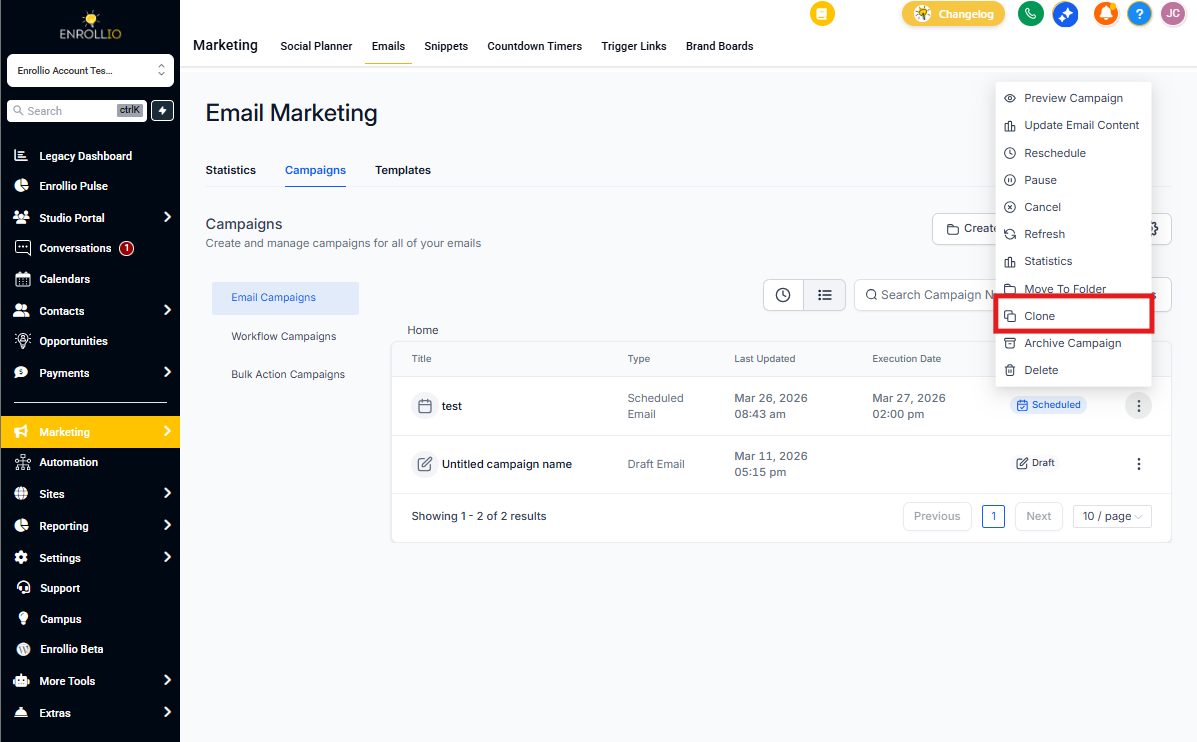
- Click the three-dot menu next to the campaign name
- Select Duplicate Campaign
After Duplication
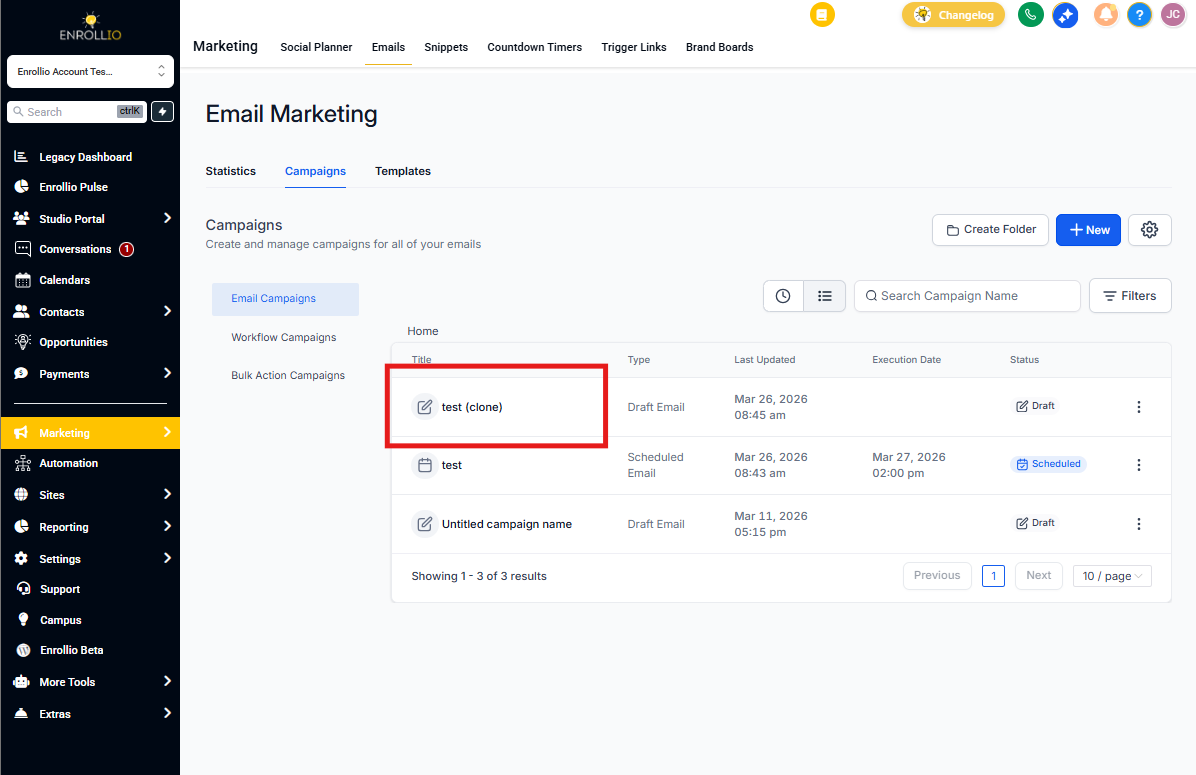
Your duplicated campaign will appear in your campaigns list with "(Copy)" added to the name. From here, you can:
- Update the campaign name
- Edit the email content and subject line
- Adjust your audience segments
- Change delivery settings
- Schedule or send immediately
Common Use Cases
Monthly newsletters: Duplicate last month's newsletter template and update the content.
Event announcements: Reuse your open house email format for different dates or locations.
Re-engagement campaigns: Copy a successful parent communication and target a different segment.
Pro Tip: Create "master templates" of your most-used campaigns. Duplicate and customize them each time you need to send something similar—it's faster than starting from scratch.
What Gets Copied
When you duplicate a campaign, everything transfers over:
- Email design and content
- Subject line and preview text
- Sender information
- Recipient segments (you'll want to review these)
Sending history and statistics do not transfer—your duplicated campaign starts fresh.