
How to Build Recipient Segments in Email Campaigns
This article shows you how to build segments in Enrollio for your email campaigns. Segments let you filter families based on live conditions like tags, engagement, or enrollment status. They update automatically in real-time, so your audience is always relevant and current.
What is a Segment?
Segments are dynamic groups of families created using filters like email activity, tags, enrollment status, or engagement level. Unlike static lists, segments update automatically as families enter or exit your criteria.
This makes segments incredibly useful for email marketing—you can target specific groups of families based on behaviors or demographics at any given time.
Key Benefits of Using Segments
Segments help you personalize and automate email campaigns with precision. They ensure your messages reach the most relevant families—boosting open rates, click-through rates, and enrollments.
- Automatically refresh based on family behavior and attributes
- Save time by reusing segments across different campaigns
- Reduce bounce rates by excluding inactive families
- Combine multiple filter conditions with AND/OR logic
- Increase email relevance through better targeting
- Eliminate the need for manual contact updates
How to Build a Segment
Building a segment lets you create a dynamic group of families using filters like tags, activity history, and enrollment status—so you always email the right people at the right time.
Step-by-Step Instructions:
- Navigate to Marketing > Emails > Campaigns
- Create a new campaign or click on an existing one to edit
- Click Send Or Schedule from the top right in the Email Builder
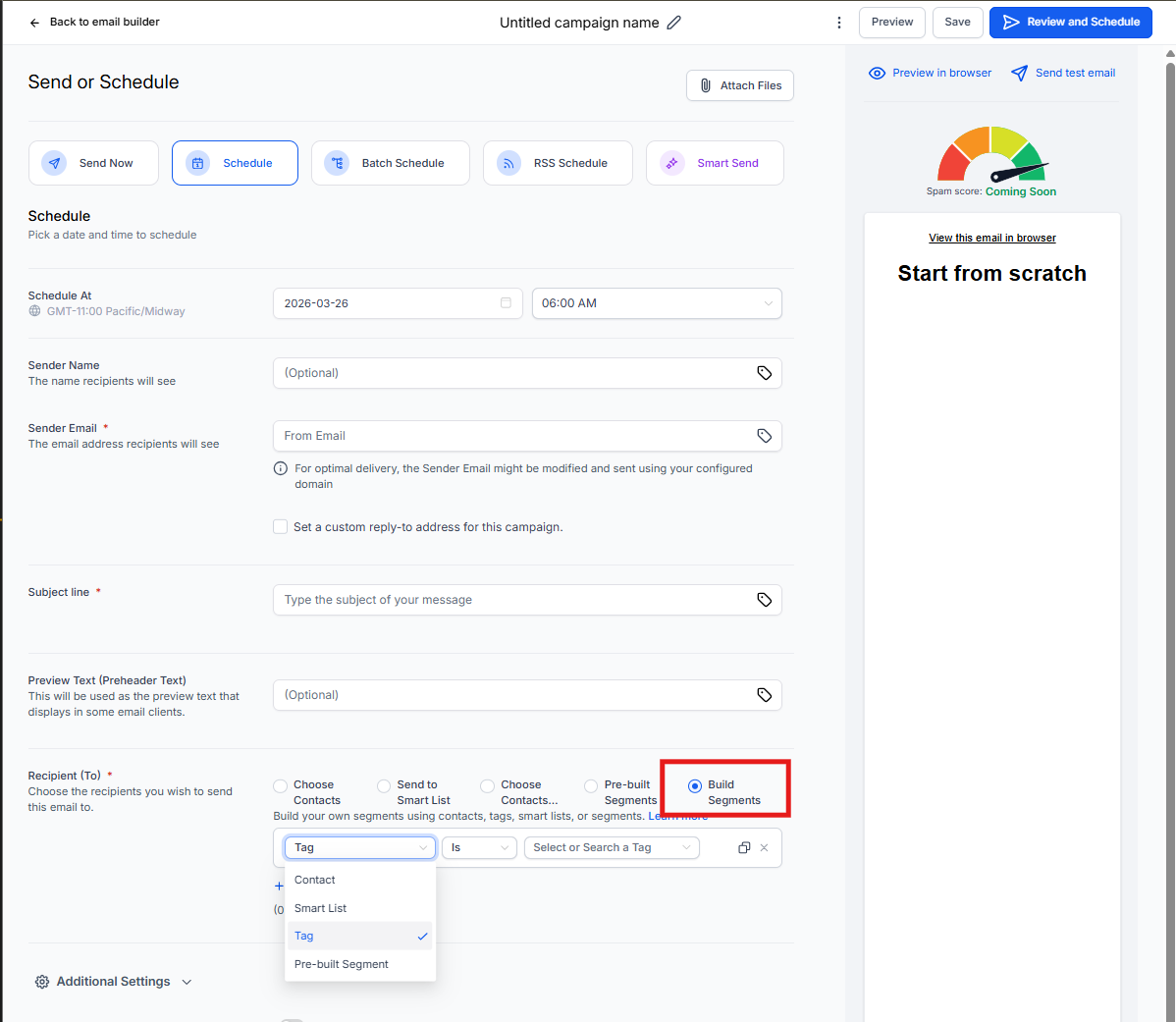
- Scroll down to the Recipient (To) section and select Build Segments
- Choose your filters. For example:
- Tag is "Tour Scheduled" AND Pre-Built Segment is Families Engaged in Last 7 days
- Enrollment Status is "Waitlist" AND Location is "Downtown Center"
- Use Add Filter or Add OR Filter to build complex conditions
- Click Save or Review and Send
Smart Lists vs Segments
Both Smart Lists and Segments help you group families, but they're used in different areas of Enrollio and serve distinct purposes.
Smart Lists are found in your Family Manager and let you save custom views based on filters. Segments are used in the email campaign builder to dynamically select families at the time of sending.
| Feature | Smart Lists | Segments |
|---|---|---|
| Location | Family Manager | Campaign Builder |
| Auto-Updating? | ✅ Yes | ✅ Yes |
| Manual Inclusion? | ✅ Yes (via Tag) | ❌ No (logic only) |
| Reusable? | ✅ Yes | ✅ Yes |
| Automation Compatible? | ❌ No | ✅ Yes |
Frequently Asked Questions
Can I reuse the same segment in different campaigns?
Yes. When you save a segment, it becomes available for use across multiple campaigns.
Are segments live-updating or static?
Segments update in real time. As family data changes, segments automatically reflect those changes.
Can I use OR logic in segments?
Yes, use the "Add OR Filter" button to include OR conditions alongside AND logic.
What's the difference between Smart Lists and Segments?
Smart Lists are CRM-based and can be used for general filtering in your Family Manager. Segments are campaign-focused and ideal for live filtering during email sends.
Can I manually add or remove families from a segment?
No. Segments only include families that meet your defined filter criteria. For manual grouping, use tags or Smart Lists instead.
Next Steps
- Reuse segments in other email campaigns to scale your outreach
- Add more conditions to fine-tune your audience targeting
- Combine segments with email A/B tests for better results
- Explore how segments can trigger automations
- Tag families based on segment inclusion using automation rules