
How to Send Emails in Timed Batches
Batch scheduling lets you deliver marketing emails in timed waves rather than all at once. This helps manage traffic to your enrollment pages and prevents overwhelming your families' inboxes.
Use this guide to set up a batch schedule for your email campaigns.
What is Batch Scheduling?
Batch scheduling (also called drip delivery) spreads your email sends across defined intervals. Instead of emailing your entire parent list simultaneously, you control how many emails go out per batch, how often they send, and which days they're active.
This gives you gradual, predictable delivery that feels more personal and reduces server load.
Why Use Batch Scheduling
- Traffic management: Sends in timed batches so you don't get a sudden surge of tour bookings or form submissions all at once
- Server load control: Reduces strain on your email infrastructure by pacing the send
- Flexible timing: Choose batch size, repeat frequency, active days, and start/end times to match your schedule
Before You Start
Make sure you have:
- An email template created and ready to send
- Your sending domain verified in Enrollio
How to Set Up Batch Scheduling
Follow these steps to create your campaign and configure batch delivery.
Step 1: Create Your Email Campaign
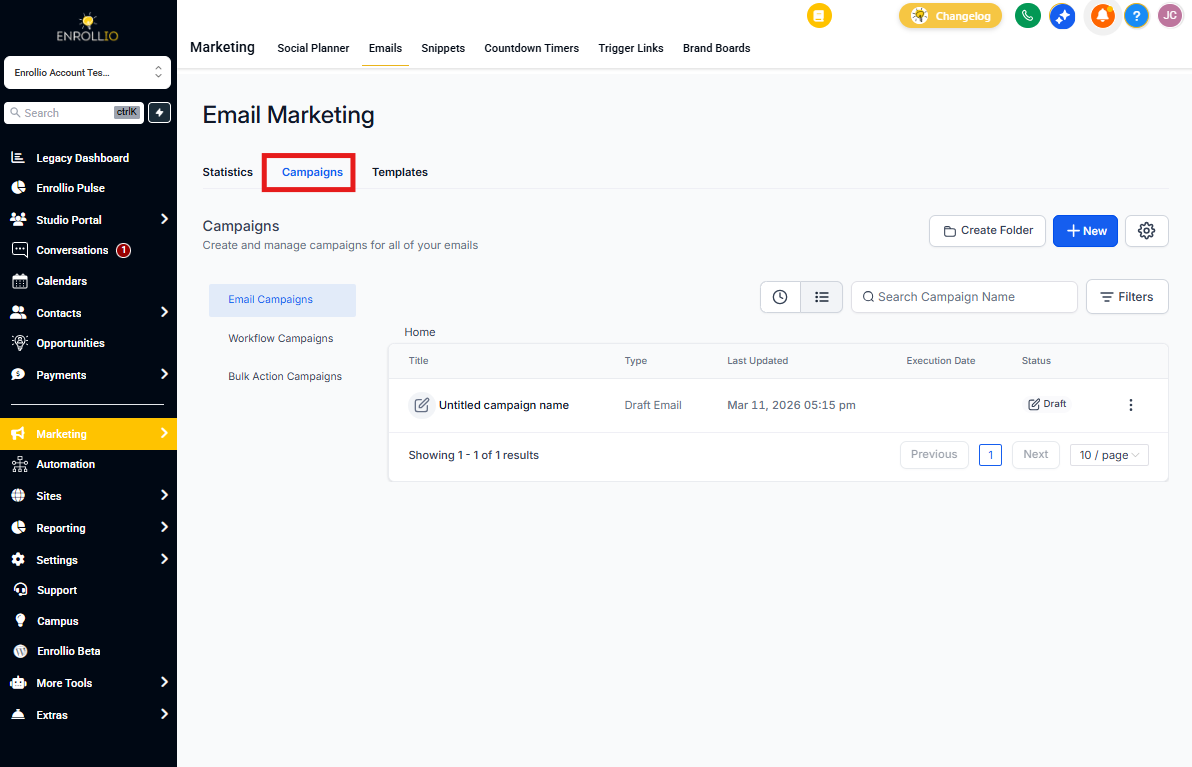
- Go to Marketing → Email → Campaigns
- Click Create New Campaign or edit an existing one
Step 2: Design Your Email
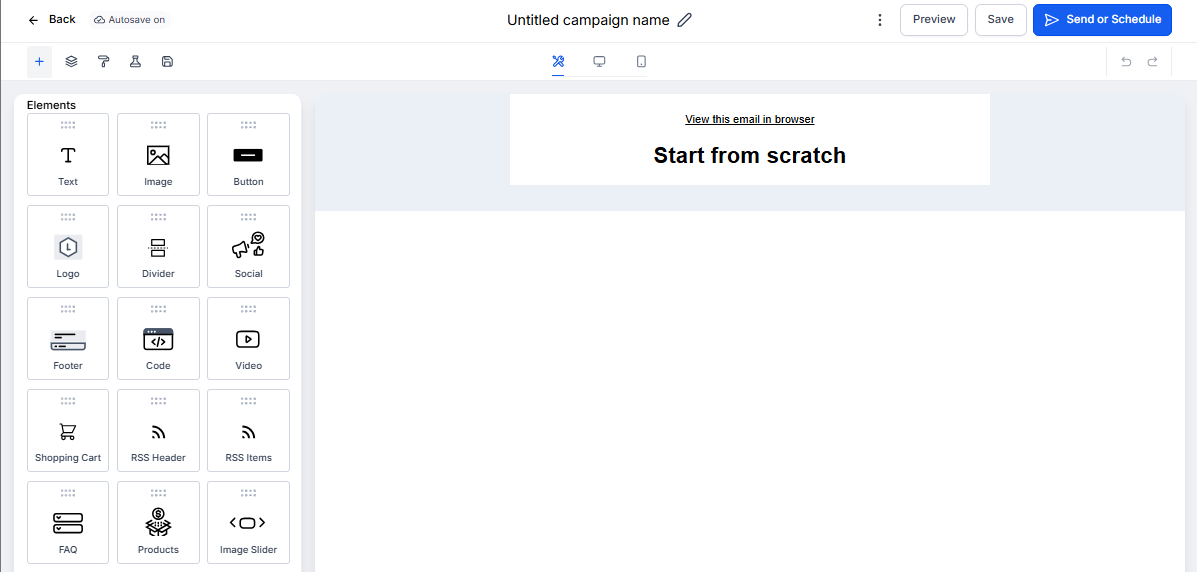
- Build or select a template in the Email Builder
- Add your content, images, and links
- Use Preview and Test Email to check how it looks on desktop and mobile
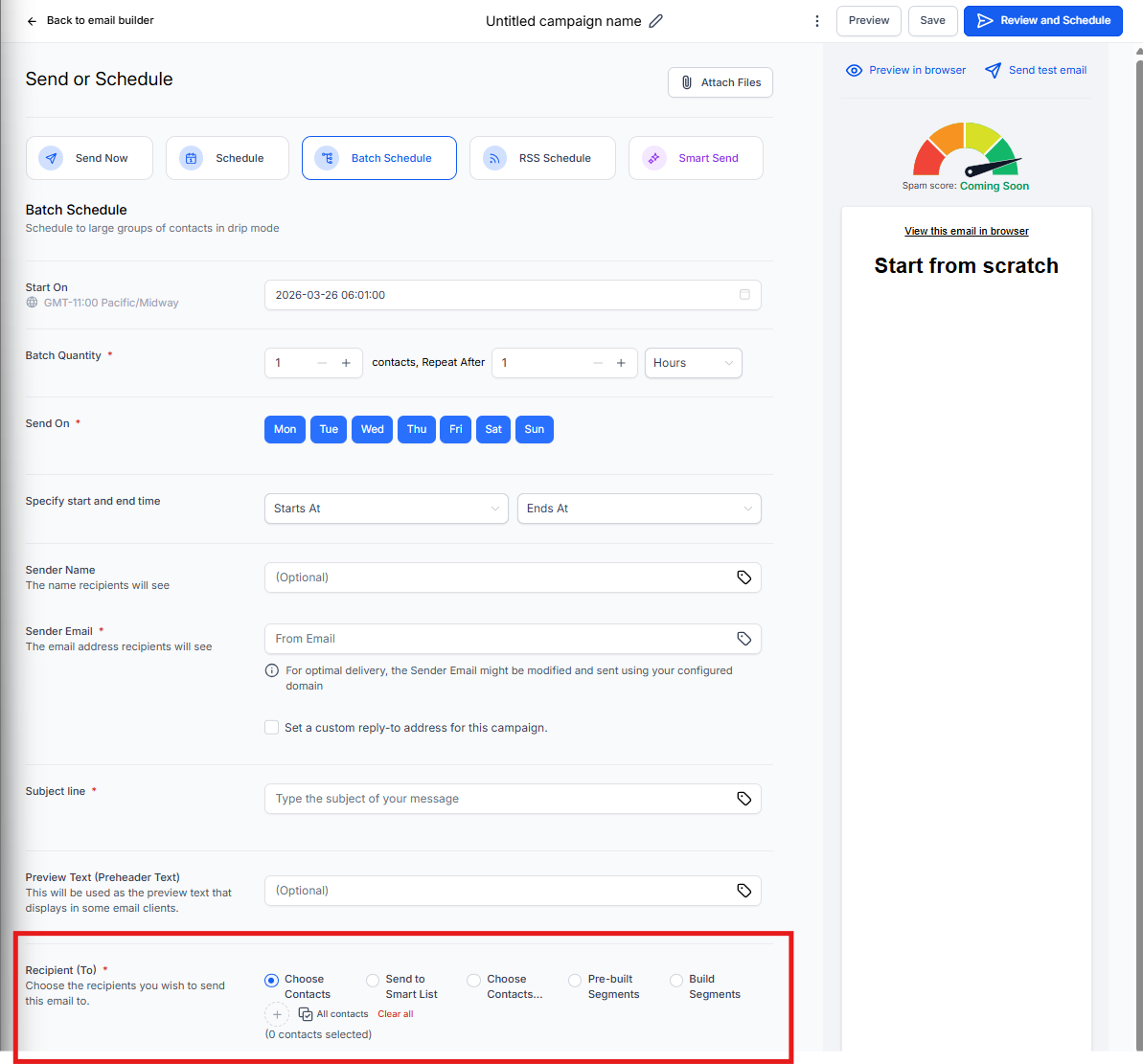
Step 3: Configure Batch Schedule
- Click Send or Schedule
- Select Batch Schedule from the delivery options
- Set your Start date and time
- Enter your Batch Quantity — this is how many emails send per batch
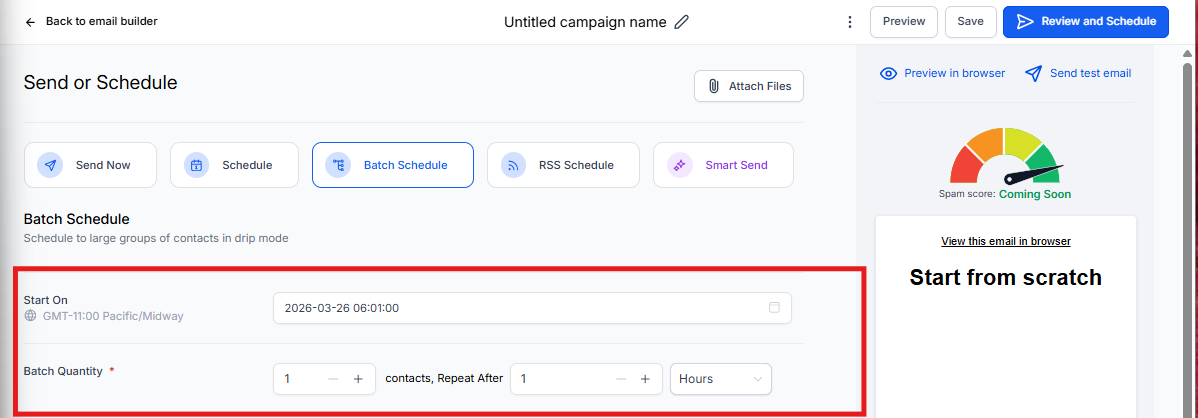
- Set Repeat after — choose how long to wait between batches (days, hours, or minutes)
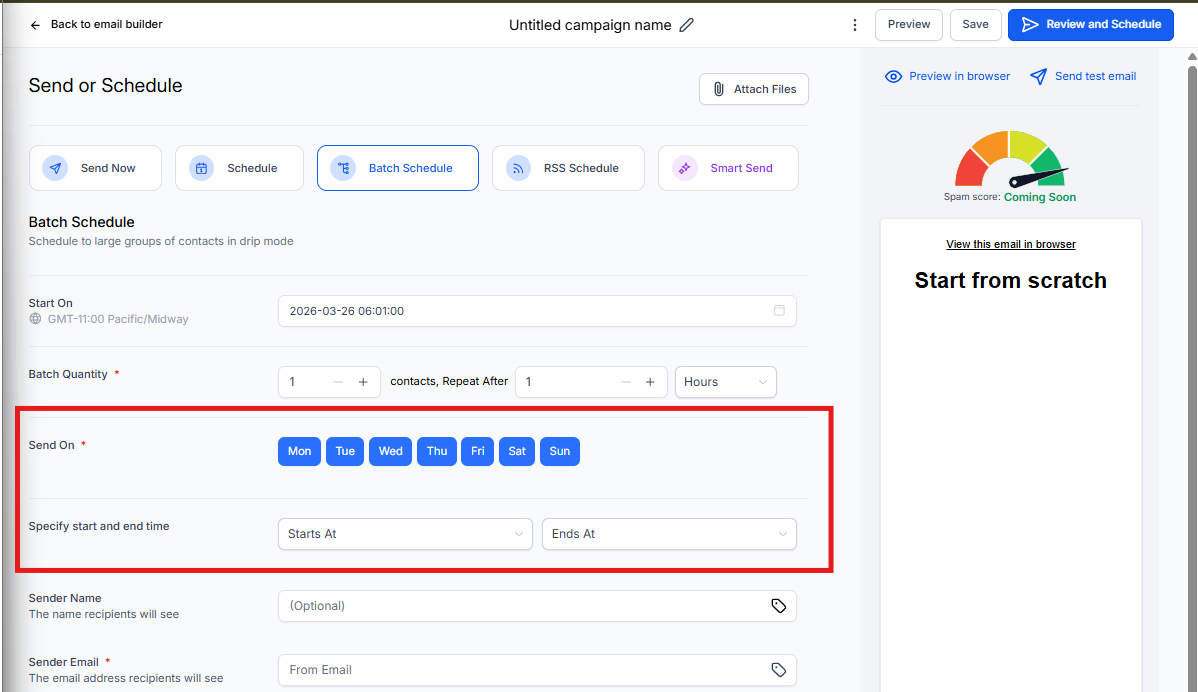
- Uncheck any days you don't want emails to send
- Add specific Start time and End time for daily sending windows
Step 4: Configure Sender Details
- Add your Sender Name (e.g., "Little Stars Preschool")
- Choose or configure your Sender Domain
- Add your Sender Email
- Write your Subject Line
- Add Preview Text (optional but recommended)
Step 5: Select Recipients
- In the To section, choose emails or smart lists
- Review execution date, time, and time zone
- Click Schedule
Managing Active Campaigns
Rescheduling a Batch Campaign
You can reschedule any batch campaign up to one hour before it's scheduled to send.
- Go to Marketing → Email → Campaigns
- Find your scheduled campaign
- Click the action menu and select Reschedule Campaign
- Update the schedule details
- Click Save
For example, if your campaign is scheduled for 11:00 AM EST, you can reschedule until 10:00 AM EST.
Editing Campaign Content
You can update the email copy of an active batch campaign without affecting your statistics.
- Open your campaign
- Click Update Email Content
- Make your changes
- Click Save Edits before the next batch sends
Send Rate Limits
To ensure reliable delivery, Enrollio applies these rate limits based on your batch frequency:
For batch scheduling:
- 30 seconds to 1 minute intervals: 1,000 messages per minute
- 5 minute intervals: 4,999 messages per minute
- 6 to 10 minute intervals: 5,000 messages per minute
- Over 10 minute intervals: 10,000 messages per minute
For immediate sends:
- Under 10,000 contacts: 15,000 per hour
- 10,000-50,000 contacts: 6,000 per hour
- 50,000-70,000 contacts: 3,000 per hour
- Over 70,000 contacts: 1,500 per hour
Frequently Asked Questions
Can I edit an active batch campaign?
Yes. Click Update Email Content on your campaign, make changes, and save before the next batch sends. Your statistics won't be affected.
How late can I reschedule a campaign?
You can reschedule up to one hour before the scheduled send time. After that, the campaign is locked.
What's the shortest interval I can use between batches?
The minimum interval is 1 minute. We removed the seconds option to prevent scheduling errors.
Will my campaign send on holidays or weekends?
Only if you've checked those days in your batch schedule. Uncheck any days you don't want emails to send.