
Overview
The Sync Edits to Template feature gives you control over whether changes to your automation emails update your email templates — and vice versa. Enable or disable sync with a simple checkbox when selecting templates for email steps in your automations.
What's New
Sync Edits to Template Checkbox
When you add an email step to an automation and choose an existing template, you'll now see a "Sync Edits to Template" checkbox.
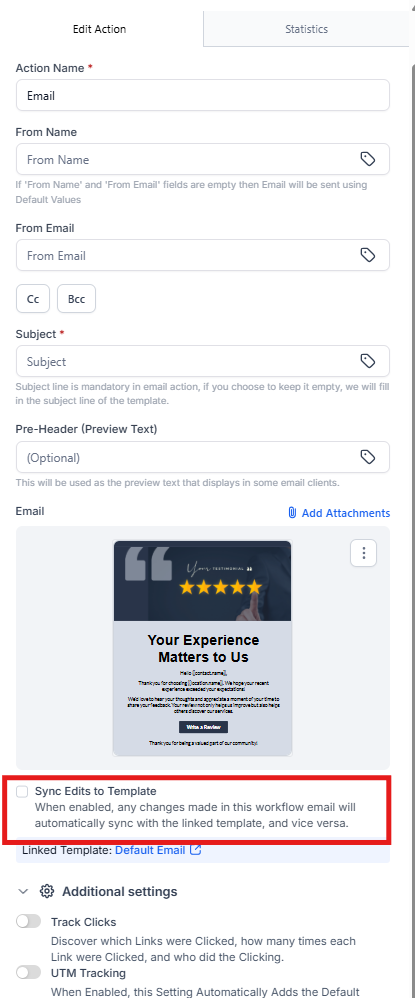
This checkbox controls whether changes to your automation email and the linked template stay synchronized. Turn it ON to keep them synced automatically, or OFF to make them independent and editable separately.
How Sync Works: ON vs OFF
When Sync is ON:
- Edit in automation: Changes you make to the email in your automation will update the original template
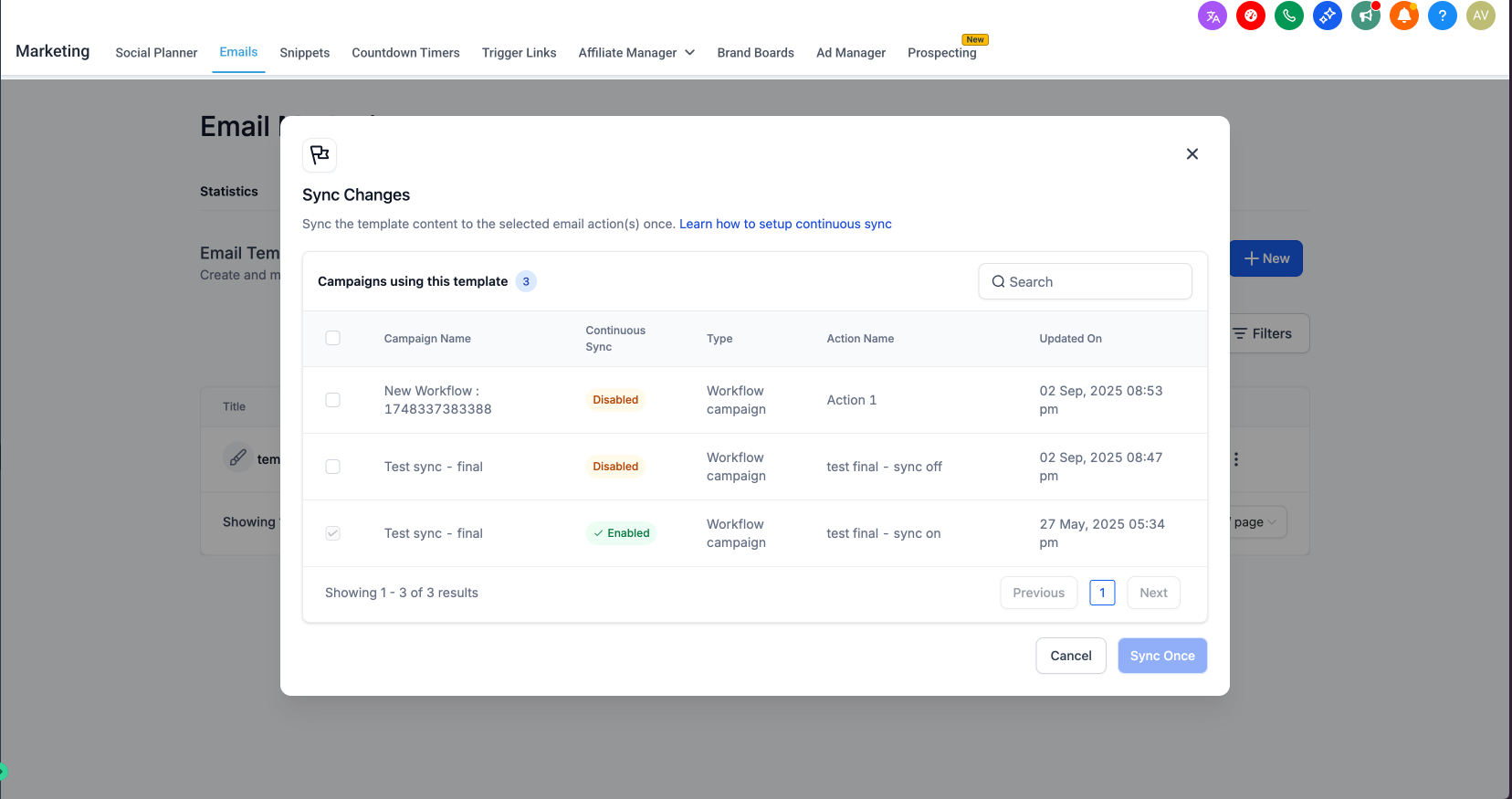
- Edit in template: Changes you make to the template in Email Templates will update all automations using that template
- Two-way sync: Both the automation email and template stay identical
When Sync is OFF:
- Independent editing: The automation email becomes a separate copy
- No template updates: Changes to the template won't affect this automation
- No automation updates: Changes to this automation email won't affect the template
- Flexibility: Perfect when you need a slightly different version for this specific automation
Benefits
For Centers Using the Same Email Across Multiple Automations
Keep sync ON to update all instances at once. When you edit the template, every automation using it will automatically reflect your changes — perfect for updating your center's contact information or adjusting your brand voice.
For Centers Customizing Emails Per Automation
Turn sync OFF to make unique edits without affecting other automations. Great when you need to tailor the message for different age groups, programs, or enrollment scenarios.
How to Use
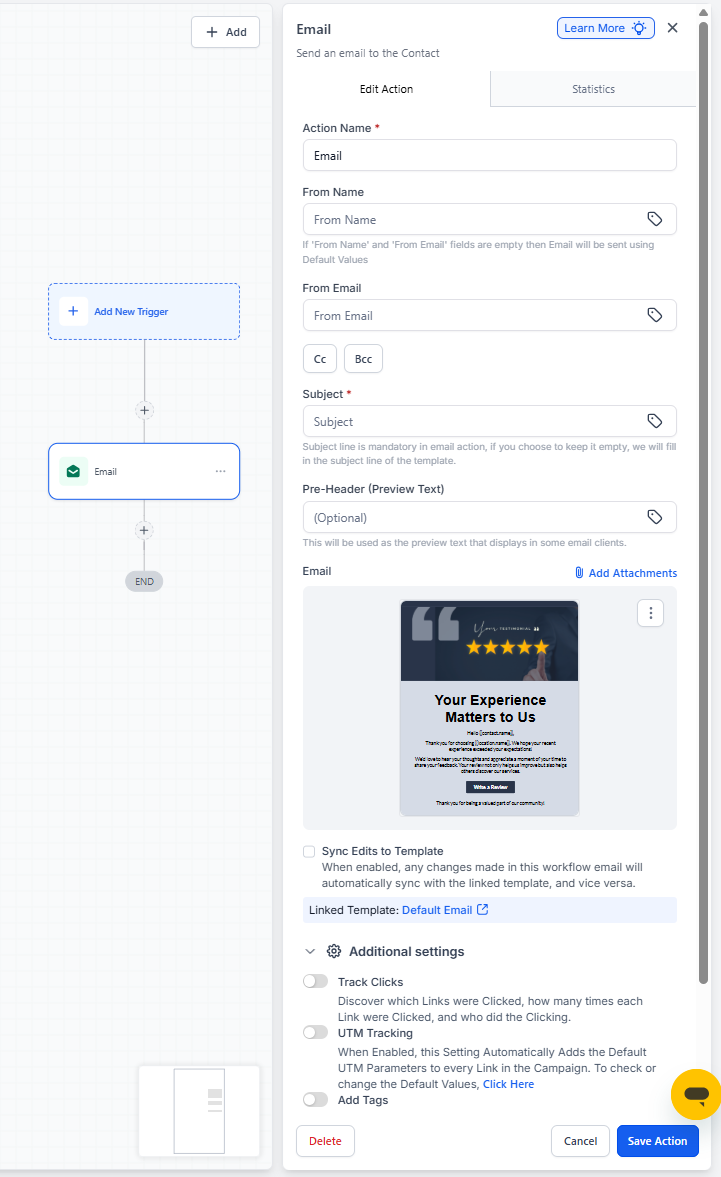
Setting Up a New Email Step
- Navigate to Automations in your Enrollio dashboard
- Open an existing automation or create a new one
- Click the + button to add a new step
- Select Send Email
- Click Select Template and choose an existing email template
- Check or uncheck Sync Edits to Template based on your needs
- Click Save
Changing Sync Settings on Existing Email Steps
- Open your automation and click on the email step
- Click Edit
- Toggle the Sync Edits to Template checkbox
- Click Save
FAQ
What happens if I turn sync OFF and then back ON?
When you turn sync back ON, Enrollio will ask which version to keep: the current automation email or the template. Whichever you choose becomes the synced version going forward.
Can I tell if an email is synced just by looking at the automation?
Yes. Email steps that are synced will show a sync icon next to the template name. Click into the step to see the current sync status.
If I delete the template, what happens to my automation emails?
The email step in your automation will keep working with the last version of the content, but sync will automatically turn OFF since the template no longer exists.
Does this work with all email templates?
Yes, the sync feature works with all email templates you create in Enrollio, whether they're for welcome sequences, tour reminders, enrollment updates, or any other parent communication.
Can I sync the same template across multiple automations?
Absolutely. You can use the same synced template in as many automations as you need. When you update the template, all synced instances will update together.