
Hide Email Elements on Mobile View
Most parents check their email on their phones. This feature lets you hide specific parts of your email when they're opened on a mobile device, so your messages look clean and professional on any screen.
For example, you might want to show a detailed tour schedule table on desktop but hide it on mobile in favor of a simple "Book Your Tour" button.
How to Hide Elements for Mobile or Desktop
- Open your email template or campaign in the editor.
- Hover over any element (image, text block, button, etc.).
- Click the icon that appears to hide it on mobile or desktop view.
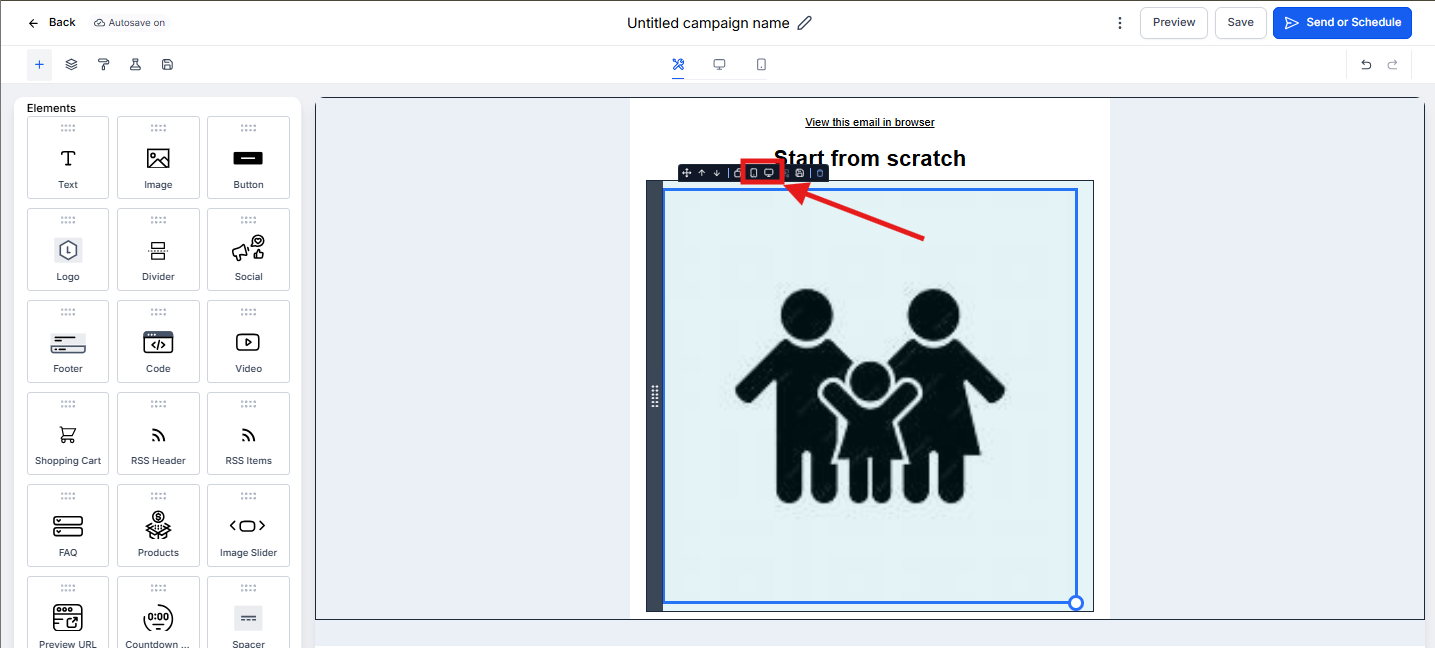
Pro Tip: Hide large images or complex tables on mobile to keep your emails fast-loading and easy to read for busy parents.
Preview and Test Your Email
Before sending to families:
- Save your email template or campaign.
- Click Preview to see how it looks on different devices.
- Send yourself a test email and open it on your phone to verify the mobile view.
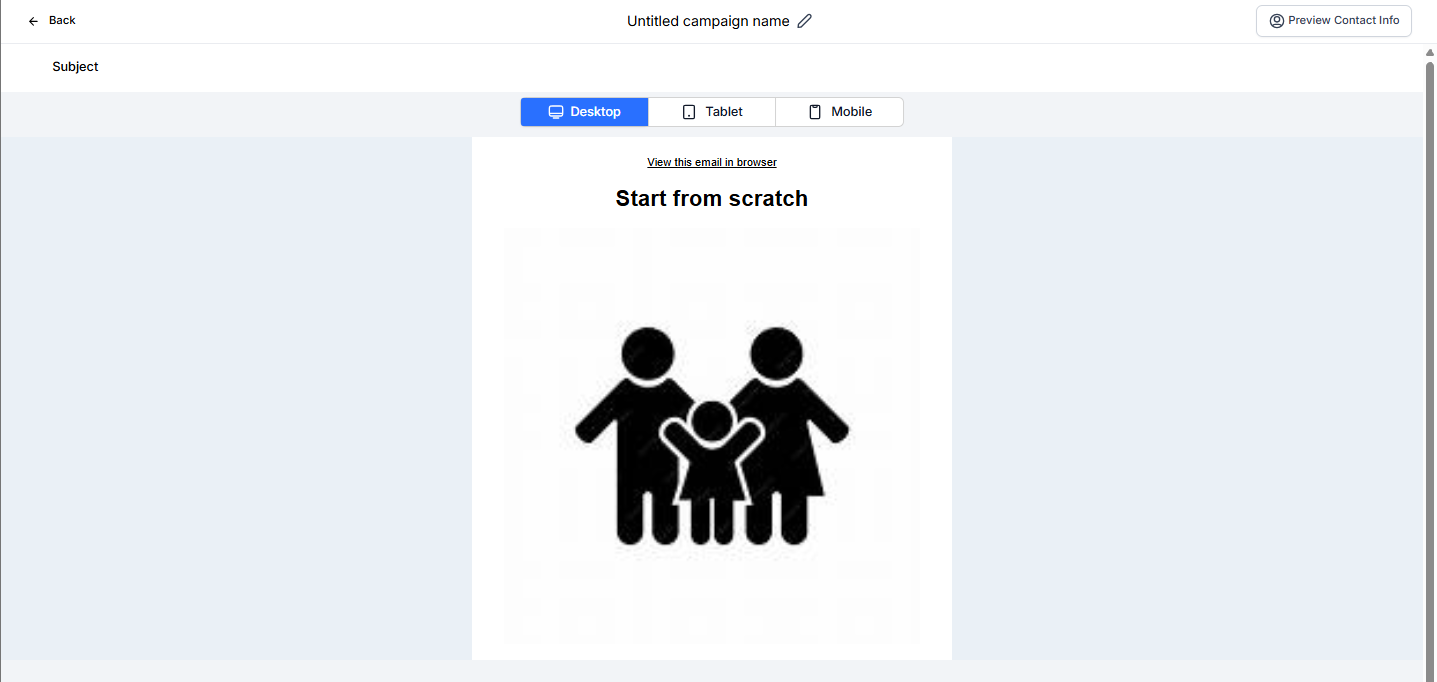
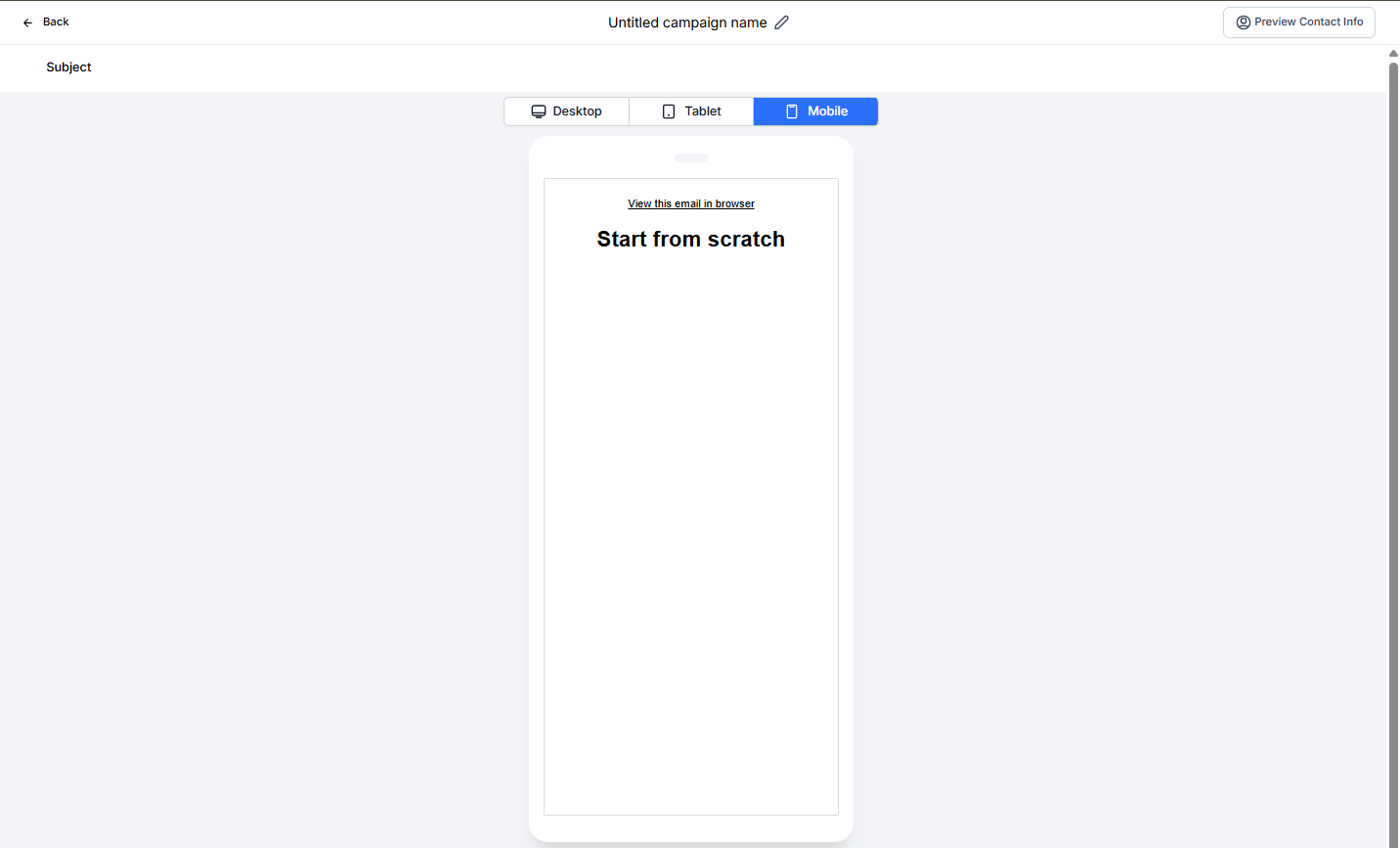
Your hidden elements won't appear on the selected device type, giving parents a tailored experience whether they're at their desk or picking up their kids.