
Overview
The Image element lets you add photos, logos, and graphics to your email campaigns. Whether you're showcasing your facility, sharing program highlights, or adding your center's logo, images help create professional, engaging emails that parents actually want to read.
Why Use Images in Your Emails
Well-placed images make your emails more effective:
- Build trust — Show parents your clean, welcoming classrooms and happy children
- Improve engagement — Emails with images get more clicks and responses
- Strengthen your brand — Consistent use of your logo and colors builds recognition
- Tell your story — Highlight events, new programs, or staff introductions visually
Pro tip: Keep images under 1MB and use JPG or PNG formats for faster loading and better deliverability.
How to Add an Image to Your Email
Here's how to insert and customize images in your email campaigns:
- Go to Marketing → Emails → Templates
- Open an existing template or click + New to create one
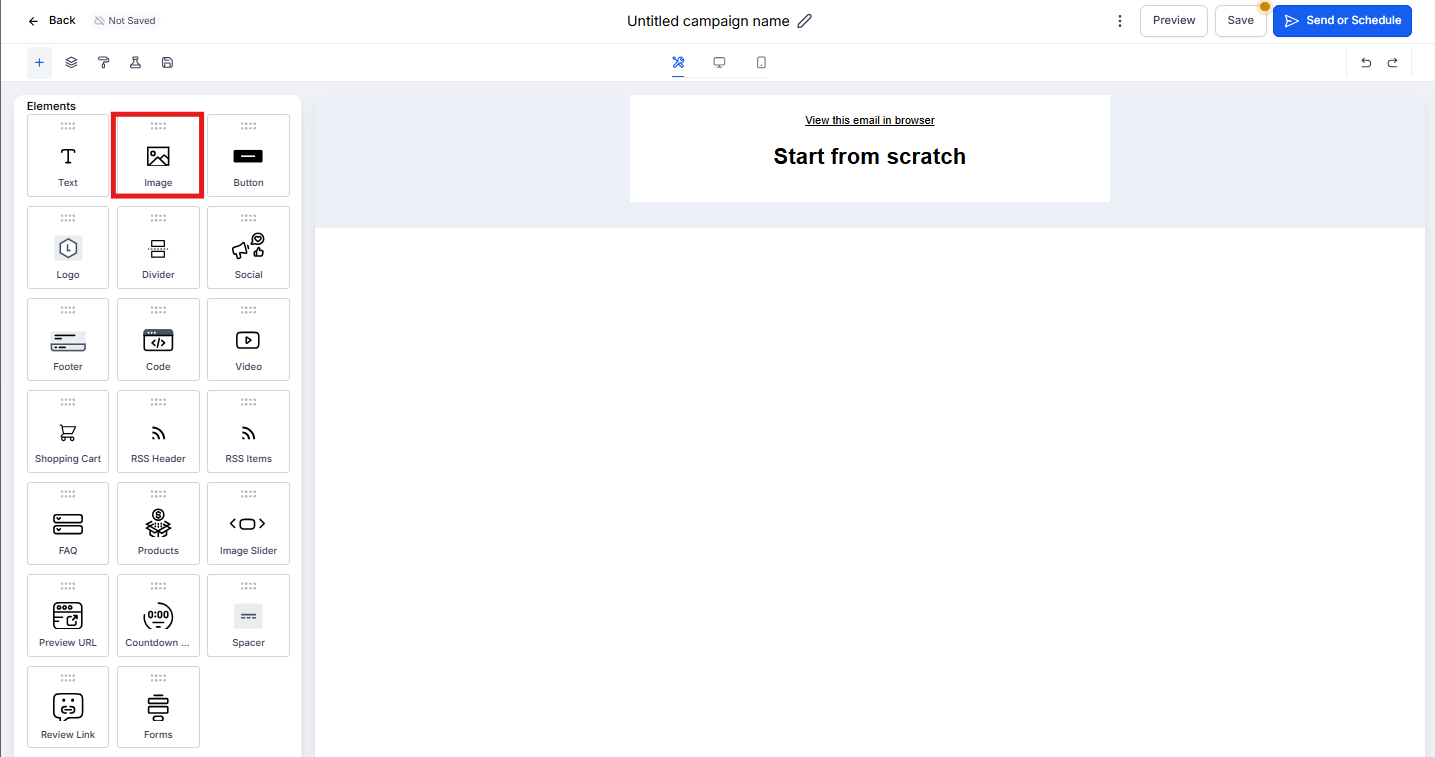
- In the Email Builder, click the Add Elements (+) icon in the left sidebar
- Find Image under the Elements section
- Drag and drop the Image element where you want it in your email
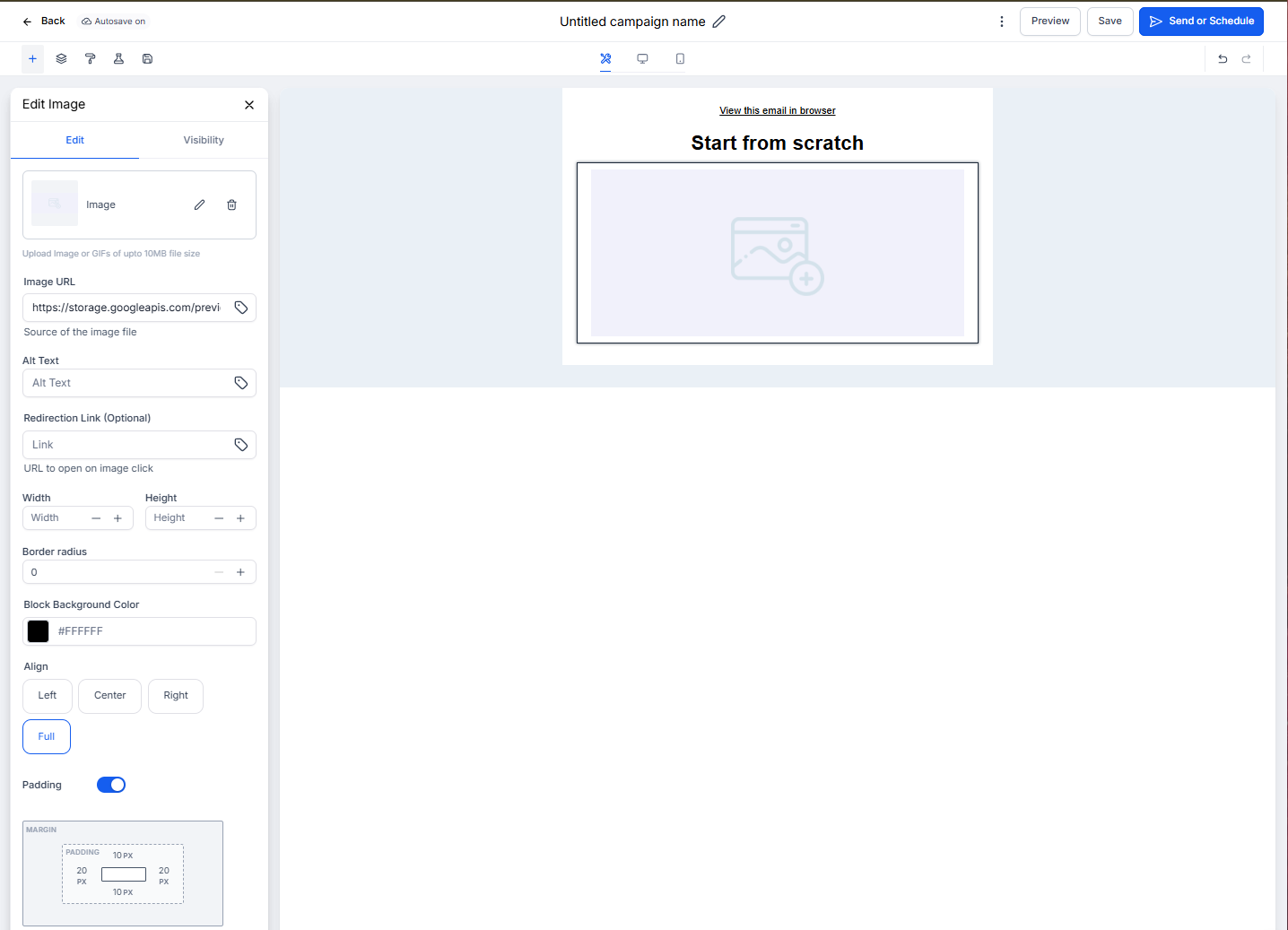
- Click on the image to open the editing panel
Customizing Your Image
Once you've added an image, you can customize it in several ways:
Adding Your Image
Choose one of these options:
- Upload an Image — Select a photo from your computer
- Use an Image URL — Paste a link to an image hosted elsewhere (make sure it's publicly accessible)
- Choose from Library — Select from images you've previously uploaded
Sizing and Layout
- Width & Height — Set custom dimensions or let the image scale automatically
- Alignment — Position your image left, center, or right
- Padding — Add space around your image for better visual balance
Making Images Clickable
Turn any image into a button by adding a link. When parents click the image, they'll go to your enrollment page, tour scheduler, or any URL you specify.
To add a link:
- Click on your image
- Find the Redirection Link field
- Enter the full URL (like https://www.yourdaycare.com/enroll)
Common uses: Link facility photos to your virtual tour page, or link program images to specific enrollment forms.
Device-Specific Display
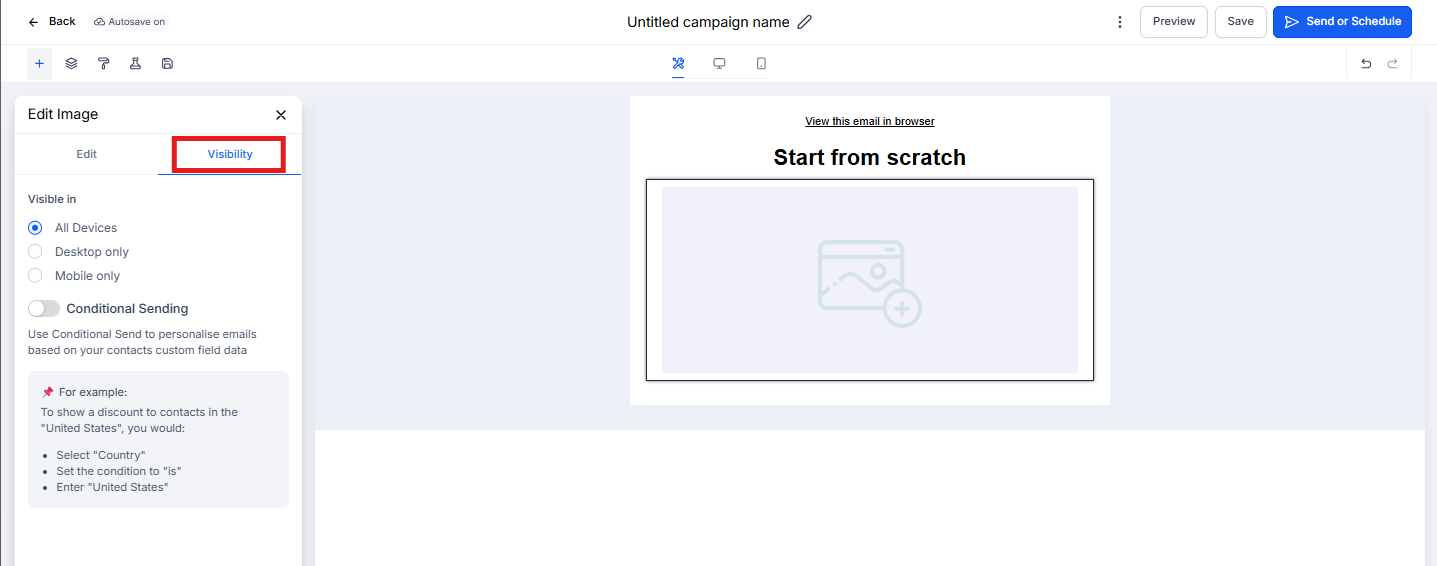
Control whether your image appears on desktop, mobile, or both:
- Click on your image
- Select the Visibility tab
- Choose which devices should display this image
This is helpful if you want to show a detailed infographic on desktop but hide it on mobile where it might be too small to read.
Preview Before Sending
Always preview your email on both desktop and mobile before sending. Images that look great on your computer might appear too large or misaligned on phones.
Click the Preview button at the top of the Email Builder and toggle between device views.
Best Practices
Image Tips for Childcare Centers:
- Use high-quality photos of your facility and activities
- Include faces (with proper photo permissions) — parents connect with images of happy children
- Keep file sizes small to avoid slow loading
- Always add your logo for brand consistency
- Test on mobile — most parents check email on their phones
- Use alt text for accessibility (helpful if images don't load)
Frequently Asked Questions
Which image formats work best?
JPG and PNG are your best options. JPG is ideal for photos, while PNG works better for logos and graphics with transparent backgrounds. You can also use GIF for simple animations.
Can I use images from my website?
Yes! Just paste the full image URL into the Image URL field. Make sure the image is publicly accessible (not password-protected).
How do I remove an image?
Click on the image and look for the trash/delete icon in the editing panel, or simply press Delete on your keyboard.
Will large images slow down my emails?
Yes, large image files can cause slow loading and hurt deliverability. Compress images before uploading and aim to keep each image under 1MB. Online tools like TinyPNG can help reduce file sizes without losing quality.
Can I add a border or shadow to my images?
The Image element focuses on core functionality. For decorative effects, consider adding them to your original image file before uploading.
Do I need permission to use photos of children?
Always get written permission from parents before using photos of their children in marketing emails. This is both a legal requirement and a trust issue with your families.