
How to Preview Custom Fields in Email Builder
Before sending emails to parents and families, you want to make sure custom fields like {{parent_name}} or {{child_name}} display correctly. The Email Builder's preview feature lets you see exactly how your personalization will appear — no fake test contacts needed.
Why Preview Custom Fields?
Previewing custom fields ensures merge fields resolve correctly before you send. Verifying these values prevents broken personalization, reduces rework, and improves deliverability outcomes. Nobody wants to send an email that says "Hi {{first_name}}" instead of "Hi Sarah."
How to Preview Your Email
- Open your email in the Email Builder.
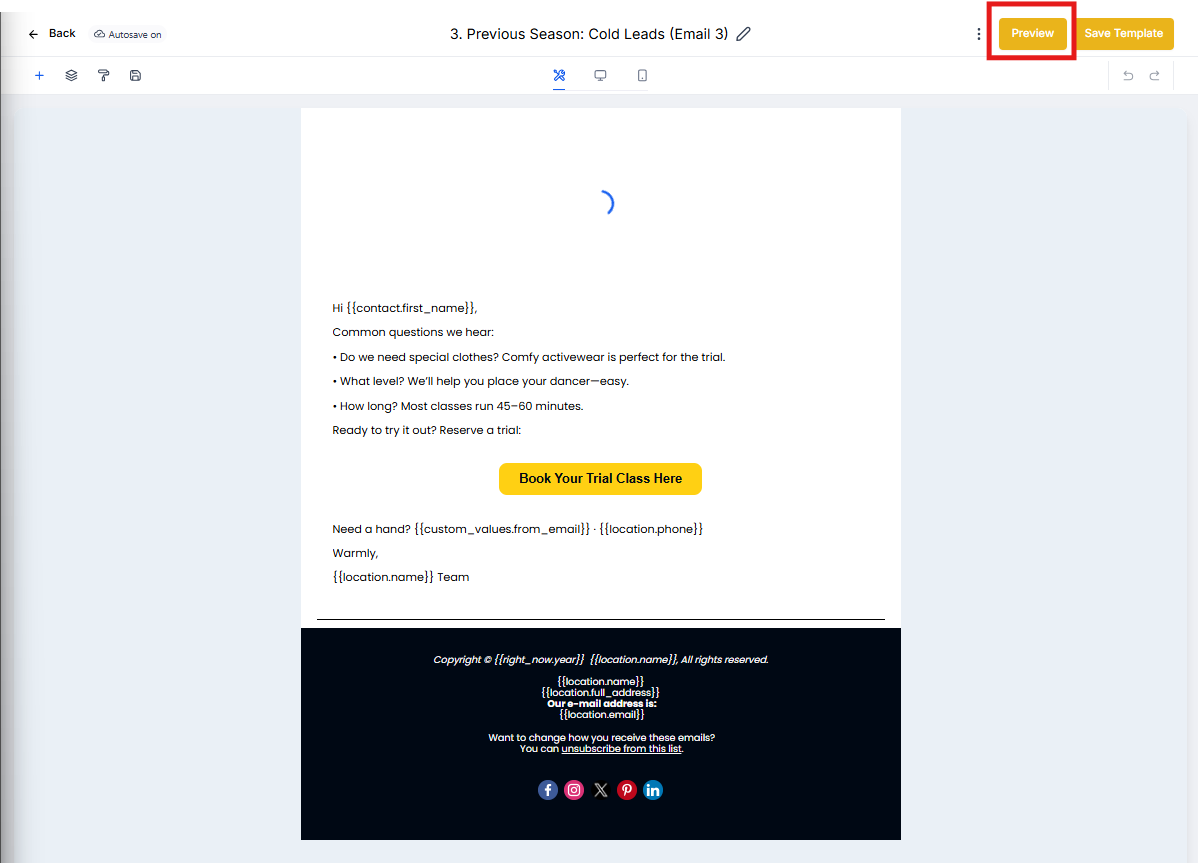
- Look at the top menu bar in the editor.
- Click Preview (next to the Save button) to open the preview instantly.
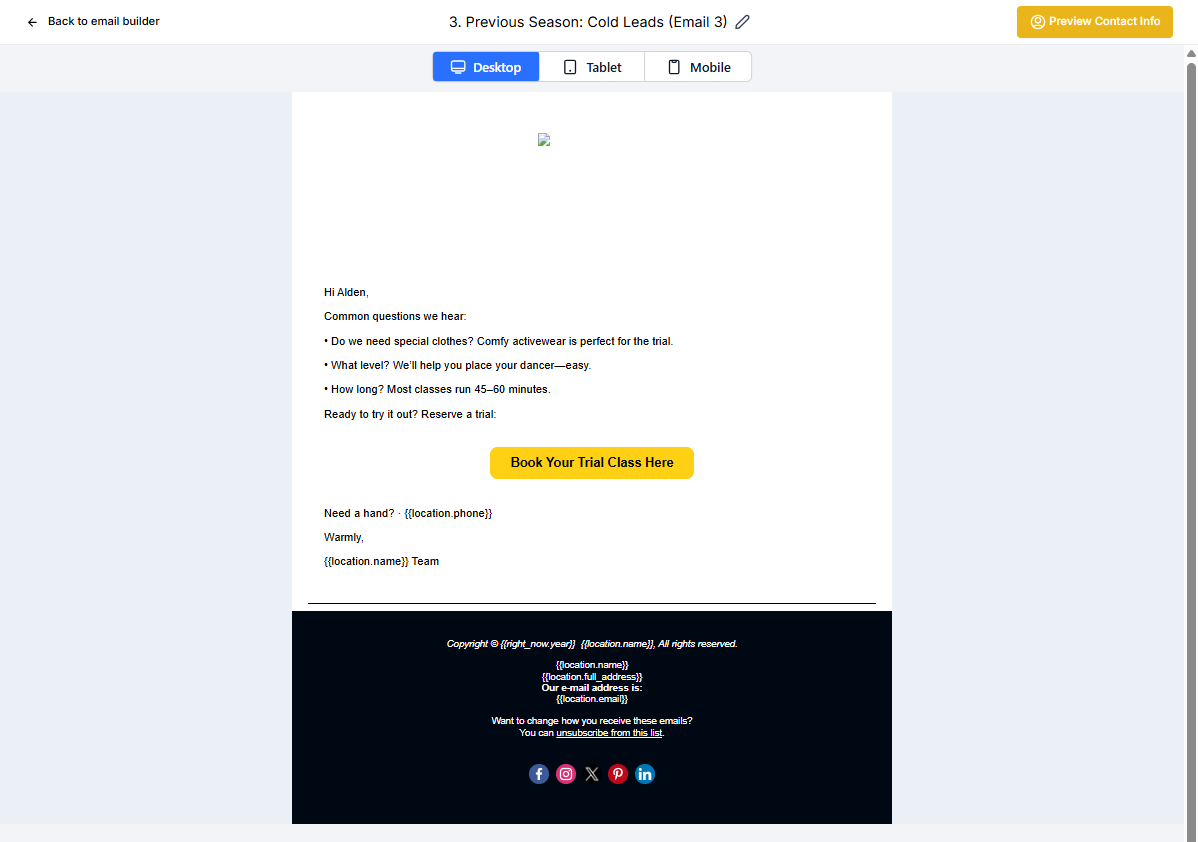
- Review your custom fields and confirm they display the expected values.
- If something looks wrong, close Preview, adjust your content, then click Preview again.
- Continue editing, or proceed to send or schedule when you're satisfied.
What You'll See in Preview
When you click Preview, Enrollio pulls real data from your parent and family records to show you how the email will look. This means if you've used {{parent_name}}, {{child_name}}, or {{enrollment_date}}, you'll see actual names and dates instead of placeholder text.
This makes it easy to catch personalization errors before parents see them in their inbox.