
What Are Trigger Links?
Trigger links let you track exactly when parents click a link in your emails, texts, or WhatsApp messages. Every click is logged on the family's record and can launch automations—like sending a follow-up text after a parent clicks "Schedule a Tour" or moving them to a different waitlist stage.
Enrollio's modern interface makes trigger links faster to create, easier to find, and simpler to share with your team.
Why Use Trigger Links
- Track engagement — See which parents are clicking your tour reminders or enrollment forms
- Launch automations — Start a follow-up sequence when a parent clicks a specific link
- Personalize URLs — Insert each family's name, tour date, or location into the destination link
- Measure campaigns — View click analytics to see which messages drive the most action
Key Features
Fast, Clean Interface
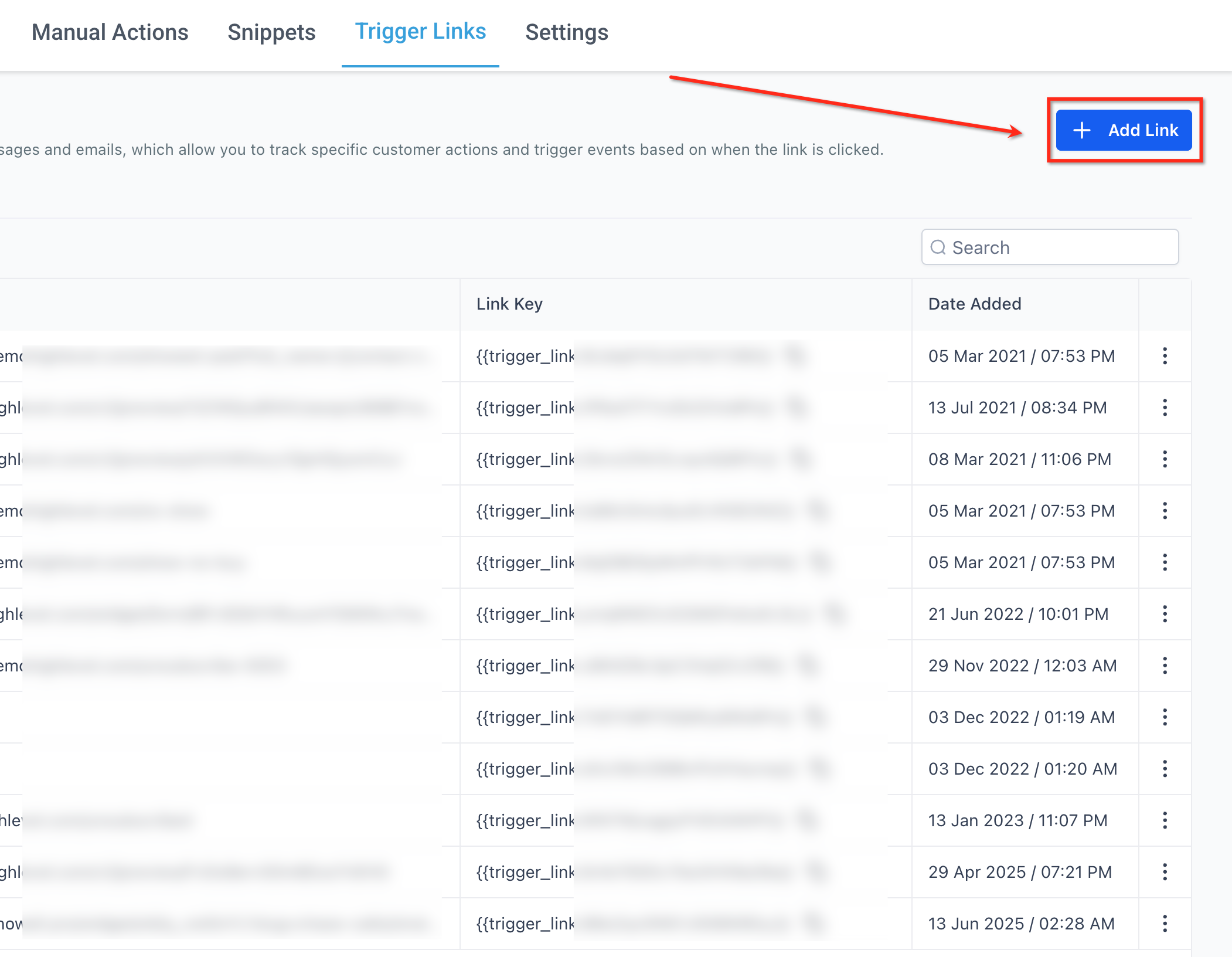
The trigger links page loads instantly—no more waiting. You get a clean list view with adjustable columns, global search, and a three-dot menu for quick actions like Edit, Copy URL, and Analytics.
Custom Value Picker
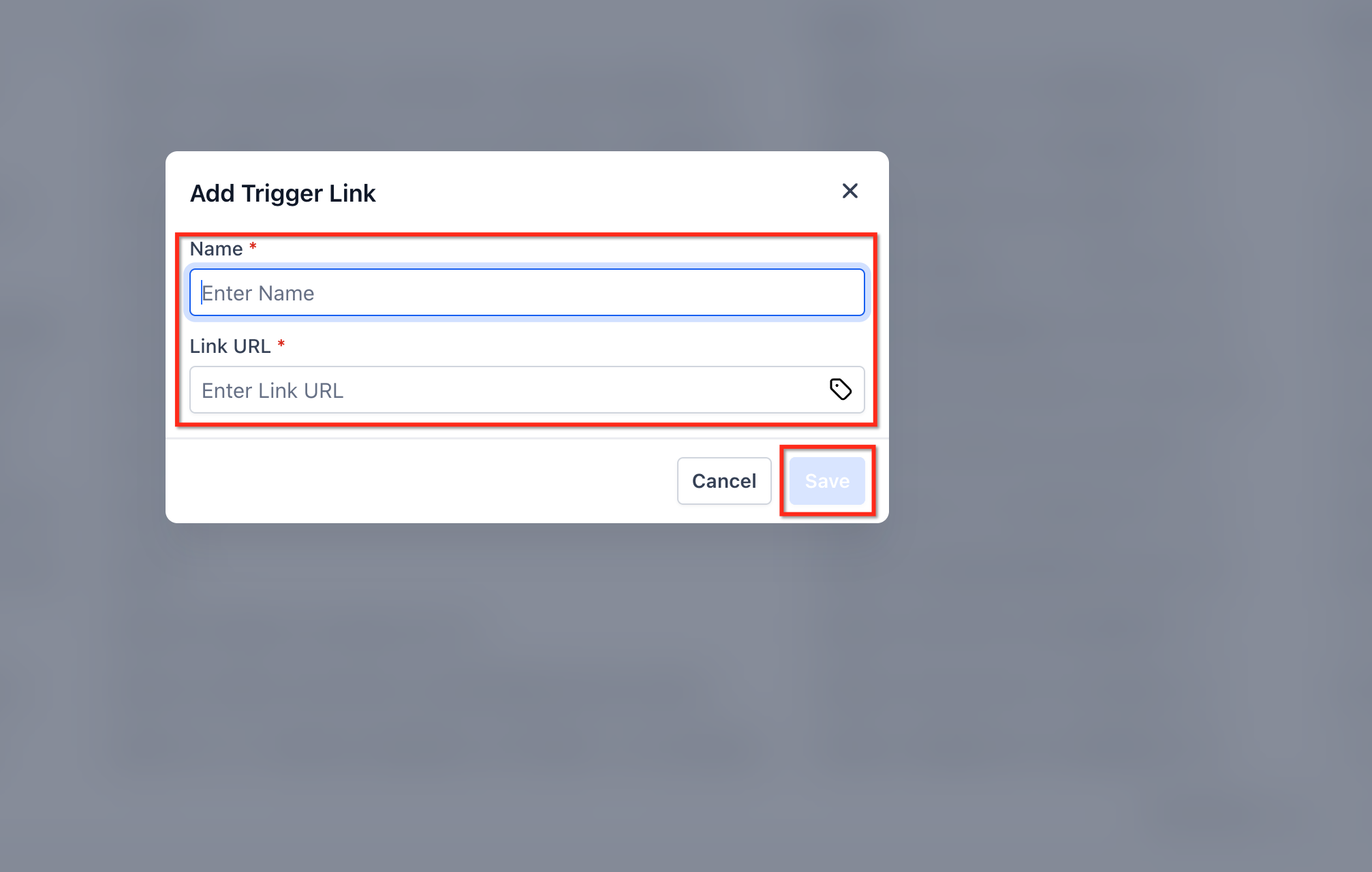
When you're building a link, click the {} button to open the custom value drawer. Choose any dynamic field—parent first name, tour date, child's age—and Enrollio inserts the merge code for you. No memorizing syntax or worrying about typos.
Sharable URLs
Every time you search or filter your trigger links, the page URL updates. Copy that URL and send it to a teammate—they'll land on the exact same view, making it easy to review links together or get approval before a campaign.
How to Create and Use Trigger Links
Step 1: Open Trigger Links
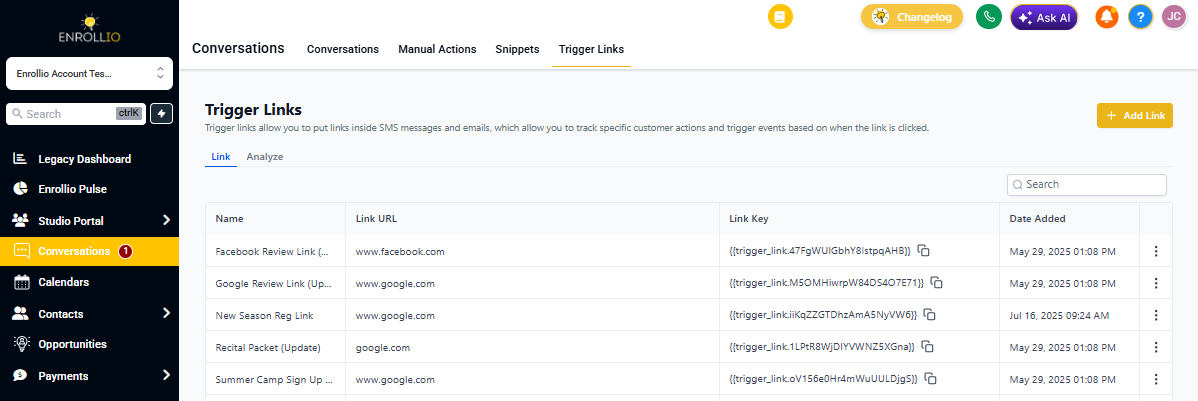
In the left sidebar, go to Conversations and click the Trigger Links tab at the top. This is where you'll manage all your trackable links.
Step 2: Add a New Link
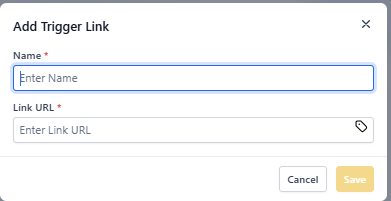
- Click + Add Link in the top-right corner
- Enter a descriptive Name (like "Tour Confirmation Button" or "Enrollment Form Link")
- Paste or type the Link URL where you want parents to land
- Click Save
Pro tip: Use the {} button to insert dynamic values like {{contact.first_name}} or {{contact.tour_date}} directly into your URL.
Step 3: Copy the Link Key
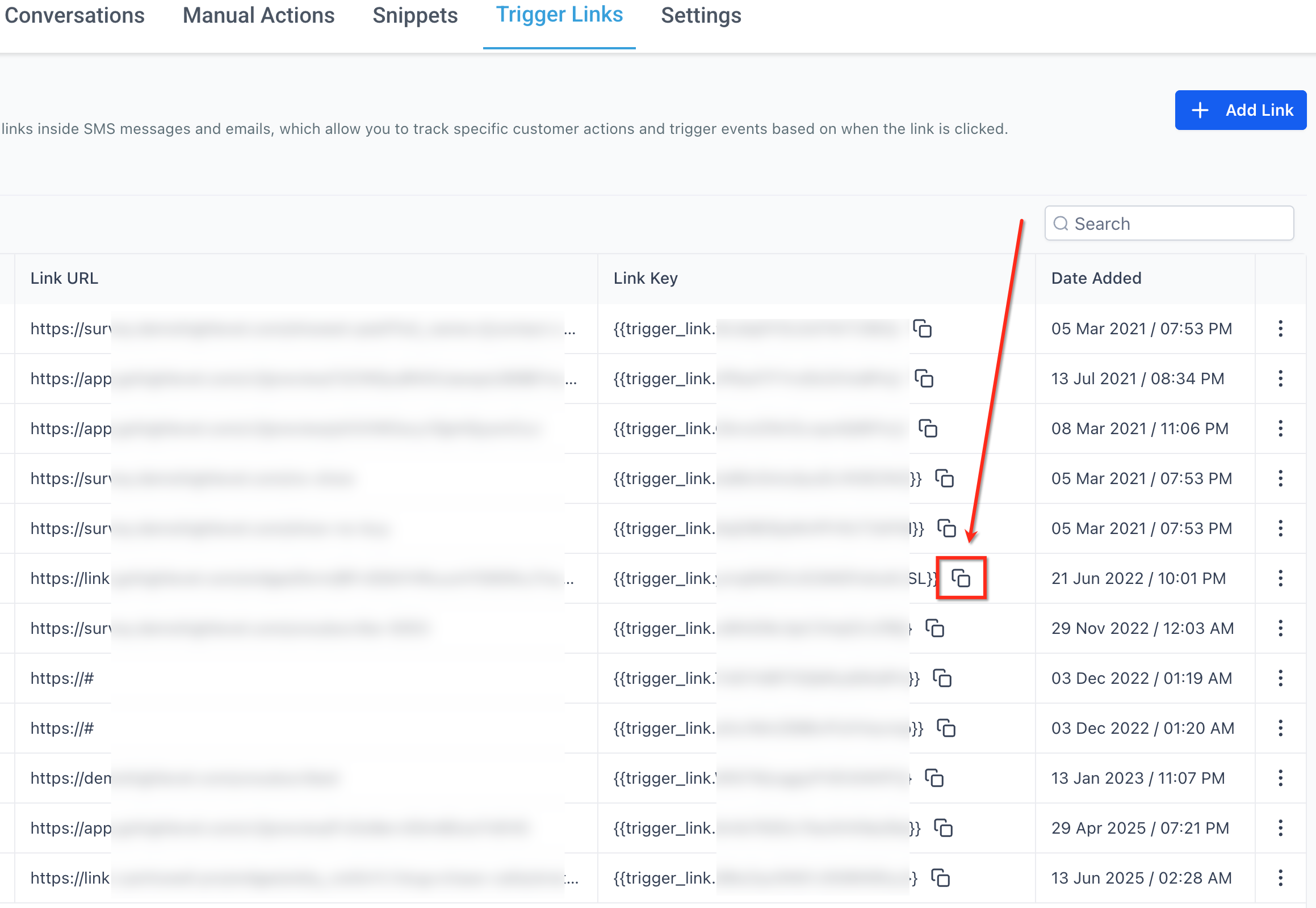
Once saved, your new link appears in the list. Click the copy icon next to the Link Key to grab the merge code. Then paste it into your email templates, text message automations, or WhatsApp messages.
Step 4: Search and Organize
Use the Search field to quickly find a link by typing part of its name. Results filter instantly, so you can locate the right link even in a long list.
Step 5: Edit or Delete
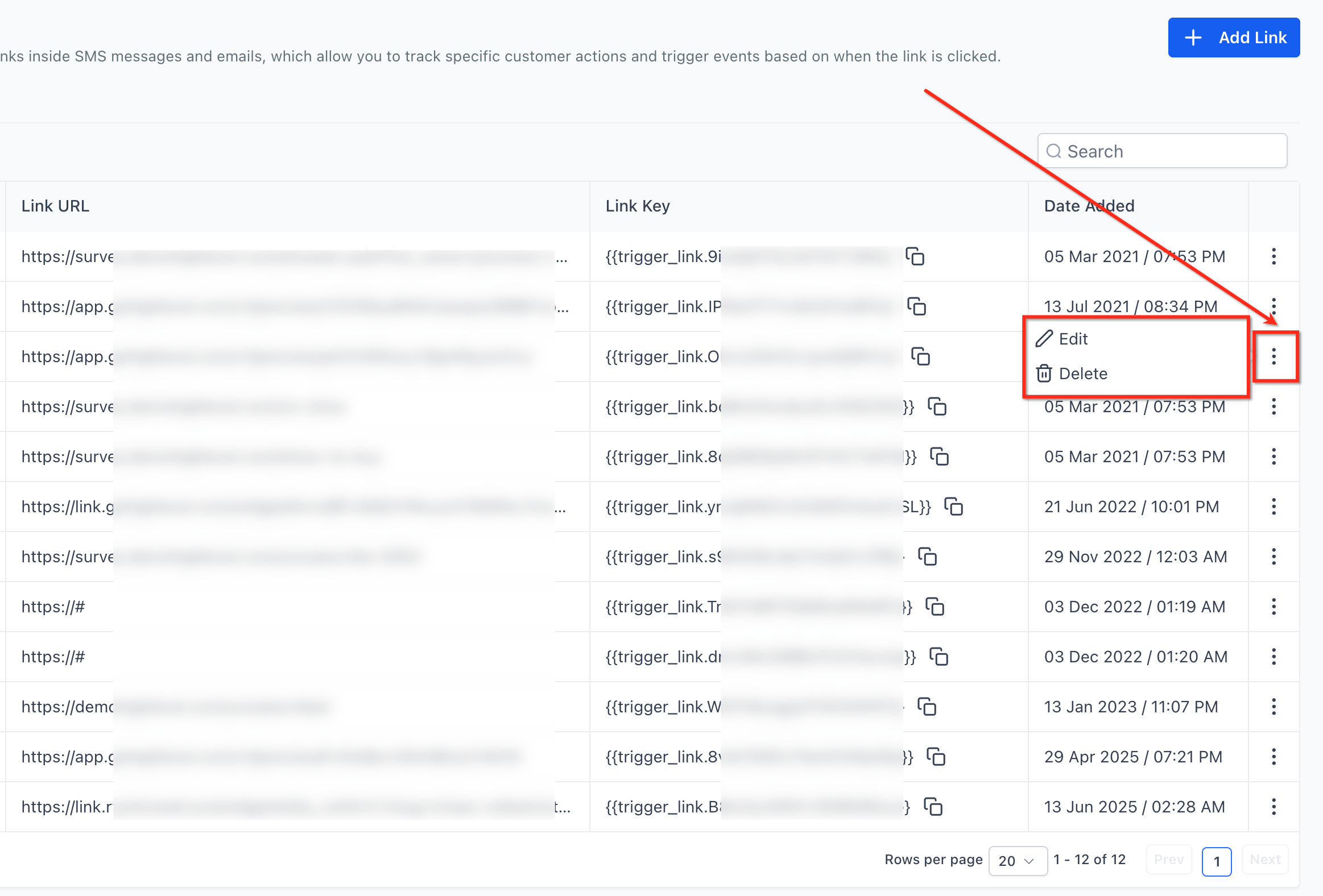
Open the three-dot menu (⋮) on any link row to Edit, Delete, or view Analytics. This keeps your link library clean and up-to-date without jumping between pages.
Viewing Analytics
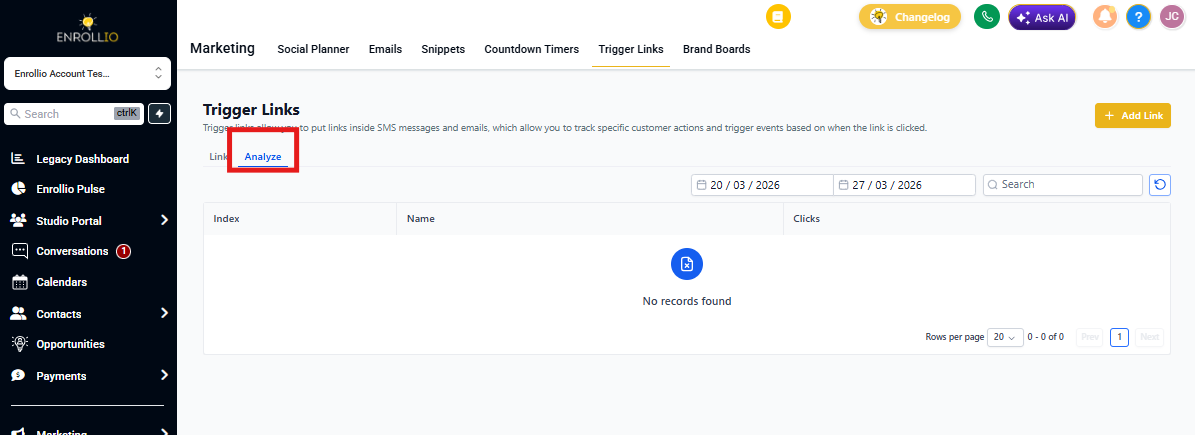
Click the three-dot menu → Analytics to see:
- Total and unique clicks
- Which families clicked
- Top traffic sources
- Date-range filtering
Use this data to measure campaign performance and identify your most engaged families.
Best Practices
💡 Pro Tip: Name your links clearly—"Waitlist Confirmation Button" is better than "Link 1." You'll thank yourself when you're building automations at 9 PM.
- Keep URLs under 2 KB to ensure email clients don't truncate them
- Test before sending — Click your trigger link in preview mode to confirm it tracks correctly
- Use automations — Set up a follow-up text or email to send automatically when a parent clicks a specific link
- Review analytics monthly to see which messages drive the most engagement
Common Questions
Will my existing trigger links still work?
Yes. The interface is new, but all your link IDs and tracking data remain unchanged. Nothing breaks.
Can I use trigger links in WhatsApp messages?
Absolutely. Insert the copied link key into a WhatsApp template button or inline message to track taps just like email or text.
Do shared URLs expose sensitive data?
No. Shared URLs respect user permissions. If a teammate doesn't have access to a specific client account, they'll see an authorization error.
Where are the pagination controls?
Look at the bottom-right corner of the page. That's where you'll find page navigation and row-limit settings.
Is there a limit on custom values per link?
No technical cap, but stay under 2 KB total URL length to avoid email-client issues.
Can I see which families clicked a specific link?
Yes. Open the three-dot menu → Analytics to view a list of families who clicked, along with timestamps and sources.