
What is the Drip Automation Action?
The Drip Action helps you control how quickly families move through your automation by processing them in batches at set intervals. Instead of sending messages to everyone at once, you can stagger your communications for better deliverability and engagement.
This is especially useful when you're sending tour confirmations, waitlist updates, or re-engagement campaigns to large groups of families. It keeps your emails and text messages flowing smoothly without overwhelming parents or triggering spam filters.
Why Use the Drip Action?
Controlled Delivery: Send messages to families in manageable batches instead of all at once, preventing system overload.
Better Engagement: Spreading out communications helps avoid spam filters and improves response rates from parents.
Flexible Scheduling: Choose your batch size and timing—whether you want to release 50 families every hour or 100 families every day.
Resource Management: Maintains your email and text message sending limits while ensuring reliable delivery.
How to Set Up the Drip Action
Step 1: Open Your Automation
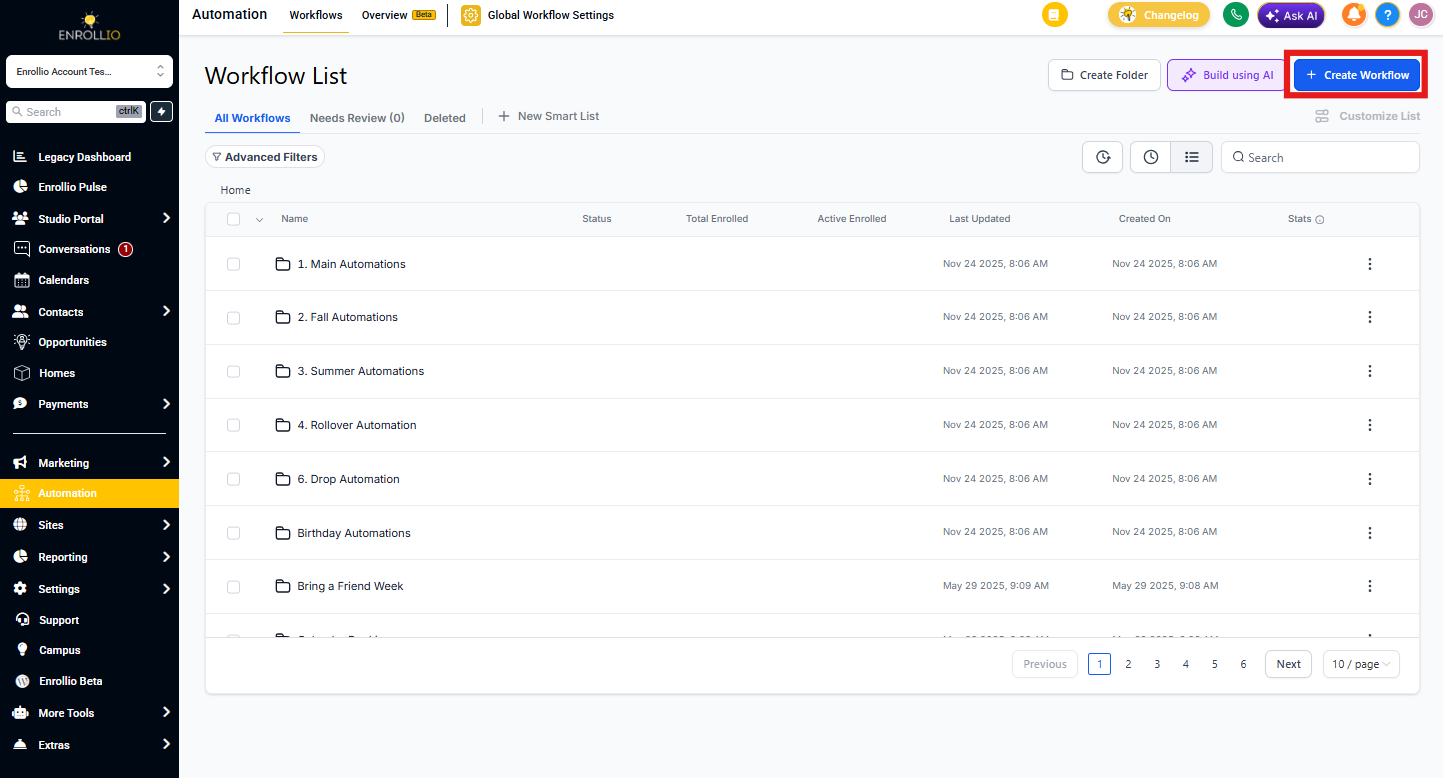
Go to Automations in your Enrollio dashboard. Create a new automation or open an existing one you want to edit.
Step 2: Add the Drip Action
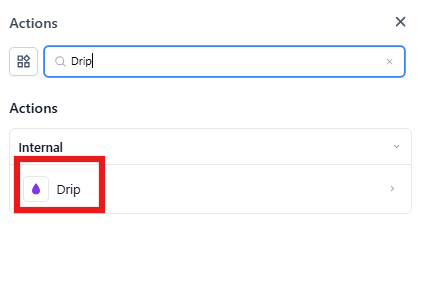
Click the + icon where you want to add the Drip action in your automation flow. Search for "Drip" in the action list and select it.
Step 3: Name Your Action
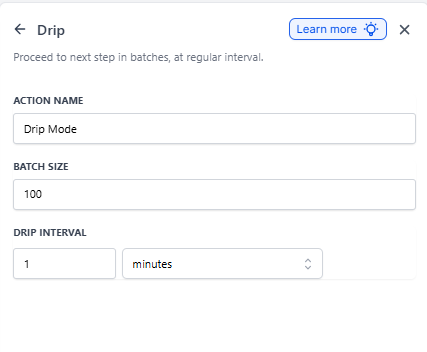
Give your Drip action a clear name so you can easily identify it later. For example: "Drip Release - Waitlist Update" or "Batch Send - Tour Invites."
Step 4: Set Your Batch Size
Choose how many families should move to the next step at a time. You can select any number between 1 and 10,000.
For example, if you set your batch size to 100, then 100 families will progress through the automation at each interval. This keeps your message delivery steady and manageable.
Step 5: Choose Your Drip Interval
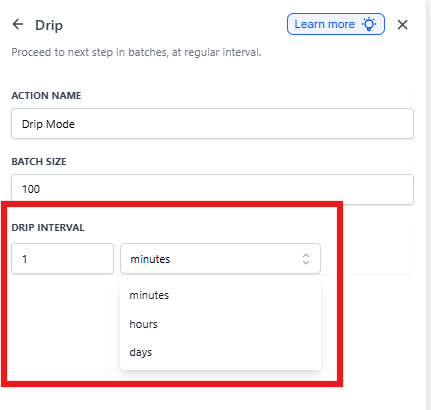
Set how often each batch should be released. You can choose minutes (1–60), hours (1–24), or days (1–7).
For example, setting an interval of 30 minutes means a new batch of 100 families will receive your message every half hour until everyone has been contacted.
Step 6: Save and Activate
Click Save to apply your settings. Review your automation to make sure everything flows correctly, then click Publish to activate it.
Test your automation by adding a few test contacts to verify the batching works as expected. Check your automation history to confirm families are progressing in batches.
Common Questions
How is this different from a regular wait step?
A wait step holds all families at one point until the time passes, then releases everyone at once. The Drip action releases families in controlled batches over time, preventing a flood of simultaneous messages.
What if I set my batch size too large?
If your batch is too large, you'll send too many messages at once, which could trigger spam filters or overwhelm your communication channels. Choose a batch size that matches your sending capacity and parent communication preferences.
Can I use the Drip action with both emails and text messages?
Yes! The Drip action works with any automation step—emails, text messages, task assignments, internal notifications, and more. It's a flexible way to pace any type of communication or action.
What happens when new families enter the automation while it's running?
New families start at the beginning of the automation and follow the same batch processing rules. They won't join an existing batch but will progress on their own schedule based on your drip settings.
Can I change the batch size or interval after publishing?
Yes, you can update these settings anytime. However, changes only apply to families who enter the Drip action after your update. Families already in progress continue with the previous settings.