
Overview
The Review Request action helps you collect feedback from parents after they visit your center or complete a tour. Set up an automation to automatically send review requests via email or text message, making it easy to build your online reputation.
What This Action Does
This action sends a review request to a parent or family. You can choose to send the request by email or text message, and customize the message content through your Reputation Settings.
How to Configure
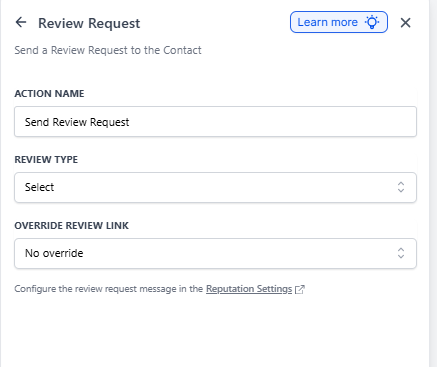
When you add a Review Request action to your automation, you'll need to configure these fields:
Action Name
Required: Yes
Give this action a descriptive name. The default is "Send Review Request", but you can rename it to something like "Post-Tour Review Request" or "After Enrollment Feedback".
Review Type
Required: Yes
Choose how you want to send the review request:
- Email - Sends the request via email
- Text Message - Sends the request via SMS
Message Configuration
Click the "Reputation Settings" link to customize your review request message. This is where you'll:
- Write your message text
- Add your branding
- Include links to your review platforms (Google, Facebook, etc.)
- Set up which review sites to send parents to
Example: Post-Tour Review Request
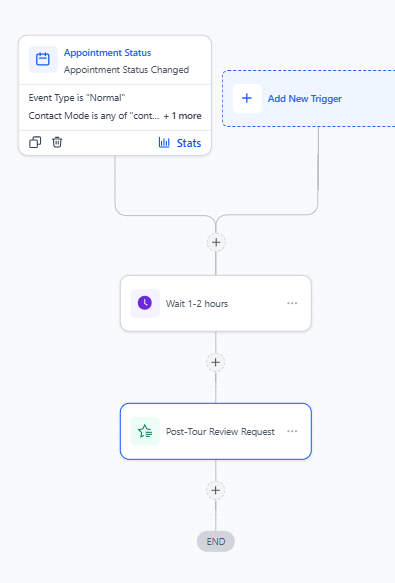
Here's how to set up an automation that asks for reviews after a family tours your center:
Step 1: Choose Your Trigger
Select "Tour Completed" or "Appointment Status Changed" as your trigger.
Step 2: Add a Wait Step
Add a wait step for 1-2 hours after the tour. This gives the family time to get home before you ask for feedback.
Step 3: Configure the Review Request
- Action Name: "Post-Tour Review Request"
- Review Type: Email
- Click Reputation Settings to customize your message
Step 4: Customize Your Message
In Reputation Settings, create a message like:
Hi [First Name],
Thank you for visiting [Center Name] today! We loved meeting your family.
Would you mind sharing your experience? Your feedback helps other families learn about our center.
[Review Link]
Best Practices
- Timing matters: Wait at least 1-2 hours after a tour or interaction before sending a review request
- Keep it short: Parents are busy. Make your request brief and easy to complete
- Make it mobile-friendly: Most parents will see your request on their phone
- Follow up once: If a parent doesn't respond after a few days, you can send one gentle reminder
- Thank them: Whether they leave a review or not, acknowledge their time
What Happens Next
When this action runs, Enrollio sends your review request to the parent. If they click the review link, they'll be directed to your chosen review platform (Google, Facebook, etc.) where they can leave their feedback.
You can track review request performance in your Reputation dashboard to see how many requests you've sent and how many reviews you've received.